

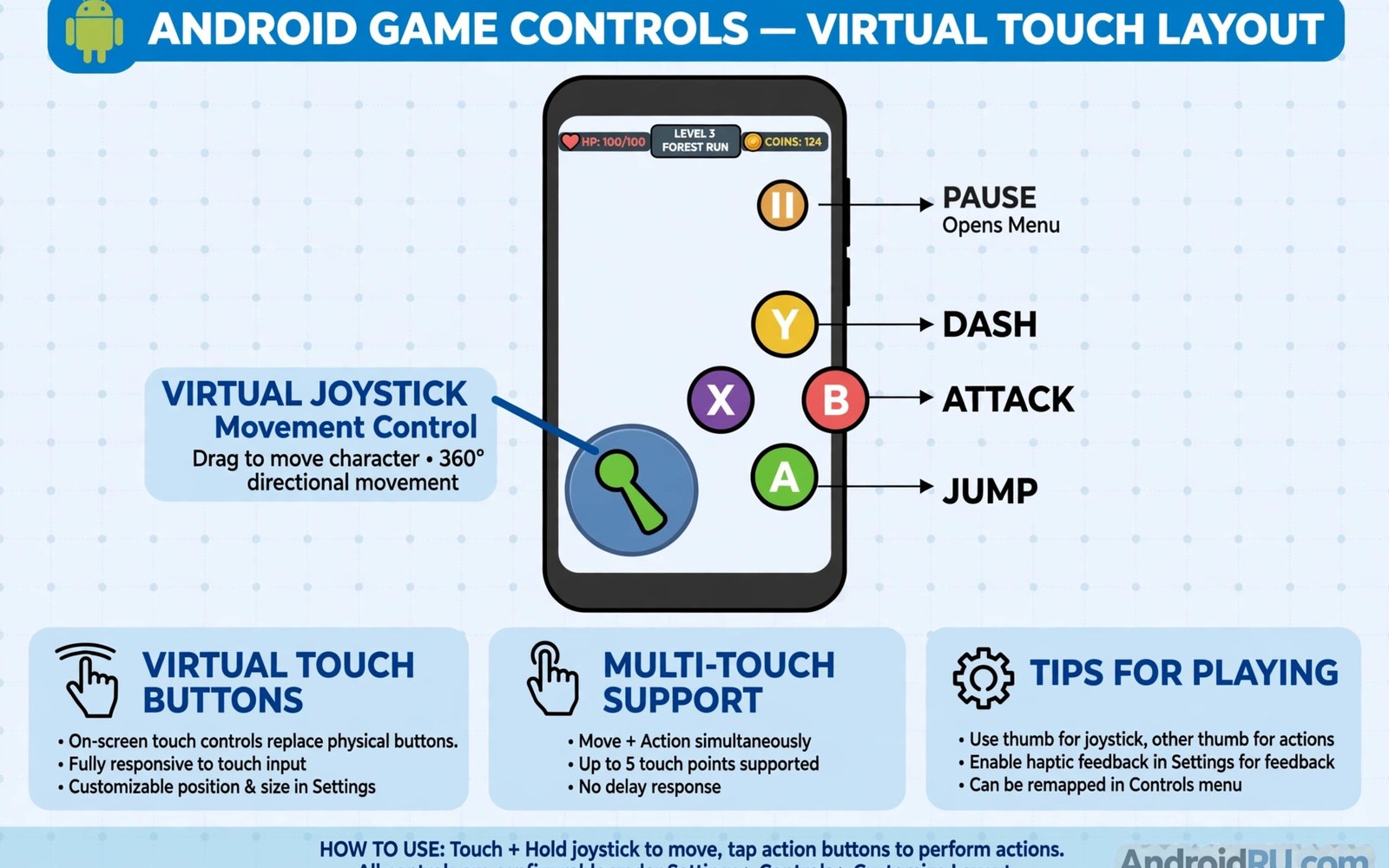
Touch controls cloud gaming translates console titles to phones with mixed success. Console games were built for sticks and triggers. Phones offer glass and thumbs. Cloud services bridge the gap with virtual buttons and custom layouts. Some games adapt well. Others feel clumsy no matter how good the layout looks. This article explains what works and what does not.
Touch layouts vary by game. Some services offer custom layouts per title. Others overlay a generic pad on every game. Custom layouts place buttons where the game needs them. Generic overlays crowd the screen and hide action. The difference decides whether touch play feels fun or frustrating.
How touch layouts work
A touch layout maps game inputs to screen zones. A left virtual stick handles movement. Right side buttons handle actions and jumps. Triggers sit near the top corners. The layout must fit your hand size and thumb reach. Good layouts keep vital buttons near your thumbs. Poor layouts scatter buttons to screen edges.
Opacity and size settings matter. Large buttons are easy to hit but block the view. Small buttons preserve the view but cause mis taps. Find a middle ground for each game. Most apps let you resize and move buttons. Spend ten minutes tuning a layout for a game you play often. That tuning pays off across many sessions.
Haptics help too. A small vibration on button press confirms input without looking. Enable haptics if your phone supports them well. Strong haptics drain battery faster. Light haptics give feedback without much cost.
Genres that suit touch play
Slow games suit touch best. Turn based strategy and card games and story adventures play well. Timing pressure stays low. Button precision matters less. You can play these for hours without a controller and enjoy every minute.
Platformers and racers sit in the middle. Simple inputs work fine. Precise jumps and tight corners suffer. Short sessions feel good. Long hard levels frustrate. Pick easier difficulties for touch play in these genres.
Fast shooters and fighting games suit touch worst. They demand precise aim and frame timing. Virtual sticks lack the fine control of a real stick. Your thumbs also cover enemies on screen. Play these genres with a controller whenever possible. Touch can serve for casual rounds but not serious matches.
Tips for better touch control
Use both thumbs with clear roles. Left thumb moves. Right thumb acts. Avoid reaching across the screen with one thumb. That habit causes mis taps and hand strain. Rest your phone on your fingers rather than gripping hard. A relaxed grip improves accuracy.
Clean your screen before play. Smudges increase friction and slow thumb slides. A matte screen protector can improve glide. Test one if your thumbs stick on bare glass. Small physical tweaks change touch feel more than software settings sometimes.
Lower game difficulty for touch sessions. A forgiving setting turns a frustrating level into a fun one. You can raise difficulty later with a controller. Touch play should stay enjoyable rather than punishing. There is no prize for suffering through bad controls.
A script to plan touch friendly sessions
The script below scores a game for touch play from simple factors you rate yourself. Use it to pick titles for controller free days.
def touch_score(speed, precision, buttons):
    total = 100
    total -= speed * 10
    total -= precision * 10
    total -= buttons * 5
    return max(0, total)

games = [
    ("Story adventure", 2, 2, 3),
    ("Racing game", 5, 5, 4),
    ("Fast shooter", 9, 9, 8),
]
for name, speed, precision, buttons in games:
    score = touch_score(speed, precision, buttons)
    print(name, "touch score:", score)
    if score >= 60:
        print("Good for touch play")
    elif score >= 35:
        print("Playable with patience")
    else:
        print("Use a controller")
This snippet is an original scoring helper written for this article. It is included here so you can rate your own games for touch suitability before a controller free session.
Common mistakes
Many players judge touch controls with a fast shooter first. That genre shows touch at its worst. Start with a slow game to learn the layout system. Another mistake is never customizing layouts. Default layouts fit nobody perfectly. Move buttons to your thumb zones.
Some players grip the phone hard during tense moments. Tension reduces accuracy and causes pain. Relax your grip and take breaks. Others play touch games for hours without breaks. Thumb fatigue builds silently. Pause each hour and stretch.
A final mistake is refusing a controller out of pride. A small pad costs little and transforms fast games. Touch and controller both have a place. Use each where it shines rather than forcing one for everything.
Custom layout sharing and presets
Custom touch layouts improve dramatically when players share presets, because one good layout for a popular game can serve thousands of players. Community preset collections exist for major cloud titles, and trying a popular preset saves the tuning time you would spend alone. Import a preset and adjust only button sizes to fit your hand. Small personal tweaks on a proven base beat building from scratch. Shared presets also reveal button placements you would never invent yourself.
Presets need testing across hand sizes, because a layout built for large hands fails small hands badly. When you share your own preset, note your phone size and hand size in the description. Other players can then judge fit before importing. A preset without context wastes time for players with different hands. Good descriptions make sharing useful rather than random.
Version changes break presets sometimes, because game updates move buttons or add actions. Keep your favorite presets backed up before major game updates. Rebuild quickly after an update by comparing the new default layout with your saved preset. Most updates change little, and a five minute rebuild restores your tuned setup. Players who skip backups rebuild from zero after every patch.
Accessibility options in touch play
Touch play accessibility options open cloud gaming to players with motor and vision differences. Button remapping lets players place vital actions within comfortable reach zones. Larger buttons help players with reduced precision. Slower game speeds in accessibility menus reduce timing pressure for players who need it. These options exist in many cloud apps but hide inside settings menus that players rarely explore. Spend time in accessibility settings before judging a game unplayable.
One handed layouts serve players with limited mobility and players holding a child or a bag. A compact layout clusters movement and actions on one side of the screen. It cannot match two handed precision, but it makes slow games genuinely playable with one hand. Try one handed layouts for story games during commutes when one hand holds a rail. Accessibility features often help everyone in constrained situations.
Color and contrast settings help players with vision differences read touch buttons clearly. High contrast button outlines stand out against busy game scenes. Larger text labels reduce mis taps for players who cannot read small icons quickly. Enable these options even without a diagnosed need when you play in bright sunlight. Sunlight washes out subtle buttons, and contrast settings restore visibility for every player outdoors.
Voice control and switch access remain limited for cloud games today, but progress continues each year. Some Android accessibility tools map voice commands to screen taps for simple games. Turn based titles work best with these tools because timing pressure stays low. Test accessibility tools with slow games first and expand to faster titles only when the setup proves reliable. Patience with new tools pays off as support improves.
Touch play for different age groups
Children adapt to touch controls faster than adults because they grow up with touchscreens as primary input. Young players learn virtual sticks intuitively and rarely miss physical buttons. Their challenge is hand size and session length rather than input method. Short sessions with frequent breaks suit young players best. Parents should set time limits inside cloud apps rather than relying on willpower.
Older players often struggle with touch precision at first because decades of physical buttons shaped their habits. Larger buttons and slower game speeds ease the transition. Story games and puzzles offer gentle introductions to touch play without timing pressure. Confidence builds over weeks of casual play. Dismissing touch entirely after one frustrating session wastes a genuinely useful option.
Players with long nails or calloused hands face practical touch problems that settings cannot fully fix. Capacitive screens respond best to soft fingertip contact. Long nails reduce contact area and cause mis taps. A capacitive stylus offers precision for menu navigation and slow games. Keep a stylus in your gaming kit when nails or gloves interfere with direct touch. Small physical tools solve problems that software cannot.
Practicing touch aim daily
Daily touch aim practice improves accuracy faster than occasional long sessions, because short focused drills build muscle memory efficiently. Spend ten minutes daily in a low stakes game mode practicing movement and aiming separately. Focus on smooth thumb slides rather than fast flicks. Smooth control beats jerky speed for consistent accuracy. Track your scores weekly to see gradual improvement that daily play hides.
Aim training apps for mobile devices offer structured drills that cloud games lack. Use them for warmups before cloud sessions. Five minutes of aim drills primes thumbs and eyes for the session ahead. Warmups reduce early match mistakes that frustrate players. Treat warmups like athletes treat stretching, as preparation rather than wasted time.
FAQ
Can I finish console games with touch controls only?
Yes for slow and story driven games. Fast action games remain hard without a controller. Pick genres that suit touch for controller free play.
Why do touch buttons block the game view?
Virtual buttons must sit on screen to be reachable. Lower opacity and smaller sizes help. A controller removes the problem entirely for action titles.
Do all cloud games support touch controls?
No. Some games offer full touch layouts. Others need a controller. The app usually marks touch friendly titles clearly before you launch.
Touch play feels different once you compare it with real controllers and real services. The notes on best gamepads for cloud streaming show what a good pad adds for action games. The Xbox Cloud Gaming setup and performance review marks which titles support touch layouts. The cloud gaming services compared page helps you pick a service with strong touch friendly titles.
Conclusion
Touch controls translate console titles to phones with clear limits. Slow games shine. Fast games struggle. Layout tuning and genre choice decide most of the experience. Use touch for casual and story play on the go. Keep a controller for action and competition. Your next step is simple. Open your cloud app tonight and filter for touch friendly titles. Then play one slow game with a tuned layout for a full session and judge touch fairly on its best ground.

