

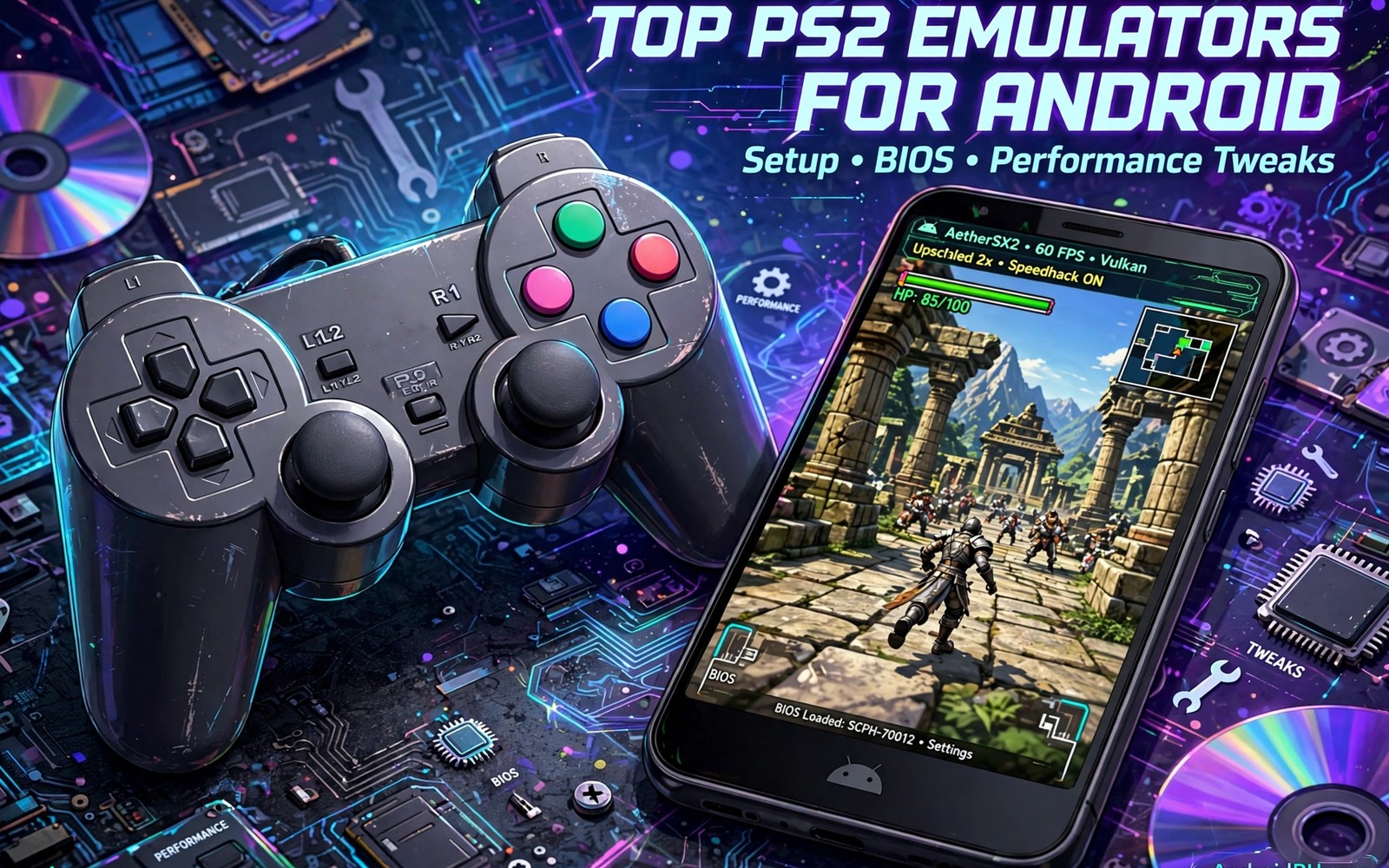
PlayStation 2 games still hold up well today. Their worlds feel large and their stories still pull players in. PS2 emulators for Android bring those worlds to a phone screen. The setup needs more care than a light retro system. This article explains each step in a calm order.
A PS2 emulator does heavy work on a phone processor. It must copy a complex console with many parts. That is why phone strength matters more here. A mid range phone can still run many titles with tuning. A flagship phone simply gives you more headroom.
Set your expectations before you start. Not every game will run perfectly on every phone. Some games need tweaks and some need patience. A heavy console title faces similar limits on mobile hardware. Testing one game at a time keeps the project enjoyable.
What you need before setup
You need a PS2 emulator app and a console BIOS file from your own console. The BIOS is the basic software that the console used at startup. Emulators need it to behave like real hardware. Keep the BIOS file in a safe folder that you can find again. You will point the emulator at it once during setup.
You also need game files in a format the emulator can read. Disc images are the common form for PS2 titles. Store them in a folder that is easy to browse. Large files need free storage space on your phone. Check your free space before you copy a big library.
First run and BIOS setup
Open the emulator and complete the first run wizard slowly. The wizard asks for the BIOS folder and basic settings. Point it at the folder that holds your BIOS file. Do not rush past the prompts. A correct first run prevents strange errors later.
Run a quick test with a light game if you have one. A light game shows whether the BIOS setup worked. It also shows whether controls feel right. Fix basic issues now before you test a demanding title. Early fixes save a lot of later confusion.
Graphics settings that matter
Resolution scaling is the most powerful graphics option. It sharpens the picture but it costs processor power. Start at the native resolution for your first test. Raise it one step at a time and watch the speed. A sharp picture means little if the game stutters.
Texture filtering can smooth rough edges in older games. It helps some titles and hurts others. Test it per game rather than for the whole library. Per game settings are one of the best features of modern emulators. Use them freely once you know the global defaults.
Speed and stability tweaks
Frame skipping can help a struggling game but it changes how motion feels. Use it only as a last resort for a game that lags badly. A small skip value often helps more than a large one. Test the same scene before and after each change. Consistency beats raw speed for playability.
Audio settings also affect how smooth a game feels. Crackling sound often signals that the processor is overloaded. Lower the graphics load before you blame the audio code. A cooler phone with lower settings usually sounds better too. Balance matters more than any single slider.
Controls for 3D games
PS2 games expect two sticks and pressure sensitive buttons. Touch controls can cover many games but they need care. Place the right stick where your thumb can reach it without strain. Test camera control in a real level. Camera trouble ruins a 3D game faster than any graphics flaw.
A physical controller is the best upgrade for PS2 play on a phone. It restores the original feel of the console. Clip the phone to the controller or prop it on a stand. A stable viewing angle reduces neck strain during long sessions. Comfort is part of performance.
Tuning one demanding game deeply
Pick a single demanding game and commit to tuning it properly. A deep tune teaches more than shallow tests across ten games. Start with the default settings and record the speed in a busy scene. Change the resolution one step and record the speed again. A written record shows which change helped and which hurt. Without a record you will repeat the same tests many times. A notebook or a phone note works fine for this log. Keep entries short and dated for easy review later.
Test the same scene every time you change a setting. A fixed scene gives comparable numbers across tests. A busy battle scene stresses the emulator more than a quiet town. Use that busy scene as your benchmark for the whole tune. Repeat the scene three times to catch random variation. A single run can mislead through background activity. Three runs give a trustworthy average for comparison. Trust averages and not single lucky runs.
Stop tuning when the game feels smooth and stable. Perfect settings do not exist for every phone and game. A smooth game at modest graphics beats a stuttering game at high graphics. Enjoy the game once the tune passes your own comfort test. You can return to tuning later if a new update changes behaviour. Play time is the reward for tuning work. Do not let tuning consume the time meant for play.
BIOS care and backup habits
Treat your BIOS file like an important personal document. Keep the original copy in a safe folder outside the emulator folder. Copy it to a backup location such as a computer or cloud storage. A backup protects you when a phone changes or fails. Losing a BIOS file means repeating a setup you already completed. A two minute backup prevents that repeated work entirely. Label the backup clearly so future you can find it fast.
Never share your BIOS file with other players online. Sharing copyrighted system software creates legal risk for everyone involved. Friends should obtain their own BIOS from their own hardware. That rule protects both you and the friend. Private personal use stays far safer than any distribution. Keep the file on your own devices and nowhere public. A private file is a safe file in this context.
Check the BIOS setup again after a major emulator update. Updates can reset paths or change file handling in small ways. A quick check takes a minute and prevents confusing errors later. Point the emulator at the BIOS folder if the path looks wrong. Run a light game to confirm the setup still works. Early checks after updates save long troubleshooting sessions. Make the check part of your update routine always.
Recording your gameplay sessions
Recording a PS2 session on a phone needs planning before play. Screen recording adds processor load on top of emulation. That extra load can turn a smooth game into a stuttering one. Lower graphics settings slightly before you start recording. A small reduction preserves smooth motion in the recording. Test a short clip before recording a long session. A short test reveals quality problems early and cheaply. Recorded memories deserve the same care as live play.
Choose a recording resolution that matches your sharing plan. Full resolution clips look best but consume storage fast. A moderate resolution suits social sharing and personal archives. Storage planning matters because PS2 sessions run long. Check free space before a planned recording session. A full storage warning mid recording loses the moment. Delete old clips regularly to keep space ready. Ready space turns spontaneous recording into a habit.
Audio recording needs attention beside video quality. Game sound plus microphone commentary can clash badly. Test audio balance in a short clip first. Lower game volume slightly when commentary matters most. Keep commentary short and timed to quiet game moments. Good commentary adds personality without hiding game sound. A balanced clip feels professional even on a phone. Balance is the difference between a clip and a keepsake.
Store finished clips separately from game files and saves. A dedicated clips folder keeps the library tidy. Back up favourite clips to a computer or cloud storage. Phone storage loss should not erase recorded memories. Label clips with game name and date for easy finding. Clear labels turn a folder of clips into an archive. An archive grows in value as years pass. Future you will enjoy well labelled clips far more.
Common mistakes
The biggest mistake is raising every graphics option at once. High resolution plus heavy filtering overloads most phones. The game then stutters and the player blames the emulator. Start low and raise one option at a time. You will find the real limit of your phone quickly.
Another mistake is testing only the title screen. Title screens are light and they hide performance problems. Test a busy gameplay scene with enemies and effects. That scene shows the true cost of your settings. A game that passes a busy scene will usually stay smooth.
Do not copy settings from a different phone model blindly. A setting that works on a flagship may fail on a mid range phone. Use other players settings as a starting hint only. Test each value on your own device. Your phone is the only judge that matters.
A practical example you can try
adb shell dumpsys gfxinfo | head -40
# watch frame times while a game runs
# lower resolution one step if frames stay uneven
This snippet is an original example written for this article. It shows the idea in a compact form that you can adapt to your own setup and change as you learn what works best on your phone.
Frequently asked questions
Is a BIOS file really required?
Yes for most PS2 emulators on Android. The BIOS provides the startup behaviour of the real console. You must supply it from your own console. Keep it safe and point the emulator at its folder once. The setup then stays done for future games.
A BIOS file provides the startup code of the original console hardware. Emulators use it to behave like the real machine at boot. Without it many console emulators cannot start games correctly. Obtain it only from hardware you own where the law allows. Store it safely and point the emulator at its folder once.
Why do some games run slower than others?
Games differ in how hard they push the original hardware. A busy 3D world costs more than a simple menu driven game. Your phone must copy all that work in real time. A demanding modern emulator shows the same pattern on phones. Tune per game for the best balance.
Game engines differ in how much work they demand from the emulator. A large open world costs far more than a small arena game. Effects and enemy counts add to the load in busy scenes. Your phone must copy all that original work in real time. Per game tuning balances each title against your phone limit.
Can custom drivers help PS2 games?
Sometimes they can on phones with supported graphics chips. A custom graphics driver may fix a rendering bug or lift speed. Test drivers carefully and keep a backup of the working setup. A driver that helps one game may hurt another.
Custom drivers help only on phones with supported graphics chips. They may fix a rendering bug or lift speed for a specific game. They may also break a different game on the same phone. Test a driver with a backup of the working setup ready. Keep the stock driver as a safe fallback always.
Conclusion
Your concrete next step is to set up one game properly. Complete the BIOS setup and test a busy scene at native resolution. Raise the resolution one step only if speed stays stable. That single well tuned game proves your phone can handle PS2 play. Then repeat the process for the next title you love.
Write down your final settings for this game before you move on. A short note with resolution and special options is enough. That note lets you rebuild the setup after an update in minutes. It also helps a friend with the same phone model. Good notes turn one tuned game into a reusable template.

