

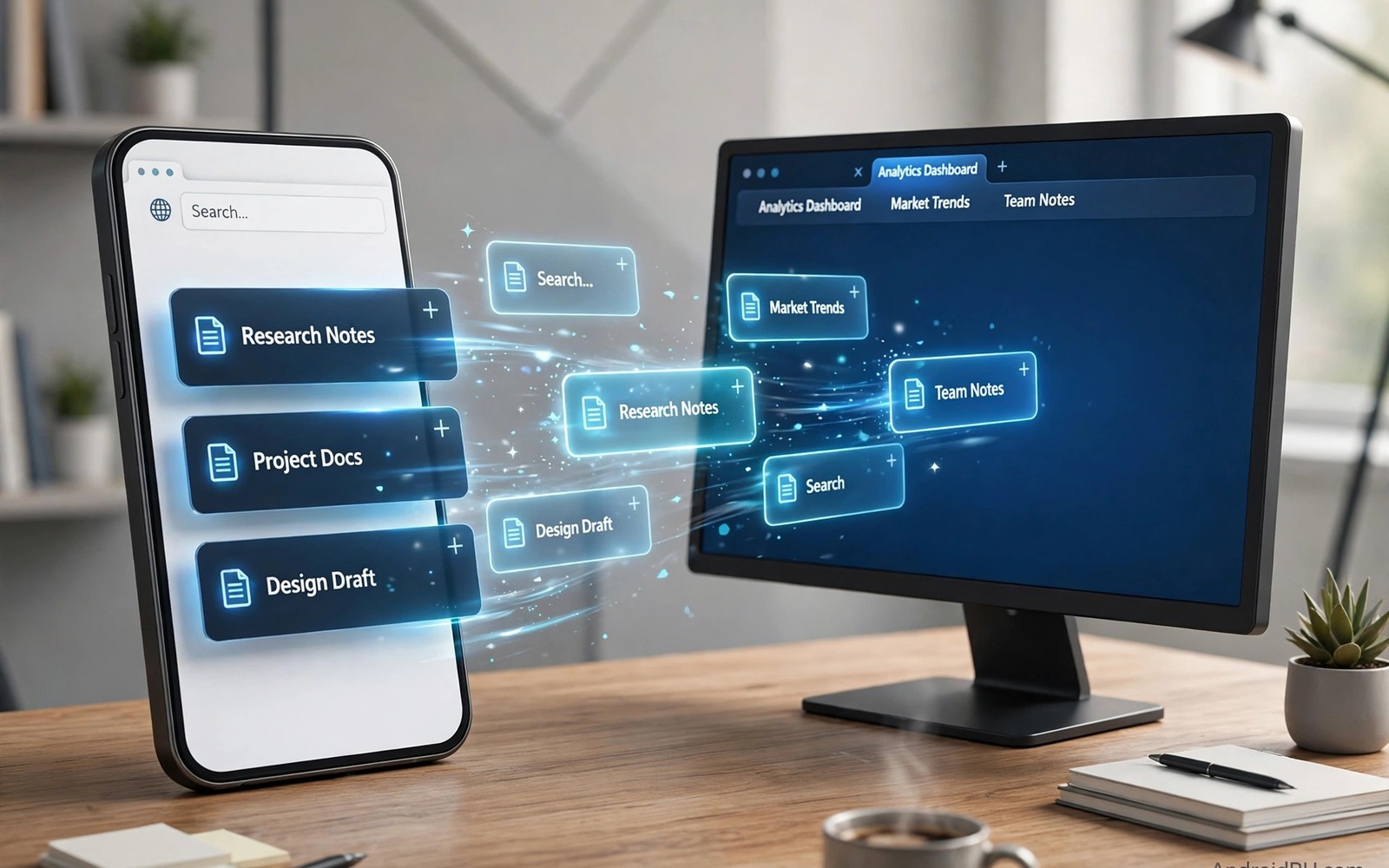
You start reading on your phone during a commute. Later you want the same page on your desktop. Hunting for the link again wastes time. Tab sync bridges that gap with ease.
Modern browsers sync open tabs across devices. You sign in once on each device. Tabs then appear in a shared list. This guide makes that flow reliable. Readers who want a wider view can also explore cloud workspace documents for a related setup.
How Tab Sync Works
The browser stores your open tabs in your account. Other signed in devices read that list. You open any tab from the list with one click. Closed tabs may also appear in history.
Sync needs internet on both devices. Changes take seconds on a good connection. Offline devices update when they reconnect. Nothing syncs if you use different accounts.
Setting Up Sync on Phone and PC
Sign in to the same browser account everywhere. Turn on sync in browser settings. Make sure tabs are included in sync types. Some setups sync bookmarks but skip open tabs.
Open a test page on your phone first. Then check the synced tabs list on your PC. If it appears then sync works. If not then check account and sync toggles.
Sending Single Tabs Instantly
You can send one tab to a specific device. Right click the tab on desktop and pick the device. On mobile use the share menu to send it. The tab opens or notifies on arrival.
Single tab sending suits urgent links. Full tab sync suits ongoing research. Use both methods for different needs. Sending avoids clutter in the shared list.
adb shell dumpsys activity activities
# not needed for browser sync checks
# browser sync lives in account settings
# verify account matches on both devices
The snippet above follows standard operating system documentation and widely shared setup guides. It shows a typical pattern rather than a vendor specific promise. Results can vary by device model and system version. Always test a small change before you rely on it daily.
Tab Groups Across Devices
Tab groups keep research topics tidy. Group work tabs and personal tabs separately. Some browsers sync groups across devices. Others sync tabs but flatten the groups. A related workflow is covered in clipboard sharing for readers who want more depth.
Name groups clearly for later recall. A vague name helps no one next week. Close stale groups during weekly cleanup. A lean tab list stays useful longer.
Privacy for Synced Tabs
Synced tabs reveal your browsing to account holders. Shared family accounts can expose private pages. Use a personal account for sync. Turn off sync on shared PCs entirely.
Sign out of the browser on borrowed computers. A forgotten sign in leaks future tabs. Check signed in devices monthly. Remove devices you no longer own.
Fixing Sync Failures
If tabs do not appear then sign out and back in. This refreshes the sync token cleanly. Check that sync is not paused by policy. Work profiles can restrict sync features.
If only some tabs sync then close excess tabs. Very large tab counts can delay sync. Keep open tabs under a sane number. Archive research links into bookmarks instead.
Browsing Habits That Flow
Start research on the device at hand. Continue on the larger screen later. Bookmark finished research for reference. Let sync handle the middle step quietly.
Syncing History Across Devices
History sync lets you revisit phone pages on PC. It also lets you revisit PC pages on phone. History sync needs the same account everywhere. Some browsers sync history separately from tabs. Enable both for a complete flow. History fills gaps when tab sync fails.
History privacy deserves attention on shared devices. Browsing history reveals interests and research. Clear history on shared PCs after use. Use private windows for sensitive research. Private windows do not sync history at all. Separation protects sensitive topics cleanly.
Bookmarks Versus Open Tabs
Bookmarks suit pages you revisit for months. Open tabs suit pages you need this week. Move stale tabs into bookmarks weekly. This habit keeps tab counts manageable. A bookmark folder by project works well. Review bookmark folders quarterly for dead links.
Sync failures affect bookmarks less than tabs. Bookmarks sync as stable stored data. Tabs change constantly and sync lags more. Trust bookmarks for critical research links. Use tabs for transient reading only. This distinction prevents lost research panic.
Reading Lists for Later
Reading lists save articles without keeping tabs open. Save phone articles to the reading list. Open them later on the larger PC screen. Reading lists sync across signed in devices. They use little storage compared with tabs. Offline reading works for saved articles too.
Review reading lists weekly to avoid buildup. Delete articles you will never read. Honesty about reading intentions saves clutter. Keep the list under twenty items ideally. A short list gets read more often. Long lists become graveyards of good intentions.
Syncing Passwords and Addresses Too
Browser sync often includes passwords and addresses. This convenience speeds checkout forms greatly. It also concentrates sensitive data in one account. Protect the browser account with strong authentication. Enable two factor authentication immediately. A browser account breach exposes many logins.
Addresses sync helps mobile checkout on small screens. A saved address fills forms with one tap. Verify the address before each order ships. Old addresses cause delivery mistakes often. Delete outdated addresses promptly. Accuracy matters more than speed for shipping.
Multiple Profiles for Work and Personal
Browser profiles separate work and personal browsing. Each profile syncs its own tabs and history. Switching profiles takes two clicks on PC. Mobile profile switching varies by browser. Use profiles to prevent work tabs leaking personal. Separation also simplifies focus during work hours.
Profile sync needs separate accounts per profile. A work account syncs work profiles only. A personal account syncs personal profiles only. Never mix accounts across profiles accidentally. Check the profile avatar before sensitive browsing. Avatar checks become second nature quickly.
When Sync Should Stay Off
Sync should stay off on public computers entirely. A signed in browser leaks future tabs. Sign out is not enough if sync resumes. Remove the profile from public machines. Use guest mode for public browsing needs. Guest mode wipes data when closed.
Sync should also pause during sensitive investigations. Journalists and researchers need compartmentalization. A separate browser without sync protects sources. Use it for sensitive topics only. Regular browsing can stay synced normally. Compartmentalization is a professional skill.
Syncing Tabs Between Phone and Tablet
Phone tablet sync works like phone PC sync. Same account connects all three devices. Tabs move fluidly between all screens. Start reading on phones during commutes. Continue on tablets at home comfortably. Finish research on PCs at desks. Three device flow feels seamless when configured.
Tablet browsers offer desktop style tab bars. Tab bars show many tabs simultaneously. Phone browsers hide tabs behind menus. Visual differences affect workflow habits. Adapt habits to each screen size. Each device excels at different browsing stages.
Tab Sync and Data Usage
Tab sync uses minimal data for tab lists. Page content loads only when opened. Opening many synced tabs consumes data. Mobile data users should open selectively. Wi-Fi connections suit bulk tab opening. Data awareness prevents bill surprises monthly. Sync itself costs almost nothing data wise.
Background sync drains little battery typically. Sync intervals are infrequent and lightweight. Battery impact stays negligible for most users. Disable sync only for extreme battery saving. Normal users benefit more than battery costs. Sync value exceeds its tiny resource cost.
Recovering Closed Tabs Across Devices
Recently closed tabs sync across devices too. Reopen accidentally closed tabs from history. History sync preserves closed tab records. Recovery works even after device restarts. Closed tab recovery saves research sessions. Accidental closures happen to everyone eventually. Recovery features rescue hours of work.
Session restore after crashes uses synced tabs. Crashed browsers restore previous sessions. Synced tabs supplement local session data. Combined recovery rarely loses work. Trust session restore but bookmark critical pages. Bookmarks provide ultimate safety nets always.
Tab Sync for Research Projects
Research projects generate dozens of open tabs. Sync keeps project tabs available everywhere. Project tab groups organize research topics. Name groups by research questions clearly. Group names guide future recall effectively. Organized groups beat chaotic tab piles. Research quality improves with organization.
Archive completed research tabs into bookmarks. Bookmarks preserve sources after projects end. Citations need stable source records. Tab lists vanish when tabs close. Bookmark archives persist indefinitely for citation. Academic integrity needs persistent source records.
Browser Extensions and Tab Sync
Extensions do not sync tab content directly. Extension settings may sync separately though. Tab managers extend native sync features. Session managers save tab sets manually. Manual session saves complement automatic sync. Use managers for complex project tab sets. Automation plus manual saves covers all cases.
Extension conflicts can disrupt tab sync occasionally. Disable extensions when sync fails mysteriously. Re enable extensions one by one carefully. Identify the conflicting extension precisely. Replace conflicting extensions with alternatives. Systematic isolation solves extension mysteries reliably.
Tab Sync Across Browsers
Different browsers sync tabs within own ecosystems. Chrome tabs do not sync to Firefox. Cross browser tab sharing needs manual links. Send links through email or messages. Manual sharing works but lacks automation. Single browser ecosystems simplify sync greatly. Commitment to one browser eases tab sync.
Browser choice affects extensions and features too. Tab sync is one factor among many. Privacy features vary across browsers significantly. Extension libraries differ in breadth notably. Choose browsers holistically not solely for sync. Sync convenience should not override privacy needs. Balanced browser choice serves long term interests.
Tab Hoarding Psychology
Tab hoarding reflects fear of losing information. Open tabs feel like pending tasks. Unclosed tabs create mental clutter gradually. Anxiety grows with tab counts silently. Closing tabs feels like losing opportunities. Bookmarking eases closure anxiety effectively. Bookmarks preserve access without visual clutter.
Weekly tab closures improve mental clarity measurably. Schedule tab review sessions every Friday. Close tabs no longer relevant ruthlessly. Bookmark valuable tabs before closing them. Celebrate empty tab bars occasionally. Empty bars symbolize completed work beautifully. Clarity rewards disciplined tab habits.
Start with one small change today and build from there. A steady setup beats a rushed overhaul every time. You can also read Phone Link setup to round out your plan. Once the basics feel natural you can add more advanced options at your own pace.

