

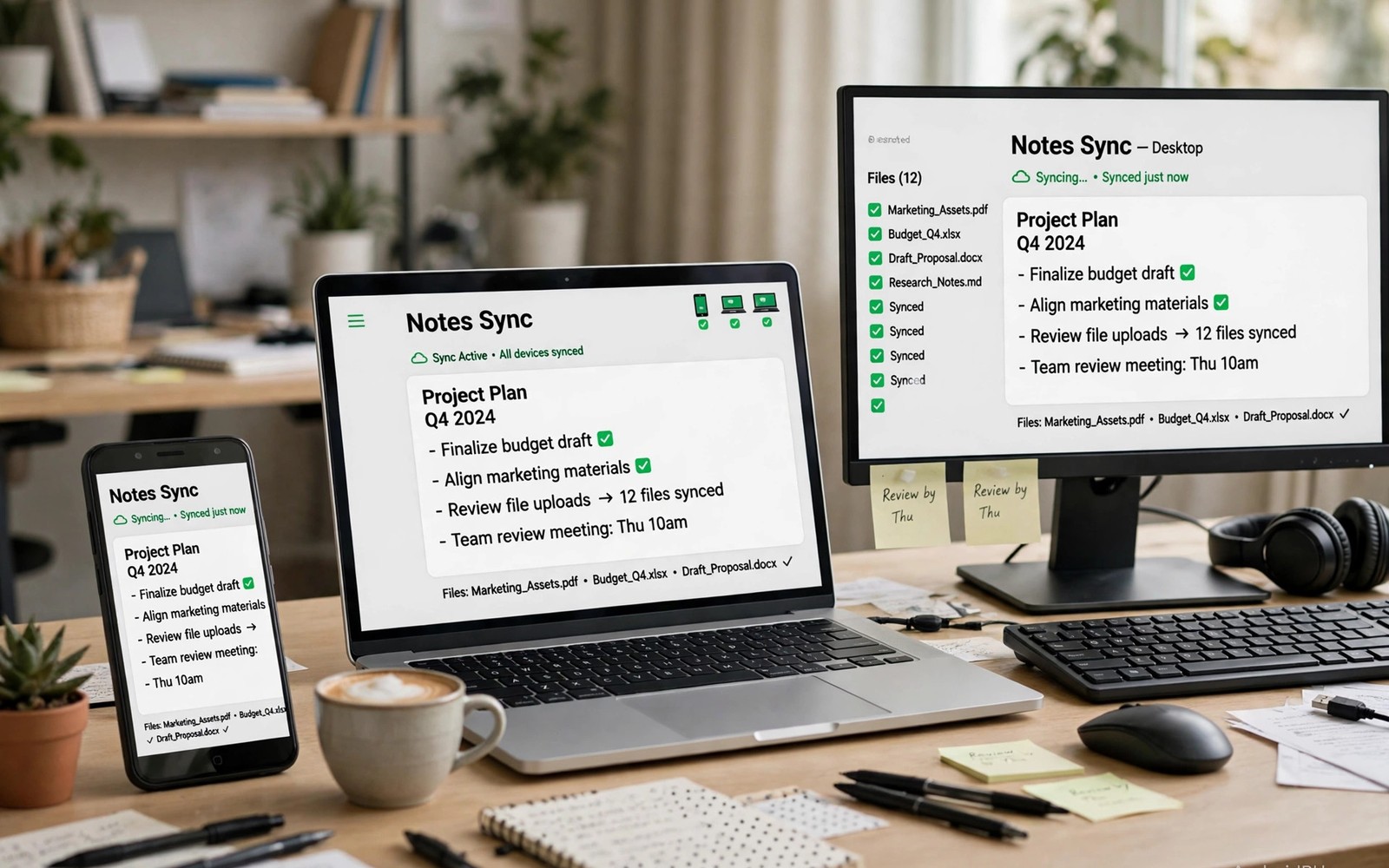
Best Cross-Platform Apps for Syncing Android with Windows and Mac
A note started on the phone should be on the laptop by the time you sit down. A photo taken at lunch should be ready to edit on the desktop that evening. A file saved on Windows should open on Android without a cable, an email to yourself, or a hunt through chat history. That is the whole promise of cross-platform sync, and when it works you stop thinking about devices entirely. You think about the work, and the work is simply there.
When it does not work, the cost is quiet but real. You end up with three copies of the same document, each with different edits. You reply to a message on the laptop and the phone still shows it unread. You lose twenty minutes a day to moving files around, and you start to distrust your own setup. I have lived in both versions of that life, and the difference was never the hardware. It was picking one service per job and setting it up properly, instead of collecting five half-used sync tools.
This guide covers the sync jobs that matter most: messages and calls, files and photos, notes and tasks, and direct phone-to-computer transfers. For each job I name the apps that actually do it well in 2026, with honest pros, cons, and a verdict on who each one suits. You will also get a comparison table, a setup routine that avoids duplicate files, and fixes for the sync failures that show up most often. For the times when no connection is available at all, keep offline apps for seamless use without internet in mind as a backup plan, so a dead zone never stops your day.
What Cross-Platform Sync Really Means in 2026
Sync is not the same as backup, and mixing the two up is how people lose work. A backup is a copy you restore after a disaster. Sync is a live mirror: change a file on one device and the same change appears on the others within seconds. That live mirror is wonderful when it works and dangerous when it goes wrong, because a deletion on one device can delete the file everywhere. Every app in this guide handles that risk differently, and that difference matters more than any feature list.
There are three kinds of sync to know. Cloud sync sends your data through a server run by the app maker, which makes it work anywhere with an internet connection but means a third party holds your files. Local sync moves data directly between your own devices over Wi-Fi, which keeps your files at home but only works when the devices are near each other. Hybrid sync uses the cloud for convenience and local transfer for speed, and most of the best tools today are hybrids of one kind or another.
The rule that saved my setup is simple: one service per job, used everywhere. One app for files. One app for notes. One app for messages and notifications. The moment two services try to sync the same folder, you get conflicts, duplicates, and files named with a computer name and a date stapled to the end. Pick one, commit to it for a month, and only switch if it fails a real test on your real devices.
One service per job keeps sync simple
Start with the job you repeat most often. For most people that is files and photos, followed by messages, then notes. Write down which app handles each job today, and look for the overlaps. If Google Drive and Dropbox both sync your documents folder, one of them has to go. If your notes live in three apps, pick the one with the best Android and desktop apps and move the rest into it over a weekend. The cleanup takes an hour. The time it saves every week after that is far larger.
The 8 Best Cross-Platform Apps for Syncing Android With Windows and Mac
These eight apps cover every sync job worth paying attention to, and each one earned its place by working well on Android plus at least one desktop system. They are not ranked by hype. They are ordered by how broadly useful they are, starting with the tools that tie a phone and a computer together most completely.
1. Microsoft Phone Link (Link to Windows)
Phone Link, known on Android as Link to Windows, is the closest thing to making an Android phone a part of a Windows PC. It mirrors notifications, lets you read and reply to text messages from the computer keyboard, shows recent photos, and on supported Samsung and Honor phones it mirrors the whole phone screen and lets you run Android apps in windows on the PC. Calls can be made and taken from the PC through the phone, with the phone staying in your pocket.
It is for Windows users who live at a desk and want the phone to fade into the background during work hours. Setup takes about five minutes: install Link to Windows on the phone, open Phone Link on Windows 10 or 11, scan the QR code, and grant the permissions it asks for. The connection runs over Wi-Fi on the same network, with Bluetooth for calls.
Pros: it is free, built into Windows, and message and notification sync are genuinely reliable. Photo access is fast, and screen mirroring on supported phones is smooth enough for real use. Cons: it is Windows-only, so Mac users get nothing here. App mirroring works only on a limited list of phone models, and the connection can drop when the phone switches Wi-Fi networks. Verdict: if you use Windows daily, install this first and judge everything else against it.
Setting up Phone Link without notification overload
Phone Link mirrors every notification by default, which turns a calm desktop into a noisy one. Open Phone Link settings, go to notifications, and switch off mirroring for games, shopping apps, and social apps that do not need a reply. Keep it on for messages, calls, and calendar alerts. That one change is the difference between Phone Link feeling helpful and feeling like a second phone shouting from your desk.
2. KDE Connect
KDE Connect is a free, open-source tool that links an Android phone to Windows, Mac, and Linux over local Wi-Fi, with no cloud server in the middle. It shares the clipboard, mirrors notifications, lets you reply to messages from the desktop, sends files in either direction, and even turns the phone into a remote control for media playback and presentations. Your files never leave your own network unless you choose to send them elsewhere.
It is for people who care about privacy and do not want their messages and files passing through a company server. It is also for Linux users, who get the most polished version of all, and for anyone who likes tools they can inspect and trust. Setup means installing KDE Connect on the phone and on the computer, then pairing the two while both are on the same Wi-Fi network.
Pros: it is free and open source, it works on Windows, Mac, and Linux, and nothing is uploaded to a cloud account. File transfer over local Wi-Fi is fast, and the clipboard sharing is the kind of small feature you miss the moment it is gone. Cons: setup is less polished than Phone Link, some features need extra steps on Windows and Mac, and there is no cloud fallback, so nothing syncs when the devices are on different networks. Verdict: the best choice for privacy-minded users and for mixed Linux households.
3. AirDroid
AirDroid has been moving files and messages between Android and computers for more than a decade, and it still does that job with a friendly interface. It offers file transfer over Wi-Fi and the web, notification mirroring, message replies from the desktop, remote camera access, and a web client that works in any browser without installing desktop software. That web client is its secret weapon: you can reach your phone from a borrowed computer with nothing to install.
It is for people who work on many different computers, including ones they do not own, and who want phone access through a browser tab. It also suits owners who want remote access to their phone from outside the home network, which the free local tools cannot offer. The free tier covers local transfer and basic mirroring, while the premium tier adds remote access, larger transfers, and more devices.
Pros: the web client works anywhere, file transfer is simple to understand, and remote access is genuinely useful when you leave the phone at home. Cons: the best features sit behind a subscription, the free tier has transfer limits, and the interface carries more ads and prompts than its rivals. Verdict: a strong pick for people who need browser-based access, and worth the premium only if you use the remote features weekly.
4. Google Drive
Google Drive is the default file sync for most Android owners, and that is not an accident. It is built into Android, it comes with 15 GB free shared with Gmail and Google Photos, and its desktop app keeps a folder on Windows or Mac in step with the cloud. Files edited on the phone appear on the computer within seconds, and the same files open in Google Docs, Sheets, and Slides without conversion. Offline files can be marked for use without a connection, and changes upload when the connection returns.
It is for anyone already living in Google services, which is most Android owners. Students, small teams, and families get the most from it, because sharing a folder or a document takes two taps and the other person needs no new account. It is also the simplest way to keep phone photos backed up alongside documents in one place.
Pros: deep Android integration, generous free tier, strong sharing and collaboration, and reliable sync across Windows, Mac, and the web. Cons: 15 GB fills up fast once photos are included, the desktop app can be heavy on older computers, and your files live on Google servers, which privacy-minded users may not want. Verdict: the safe default for file sync, and the right answer for most readers unless privacy or price pushes you elsewhere.
5. Microsoft OneDrive
OneDrive is Microsoft’s cloud file service, and it shines brightest for people who use Windows and Microsoft 365. It comes with 5 GB free, and Microsoft 365 subscribers get 1 TB per person, which makes it the best value cloud plan for heavy file users. Its desktop integration on Windows is the tightest of any service here: files appear in File Explorer as if they were local, with on-demand download that keeps the hard drive light. On Android, it backs up photos and documents, and it syncs with the Office apps for editing on the move.
It is for Windows users, Office users, and anyone who already pays for Microsoft 365. Families on a Microsoft 365 plan get up to 6 TB shared across six people, which is hard to beat on price per gigabyte. Mac users get a solid desktop app too, though the integration is not as deep as on Windows.
Pros: 1 TB with Microsoft 365 is excellent value, Windows integration is the best in this list, and Office document sync is smooth. Cons: the free tier is only 5 GB, the Android app is less polished than Drive, and heavy users can hit sync delays with very large folders. Verdict: the best file sync if you already use Windows and Office every day, and a poor pick if you use neither.
6. Dropbox
Dropbox invented the simple sync folder, and it still does that one job with a reliability the bigger services sometimes envy. Put a file in the Dropbox folder on any device and it appears on the others, with version history that lets you recover a file you overwrote by mistake. It works on Android, Windows, Mac, and Linux, and its sharing links are the most widely understood way to send a large file to someone who has never used the service.
It is for people who value reliability and simplicity over free gigabytes, and for teams that share files with clients who use different systems. Freelancers, photographers, and small studios have kept Dropbox for years because it rarely loses a file and its version history has saved more than one project.
Pros: the most reliable sync engine in this list, excellent version history, and sharing that works with anyone. Cons: the free tier is only 2 GB, which is the smallest here, and paid plans cost more per gigabyte than Drive or OneDrive. Verdict: worth paying for if file reliability is your livelihood, and overkill if you only sync a few documents.
7. Syncthing
Syncthing is a free, open-source sync tool that moves files directly between your own devices with no cloud server at all. You add a folder on the phone, add the same folder on the computer, and Syncthing keeps them identical over Wi-Fi or the internet, encrypted end to end. There is no account, no subscription, and no storage limit beyond the space on your own devices. It runs on Android, Windows, Mac, and Linux.
It is for people who want full control of their data and are comfortable with a setup that asks a few more questions than a consumer cloud app. It suits owners with large photo or video collections who do not want to pay monthly cloud fees, and owners who sync between a home computer and a phone without trusting a third party with the files.
Pros: completely free, no cloud server holds your data, no storage limit, and it works on every major system. Cons: setup is technical, there is no web access to your files, and sync only happens when both devices are online, so it cannot replace a cloud backup. Verdict: the best sync tool for privacy and large libraries, and the wrong tool if you want something that works with zero setup.
Keeping Syncthing from draining the battery
Syncthing runs in the background, and on some phones the battery saver will kill it, which stops sync without any warning. Open the battery settings for Syncthing on Android and set it to unrestricted, and turn off any battery optimisation for it. On the computer, set Syncthing to start at login. Check the web interface once after setup to confirm both devices show as connected, and check again after a system update, because updates sometimes reset battery permissions.
8. LocalSend
LocalSend is a free, open-source app for sending files directly between nearby devices over local Wi-Fi, with no account and no internet connection needed. Open it on the phone and the computer, pick a file, and it arrives in seconds. It works on Android, Windows, Mac, Linux, and iOS, and it is the closest thing to the old Bluetooth file transfer, rebuilt for modern speeds and modern file sizes.
It is for quick one-off transfers: a video too large for email, a batch of photos to a friend’s laptop, a document to a work computer that is not yours. It is not a sync service, and it does not pretend to be one. Nothing is kept in step automatically, and nothing is backed up. What it does, it does fast and without an account.
Pros: free, no account, no cloud, very fast on local Wi-Fi, and it works across Android, Windows, Mac, and iOS. Cons: it only works when devices are nearby on the same network, it does not sync folders automatically, and there is no history or version control. Verdict: install it alongside your real sync app, and use it for the quick transfers that do not deserve a cloud upload.
Comparison Table: The 8 Sync Apps at a Glance
The table below compares the eight apps on the points that decide a real purchase or install: which systems they cover, what they cost, whether your data passes through a cloud server, and what they are best at. Use it to narrow the list to two candidates, then test those two on your own devices for a week before you commit.
| App | Systems | Price | Cloud server | Best for |
|---|---|---|---|---|
| Phone Link | Android + Windows | Free | Microsoft account | Messages and notifications on Windows |
| KDE Connect | Android + Windows, Mac, Linux | Free | None, local only | Private local sync and clipboard sharing |
| AirDroid | Android + Windows, Mac, web | Free tier, paid premium | Yes for remote access | Browser access from any computer |
| Google Drive | Android + Windows, Mac, web | 15 GB free, paid plans | Yes | Everyday files and Google collaboration |
| OneDrive | Android + Windows, Mac, web | 5 GB free, 1 TB with Microsoft 365 | Yes | Windows and Office users |
| Dropbox | Android + Windows, Mac, Linux | 2 GB free, paid plans | Yes | Reliable sync and version history |
| Syncthing | Android + Windows, Mac, Linux | Free | None, device to device | Private sync of large libraries |
| LocalSend | Android + Windows, Mac, Linux, iOS | Free | None, local only | Fast one-off transfers nearby |
Read the table as a filter, not a ranking. A free local tool beats a paid cloud service if your priority is privacy, and a paid cloud service beats a free local tool if your priority is reaching files from anywhere. The right answer is the one that matches your priority, not the one with the longest feature list.
How to Set Up Sync Without Duplicates and Conflicts
Most sync pain comes from setup, not from the apps themselves. The typical mess starts when a folder is synced by two services at once, or when the same folder exists on the phone under two different names. The fix is a short, boring routine done once, carefully, before you turn anything on.
First, pick one folder on the computer to be the single source of truth for documents, and one folder for photos. Move everything into those two folders, and delete the empty folders left behind. Second, turn on sync for those folders in exactly one app. Third, on the phone, point the same app at the same folders, and switch off sync for the same folders in every other app. Fourth, test with a single file: create a test note on the phone, check it appears on the computer, edit it on the computer, and check the edit appears on the phone.
Conflicting copies still happen, usually when the same file is edited on two devices while one of them is offline. When your sync app reports a conflict, do not delete either copy in a hurry. Open both, copy the good parts into one file, and then delete the other. Most apps keep a version history, so a deleted copy can be recovered for thirty days, but that safety net is no excuse for deleting first and reading later.
Travel adds a second layer of trouble, because hotel Wi-Fi is slow and airport connections drop at the worst moment. Before a trip, mark the files you need as available offline on the phone, and let them finish downloading while you still have fast home Wi-Fi. For the rest of the trip, lean on travel apps for flights and navigation to keep plans and bookings in step while your file sync waits for a stable connection. Sync works best when it has a quiet hour on good Wi-Fi, not when it is fighting a crowded airport network.
Pairing sync with a daily routine makes it stick. Once files and notes land on every device, the next step is using them in a regular plan instead of letting them pile up unread. That is where daily organization apps earn their place: a synced task list is only useful if you open it each morning, and a synced calendar only helps if it holds the real plan for the day. Sync moves the information; the routine turns it into finished work.
Privacy, Security and What Sync Services See
Cloud sync means trusting a company with your files, and that trust deserves a clear-eyed look. A cloud service can read your files unless it offers end-to-end encryption, where only your devices hold the keys. Google Drive, OneDrive, and Dropbox encrypt files in transit and at rest on their servers, but the companies hold the keys, which means they can comply with a legal request to hand files over. Syncthing, KDE Connect, and LocalSend never send your files to a server at all, so there is nothing for a company to hand over.
That does not make cloud sync unsafe for most people. It makes it a trade: convenience and access from anywhere, in exchange for a company holding your data under its privacy policy. For work documents, family photos, and everyday notes, that trade is reasonable for most owners. For medical records, legal papers, or business secrets, use a local tool such as Syncthing, or add your own encryption before the files reach the cloud.
Two-factor authentication is the single most valuable security step for any cloud sync account. Turn it on for Google, Microsoft, and Dropbox before you sync a single sensitive file. A password alone is not enough, because passwords leak in breaches every year. A second factor, such as an authenticator app or a hardware key, blocks most automated attacks even when the password is already known to someone else.
What to check before you sync sensitive files
Before you sync anything sensitive, check three settings. First, confirm two-factor authentication is on. Second, check which folders are actually syncing, and remove any folder that holds files you never meant to upload. Third, check the sharing settings on folders you shared in the past, because an old share link can still give access to a folder you forgot about. A ten-minute check once a quarter catches the shares and folders that quietly outlive their purpose.
When Sync Fails: The Fixes That Work Most Often
Sync fails in a handful of familiar ways, and most of them have boring fixes. The most common is the phone killing the sync app in the background to save battery. The symptom is files that sync from the computer but never arrive on the phone. The fix is to open the battery settings for the sync app and set it to unrestricted, then restart the phone and test with a new file.
The second most common failure is a full cloud account. A Drive account that hits 15 GB stops syncing without a loud warning, and the phone keeps showing old files as if everything were fine. Check the storage meter in the app once a month, and clear out old backups and large videos before the meter hits the top. The third failure is a bad network: sync pauses on a weak connection and resumes later, which looks like a failure if you check too soon. Give it an hour on home Wi-Fi before you declare it broken.
Version history is the safety net that makes the other fixes low-risk. Before you reinstall a sync app, delete a folder, or reset a device, check that the current version of your files exists in the cloud or on the other device. A reinstall wipes the local copy, and if the cloud copy was already broken, the reinstall finishes the job. Check first, then reinstall.
Frequently Asked Questions About Syncing Android With Windows and Mac
What is the best free app to sync Android with Windows?
For Windows users, Phone Link is the best free starting point, because it handles messages, notifications, and photos with no subscription and no setup beyond a QR code. Add Google Drive for files, since it is free up to 15 GB and built into Android. If privacy matters more than convenience, replace both with KDE Connect and Syncthing, which are free, open source, and keep your data off company servers entirely.
How do I sync files between Android and Mac without a cable?
Install Google Drive, OneDrive, Dropbox, or Syncthing on both the phone and the Mac, and sign in to the same account or pair the same folders. Drive and OneDrive are the easiest for most people, because the Mac apps install in minutes and the sync folder appears in Finder. Syncthing is the best option if you want no cloud account at all, though it needs both devices online at the same time. For a single large file, LocalSend over Wi-Fi is faster than any of them.
Why do my files sync on the computer but not on the phone?
The usual cause is Android battery optimisation closing the sync app in the background. Open the app settings for your sync app, set battery use to unrestricted, and check that background data is allowed. The second cause is a full cloud account, which stops new uploads silently. The third is a paused sync: open the app and check for a paused state or a large file stuck in the upload queue. One of those three explains almost every case I have seen.
Can I sync messages and notifications from Android to a Mac?
Phone Link does not work on Mac, so Mac users need a different route. KDE Connect mirrors notifications and lets you reply to messages from a Mac over local Wi-Fi, and AirDroid offers notification mirroring through its web client on any computer. Neither is as smooth as Phone Link on Windows, and that is an honest gap in the Mac ecosystem for Android owners. If message sync on a Mac is your top priority, KDE Connect is the tool to test first.
A Sensible Next Step for Your Devices
Do not install all eight apps today. Pick one job, the one you repeat most, and install the app that fits it best. If you use Windows, that means Phone Link for messages and Drive or OneDrive for files. If you use a Mac, that means Drive for files and KDE Connect for notifications. Test the pair for a week, with the battery settings fixed and a single test file to prove sync works in both directions.
One service per job is the habit that keeps the whole setup working after the first week. When the test week ends, keep the tools that proved themselves and remove the ones that did not. A small, trusted sync setup that you actually understand will serve you far better than a large collection of apps you never quite set up properly.

