

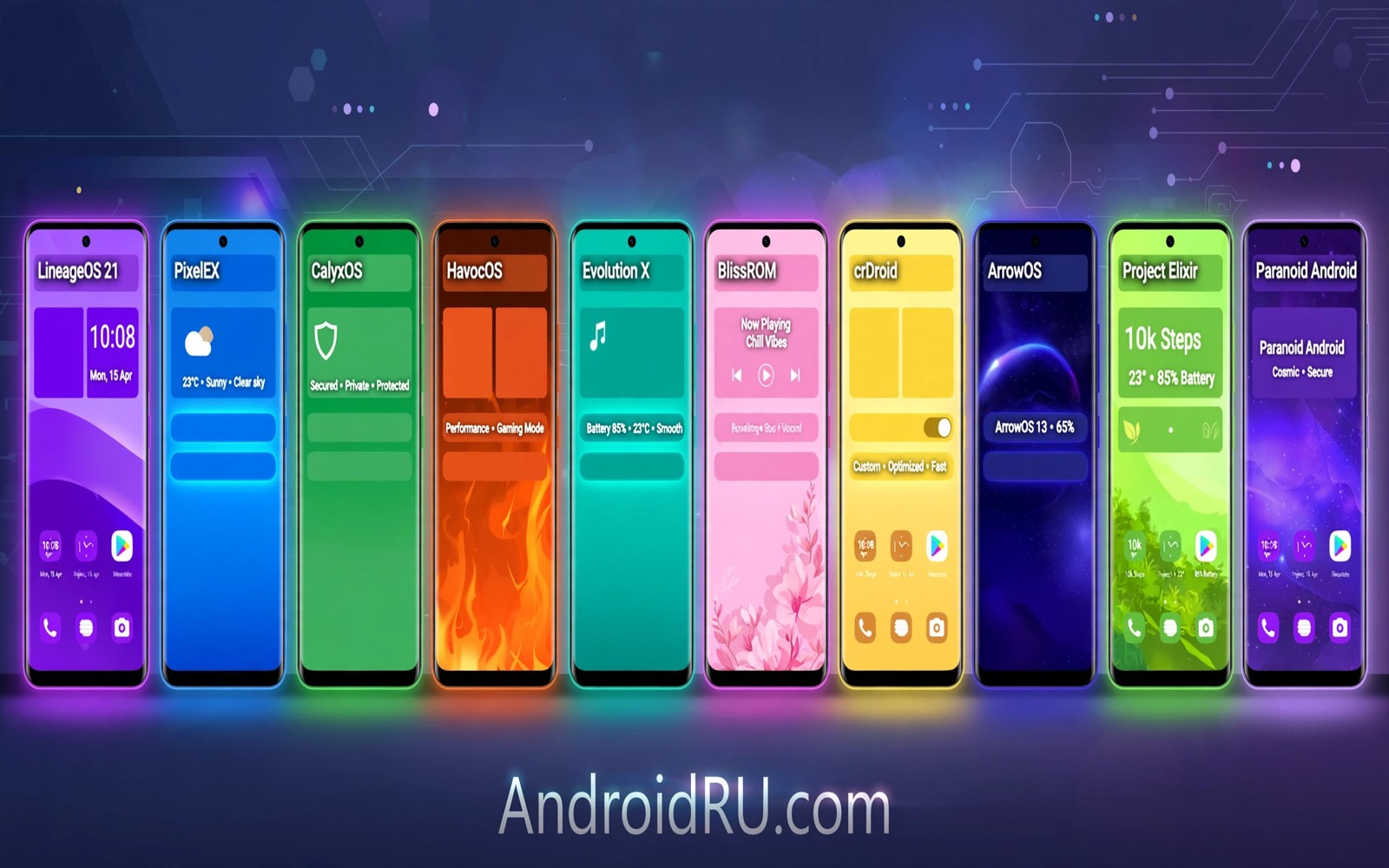
Deciding whether to replace stock Android with LineageOS is a personal call. LineageOS is clean and fast and long lived. Stock is polished and fully supported by the maker. Neither choice is right for everyone. This article lays out the trade-offs in plain terms. You will finish with a clear decision rule for your own phone.
The key question is what you lose and what you gain. You gain control and updates and a lean system. You may lose camera tuning and some app compatibility. Our LineageOS against Pixel Experience comparison helps if you already lean toward custom builds. For a broader speed view see stock and custom ROM performance results as well. Read both before you unlock.
What LineageOS actually changes
LineageOS replaces the whole system image on your phone. It keeps Android familiar while removing maker skins and bloat. The interface looks close to stock Android. Extra tools include privacy controls and a trust dashboard. You choose whether to add Google apps or go without them.
The change runs deeper than looks. System services and update channels change completely. Updates arrive from the LineageOS project rather than the phone maker. That independence is the point. It also means maker specific features may disappear. Check the feature list for your model first.
The strongest reasons to switch
Long support tops the list. Phones abandoned by makers can run current Android through LineageOS. Security patches keep arriving for years. That extends the useful life of good hardware. It also reduces electronic waste.
Privacy control is the second reason. LineageOS lets you guard permissions tightly. You can run without Google services if you wish. You can also add them back with a chosen package. That choice is rare on stock systems.
The strongest reasons to stay on stock
Camera quality often drops after switching. Maker camera apps use closed tuning that LineageOS cannot copy. Night shots and zoom may suffer. If photography matters daily then stock wins. Test camera samples from your model before deciding.
Banking and work apps can complain about unlocked bootloaders. Some apps refuse to run at all. Work profiles may block custom systems. If your job phone must pass strict checks then stay on stock. Reliability beats ideology on a work device.
What the install really involves
Install starts with unlocking the bootloader. That step wipes all data on most phones. Back up photos and chats and files first. Then you flash a custom recovery and the ROM package. Add Google apps only if you want them. The whole job takes one focused evening.
First boot needs patience. Setup and app restore take time. Some settings need manual tuning after install. Fingerprint and face unlock may behave differently. Give the phone two days to settle before judging it. Early battery numbers often mislead.
Daily life on LineageOS
Daily use feels close to stock Android. Apps launch fast and the system stays lean. Weekly updates arrive over the air. You can dirty flash updates without wiping data. Major version upgrades need more care and a fresh backup.
Community support replaces maker support. Forums and device threads answer most questions. Fixes may need manual steps. That suits curious users well. It frustrates users who want one tap support. Be honest about which type you are.
A decision rule you can use
If your phone lost stock updates and you own a second device then switching is low risk. If your phone is new and camera quality rules your day then stay on stock. If privacy and control matter most then LineageOS deserves a test. Also weigh hidden risks of custom ROMs before you commit. That piece covers edge cases this guide only touches.
Write down your top three must have features before you flash. Check each one against LineageOS on your model. If any must have feature fails then wait. No ROM is worth losing a feature you use every day.
adb backup -apk -shared -all -f backup.ab
fastboot flashing unlock
adb sideload lineageos.zip
These commands follow the pattern shown in the official Android developer documentation for adb and fastboot. Note that backup behaviour varies by Android version so verify your backup before wiping.
Life after switching back to stock
Returning to stock is a normal part of the custom ROM journey. Many users try LineageOS and later return for camera or banking reasons. That return is not failure. It is a decision based on experience. Stock restore needs the correct firmware package for your variant. Download it before you need it. Keep it on a computer rather than only on the phone. A phone that cannot boot cannot download its own rescue files.
Relocking the bootloader after restore needs care. Some phones allow relocking only with matching stock images. A mismatched image can brick the phone during relock. Read the maker relock guide for your model exactly. Follow the image version requirements step by step. Never relock on a custom image. That mistake causes hard bricks on some models. Patience during restore prevents permanent damage.
Data restore after returning to stock takes planning. Cloud backups restore apps but not every setting. Authenticator apps need separate migration. Chat backups need manual export and import. Write a restore checklist before you switch back. Check each item after restore. That checklist turns a stressful evening into routine work.
Your experience with LineageOS still has value after returning. You learned what control feels like and what you missed. That knowledge helps your next phone purchase. You may choose a phone with better stock support next time. Or you may keep a second phone for custom ROM experiments. Either path uses what you learned well.
Switching costs people forget to budget
Time cost is the largest hidden switching cost. Install takes an evening for most users. Setup and app restore take another evening. Troubleshooting small issues takes scattered hours. Total time often reaches six to ten hours. Users who value free evenings should budget that time. Rushing the process creates mistakes. Mistakes create more time costs. Honest time budgets prevent regret. Count hours before you count features.
App reconfiguration cost surprises many switchers. Banking apps need fresh setup and verification. Authenticator apps need migration codes. Chat apps need backup restores. Smart home apps need relinking. Each app takes minutes. Dozens of apps take hours. List your apps before switching. Note which ones need special migration. That list turns chaos into a checklist. Checklists make switching calm.
Accessory compatibility can break after switching. Smartwatches may pair differently on custom ROMs. Car systems may behave oddly with new Bluetooth stacks. Wearables may lose features tied to stock services. Test accessories early after install. Do not discover a broken watch pairing on a busy morning. Early tests give you time to fix or revert. Accessory tests belong on day one.
Social cost appears when friends need help. Family members may ask why your phone looks different. Colleagues may notice missing work features. Explaining custom ROMs takes patience. Some users enjoy teaching others. Others find repeated explanations tiring. Know which type you are. Social friction is small but real. Budget patience alongside time and money.
Revert cost deserves a line in your budget too. Returning to stock takes another evening. It needs firmware downloads and setup again. Users who switch twice pay double time. That reality favours careful first decisions. Research before flashing saves revert evenings. A week of reading beats a weekend of reverting. Decide slowly and flash once.
LineageOS privacy settings tour
Privacy Guard in LineageOS controls permissions per app. It lets you deny contacts to a chatty app. It lets you deny location to a shopping app. Denials can break app features sometimes. Test each denial after applying it. Broken features reveal true permission needs. Genuine needs deserve grants. Unnecessary requests deserve denials. That testing habit builds a tight permission set. Tight sets leak less data daily. Privacy grows from small denials compounded. Compounding works quietly over months.
Trust interface in LineageOS shows system security state. It warns about SELinux status changes. It warns about weak encryption settings. It warns about outdated security patches. Read its warnings monthly. Warnings that persist need action. Ignored warnings become vulnerabilities. Monthly reading takes two minutes. Two minutes buys awareness. Awareness drives timely updates. Updates close holes before exploits arrive. That chain starts with reading warnings.
Location privacy settings deserve a dedicated review. LineageOS lets you set location accuracy per app. Precise location suits maps and ride apps. Approximate location suits weather and shopping. Approximate location leaks far less detail. Many apps accept approximate location happily. Test each app with approximate first. Upgrade to precise only when features break. That default protects your movement patterns. Movement patterns reveal home and work locations. Protect them deliberately.
Background activity controls limit tracker behaviour. LineageOS lets you restrict background data per app. Restricted apps cannot phone home constantly. They still work when opened. That balance suits social apps well. Social apps track heavily in background. Restriction cuts their tracking sharply. Battery life improves as a side benefit. Side benefits reward privacy habits. Privacy and battery align more often than users expect. Alignment makes habits sustainable.
LineageOS for work and personal balance
Work profiles on LineageOS need testing before reliance. Some employers block custom systems outright. Blocking appears during profile setup. Setup failure wastes onboarding time. Test with a spare profile first. Spare tests reveal policy blocks early. Early discovery allows stock fallback. Fallback planning protects employment tools. Employment tools outrank ROM preferences. Preferences yield to paychecks.
Personal apps on LineageOS usually run smoothly. Messaging and browsing feel clean. Media playback works well. Those daily wins matter. Daily wins accumulate into satisfaction. Satisfaction sustains long term use. Long term use builds familiarity. Familiarity speeds every task. Speed is a quiet benefit. Quiet benefits matter most.
Separating work and personal data takes discipline on any system. Use separate accounts for work tasks. Avoid mixing contacts across profiles. Mixing creates sync confusion. Confusion causes missed messages. Missed messages hurt work. Work hurt is avoidable with separation. Separation is a habit. Habits need weekly reinforcement.
Common mistakes
Unlocking before backing up is the classic disaster. Unlock wipes data on most devices. Back up first and verify the backup opens. Skipping firmware checks is another mistake. LineageOS may need a specific stock base version.
Flashing Google apps from the wrong Android version breaks setup. Match the package to the ROM Android version exactly. Installing the ROM on the wrong variant also bricks installs. Codename matching is not optional.
Judging the ROM after one hour misleads. Sync and indexing drain battery early. Wait two full days before forming a verdict. That patience prevents hasty rollbacks.
Frequently asked questions
Is LineageOS good for a primary phone?
Yes for many users with supported models and modest camera needs. It is stable and updated weekly. It suits users who can follow guides. Heavy camera users and strict work profiles should stay on stock.
Does LineageOS include Google apps?
No by default. You add a Google apps package during install if you want Play services. You can also run without Google apps. That choice is yours at install time.
Will I lose my warranty by switching?
It depends on your maker and region. Some makers allow unlocking and some void warranty terms. Check the maker policy for your model before unlocking. Keep records of your stock firmware for rollback.
Conclusion
LineageOS is a strong choice when support and control matter more than maker extras. It is a poor choice when camera tuning or strict app checks rule your day. Your priorities decide the winner.
Your concrete next step is to list your three must have features and check them against LineageOS for your codename today. If all three pass then back up your phone and plan the install for a free evening.

