

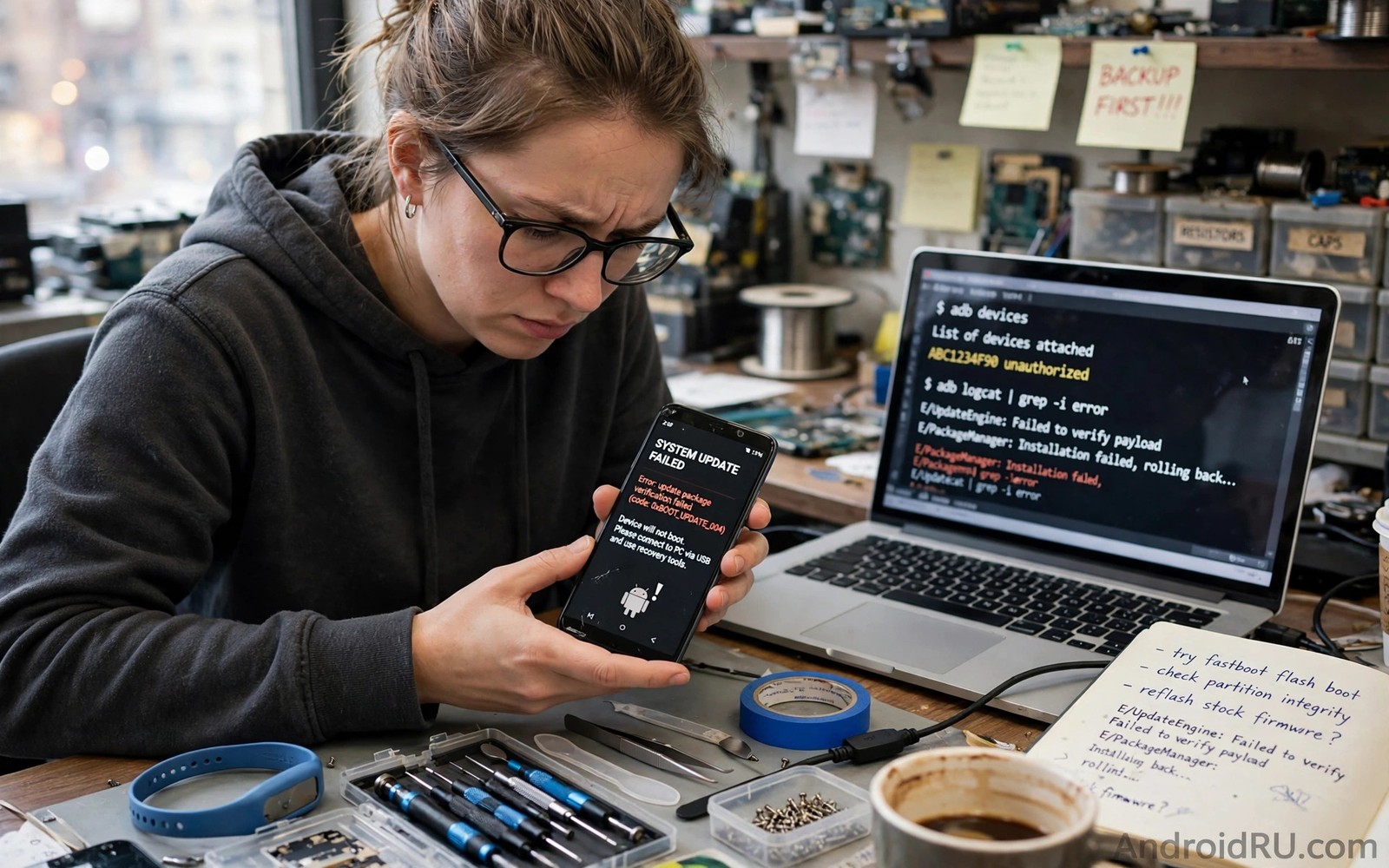
What to do when an Android update breaks your device functionality starts with calm diagnosis rather than panic. Most post update problems affect one app or one feature rather than the whole phone. A camera fault or a battery drain or a Wi-Fi drop often has a simple cause. Working through causes in order saves time and protects data.
Start by noting exactly what broke and when it started. Did the problem appear right after the update or a day later. Did it affect one app or many features. Clear notes help support teams help you faster. If the issue involves a specific system area then the evolution of Android OS names and versions will not fix it but a methodical check often will.
Restart and check for app updates first
Restart the phone after a major update even if the system did not ask for it. A restart clears temporary states left by the install process. Many odd behaviours disappear after one clean restart. Check for app updates next because developers often ship compatibility fixes within days of a major release.
Update the apps that misbehave first and test them again. If one app still fails while others work well then the problem likely sits in that app rather than the system. Contacting that app developer with version details helps more than blaming the whole update.
Clear cache for the affected app
Clearing an app cache can fix crashes and display glitches after an update. Go to Settings then Apps and choose the affected app. Tap Storage and then Clear cache. Do not tap Clear data at this stage because that step deletes app settings and offline content. Cache clearing is safe and it often resolves post update quirks.
Test the app after clearing cache. If it works then the problem was stale cached data from the old version. If it still fails then try the next step rather than repeating cache clearing endlessly. Repeated cache clearing without a change rarely helps.
Check permissions and settings changes
Major updates sometimes reset or tighten permissions for apps. An app that lost camera or location permission will fail in a confusing way. Open Settings then Apps and review permissions for the affected app. Grant only the permissions that app genuinely needs for its job.
adb shell dumpsys package com.example.app | grep -i version
adb shell cmd appops get com.example.app
adb shell logcat -d | grep -i error | head -20
These commands follow the approach described in the official Android developer documentation for inspecting app permissions and device logs on a connected phone.
Also check battery optimisation settings. A major update may place an app under stricter background limits. That change can break notifications or background sync. Adjusting the battery setting for a trusted app can restore normal behaviour without weakening system security broadly.
Use safe mode to isolate the cause
Safe mode starts Android with third party apps disabled. If the problem disappears in safe mode then a third party app likely causes it. Restart normally and remove recently updated apps one by one to find the culprit. If the problem persists in safe mode then the cause likely sits in the system or in a stock app.
Safe mode entry varies by brand but it usually involves holding the power button and then long pressing the power off option. Exit safe mode with a normal restart. Reading about how Play system updates work helps you understand which system components can receive fixes without a full system update.
When to reset or seek support
A factory reset is a last resort rather than a first step. Back up all data before considering it. A reset can fix deep system corruption but it costs time and it erases the phone. Try app updates and cache clearing and safe mode first. Most post update problems resolve before a reset becomes necessary.
If the phone fails to boot or loses core functions such as calling then contact brand support promptly. Provide the model and version and a clear problem description. Learning will old devices support new AI integration helps set expectations for older hardware but it does not replace support for a broken core feature.
Post update problems in specific features
Camera problems after an update often stem from app compatibility rather than hardware failure. A third party camera app may need an update to work with new camera rules. Testing the stock camera app helps isolate the cause. If the stock camera works while a third party app fails then the third party developer needs to update. Owners should report the issue to that developer with version details to speed a fix.
Wi-Fi problems after an update may reflect router compatibility rather than phone failure. A new Android version may change Wi-Fi behaviour in ways that expose an old router bug. Restarting the router and forgetting and rejoining the network can resolve many such cases. Owners should test Wi-Fi on a different network before concluding the phone is broken. That test separates phone problems from router problems quickly.
Battery drain after an update often reflects background optimisation rather than a permanent fault. The system reoptimises apps after a major update and that work uses power for a day or two. Owners should judge battery life after a full week of normal use. If drain persists beyond a week then checking battery usage by app reveals the culprit. A single app with abnormal usage usually explains persistent drain.
Bluetooth problems after an update may require re-pairing accessories. A new Bluetooth stack can lose compatibility with an old accessory pairing. Removing the accessory and pairing it again often restores normal function. Owners should also check for accessory firmware updates where available. Re-pairing takes minutes and it resolves many post update Bluetooth complaints without deeper intervention.
Helping others after an update
Helping family members after an update requires patience and clear communication. Older relatives may feel anxious when menus move or icons change. A calm walkthrough of the new layout helps more than technical explanations. Showing where key functions moved restores confidence quickly. Family helpers should avoid taking the phone and fixing everything silently because the owner then learns nothing for next time.
Community help forums also play a role after major updates. Owners who solved a problem can share their solution with exact steps and model details. That sharing helps others with the same model avoid repeated trial and error. Good forum posts include the Android version and the app version and the steps taken. Vague posts that say only that an update broke everything help no one.
Workplace help desks face a surge of questions after a major update rollout. Preparing a short FAQ for common post update issues reduces that surge. The FAQ should cover restart steps and app update steps and permission checks. Distributing that FAQ before the rollout helps employees self serve. Proactive communication therefore saves support time during a busy update period.
Owners should also help themselves by keeping notes about post update fixes that worked for them. A simple note listing the app and the fix saves time if the problem returns after a future update. Notes also help support staff when a problem escalates. A clear personal log turns a frustrating update experience into a manageable routine over time.
Post update recovery timelines
Post update recovery timelines vary by problem type and owners should set expectations accordingly. App crashes often resolve within days as developers ship fixes. Battery drain often resolves within a week as optimisation completes. Wi-Fi and Bluetooth issues often resolve with re-pairing or router restarts within hours. Knowing those timelines prevents panic when a problem appears immediately after update. Most post update problems are temporary rather than permanent.
Owners should track a problem timeline in notes to judge whether it improves or persists. Note the start date and the symptoms and any fixes tried. If symptoms improve gradually then waiting for app updates is sensible. If symptoms stay constant for a week then deeper troubleshooting or support contact becomes appropriate. A timeline helps owners decide when patience ends and action begins.
Support teams also appreciate timeline information because it helps them distinguish widespread issues from isolated cases. A problem reported by many owners on the same day likely reflects a system bug. A problem reported by one owner weeks after update likely reflects a device specific cause. Timeline details therefore improve support diagnosis and they help engineers prioritise fixes for widespread problems.
Owners who help others after updates should explain recovery timelines calmly. Family members may panic when a familiar app behaves differently after update. Explaining that most issues resolve within days reassures them. Showing them how to update apps and restart the phone empowers them to help themselves. Calm guidance reduces anxiety more than technical detail alone.
Common mistakes
The biggest mistake after a broken update is factory resetting at once without a backup. That step erases data that a simple app update might have saved. Another mistake is clearing data for every app in panic. Data clearing deletes settings and offline content unnecessarily when cache clearing would have sufficed.
- Factory resetting without a backup erases data that a simple app update or cache clear might have saved.
- Clearing data for many apps in panic deletes settings and offline content without fixing the real cause.
- Installing random fix apps from unknown sources after an update can add malware to an already stressed phone.
Frequently asked questions
Will the next update fix my problem?
Often yes because brands ship follow up fixes for widespread post update issues. Install follow up patches promptly. App developers also ship fixes on their own schedule so update apps too.
Should I roll back to the old version?
Rollback is difficult and risky on most modern phones. It may require unlocking and flashing which can void support. Most owners should wait for fixes rather than attempting a rollback.
How long should I wait before seeking support?
Try restart and app updates and cache clearing within a day. If core functions stay broken after those steps then contact support promptly. Do not wait weeks with a phone that cannot call or connect.
Conclusion
Post update problems usually affect one app or one feature and they often resolve with a restart and app updates and cache clearing. Permissions and battery settings explain many remaining cases. Safe mode helps isolate a third party culprit before any drastic step.
Your next step is to restart your phone and update the affected apps today. Then clear cache for the broken app and recheck its permissions. If the problem persists then use safe mode before you consider a reset or support contact.

