

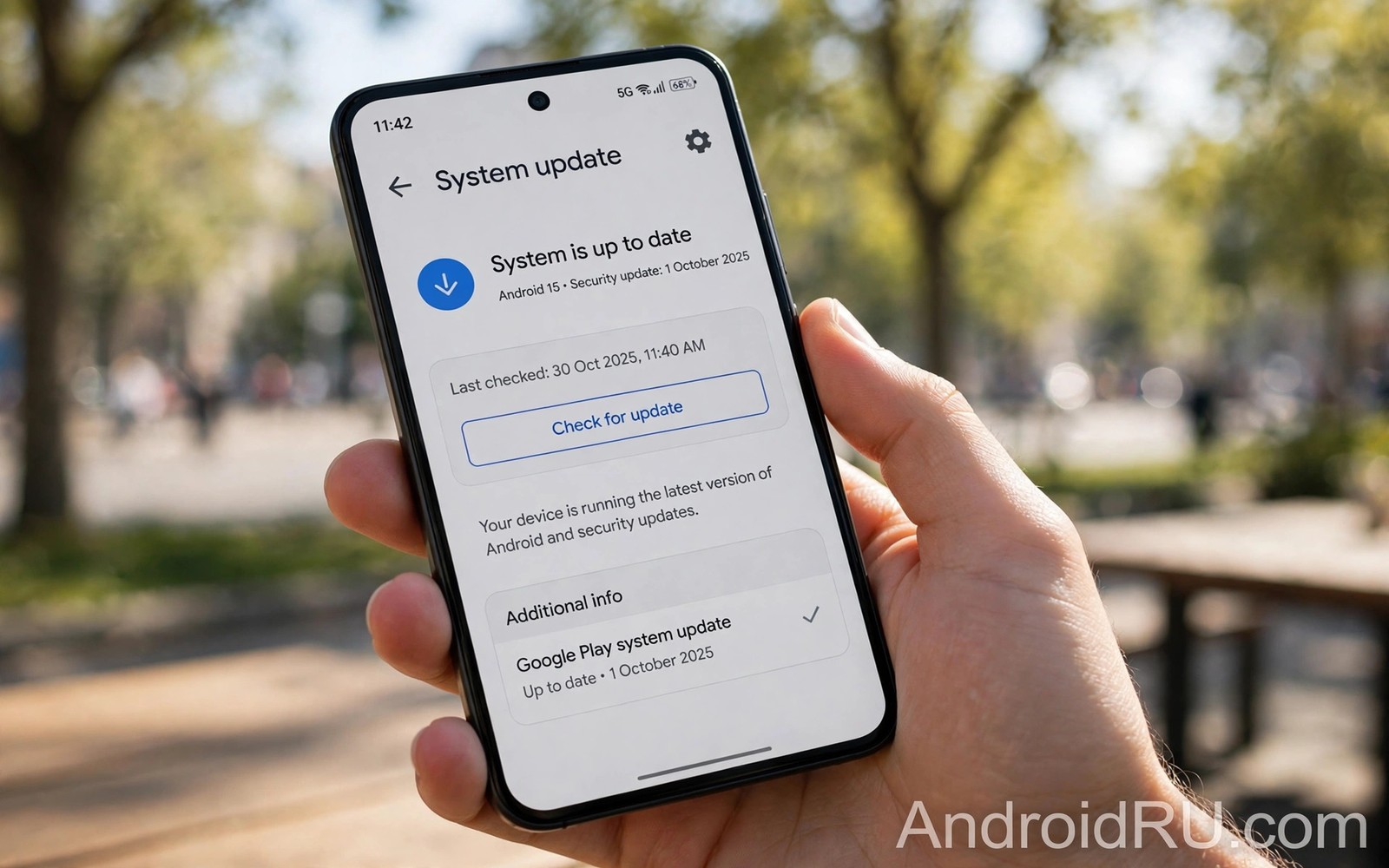
Learning how to check for system updates on Android takes less than a minute once you know the right menu. Every brand hides the option in a slightly different place but the idea stays the same. You open settings and you look for system or software update and you tap the check button. The phone then contacts the update server and reports whether a new version is ready.
Manual checks matter because phones do not always notify you at once. A rollout may reach your region in stages and your phone may wait days before it shows a notification. A manual check puts you in control. If you later wonder quarterly platform releases you will already know how to look for those smaller updates too.
The standard path on most phones
Open the Settings app from the home screen or the app drawer. Scroll down to System and tap it. Look for Software update or System update inside that menu. Tap Check for updates and wait while the phone contacts the server. The result appears within a minute on a good connection.
If an update is available the screen shows its size and a short list of changes. Read that list before you tap Download. A major update may need several gigabytes of free space and a stable Wi-Fi connection. A security patch is usually smaller and installs faster.
Pixel phone path
On a Pixel phone open Settings and tap System and then Software updates. The screen shows the current version and the last successful check date. Tap Check for update to force a fresh check. Pixel phones also show Google Play system updates on a nearby screen and those updates arrive separately from full system updates.
Pixel owners can also use the System update screen to see the update size and the restart requirement. Most Pixel updates install in the background and finish after a restart. That seamless style means less waiting time staring at a progress screen.
Samsung Xiaomi and other brands
On Samsung phones open Settings and tap Software update. The screen offers Download and install and a toggle for auto download over Wi-Fi. Tap Download and install to check at once. Samsung also lets you schedule the install for a quiet time such as overnight.
adb shell cmd package list packages | grep -i update
adb shell dumpsys package com.google.android.gms | grep -i version
adb shell settings get global auto_time
These commands follow the approach described in the official Android developer documentation for inspecting system services and settings from a connected device.
On Xiaomi phones open Settings and tap About phone and then the system version card. Tap Check for updates inside that screen. Other brands follow the same pattern with small label differences. If you need to know major updates and monthly patches the version screen also shows the security patch date.
What the result screen means
A message saying your software is up to date means no new version is ready for your model and region yet. It does not mean your phone will never receive another update. Rollouts move in stages and a later check may show a different result. Check again after a few days if you expect a known rollout.
A message showing an available update means the phone found a matching build for your exact model. Download it over Wi-Fi and keep the battery charged during installation. Do not restart the phone manually while the progress bar is moving. The phone will restart itself when the install finishes.
If the check button seems stuck
A check that spins for a long time often points to a weak connection rather than a broken phone. Switch to a stable Wi-Fi network and try again. Restarting the phone can also clear a stuck check. Clearing the cache of the system update service is a deeper step and it should only follow a restart.
Make sure the date and time on the phone are set to automatic. A wrong date can confuse update servers and block a check. Also confirm that storage is not full. A phone with almost no free space may fail a check silently. Reading about why phones stop getting updates helps you tell a temporary delay from the end of support.
Update menus on older Android versions
Older Android versions place the update menu in slightly different locations from modern versions. A phone running an older system may show Software update directly under Settings rather than under System. Another phone may hide it under About phone. Those small differences confuse owners who follow a guide written for a newer version. The solution is to use the Settings search box and type update. Search usually finds the correct screen even when the menu path differs.
Some brands rename the update screen with their own wording. One brand may call it Software update while another calls it System update and a third calls it Firmware update. The function remains the same despite the different label. Owners should tap the entry that mentions software or system or firmware and then look for a check button. That flexible approach works across brands far better than memorising one exact path.
Work profile phones add another complication to update checks. A work managed phone may hide update settings from the user. The employer controls updates through a management tool. In that case a manual check may show no options at all. Employees should contact IT support rather than trying to bypass management controls. Bypassing those controls can breach workplace policy and it can break managed apps.
Accessibility settings can also help owners who struggle to find the update menu. Voice access and large text make settings navigation easier. Owners can ask a voice assistant to open system update settings on many phones. That shortcut avoids scrolling through long menus. It also helps owners with limited vision to check updates independently without asking for help each time.
Advanced checks when the basic check fails
When the basic check fails repeatedly the next step is to confirm that the phone connects to the correct update server for its variant. A phone with modified software may contact the wrong server or fail an integrity check. Returning to stock software often restores normal update checks. That step is technical and it carries risk so owners should seek a trusted guide for their exact model before attempting it.
Network settings can also block update checks in subtle ways. A VPN that routes traffic through another country may confuse region based rollout logic. Turning off the VPN during a manual check can reveal an update that was hidden. A private DNS setting can also interfere in rare cases. Testing a check with default network settings helps isolate whether a network tool caused the problem.
Storage health matters beyond free space alone. A phone with a failing storage chip may fail downloads repeatedly even with space available. Repeated download failures at the same percentage point suggest a deeper problem. In that case a service check may be needed. Owners should not ignore repeated identical failures because they rarely resolve on their own.
Keeping a simple update log helps owners spot patterns over time. Note the date of each manual check and the result shown. Note the current version and patch date each month. That log reveals whether checks fail only on certain networks or only after certain app installs. Patterns in a log help support teams diagnose a problem far faster than a vague report that updates never work.
Making update checks part of a routine
A monthly update routine keeps a phone current without constant checking. Owners can set a reminder on the first weekend of each month to run a manual check. That routine catches updates that notifications missed. It also creates a habit of reviewing storage and backup status at the same time. Combining those checks into one monthly session saves time compared with scattered checks throughout the month.
Owners should also check for Google Play system updates during the same monthly session. Those updates arrive separately from full system updates and they improve core components. A phone can show an old Play system date even when the Android version looks current. Checking both dates monthly gives a complete picture. That completeness matters because Play updates fix media and network flaws that full updates may not address promptly.
Travel preparation should include an update check before departure. Updating at home over reliable Wi-Fi avoids problems abroad where connections may be slow or costly. A traveller who updates before a trip also avoids a large download over roaming data. Checking updates a few days before travel leaves time to fix any post update issue at home. That preparation reduces travel stress significantly.
Owners who share a phone with family members should coordinate update checks to avoid surprise changes. A major update that moves menus can confuse another family member who uses the same phone. Warning family members before a major update and showing them the new layout afterwards prevents confusion. Shared devices deserve shared communication about updates just as they deserve shared rules about app installs.
Common mistakes
Many owners tap the check button repeatedly within minutes and expect a different result each time. Update servers do not change that fast and repeated taps only waste time. Another mistake is checking for updates on mobile data with a low battery. A large download can fail midway and leave the phone in an awkward state.
- Tapping check repeatedly within minutes rarely changes the result because rollouts move in stages over days.
- Downloading a major update on weak mobile data with low battery raises the risk of a failed install.
- Ignoring the free space warning before download can stop the install even after a long download.
Frequently asked questions
How often should I check for updates?
Once a week is enough for most owners. The phone also checks on its own and shows a notification when an update arrives. Manual checks help during a known rollout when you do not want to wait for the notification.
Why does my phone say no update when others have it?
Rollouts reach models and regions in stages. Your model variant or carrier may sit in a later stage. A few weeks of waiting is normal and it does not mean your phone is broken.
Can I check without Wi-Fi?
Yes but a major update download over mobile data can use a large part of your data plan. Use Wi-Fi for large downloads when possible. Small security patches are safer over mobile data.
Conclusion
Checking for system updates on Android is a short task once you know the menu path for your brand. Pixel and Samsung and Xiaomi each place the option in a slightly different spot but the steps share the same logic. A manual check gives you control during a staged rollout.
Your next step is to open Settings now and run one manual check. Note your current version and security patch date. Then set auto download over Wi-Fi so future updates arrive without extra effort.

