

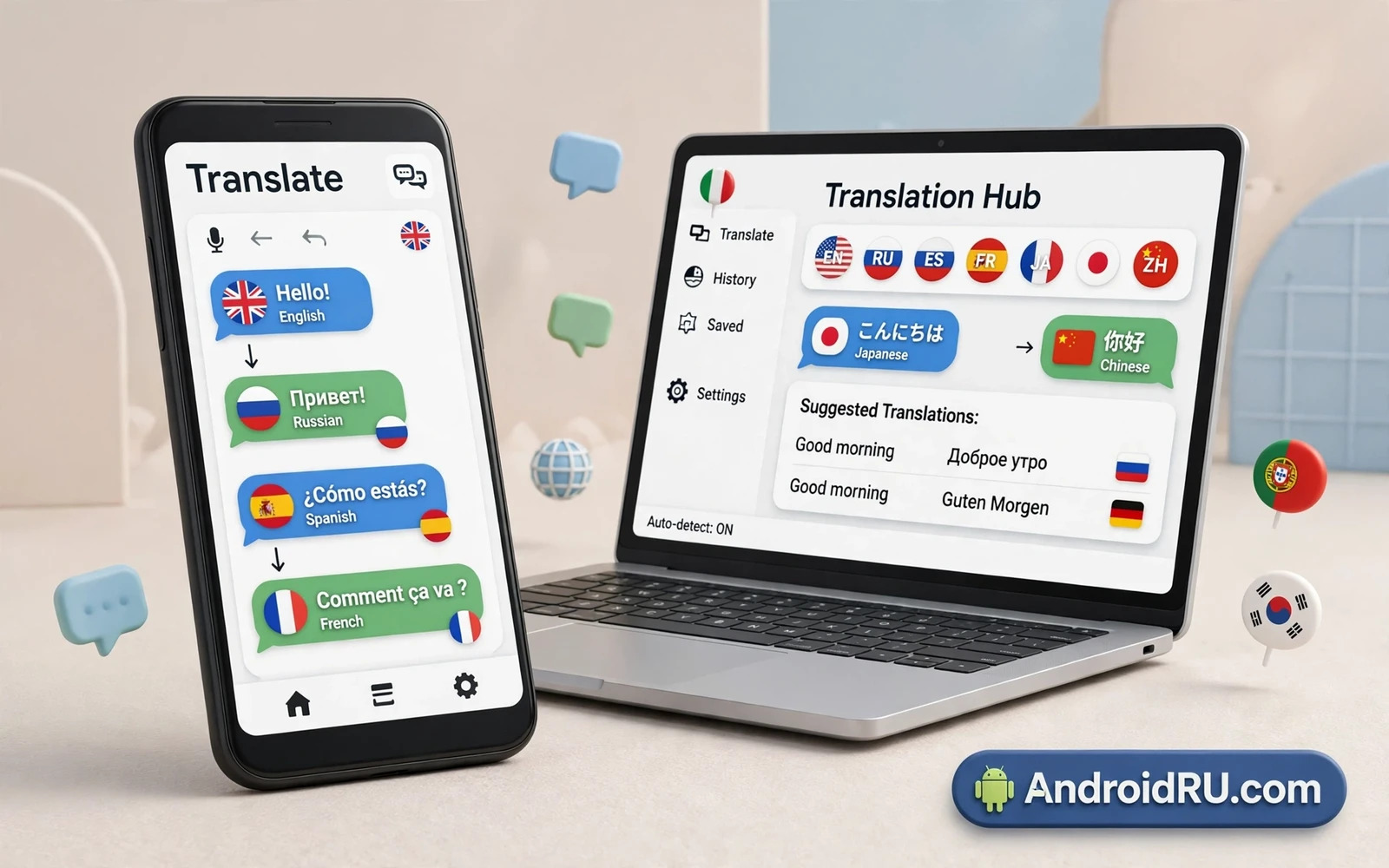
Multi language support opens an app to users who read different languages. A user who reads the app in a native language understands features faster and trusts the app more. Android provides a resource system that selects strings and layouts by language automatically. Developers place translated strings in language folders and the system picks the right folder at runtime. This guide shows how to build that system cleanly from the first string.
Start by moving every user visible string into string resources. Hardcoded strings in layouts and in code cannot translate. A string resource gives translators one place to work and gives the system one place to select from. Name string resources by meaning rather than by English text. A name such as welcome_title survives rewording better than a name copied from the English sentence. Consistent naming helps translators and reviewers alike.
Plan the language list before translating everything. Support the languages your audience actually uses first. A small set of well translated languages beats a large set of machine translated screens with errors. Add languages gradually as translators become available. Each new language needs testing on real screens because translated text changes length and layout.
<!-- res/values/strings.xml -->
<string name="welcome_title">Welcome</string>
<string name="items_count">%1$d items</string>
<!-- res/values-es/strings.xml -->
<string name="welcome_title">Bienvenido</string>
Organise string resources
Android stores default strings in the base values folder. Each language gets its own values folder with a language qualifier. The system selects the folder that matches the device language. When a string is missing in that language the system falls back to the default string. Fallback prevents a crash but shows mixed languages on one screen. Track missing strings per language and fill them before release.
Use the translations editor in Android Studio to manage languages. The editor shows all languages side by side for one string. It highlights missing translations and untranslatable strings. Mark strings that must not translate such as brand names and codes. A brand name translated by mistake looks unprofessional and confuses users who search for the brand.
Plural rules differ by language. English uses singular and plural forms. Other languages use several plural forms depending on the number. Use quantity strings that define each form the language needs. Never build plurals by adding a letter to a singular string in code. That shortcut works in English and fails in many other languages. Quantity resources let translators define correct forms for every number range.
Handle formatted strings and dates
Formatted strings carry placeholders for names and numbers. Translators may need to reorder placeholders because sentence order differs by language. Use named arguments or numbered placeholders that translators can reorder safely. Never split a sentence into pieces joined in code because translators cannot reorder pieces correctly. Keep each sentence as one string resource even when it feels long.
Numbers and dates and currencies also localise. A date format that reads naturally in one language may confuse readers in another. Use system formatters that adapt to the device locale. Avoid hardcoding date order or currency symbols in code. System formatters handle those details and update when locale rules change. Test dates and numbers in each supported language with realistic values.
Right to left languages need layout mirroring. Android mirrors layouts automatically when the app supports right to left direction. Use start and end attributes instead of left and right attributes in layouts. Test mirrored layouts with real translated text because mirroring changes the visual flow. Icons that imply direction such as arrows need mirrored variants. An arrow that points the wrong way in a mirrored layout confuses navigation.
Per app language settings
Newer Android versions let users choose a language per app in system settings. The app should respect that choice without requiring a device language change. Test per app language selection on a supported device. The app restarts its screens with the chosen language while other apps keep their own settings. A per app choice helps bilingual users who prefer different languages for different apps.
In app language pickers still help on older versions and for users who cannot find system settings. An in app picker should apply the choice at once and remember it across restarts. Store the choice in app settings and apply it before the first screen draws. A picker that requires an app restart without explanation feels broken. Explain the restart when one is unavoidable.
Language switching interacts with state. A user who switches language mid task should keep form input and scroll position where possible. The state holder pattern that protects rotation also helps here. Readers who handle rotation can pair this guide with the state holder ideas in the rotation guide through the catalogue and keep data across a language restart. Test language switching during a task rather than only from settings.
Bundle delivery and languages
App bundles deliver language resources as splits by default. A device downloads only its installed languages. That design keeps installs small. It also means a language switch inside the app may need a download of the new language pack. Handle that download gracefully with a loading state and a fallback to the default language. Test language switching on a bundle install because a local debug install includes all languages and hides the download step.
Readers who compare delivery formats can continue with the piece on app bundles versus traditional APK files and plan language testing around the bundle path. A language feature that works locally but fails on a bundle install will fail for store users first. Test the store path before release.
Design guidance also shapes language work because translated text changes length. Readers who design interfaces can continue with the piece on Material Design 3 guidelines for developers and use flexible layouts that adapt to longer translations. A layout that fits English but breaks in German needs a flexible design rather than a shorter translation.
Dark theme and layout length
Translated text length varies widely. German text often runs longer than English text. Chinese text often runs shorter but needs careful line breaking. Design layouts with flexible widths and wrapping text. Avoid fixed width buttons with long labels. Test every screen in the longest supported language. A layout that survives the longest language survives the rest.
Dark theme does not change translation but it changes how translated text reads. Readers who implement themes can continue with the piece on implementing dark theme support in apps and test translated screens in both themes. Long translated text on a dark surface needs the same contrast checks as short text. Theme and language testing together catch combined issues.
Font support matters for scripts beyond Latin text. Check that the chosen font renders every supported script correctly. Test Arabic script shaping and Indic script shaping on real devices. A font that lacks glyphs shows blank boxes that destroy readability. System fonts cover many scripts but custom fonts may not. Verify script coverage before choosing a custom font for the whole app.
Test and ship languages
Test each language with a native reader when possible. Machine translation catches missing strings but misses tone and context errors. A native reader spots a formal address used where an informal tone fits. A native reader also spots a string that translates literally but reads unnaturally. Quality translation is a product feature rather than a checkbox.
Automate missing string checks in the build. Fail the build or warn loudly when a release language has many missing strings. A missing string report per language keeps translation work visible. Add new strings to the translation queue as soon as developers add them. Translators who receive strings early can finish before release week pressure builds.
Multi language support grows an audience one language at a time. Start with clean string resources and correct plural handling and flexible layouts. Add languages with quality translations and test each one on real screens. An app that speaks the user language clearly earns trust that no feature list can replace.
Working with translators
Translators need context to translate well. A string without context invites a literal translation that misses tone. Provide a short description for each string that explains where it appears and what action it describes. A description such as button on the checkout screen guides the translator to the right verb form. Context notes cost minutes during development and save hours of correction later.
Give translators screenshots of key screens when possible. A screenshot shows layout limits and neighbouring text that shape translation choices. A translator who sees a button width constraint chooses a shorter phrasing proactively. A translator without a screenshot may deliver a correct translation that breaks the layout. Screenshots turn translation into design aware work.
Respect translator feedback about untranslatable concepts. Some English terms have no direct equivalent in another language. A translator may suggest keeping the English term with an explanation. Listen to that suggestion rather than forcing a literal translation. A kept term that users recognise beats a forced term that confuses them. Collaboration produces better localisation than a one way handoff.
Pay translators for updates as well as for initial work. New strings arrive with every feature release. A translation workflow that pays only for the first batch stalls on updates. Budget for ongoing translation in the release plan. An app with stale translations in new features feels half localised. Ongoing investment keeps every language current.
Pseudo locale testing
Pseudo locales help test localisation before real translations arrive. A pseudo locale expands text and adds markers around strings. Expanded text reveals layouts that break with longer translations. Markers reveal hardcoded strings that bypass the resource system. Enable a pseudo locale build for layout testing and run every screen through it. A screen that survives pseudo locale expansion usually survives real translation expansion too. Fix layout breaks found in pseudo testing before translators deliver final strings.

