

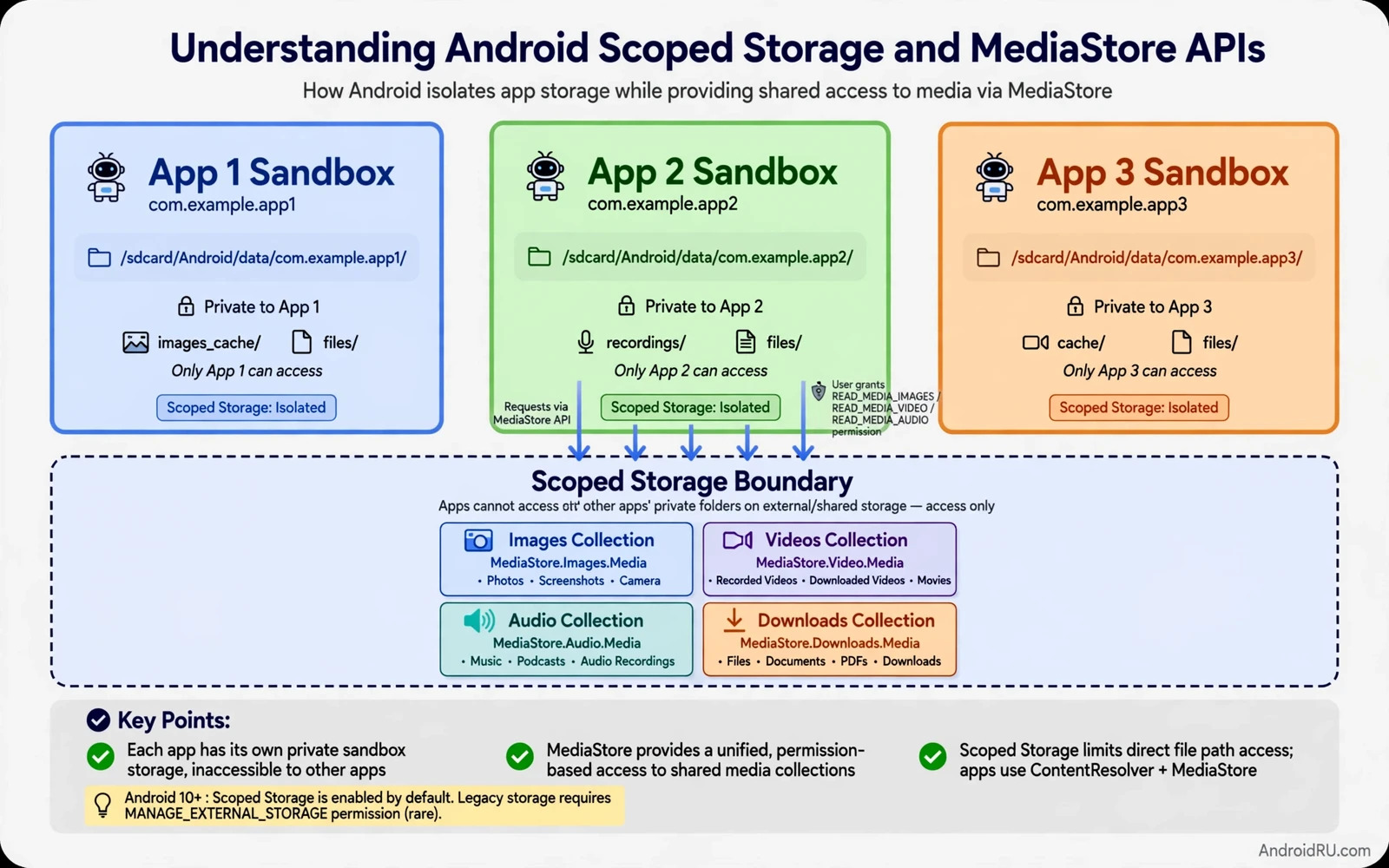
Understanding Android Scoped Storage and MediaStore APIs
For years, an Android app could open almost any folder on shared storage and read whatever it found there. A photo editor could scan your whole camera roll, a music player could read every audio file, and a simple flashlight app could quietly list your documents. Users had no practical way to know what an app had touched. Scoped storage ended that arrangement, and MediaStore became the front door for shared media.
Scoped storage gives every app its own private area by default and limits shared storage to the media collections the app actually needs. Your app can still save photos, find songs, and share files with other apps, but it does so through system-managed interfaces instead of raw file paths. The change protects users, and it changes how developers design saving, sharing, backup, and import features.
This guide explains the model in plain terms and then in developer terms. You will learn the difference between app-private storage and shared media storage, how the MediaStore API works, which permissions still matter on each Android version, and how to write real code that inserts, queries, edits, and deletes media. You will also learn how to migrate older file code without losing user data, and how to test storage flows on real devices.
What Scoped Storage Is and Why Google Enforced It on Android
Scoped storage is a storage model, not a single permission. Under it, each app gets a private directory that other apps cannot read, and shared storage is divided into collections that apps reach through system APIs. An app sees only its own files plus the shared media the user has allowed it to see. It cannot browse every folder on the device, and it cannot assume a file path will still work tomorrow.
Google rolled the model out in stages. Android 10 introduced scoped storage with an opt-out for apps that targeted the new version. Android 11 made it mandatory for apps targeting API 30 and above, and removed the opt-out. Android 13 split the old broad media permission into granular media permissions per media type, and Android 14 added partial photo access so users can share a few photos instead of their whole library. Each step tightened the same idea: an app should ask for what it needs, nothing more.
The Old Model: One Shared Folder for Every App
Before scoped storage, shared storage behaved like a public hard drive. Any app with the old READ_EXTERNAL_STORAGE and WRITE_EXTERNAL_STORAGE permissions could list folders, read files it had never created, and write files anywhere. That freedom made simple features easy to build, and it made privacy almost impossible to enforce. A calculator app could read your photos. A wallpaper app could scan your downloads. The permission dialog said “access photos, media, and files”, and users had no way to grant only the photos.
The old model also created a mess on the device. Apps scattered files across shared folders, left orphaned folders behind after uninstall, and clashed over file names. A user who uninstalled an app often kept its junk forever. Scoped storage fixed the hygiene problem at the same time as the privacy problem: files an app creates in its private area disappear with the app, and files it creates in shared media live in a collection the user can see and manage.
The New Model: Private by Default, Shared by Permission
Under scoped storage, the default is private. Your app’s internal storage and its app-specific external directory need no permission at all, and no other app can read them. Shared media is the exception, and it goes through MediaStore. A photo your app saves lands in the Images collection. A recording lands in Audio. A video lands in Video. The system decides the physical location, and your app works with a content URI instead of a file path.
The practical rule is simple: choose the storage home by the life of the file. If the file only matters inside your app, keep it private. If the user should find it in their gallery, music player, or file manager after your app is gone, put it in shared media through MediaStore. If the user picks the exact file or folder, use the document picker. Design the save flow around that question, and most storage decisions answer themselves.
App-Private Storage Versus Shared Media Storage in Android
The two homes serve different purposes, and mixing them up causes the most common scoped storage bugs. Private storage is fast, permission-free, and invisible to other apps. Shared media is visible, survives uninstall, and requires the right permission and the right API. The table below lines them up on the same criteria so you can pick correctly for each feature.
| Aspect | App-Private Storage | Shared Media via MediaStore |
|---|---|---|
| Permission needed | None | Granular media permission per type (Android 13+) |
| Visible to other apps | No | Yes, through the media collections |
| Survives uninstall | No, deleted with the app | Yes, files stay in the gallery |
| How you access it | File API, getFilesDir() or getExternalFilesDir() | ContentResolver and content URIs |
| Best for | Caches, drafts, databases, internal files | Photos, videos, audio the user keeps |
| File name control | Full control over paths | Display name is a request, system may rename |
Cache files deserve special care inside private storage. The system may clear the cache when storage runs low, so never keep the only copy of user work in a cache folder. Store user work in a durable location and use the cache only for derived data that can be rebuilt. A thumbnail cache and a preview cache are good cache citizens. An edited photo stored only as a cache file is a data loss risk waiting for a low-storage day.
A photo the user edited and expects to keep belongs in a shared media collection. A document the user may open in another app belongs in a user-chosen location through the picker. A database or a draft belongs in private storage. Write the choice down in the feature spec so later developers do not move files casually between homes, because every move changes who can see the file and whether it survives uninstall.
MediaStore API Explained: Collections, URIs, and ContentResolver
MediaStore is the system catalogue for shared media files. It organises images, videos, and audio into collections, and it hands your app a content URI for each item instead of a raw file path. A content URI looks like content://media/external/images/media/42, and the system controls it. Your app opens it through ContentResolver, and the system can revoke it. That indirection is the whole point: the app never needs to know where the file physically sits.
Working with MediaStore means working with three objects. ContentValues carries the metadata for a new item: display name, MIME type, and relative path. ContentResolver performs the insert, query, update, and delete. A Cursor returns the rows of a query, and each row gives you an ID you turn into a URI with ContentUris.withAppendedId(). Once you learn that small set of moves, every media feature follows the same shape.
The Four Media Collections You Will Actually Use
MediaStore exposes one collection per media type, plus the Downloads collection for non-media files on newer versions. Images.Media covers photos and screenshots. Video.Media covers video clips. Audio.Media covers music, podcasts, and recordings. Files, through the Downloads collection, covers documents and other files the user downloads. Each collection has its own external content URI, and you insert into the collection that matches the file type.
RELATIVE_PATH is the field that surprises new developers most. It places the file inside a subfolder of the collection, such as Pictures/MyApp or Music/MyApp, without giving you a raw path. Use it to keep your app’s files grouped together in the gallery instead of scattered at the top level. On Android 10 and above, RELATIVE_PATH is the supported way to choose a location. Direct paths into shared folders no longer work, and code that builds a path by string concatenation will fail.
Content URIs and Why Raw File Paths Stopped Working
Under scoped storage, your app cannot open a shared media file by path, because it does not own the file and the system does not guarantee the path stays stable. Instead, you receive a content URI and open an InputStream or OutputStream through ContentResolver. The stream is the file. That is a smaller change than it looks: most code that reads or writes bytes can switch from FileInputStream to contentResolver.openInputStream(uri) with a few lines changed.
The other consequence is that you must keep the URI, not the path. After you insert a media item, store the returned URI in your database, not the display name you requested. MediaStore may rename a file to avoid a clash inside one collection, so the name you asked for is a request, not a promise. Code that assumes the requested name survived will look for a file that does not exist. Store the URI, show the user the final name when the name matters, and your code stays correct even when the system renames a file.
Inserting a New Image With MediaStore in Kotlin
This is the canonical write path, and it works on Android 10 and above. You build a ContentValues with a display name, a MIME type, and a relative path, insert it through ContentResolver, and write bytes into the returned URI. The IS_PENDING flag keeps the file hidden from other apps until you finish writing, which stops the gallery from showing a half-written photo.
val values = ContentValues().apply {
    put(MediaStore.Images.Media.DISPLAY_NAME, "edited_photo.jpg")
    put(MediaStore.Images.Media.MIME_TYPE, "image/jpeg")
    put(MediaStore.Images.Media.RELATIVE_PATH, "Pictures/MyApp")
    put(MediaStore.Images.Media.IS_PENDING, 1)
}
val uri = contentResolver.insert(
    MediaStore.Images.Media.EXTERNAL_CONTENT_URI, values
)
uri?.let {
    contentResolver.openOutputStream(it)?.use { out ->
        bitmap.compress(Bitmap.CompressFormat.JPEG, 90, out)
    }
    values.clear()
    values.put(MediaStore.Images.Media.IS_PENDING, 0)
    contentResolver.update(it, values, null, null)
}
Three details in that snippet matter more than the rest. First, IS_PENDING set to 1 before the write and 0 after it, so other apps never see a partial file. Second, openOutputStream through the URI, never a File path. Third, the update call that clears the pending flag, which publishes the file. Skip that last step and the photo stays invisible in the gallery even though the bytes are on disk.
Permissions on Android 10, 11, 13, and 14 for Media Access
Permissions changed on almost every release, and an app that works on one version can fail on another. The pattern across versions is consistent: each release narrows what a permission grants and pushes apps toward asking for less. The table of versions below is the one to pin on your wall, because it decides which permission your manifest declares and which request your code makes at runtime.
Broad file access, the MANAGE_EXTERNAL_STORAGE permission, is reserved for a narrow set of use cases such as file managers and backup tools. A media app or a social app should not request it. Stores and system policy may reject an app that requests broad access without a matching core function. Build the feature with MediaStore first and treat broad access as an exception that needs strong justification, not as a shortcut.
Android 10 and 11: The Transition Years for Scoped Storage
Android 10 introduced scoped storage and let apps targeting API 29 opt out with requestLegacyExternalStorage. Android 11 removed the opt-out for apps targeting API 30 and above, and the old WRITE_EXTERNAL_STORAGE permission stopped granting write access to shared folders. Apps that had not migrated by then broke in obvious ways: saves failed silently, galleries showed nothing, and exports vanished. The lesson from that transition still applies: migrate on your own schedule, or the platform will migrate you on its schedule.
If you still support Android 10, declare requestLegacyExternalStorage only as a temporary bridge for old installs, and gate your new code on the system version at runtime. Test both paths, because a device running Android 10 behaves differently from one running Android 11 even with the same app installed. Fresh install and update install behave differently too, since an updating app may still hold files in old locations that a fresh install never creates.
Android 13: Granular Media Permissions Replace One Broad Permission
Android 13 replaced READ_EXTERNAL_STORAGE with three granular permissions, one per media type. Your app requests only the types its feature uses. A photo editor has no need to request audio access, and a music player has no need to request image access. The system grants each type separately, so a user can allow photos and deny audio, and your app must handle that split.
READ_MEDIA_IMAGES, READ_MEDIA_VIDEO, and READ_MEDIA_AUDIO
Declare the permissions you need in the manifest and request them at runtime at the moment of need. Ask for image access when the user opens the gallery picker. Ask for audio access when the user opens the music browser. A request at first launch with no context feels invasive and invites a denial. Explain the feature in one short sentence inside the app before the system dialog appears. A clear in-app explanation raises grant rates and reduces support questions.
if (Build.VERSION.SDK_INT >= Build.VERSION_CODES.TIRAMISU) {
    requestPermissions(
        arrayOf(Manifest.permission.READ_MEDIA_IMAGES),
        REQUEST_IMAGES
    )
} else {
    requestPermissions(
        arrayOf(Manifest.permission.READ_EXTERNAL_STORAGE),
        REQUEST_LEGACY
    )
}
That version check is the shape of almost all storage code in a modern app: a branch for Android 13 and above, and a branch for older versions. Keep the branches small and test each one on a real device running that version. Emulator testing alone hides vendor differences, and vendor gallery apps add their own quirks to permission dialogs and picker behaviour.
Android 14: Partial Photo Access and the Photo Picker
Android 14 added partial photo access: a user can grant your app a few chosen photos instead of the whole library. Your app must handle the case where the user grants three photos and nothing else. The system photo picker is the better path for most apps, because it needs no permission at all. The user picks exactly the photos they want to share, and your app receives URIs for those items only.
Prefer the picker whenever the user initiates the action. Use MediaStore when your app creates new media on its own. That split keeps your permission list lean, which builds user trust and reduces store review friction. It also limits damage if a future bug exposes more data than intended, because the app simply cannot see what the user never granted.
Reading, Writing, and Deleting Media With Real Code Examples
Theory is cheap, so this section is code you can adapt. Each example follows the same pattern: build the request, run it through ContentResolver, and handle the result. Keep your queries narrow with a projection and a selection, because a query that asks for every column of every photo in a library with ten thousand images will lag, and a query that pages with a limit stays responsive.
Querying the Media Collection for Photos
A query asks MediaStore for rows that match your criteria and returns a Cursor. Request only the columns you need: the ID, the display name, the date added, and the size. Turn each ID into a URI with ContentUris.withAppendedId(). Never keep a raw path from the DATA column, because that column is deprecated and its value is unreliable under scoped storage.
val projection = arrayOf(
    MediaStore.Images.Media._ID,
    MediaStore.Images.Media.DISPLAY_NAME,
    MediaStore.Images.Media.DATE_ADDED
)
val sortOrder = "${MediaStore.Images.Media.DATE_ADDED} DESC"
contentResolver.query(
    MediaStore.Images.Media.EXTERNAL_CONTENT_URI,
    projection, null, null, sortOrder
)?.use { cursor ->
    val idColumn = cursor.getColumnIndexOrThrow(MediaStore.Images.Media._ID)
    while (cursor.moveToNext()) {
        val id = cursor.getLong(idColumn)
        val uri = ContentUris.withAppendedId(
            MediaStore.Images.Media.EXTERNAL_CONTENT_URI, id
        )
        // Load a thumbnail for this uri, not the full image.
    }
}
Load scaled thumbnails for a grid, never full-size images. Loading a full 12-megapixel photo into memory for a 100-pixel thumbnail wastes RAM and slows scrolling, and a grid of such loads will crash a low-memory device. Use the thumbnail APIs or a library that downsamples to the display size, and release bitmaps when a screen closes. Readers who chase a growth pattern in this area can continue with the piece on finding and fixing Android memory leaks and check whether a media cache holds references longer than needed.
Writing Bytes Through a Content URI
Writing follows the insert pattern from the earlier section, and the same rules apply to video and audio: pick the right collection, set the MIME type, set RELATIVE_PATH, mark the item pending, write through the stream, then clear the pending flag. For large files such as video, write in chunks and close the stream in a finally block or a use block, so a crash halfway through does not leave a corrupt file marked as complete.
Handle a failed write as a user-visible problem, not a silent log line. If the device runs out of space halfway through a save, delete the partial entry with contentResolver.delete(uri, null, null) so the gallery does not show a broken file, and tell the user the save failed and why. A partial file that lingers in the gallery is worse than an honest error message, because the user discovers the damage days later when the original is gone.
Deleting and Editing Files Owned by Other Apps
Deleting or editing media owned by another app needs extra care. The system may ask the user to confirm the change, and it throws RecoverableSecurityException when consent is required. Catch that exception, launch the intent it carries, and let the user approve or deny the change. Design the delete flow to explain why the change is needed before the system dialog appears. A user who understands the reason is more likely to approve a legitimate edit, while a silent delete attempt that triggers a surprise dialog feels like a bug even when the code is correct.
try {
    contentResolver.delete(uri, null, null)
} catch (e: RecoverableSecurityException) {
    val intent = e.userAction.actionIntent.intentSender
    startIntentSenderForResult(
        intent, REQUEST_DELETE_CONFIRM, null, 0, 0, 0, null
    )
}
That pattern applies to updates as well as deletes. Request consent once per operation, batch your changes so the user sees one dialog instead of ten, and never retry a denied delete in a loop. A denied delete is a user decision, not an error to work around, and retrying it will only annoy the person you are trying to serve.
The Storage Access Framework and the Document Picker
MediaStore covers media. For everything else, the Storage Access Framework, known as SAF, gives your app user-chosen access to documents and folders. The user picks a file or a folder through a system picker, and your app receives a URI for that specific choice only. It never gets a standing permission for the whole device. That makes SAF the right tool for import and export flows where the user knows exactly which file matters.
SAF works through intents: ACTION_OPEN_DOCUMENT for reading a user-chosen file, ACTION_CREATE_DOCUMENT for saving a new file to a user-chosen location, and ACTION_OPEN_DOCUMENT_TREE for a user-chosen folder. The modern way to launch them is the Activity Result API with contracts such as GetContent, CreateDocument, and OpenDocumentTree, which replace the old onActivityResult pattern and keep the code readable.
ACTION_OPEN_DOCUMENT for User-Chosen Files
Use ACTION_OPEN_DOCUMENT when the user imports something: a document to edit, a backup file to restore, a photo from a folder your media query cannot see. The picker shows the system file browser, the user picks one file, and your app gets a URI with temporary read access. Open it with contentResolver.openInputStream(uri) and read the bytes. Do not assume the URI is a file path, and do not try to list its parent folder, because the grant covers that one item only.
ACTION_CREATE_DOCUMENT for Exports the User Controls
Use ACTION_CREATE_DOCUMENT when the user exports something: a backup archive, an edited document, a settings file. The picker asks where to save and what to name it, and your app writes through the returned URI. The user chose the location, so the file lands exactly where they expect it, and your app needed no storage permission at all. That is the cleanest export flow on modern Android, and it works across vendors without special cases.
Persisting URI Permission Across Restarts
A picker URI normally lasts only while your app runs. For a backup folder or a document your app revisits, take persistable permission with contentResolver.takePersistableUriPermission(uri, Intent.FLAG_GRANT_READ_URI_PERMISSION or Intent.FLAG_GRANT_WRITE_URI_PERMISSION) and store the URI string in your preferences. On the next launch, the permission is still there. Test this flow carefully: revoke the permission in system settings while the app runs in the background, return to the app, and confirm it handles the loss gracefully instead of crashing.
Migrating Legacy File Code Without Losing User Data
Older code that writes directly to shared folders by path will fail under scoped storage rules. Replace direct path writes with MediaStore inserts for media files, and replace direct path reads with MediaStore queries or picker URIs. Keep a migration step that moves user files from an old private location to a shared collection when the user updates, and test that migration on a device with real user data patterns such as many photos and duplicate names.
File names need handling during migration. Two files can share a display name in different folders, and MediaStore may rename a file to avoid a clash inside one collection. Store the returned URI after the insert instead of assuming the requested name survived. Show the user the final name when the name matters for later retrieval. A migration that silently renames files without recording the result creates confusion later, when the user searches for a file by its old name.
Find Every Direct Path Write Before You Ship
Start migration with a search, not with a rewrite. Grep the codebase for Environment.getExternalStorageDirectory, getExternalStoragePublicDirectory, and any File constructor that points at a shared folder. Each hit is a site that needs a MediaStore insert, a picker URI, or a move to app-private storage. Tools that fetch files from outside the device face a related question: a downloader that saves to a server folder does not face scoped storage at all, while a companion app that saves onto the phone does. Readers who build fetch tools can pair this guide with the piece on building an APK downloader tool with Python and keep the server stage separate from the on-device save stage. That separation keeps each stage simple and testable.
Move User Files Once and Record the New URIs
Write the migration as a one-time step that runs on first launch after update, guarded by a preference flag so it never runs twice. For each old file, insert a MediaStore entry, copy the bytes through the new URI, verify the copy by comparing sizes, and only then delete the original. If any step fails, leave the original in place and retry on the next launch. A migration that deletes the original before verifying the copy is a data loss bug, not a migration.
Handling Duplicate Display Names During Migration
Duplicate names are the most common migration surprise. Two photos named IMG_0001.jpg from different folders collide in one collection, and MediaStore renames the second one. Handle it by checking the returned URI after every insert and storing that URI as the source of truth. If your app shows file names to the user, show the final name from the MediaStore row, not the name you requested. Log the rename in your migration report so support can answer the user who asks where their file went.
Testing Storage Flows on Real Devices Before Release
Storage behaviour varies by vendor and by system version. One vendor may show a permission dialog with different wording. Another vendor may add its own gallery app with its own quirks. Test storage flows on several vendor devices rather than on one flagship alone. Record vendor differences in the test report so the team does not rediscover them on every release. Vendor diversity is a test requirement for storage features, not a nice extra.
Test with scoped storage limits on every supported system version. Behaviour changed across releases, and an app that works on one version may fail on another. Test fresh install and update install separately. Test with no permission and with partial permission. Test with a full shared collection and with an empty collection. These cases reveal assumptions that a happy path test hides, such as code that crashes when a query returns zero rows.
Test With Full Devices, Empty Devices, and Large Libraries
Test storage flows with a full device and with a nearly empty device. A full device reveals error handling for failed writes. An empty device reveals first-run behaviour with no existing media. Test with a device that holds thousands of photos, because query performance changes with collection size. A query that runs instantly on an empty collection may lag on a large collection, and pagination with a limit keeps large collection queries responsive.
Storage design interacts with app distribution as well. An app delivered as a bundle may split resources by device and by language, and a media feature that assumes one large asset pack may behave differently under a split install. Readers who plan distribution can continue with the piece on app bundles versus traditional APK files and check how delivery affects the assets their storage code expects. Test media flows on a bundle install, not only on a local debug install.
Test Permission Revocation and Data Loss Risks
Grant media access and then revoke it in system settings while the app runs in the background. Return to the app and confirm it handles the loss gracefully. A media browser that crashes on revoked permission fails a basic robustness test. A browser that shows an empty state with a regrant action passes. Revocation testing belongs in every storage test plan.
Review storage code for data loss risks before release. Ask what happens when a write fails halfway through. Ask what happens when the user deletes the app and reinstalls it. Ask what happens when a migration step crashes midway. Answers to those questions shape backup and recovery design. Storage code that answers them well protects user creations that cannot be recreated, and that is the real measure of a storage implementation.
Frequently Asked Questions About Scoped Storage and MediaStore APIs
What happens to my files when I uninstall an app?
Files in app-private storage are deleted with the app. Files saved through MediaStore into shared collections stay on the device, in the gallery or music library, because they belong to the user, not to the app. Files saved through the document picker to a user-chosen folder also stay, since the user chose the location. If a file should survive uninstall, it must live in shared media or a user-chosen location, never in private storage.
Can my app still access the Downloads folder on Android 13?
Your app can read files in Downloads only through the document picker or through MediaStore’s Downloads collection with the right conditions, and it cannot list the whole folder freely. For a file your app downloaded itself, use the DownloadManager or save through ACTION_CREATE_DOCUMENT so the user controls the destination. For reading a user-chosen file from Downloads, launch the picker and let the user point at it.
How do I request access to a single photo without full gallery permission?
Use the system photo picker. It needs no permission at all: the user picks exactly the photos they want to share, and your app receives URIs for those items only. Launch it with the Activity Result API contract PickVisualMedia or PickMultipleVisualMedia. This is the recommended path on Android 13 and 14 for any feature where the user chooses the photos.
Why does MediaStore sometimes rename my file?
MediaStore renames a file when another file in the same collection already uses the display name you requested. The display name is a request, not a guarantee, and the system adds a suffix to avoid a clash. Always store the URI returned by the insert, read the final display name back from MediaStore when you show it to the user, and never assume the name you asked for is the name on disk.
Putting It Together: A Storage Checklist for Your Next Release
Scoped storage is not a barrier to good apps. It is a clearer contract between the app and the user. The app states what it needs and the system enforces that boundary. Apps that respect the boundary feel safer and behave more predictably across devices, and they pass store review with fewer questions. Design with the boundary from the start and storage becomes a feature rather than a late release problem.
Before your next release, walk through the checklist. Private files live in private storage, shared media goes through MediaStore with the right collection and RELATIVE_PATH, permissions are granular and requested at the moment of need, picker flows cover user-chosen files, migration moves old files once and records the new URIs, and every flow is tested on real devices with revocation, full storage, and large libraries. Tick those boxes and your storage code will hold up on every Android version your users run.

