

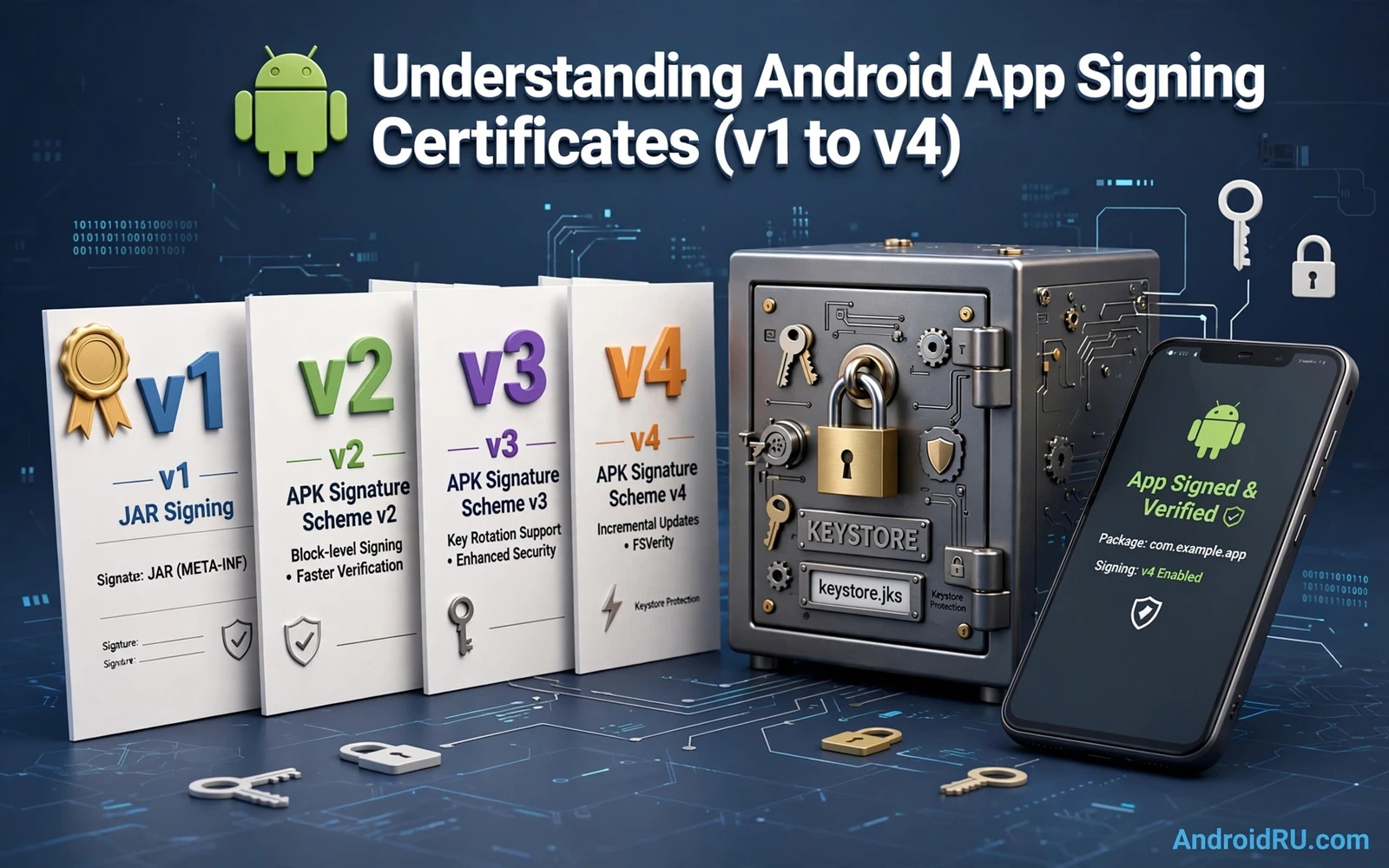
Why App Signing Exists
App signing proves that a package came from a known developer identity. The system checks the signature before installing an app. The system also checks the signature before allowing an update to an existing app. A package with a different signer cannot silently replace an installed app. That rule protects users from a fake update that looks like a trusted app.
Signing does not prove that an app is safe. A signed app can still contain bugs or unwanted behaviour. Signing proves identity and integrity for that package. Identity means that the same developer key signed the package. Integrity means that the package was not altered after signing without breaking the signature.
Every app distributed for Android must be signed before it can be installed on a normal device. Unsigned packages are useful only for inspection or for special test flows. A developer who plans a release must plan signing from the start. A release without a signing plan will stall at the final step.
Keys and Certificates in Plain Terms
A signing key is a private cryptographic key that only the developer should hold. A certificate is a public document that carries the public key and identity details. The package signature is created with the private key. The system verifies that signature with the public key from the certificate inside the package.
A keystore is a protected file that holds signing keys. Android Studio can create a keystore and can store a key inside it. The keystore has a password and each key inside it can have its own password. Losing the keystore or losing its passwords can block future updates to an existing app. That loss is one of the most serious mistakes in Android publishing.
A certificate has a validity period. Android requires a long validity period for app signing certificates so that updates remain possible for many years. A certificate that expires soon can create update problems later even when the current install works. Choose a long validity period at creation time and record the expiry date in release notes.
Signature Scheme v1: The Classic JAR Signature
Scheme v1 is the original signing scheme based on JAR signing. It signs individual files inside the APK archive. It stores signature files in a metadata folder inside the package. The installer verifies those file signatures during install. Scheme v1 is widely compatible with older Android versions and older tools.
Scheme v1 has a known weakness. It does not protect some parts of the APK archive itself. An attacker could modify unsigned parts of the archive without breaking v1 file signatures in some cases. That weakness is why newer schemes were created. Scheme v1 alone is not enough for a modern release that needs strong integrity protection.
Scheme v1 still matters for compatibility in some release flows. Some older devices and some older tools only understand v1. A modern build often includes v1 alongside a newer scheme for that reason. The combination gives broad compatibility while the newer scheme provides stronger protection on devices that support it.
Signature Scheme v2: Full APK Protection
Scheme v2 signs the entire APK as a whole rather than signing files one by one. It adds a signing block to the APK structure before the central directory. The installer verifies that block against the whole APK content. Any change to the APK after signing breaks the v2 signature. That whole file protection closes the main weakness of v1.
Scheme v2 also improves install speed on modern devices. The verifier can check the APK in a streaming way without reading every file twice. Faster verification matters for large apps on modest devices. Scheme v2 became the standard for modern Android releases because it combines stronger protection with better performance.
A v2 signed APK must not be altered after signing. Tools that modify an APK such as zip alignment tools must run before signing and not after it. A post signing edit breaks the signature and the installer will refuse the package. Build pipelines must order alignment and signing correctly to avoid a broken release artifact.
Signature Scheme v3: Key Rotation Support
Scheme v3 extends v2 with support for key rotation. Key rotation lets a developer move from an old signing key to a new signing key over time. The v3 signing block can carry a lineage that proves that the new key descends from the old key. Devices that understand v3 can accept an update signed with the new key when the lineage is valid.
Key rotation is useful when an old key is compromised or when a team changes its signing infrastructure. Without rotation a compromised key would force a new app identity and a loss of existing users. With rotation the developer can migrate users to a new key while preserving the app identity. Rotation must be planned carefully because a bad lineage can block updates.
Scheme v3 also supports multiple signers in a defined structure. A package can carry signatures from more than one signer when a distribution model requires it. Most single developer apps use one signer and one lineage. Multi signer cases are rarer and they need extra testing on target devices before release.
Signature Scheme v4: Support for Incremental Installs
Scheme v4 adds a separate signature file that supports incremental installation features. It works alongside v2 or v3 signing rather than replacing them. The v4 file carries a hash tree that lets the system verify parts of a large APK as they arrive. That structure supports faster installs for very large apps on supported devices.
Scheme v4 matters most for large apps where download and install time affect user experience. A user can start using parts of an app sooner when incremental verification is available. Small apps gain little from v4 because their install time is already short. Developers should enable v4 when their build tools support it and when their target devices support it.
A v4 signature file must match the APK that it accompanies. A mismatched v4 file should be treated as a broken release artifact. Build pipelines should generate v4 alongside the APK in the same build step. A manual copy of a v4 file from another build is a recipe for a verification failure.
How the Schemes Combine in a Modern Build
A modern release build often includes v1 and v2 and v3 signatures together. The installer on a device picks the strongest scheme that it understands. An old device may verify v1 only. A modern device will verify v2 or v3 and will gain the stronger protection. The combination strategy gives one artifact that works across a wide device range.
Build tools can enable each scheme with a signing configuration. A developer should verify which schemes a build actually contains before release. A signing report or a verification tool can list the schemes present in an artifact. A release checklist should include that verification step for every production build.
Do not assume that a scheme is present because a build tool default suggests it. Defaults change across tool versions. A verification step after signing removes that assumption. A verified artifact list is a release asset that the team can trust during an incident.
Keystore Safety Rules That Prevent Disaster
Store the release keystore in a secure location with restricted access. Keep a backup in a second secure location that is separate from the main build machine. A single copy on a single laptop is a single point of failure. A backup that lives in a public repository is worse than no backup because it exposes the key.
Never commit a release keystore or its passwords to version control. Version control history is hard to clean once a secret enters it. Use a secure secret store for passwords and use environment variables or a secure build service for signing in automation. A build log must never print a keystore password or a key password.
Limit the number of people who can access the release key. Each additional holder increases the risk of accidental exposure. Record who holds access and review that list when team members change roles. Revoke access promptly when a holder leaves the team. Access hygiene is part of signing security and not an administrative extra.
What Happens When a Key Is Lost or Compromised
A lost release key can block updates to an existing app on the main store. Users on the old identity cannot receive an update signed with a new key unless a valid rotation lineage exists. A developer who loses a key without a rotation plan may need to publish a new app identity and ask users to migrate manually. That migration loses ratings and install history and user trust.
A compromised key needs immediate action. Rotate to a new key through a valid lineage when possible. Notify the store support channel when the compromise affects a published app. Review recent releases signed with the compromised key for tampering. A slow response to a compromise gives an attacker more time to abuse the stolen identity.
Prevention is far cheaper than recovery in signing work. A backup keystore and a tested rotation plan and a restricted access list prevent most key disasters. Test the backup by signing a test build with the backup copy in a controlled environment. A backup that has never been tested is only a hope and not a recovery plan.
Signing in the Play App Signing Model
Play App Signing changes who holds the final signing key for store distribution. The developer signs an upload artifact with an upload key. The store then signs the final distribution artifact with the app signing key that the store holds. This model lets a developer reset an upload key without losing the app identity when the upload key is lost.
The upload key still needs protection because it controls who can submit new versions. A lost upload key can be reset through the store support process with identity checks. A compromised upload key should be reported and reset promptly. The store held app signing key adds a safety layer but it does not remove the need for upload key hygiene.
Developers who distribute outside the store must hold their own final signing key. There is no store held key to fall back on in that model. A distributor key loss has the same update blocking effect as a lost release key. Alternative distribution therefore needs the same backup and access discipline as a main store release.
Verification Steps Before Every Release
Verify the package name and version code and version name in the signed artifact. Verify the signer identity against the expected certificate. Verify the signature schemes present in the artifact. Verify that the artifact installs on a test device and that an update from the previous version succeeds on that device.
An update test is especially important for signing work. Install the previous production version on a test device. Install the new signed version over it without uninstalling first. A successful update proves that the signer matches and that the schemes work on that device. A failed update test is a release blocker and not a minor warning.
Policy compliance and signing discipline meet at release time. The policy guide in understanding Google Play Console policy updates explains how a compliant release is planned. A release that passes policy review but fails signing verification still cannot reach existing users.
Common Signing Mistakes and Fixes
One mistake is signing a debug build with a debug key and shipping it as a release. Debug keys are shared and insecure and they cannot be used for a proper store release. A release build must use the release keystore and the release key. A build type check before signing prevents this mistake.
Another mistake is running a post signing modification tool on a signed APK. Zip tools and patch tools that alter the APK after signing break v2 and v3 signatures. Run all modification tools before signing. Verify the signature again after any tool that touches the artifact for any reason.
A third mistake is storing keystore passwords in plain text inside build files. Plain text passwords in a shared project leak to every person with repository access. Move passwords to a secure store and reference them through a safe mechanism. A password that appears in a build log should be treated as compromised and changed promptly.
Distribution catalog work also depends on signer consistency. The indexing guide in indexing APKs for custom distribution websites records signer identity as a catalog fact. A catalog that tracks signer changes can spot a suspicious package before users install it.
A Release Signing Checklist
Confirm that the build is a release build and not a debug build. Confirm that the keystore path and the key alias match the release record. Confirm that passwords come from a secure store and not from a plain text file. Sign the artifact and then verify schemes and signer and package identity. Test an update install over the previous version on a real device.
Inspection skills support that verification habit. The inspection guide in basic APK reverse engineering and code inspection shows how to read package facts without installing blindly. A team that inspects its own release artifact catches signing errors before users do.
- Signing proves identity and integrity not safety
- v1 signs files and v2 signs the whole APK
- v3 adds key rotation lineage
- v4 supports incremental install verification
- Back up the keystore and test the backup

