

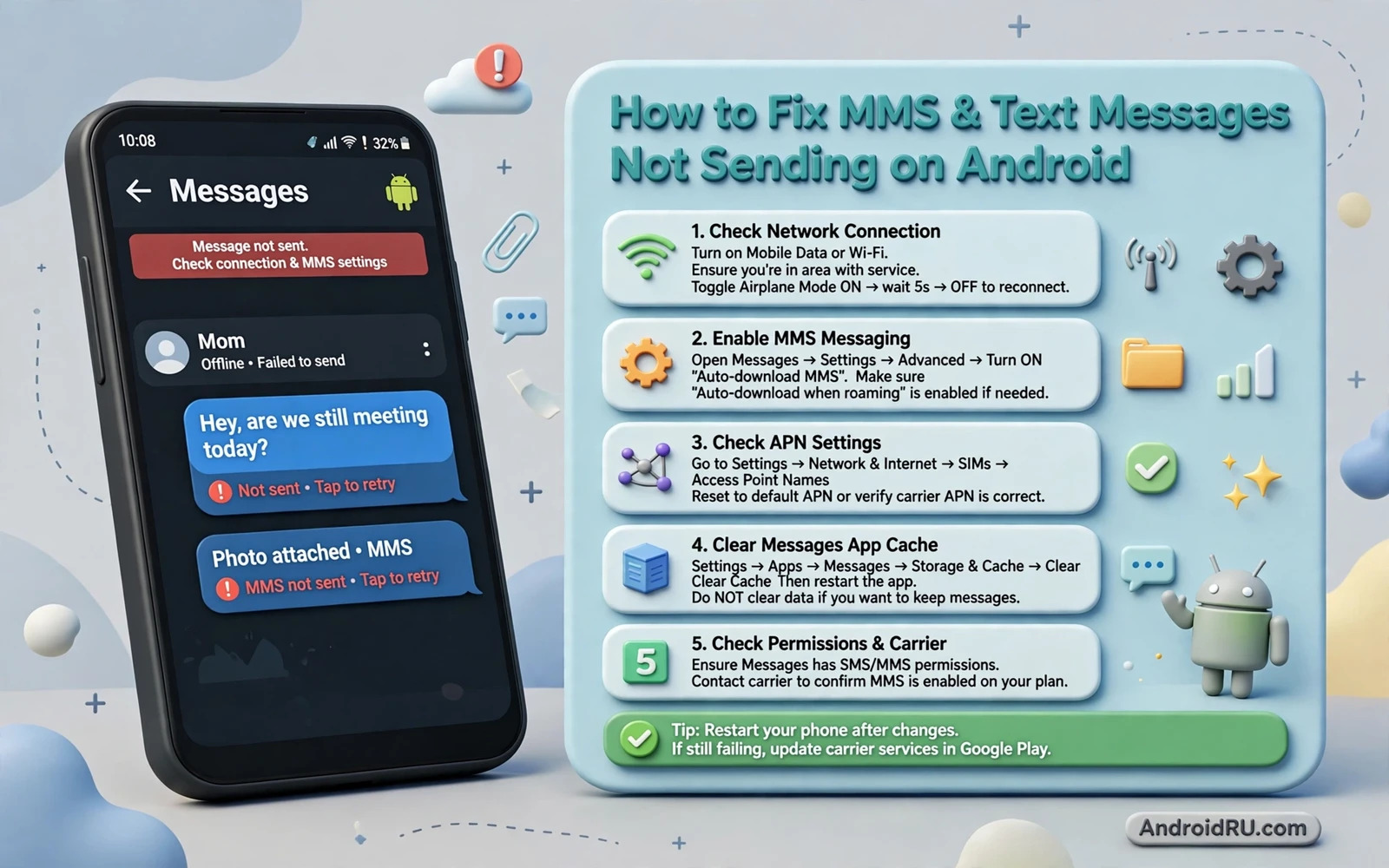
Why Messages Fail To Send
A text message can fail for many reasons. A weak signal can block delivery. Wrong carrier settings can block multimedia messages while plain texts still work. A full message app storage can block new sends. A blocked number or a wrong number format can look like a network fault. A messaging app bug can stall the send queue. Separating plain SMS from MMS is the first diagnostic step because they travel differently. SMS uses the signalling channel. MMS needs mobile data and carrier settings.
Test with a plain short text to a known good number. If plain texts send but picture messages fail then the fault is likely MMS settings or mobile data. If both fail then the fault is likely signal or account or app level. Note which case matches your phone. That note keeps the fix focused and prevents changing MMS settings for a plain SMS fault.
Check Signal And Account Basics
Check the signal bars and try a call. A call that works proves basic network registration. A phone with no service cannot send any message. Move near a window or step outside and retry. A weak indoor signal can fail a message while a call still connects. If the phone shows no service then the SIM fault guide matters more than message settings. Readers in that situation should first read the companion guide to fixing a SIM no service error because service must return before any message can send.
Check that the account is active and not blocked for messaging. A carrier block or an unpaid balance can stop outgoing messages while incoming calls still work. Contact the carrier if messages fail on every number with good signal. Also confirm the recipient number format. A missing country code can fail for some carriers and numbers. Save the number in full international format and retry. A simple format error is an easy win.
Fix MMS With Mobile Data And APN
MMS needs mobile data even on Wi-Fi. Turn mobile data on and keep Wi-Fi on as well. The phone should route MMS over mobile data automatically. If MMS still fails then check the APN settings. Open Settings and then Network and internet and then SIMs or Mobile network and then Access Point Names. Compare the APN with the carrier published settings. A wrong MMS proxy or a missing MMS APN entry blocks picture messages specifically.
Do not edit APN values blindly. Note the current values first or take a screenshot. Reset APN to default from the APN menu if your phone offers that option. A default reset restores carrier values without manual typing. After the reset restart the phone and test an MMS to yourself or a willing friend. If the carrier settings are correct and data is on then MMS should send within a minute on good signal.
Clear The Messaging App Cache
Open Settings and then Apps and then Messages and tap Storage and then Clear cache. A cache clear removes temporary data without deleting conversations. Reopen Messages and retry the failed message. If the message sits stuck in a sending state then long press it and delete the stuck copy and compose a fresh message. A stuck queue entry can block later messages behind it. Clearing the queue often restores normal sending at once.
If cache fails then check message app storage. A messaging app with a huge attachment store can misbehave. Delete old conversations with large media if you no longer need them. Back up important conversations first if they matter. Also check overall phone storage. A nearly full phone can block MMS because it cannot save the incoming or outgoing media. Free space helps more than most people expect.
Test Another Messaging App And Another SIM
Install or open a second SMS app temporarily and set it as default for testing. Send a test message from the second app. If it sends then the original app is at fault. Switch default apps or clear data for the original app after backing up conversations. If the second app also fails then the fault is network or SIM level. That distinction saves a full app reset for a network problem.
If your phone has two SIM slots then test the other SIM for sending. A SIM specific fault will follow the SIM. A phone fault will affect both SIMs. Note the result. Also test the SIM in another phone if possible. A SIM that fails in two phones points to the SIM or the account. A SIM that works elsewhere points to the phone settings. These swaps are the fastest way to split SIM faults from phone faults.
Check Blocks And Spam Filters
Open the messaging app and check blocked numbers and spam folders. A number blocked by mistake will fail silently or show as undelivered. Unblock the number and retry. Check the spam and blocked section for the conversation itself. Some spam filters move a thread there and hide send failures. Moving the thread back to the inbox can restore normal sending.
Check that the recipient has not blocked your number. A message to a blocking recipient may appear sent on your side but never arrive. Test with a different recipient to separate your fault from their block. If messages to everyone fail then the fault is yours. If messages to one person fail while others succeed then the fault may be on their side. Ask them through another channel such as a call.
Update And Reset Network Settings
Update the messaging app and check for a system update. Updates fix send bugs and carrier compatibility issues. After updating restart the phone and test a plain text first and then an MMS. If both still fail then reset network settings. Open Settings and then System and then Reset options and then Reset Wi-Fi mobile and Bluetooth. This reset clears saved Wi-Fi networks and Bluetooth pairings and mobile settings including APN. Reconnect to Wi-Fi afterwards and test messages again.
A network reset is disruptive but it is safer than a factory reset. It preserves photos and apps and messages. It only clears connectivity settings. Note your Wi-Fi passwords before the reset. After the reset the phone rebuilds carrier settings from the SIM. That rebuild fixes many stubborn MMS faults. If messages still fail after a network reset then carrier support is the next step because the fault likely sits on the account or the SIM.
Keep Messaging Reliable
Keep mobile data on for MMS and keep the messaging app updated. Review blocked numbers occasionally so a mistaken block does not linger. Delete very old media heavy threads to keep the app responsive. Save important numbers in full international format. These habits prevent most send failures before they start.
Message sending should be boring and reliable. When it fails the split between SMS and MMS plus the SIM and app tests in this guide finds the cause fast. For a wider connectivity picture the guide to fixing mobile data that stops working covers the data side that MMS depends on. A healthy data link plus correct APN plus a clean messaging app keeps texts flowing.
Group Messages And MMS
Group messages often travel as MMS even when they contain only text. A group thread with several participants needs MMS handling to keep replies threaded. If group messages fail while one-to-one texts succeed then MMS settings are the prime suspect. Check mobile data and APN as the main guide describes. A group thread that breaks into separate one-to-one threads also signals an MMS or group setting issue.
Some messaging apps let you choose group messaging mode. A mode that sends group replies as individual texts breaks threading but may succeed where MMS fails. That mode is a workaround not a fix. Restore proper group MMS once APN and data are correct. Proper threading keeps group conversations readable and reply-all working as expected.
International And Short Code Messages
International texts can fail from number format alone. Save international numbers with a plus sign and the country code. A number stored in local format may fail when the carrier expects international format. Short code messages from banks and services can fail when premium messaging is blocked. Check carrier settings for premium SMS permission if verification codes never arrive. A blocked premium setting silently kills many two-factor codes.
Verification codes deserve a special check because they look like ordinary failures. If codes from several services fail while personal texts succeed then the fault is likely a spam filter or a premium block. Check the spam folder and the blocked list first. Then contact the carrier about premium messaging. A carrier toggle can restore codes that no app setting can fix.
Message App Data Hygiene
A messaging app with years of media can slow down and misbehave. Archive old conversations rather than deleting them when possible. Archiving keeps content recoverable while removing it from the main list. Export important conversations through the app share or backup feature before a major cleanup. A cleanup that deletes an important thread is worse than a slow app.
Clear cache regularly for the messaging app. Cache grows with media thumbnails and link previews. A monthly cache clear keeps the app responsive without touching conversations. For message recovery after a deletion the guide to restoring deleted text messages covers backup routes that pair with the sending fixes here. Sending health plus recovery readiness together make messaging reliable.
A Practical Checklist For Message Delivery
Diagnose a message failure with a checklist that splits the problem fast. Send a plain text to a known good number and note whether it succeeds. Send a picture message and note whether it succeeds. Check signal strength and try a call to confirm basic registration. Check mobile data for MMS and check APN settings against carrier defaults. Clear the messaging app cache and delete any stuck sending message. Test a second messaging app and test the other SIM slot if available. Each step splits the fault further until only one cause remains.
Prevent future failures with a monthly message hygiene routine. Review blocked numbers and spam folders for mistaken entries. Delete media-heavy threads that slow the app and archive conversations that matter. Confirm the messaging app is updated and confirm mobile data is on for MMS. Save important numbers in full international format. A monthly routine takes minutes and it prevents most send failures before they interrupt an important conversation.
Keep a backup path for critical messages. Screenshot agreements and appointment confirmations and store them safely. A screenshot survives app faults and accidental deletion. Forward critical messages to email when they carry details you may need later. A forwarded copy is a second record that no single app failure can erase. Message delivery plus message preservation together make texting dependable for both daily chat and important records.

