

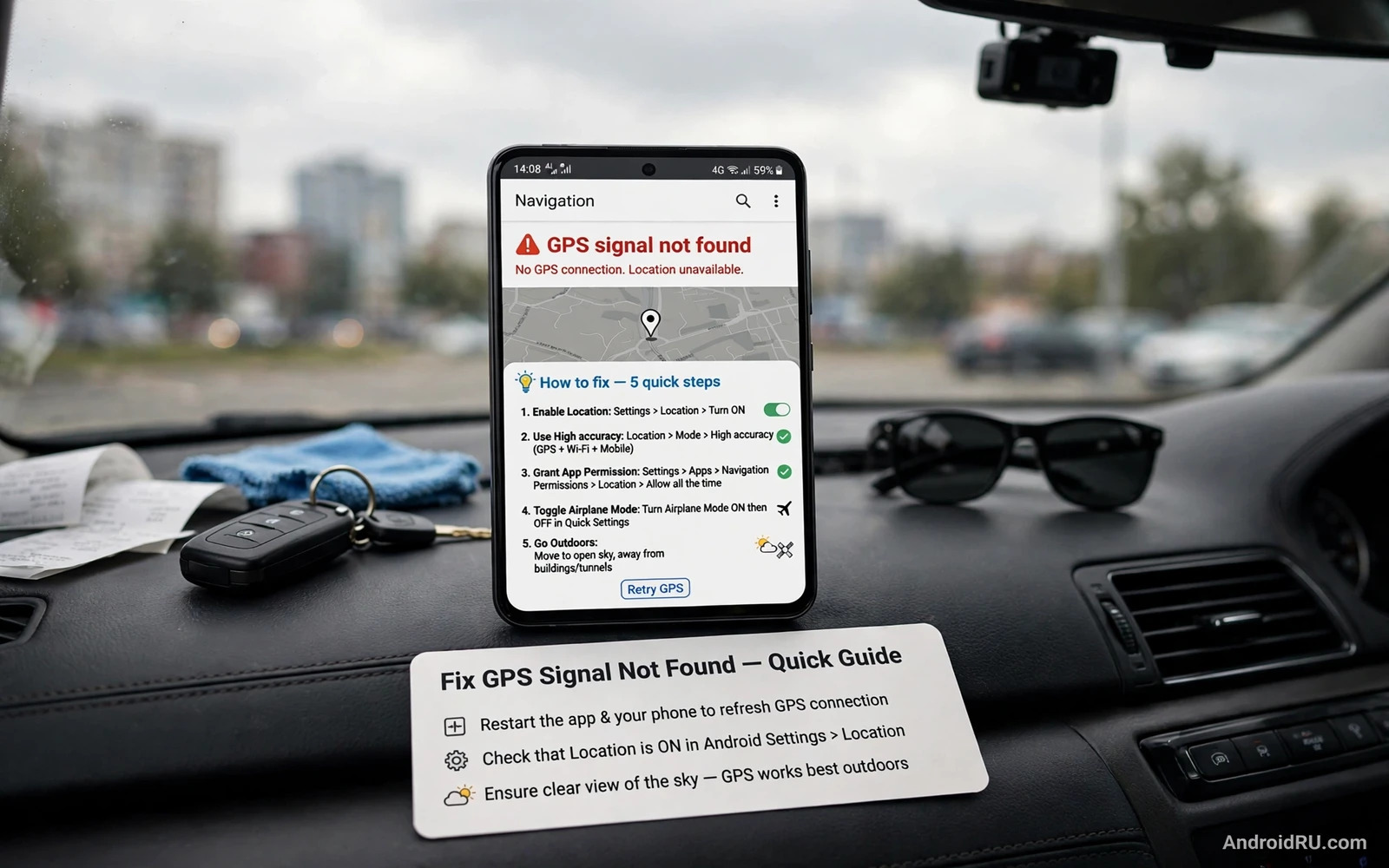
How to Fix GPS Signal Not Found Error in Navigation Apps
There is a particular kind of stress that only a lost driver knows. You are in an unfamiliar part of town, the traffic is moving, and your navigation app suddenly shows “GPS signal not found” instead of the next turn. I have been there more than once, and the good news is that this error rarely means your phone is broken. It usually means the app cannot get a fresh, accurate location fix in a reasonable time, and the cause is often a setting, a permission, or a weak signal that you can fix in a few minutes.
This guide walks through the fix in order, from the quickest checks to the deeper resets, with the exact menu names you will see on Android. You will learn what the error really means, how to test whether the fault is in one app or in the whole phone, how to calibrate the compass, and when the problem is actually hardware. Work through the steps in order and test after each one, because most people find the fix in the first four steps and never need the rest.
One warning before you start: do not change ten settings at once. If you change everything and the error disappears, you will never know which change fixed it, and the problem may return the next time that setting changes. Change one thing, test it outdoors, and only move on when the test fails. That discipline saves more time than any shortcut.
What GPS Signal Not Found Really Means on Android
Your phone finds its position by combining several sources at once. Satellites in orbit give the most accurate fix, Wi-Fi networks and mobile towers give a faster rough fix, and the accelerometer, gyroscope, and compass fill in the gaps when you move. When your navigation app says GPS signal not found, it means that chain has broken somewhere: the satellites are blocked, the phone is not allowed to use precise location, a power-saving feature has paused location updates, or the app itself has stale data that it cannot clear.
Tall buildings, tunnels, multi-storey car parks, and dense tree cover can block satellite signals completely, and a phone case with metal parts can weaken reception enough to matter. Indoors, the phone falls back to Wi-Fi and network location, which is far less accurate, and the app may report a GPS error when the real problem is simply that no satellite signal reaches you through the roof. That distinction matters, because no setting will fix a satellite signal that physically cannot reach the phone.
Start by separating a one-time glitch from a lasting fault. Step outside, away from tall walls and metal roofs, and stand still with the phone screen facing up for a full minute. If the blue dot settles and the route starts, the problem was likely a weak signal at that moment. If the dot keeps jumping, never appears, or appears kilometres away, work through the steps below in order. Each step removes one possible cause, and testing after each step tells you exactly when the fault is gone.
Step-by-Step Fix for GPS Signal Not Found in Navigation Apps
Follow these nine steps in order. Most GPS errors on Android are fixed by step four, and the later steps exist for the stubborn cases that survive the easy fixes. Keep a note of what you change, and test outdoors after every step, because an indoor test can mislead you into thinking a fix failed when it simply had no satellite signal to work with.
Step 1: Turn On Location and Enable Google Location Accuracy
Open Settings, then tap Location, and confirm that the Location switch is turned on. If it is off, no app can get a fix at all, and the error is expected. Next, tap Location services or Location accuracy, and turn on both Wi-Fi scanning and Bluetooth scanning. These scans help the phone locate itself faster when satellite signals are weak, because the phone can match nearby Wi-Fi networks and Bluetooth beacons to known positions.
Then look for Google Location Accuracy, which sits under Settings, then Location, then Location services on most phones, and turn it on. This setting lets the phone combine every available signal source, including Wi-Fi, mobile networks, and sensors, into one accurate fix. Some phones hide the same choice under a mode setting labelled High accuracy or Precise location. Choose the most accurate option your phone offers. A phone set to battery-saving location mode will deliberately use fewer sources, and that is often enough to trigger the error in a navigation app that needs turn-by-turn precision.
How to Check Location Accuracy After the Change
Open Google Maps outdoors, tap the blue dot, and look at the accuracy circle around it. A small circle means a strong fix, while a large circle covering a whole street means the fix is still rough. Wait a full minute and watch whether the circle shrinks. If it shrinks steadily, the accuracy setting is working and the phone is gathering satellite data. If it stays large after a minute outdoors, move to step two.
Step 2: Give the App Precise Location Permission
A navigation app with only approximate location permission cannot do turn-by-turn directions, because approximate location can be off by hundreds of metres. Open Settings, then Apps, then your navigation app, then Permissions, then Location. Choose Allow all the time if you navigate with the screen off or with the app in the background, or Allow only while using the app if you only navigate with the app open. Then confirm that the Precise location toggle is on. On some phones this appears as a separate switch labelled Use precise location, and it must be on for the app to receive satellite-grade fixes.
While you are on the permissions screen, check that the app has no permission set to Ask every time, because a permission prompt that appears while you drive can interrupt the fix. Also check the permission manager for any location permission you denied months ago and forgot. A single denied permission is a common cause of an error that appears suddenly after an app update resets its permission state.
Step 3: Test Outdoors and Remove Physical Blocks
Step outside away from tall walls and metal roofs, remove any thick metal case or magnetic car mount plate, and hold the phone with the screen facing up. Stand still for at least a minute, because movement makes the first satellite fix harder. The phone needs a stable view of the sky to lock onto at least four satellites, and walking while it searches slows that process down. If the fix appears outdoors but fails indoors, the phone is likely fine and the indoor spot simply blocks satellites.
Now try a second navigation app with the same outdoor test. Open Google Maps and Waze, or whichever two apps you have, and compare the result. If both apps fail outdoors, the fault is likely system-wide, which points to settings, sensors, or software updates. If only one app fails, the fault is likely inside that app, which points to permissions, cache, or app data. Write down which case matches your phone before you move on, because it keeps the rest of the fix focused on the right place.
Step 4: Clear the App Cache and Restart the Phone
Open Settings, then Apps, then the navigation app, then Storage, then tap Clear cache. A cache clear removes temporary files without deleting your saved places, your history, or your settings. Reopen the app and test navigation outdoors. If the error stays, return to the same screen and tap Clear storage or Clear data. That step resets the app to a fresh state and removes saved settings, so use it only after a cache clear has failed, and sign back into the app afterwards.
Also check for an app update in the Play Store, because an older navigation app may use a location method that newer Android versions restrict. Update the app, then restart the phone. A restart clears stuck location services and lets the phone request a fresh satellite fix. After the restart, open the app outdoors and wait patiently. The first fix after a restart can take longer than later fixes, because the phone rebuilds its satellite data from scratch, so give it at least a minute before you judge the result.
Step 5: Calibrate the Compass With the Figure-Eight Motion
A confused compass can make navigation look wrong even when the GPS fix itself works. The app may show your position correctly yet point the arrow in the wrong direction, or it may keep rotating the map as you drive straight. Open Google Maps, tap the blue dot, then tap Calibrate compass if the option appears, and follow the prompt to move the phone in a figure-eight motion a few times. That motion helps the compass relearn magnetic north by sampling the magnetic field from many angles.
Calibrate in a calm outdoor spot away from magnets, large metal objects, and car dashboards with magnetic mounts, because those distort the reading and teach the compass the wrong north. Hold the phone away from your body, move it smoothly rather than shaking it, and repeat the figure eight three or four times. Then open a compass app and rotate the phone slowly. If the needle moves smoothly, the sensors respond correctly. If the needle freezes or jumps wildly, a sensor fault is possible, and no amount of calibration will fix it.
Step 6: Stop Battery Saver From Pausing Location Updates
Power-saving features can pause location updates in the background, and this is the most common cause of a GPS error that appears halfway through a long drive. Open Settings, then Apps, then the navigation app, then Battery, and choose Unrestricted or Allow background activity if your phone offers that choice. This step matters most when the screen locks or the app runs behind another app, because without background permission the app may lose its fix the moment you switch screens.
Also turn off Battery Saver while you test navigation, because battery saver may pause background location and reduce scan frequency across the whole phone. On Samsung phones, check Settings, then Battery and device care, then Battery, and confirm that no power-saving mode is active. On Pixel phones, check Settings, then Battery, then Battery Saver. After the change, test a short drive and watch whether the blue dot stays stable when the screen locks. If it stays stable now, you have found the cause.
Background Location Permission and Battery Trade-Offs
High-accuracy location uses more power than battery-saving location, and that trade is worth it during navigation, because a lost fix costs more time than the power saved. Outside navigation, switch back to a lower accuracy mode if your phone offers one, and grant always-on location only to apps that truly navigate in the background. Every other app can use while-in-use access. That review protects both battery and privacy at once, and it stops a forgotten background permission from draining power for months.
Step 7: Remove Spoofers, VPNs, and Other Interference
Other apps can interfere with location in ways that look like a GPS fault. A fake location app or a location spoofer left running can feed the system a false position, and the navigation app will trust that false position until the spoofer is removed. Open Settings, then Apps, and look for any mock location app, then uninstall it or disable it and turn off mock locations in Developer options. A VPN does not block GPS, yet it can confuse network-based location, so turn the VPN off for the test and see whether the fix returns.
Physical interference matters too. A dashboard mount with a metal plate can weaken satellite reception, and a thick metal case can do the same. Move the phone away from the mount, take the case off, and test again outdoors. Small physical changes often explain a fault that looks like a software bug. If you use a magnetic mount, try a vent mount or a suction mount without metal, and keep the phone away from the car stereo and any strong magnets while you test.
Step 8: Update Google Play Services and the System
Location services on Android depend heavily on Google Play services, and an outdated version can reduce accuracy across every app at once. Open Settings, then Apps, then Google Play services, and check the version, or open the Play Store and search for Google Play services to see whether an update is available. If an update exists, install it over Wi-Fi, restart the phone, and test outdoors again.
Then check for a system update in Settings, then System, then System update. System updates can fix location bugs and improve satellite handling, and they are the least risky deep fix available, so try them before any reset. Install the update over Wi-Fi, restart the phone, and test outdoors with a clear sky view. If the update was large, the first fix after it may take a little longer while the phone rebuilds its location data, so be patient for a full minute.
Step 9: Reset Network Settings, Then Consider a Factory Reset
If every step so far has failed and both apps fail outdoors, reset the network settings. Open Settings, then System, then Reset options, then Reset Wi-Fi, mobile and Bluetooth. This clears saved networks, Bluetooth pairings, and mobile settings, so write down your Wi-Fi passwords first. A reset also wipes network settings that a factory reset would remove, which is why readers planning a reset should first read the guide to fixing mobile data that stops working, because you will want a plan for reconnecting afterwards.
A factory reset is the last software option, and only after a full backup. Back up photos, messages, and accounts first, because a reset erases the phone. After the reset, set the phone up as new rather than restoring from a backup, test navigation outdoors before reinstalling anything, and only then restore your apps one by one. A reset that still leaves GPS broken outdoors points to hardware, and a repair centre is the right next step. Do not open the phone yourself, because that can void the warranty and damage sealed parts.
GPS Error Causes and Fixes at a Glance
The table below matches the most common causes of the error with the fix that solves each one, so you can jump straight to the row that matches your symptoms instead of working through the whole guide again. Use it as a quick reference the next time the error appears, and keep it in mind when the error behaves differently in different places.
| Symptom | Likely cause | Fix | Where to find it |
|---|---|---|---|
| Error only indoors | Satellite signal blocked by roof | Test outdoors with a clear sky view | Any open area away from tall walls |
| Error in one app only | App permission or stale cache | Grant precise location, clear cache | Settings, Apps, Permissions, Storage |
| Error in every app | System setting or Play services | Enable Google Location Accuracy, update Play services | Settings, Location, Location services |
| Fix lost mid-drive | Battery saver pausing background location | Set battery to Unrestricted for the app | Settings, Apps, Battery |
| Arrow points the wrong way | Compass needs calibration | Figure-eight motion in Google Maps | Google Maps, blue dot, Calibrate compass |
| Position jumps kilometres away | Mock location app or VPN confusion | Remove spoofer, turn VPN off for the test | Settings, Apps, Developer options |
| Error after a system update | Outdated app or Play services | Update the app and Play services, restart | Play Store, Settings, System update |
| Error everywhere after all fixes | Hardware antenna or sensor fault | Factory reset test, then repair centre | Settings, System, Reset options |
Notice how the symptom narrows the cause. An error that appears only indoors is almost never a broken phone, while an error that survives a factory reset almost always is. That pattern is the fastest diagnostic tool you have, and it is worth more than any single setting, because it tells you whether to keep changing software or to stop and seek a repair.
Fixing the Error in Google Maps, Waze, and Other Navigation Apps
Google Maps is the best app to test with, because it has the most direct access to Google Location Accuracy and the clearest compass calibration flow. Open Maps, tap the blue dot, and check the accuracy circle and the calibration option first. If Maps works but Waze does not, the fault sits in Waze, so clear Waze cache in Settings, then Apps, then Waze, then Storage, and check that Waze has precise location permission. Waze relies more on community reports and real-time data, so it also needs a stable mobile connection, and a weak data signal can make its map lag even when the GPS fix is fine.
Other navigation apps follow the same pattern. Sygic, HERE WeGo, and OsmAnd all depend on the same system location services, so a fix that works in Maps usually works in them too. If one app fails while the others work, reinstall that app rather than resetting the whole phone, because a fresh install clears corrupted offline data that a cache clear may miss. Download offline maps again after the reinstall, since offline data does not survive a reinstall, and test on a familiar route before relying on the app far from home.
For drivers, the car side of navigation deserves its own check. When the phone fix is fine but the dashboard display misbehaves, the companion guide to Android Auto connection problems covers the car side of the problem, including cable, Bluetooth, and head-unit settings. Together the two guides separate phone faults from car faults, and a steady GPS fix plus a clean car link gives you navigation you can trust on unfamiliar roads.
Offline Maps as a Safety Net When the Fix Is Slow
Offline maps reduce the damage of a slow GPS fix, even though they cannot create a fix on their own. Download the map for your home region and for any region you plan to visit, over Wi-Fi before the trip, because map files are large and mobile data is a poor way to fetch them. An offline map lets the app show roads, search places, and give voice guidance even when the live fix lags, which turns a ten-second delay into a minor annoyance rather than a missed turn.
Test offline navigation on a familiar route before relying on it far from home. Start navigation with mobile data off and watch whether the route draws and voice guidance works. A successful test proves the offline set is complete, while a failed test shows a missing region before it matters. Update offline maps every few months so road changes stay current, and store maps for areas you visit often so a weak signal still leaves you with a usable map. Offline maps plus a healthy GPS fix together give navigation that survives weak signal and dead zones alike.
When GPS Signal Not Found Means a Hardware Fault
A hardware fault is the last explanation to consider, and it is the right one only after every software step has failed. The signs are consistent: both apps fail outdoors with a clear sky view, the compass needle freezes or jumps wildly in a compass app, the error survives a factory reset with the phone set up as new, and no case, mount, or spoofer is involved. If all four signs are present, the GPS antenna, the sensor, or the board connection is the likely cause, and a repair centre can test it properly.
Before you book a repair, check whether the fault appeared after a drop, a repair, or water exposure, because physical damage to the antenna is a common cause that no software fix will solve. Also check whether the phone is still under warranty, because a GPS antenna repair on a sealed phone is not a job to attempt at home. Precise location permission for navigation apps is worth re-checking one last time before you pay for a repair, since a single denied permission has sent many phones to repair shops that did not need to go. A careful final check costs nothing, while an unnecessary repair costs both money and time.
Preventing Future GPS Failures on Android
Keep location permissions tidy. Grant precise location only to apps that truly need it, and review the list every few months in Settings, then Privacy, then Permission manager, then Location. Keep your navigation app updated, avoid running location spoofers alongside real navigation, and keep Google Play services current, because location accuracy depends on it more than most users realise. A phone that receives regular updates is far less likely to develop a location fault than one that sits on old software for a year.
Hardware that pairs with a steady phone fix makes the whole setup more reliable. A good car mount without metal plates, a charger that keeps the phone powered on long drives, and a phone with a clean GPS antenna all help. For the car display side, the guide to devices for car drivers and navigation use explains hardware that pairs with a steady phone fix, from mounts to head units. A steady fix plus the right hardware gives you navigation that works the first time, every time, rather than a setup you have to fight before every journey.
Frequently Asked Questions About GPS Signal Not Found
Why does Google Maps say GPS signal not found when other apps work?
This usually means the fault sits inside Google Maps rather than in the phone. Clear the Maps cache in Settings, then Apps, then Maps, then Storage, check that Maps has precise location permission, and update the app in the Play Store. If the error stays after those steps, clear Maps data as well, sign back in, and download your offline maps again. A single corrupted offline map file is a surprisingly common cause of an error that appears in only one app.
How long should I wait for a GPS fix outdoors?
A healthy phone with a clear sky view should get a usable fix within thirty to sixty seconds, and a precise fix within two minutes. The first fix after a restart, a system update, or a long flight can take longer, because the phone rebuilds its satellite data from scratch. If no fix appears after three minutes outdoors with the phone still and the screen up, a setting or a fault is involved, and working through the steps in this guide is the right next move. Standing under a roof or between tall buildings does not count as an outdoor test.
Can a phone case cause GPS signal not found?
Yes, a thick metal case, a case with a magnetic plate, or a metal car mount can weaken satellite reception enough to cause the error, especially in areas where the signal is already weak. Remove the case and the mount plate, hold the phone with the screen facing up outdoors, and test again. If the fix returns without the case, the case is the cause, and a plastic or leather case will solve it. This test takes one minute and has saved many phones from unnecessary resets.
Does battery saver really break GPS navigation?
Yes, battery saver can pause background location updates and reduce scan frequency, which is why the error often appears halfway through a long drive rather than at the start. Set the navigation app battery setting to Unrestricted in Settings, then Apps, then the app, then Battery, and turn battery saver off while you navigate. The extra power use during a drive is small compared with the time a lost fix costs, and you can switch battery saver back on when you arrive.
Should I factory reset my phone to fix GPS?
Only as a last step, after you have tried every setting, cache clear, update, and network reset in this guide, and only after a full backup. A factory reset is a useful diagnostic, because an error that survives a reset with the phone set up as new points firmly at hardware. Google Location Accuracy in Android settings is the setting to check before any reset, since turning it on fixes more GPS errors than any reset ever will, and it takes ten seconds rather than an afternoon of restoring backups.
Final Checklist: Get Your Route Back Today
Start with the three checks that fix most cases: turn on Location and Google Location Accuracy, grant the app precise location permission, and test outdoors with the case removed. Then clear the app cache, calibrate the compass with a figure-eight motion, and set the app battery to Unrestricted. Update the app, Google Play services, and the system, remove any spoofer or VPN for the test, and only then consider a network reset or a factory reset. That order works because it removes the common causes first and saves the destructive steps for last.
Your next step takes five minutes and needs no tools. Step outside, open your navigation app, and run the outdoor test right now, while the steps are fresh. If the blue dot settles, you have your answer and your next drive is safe. If it does not, work through the steps in order, testing after each one, and note the step where the fix returns. A compass calibration figure-eight motion in a clear outdoor spot is often the step people skip, yet it is the one that fixes the arrow pointing the wrong way when the position itself is correct. Do the test today, and the next time the error appears you will know exactly where to look.

