

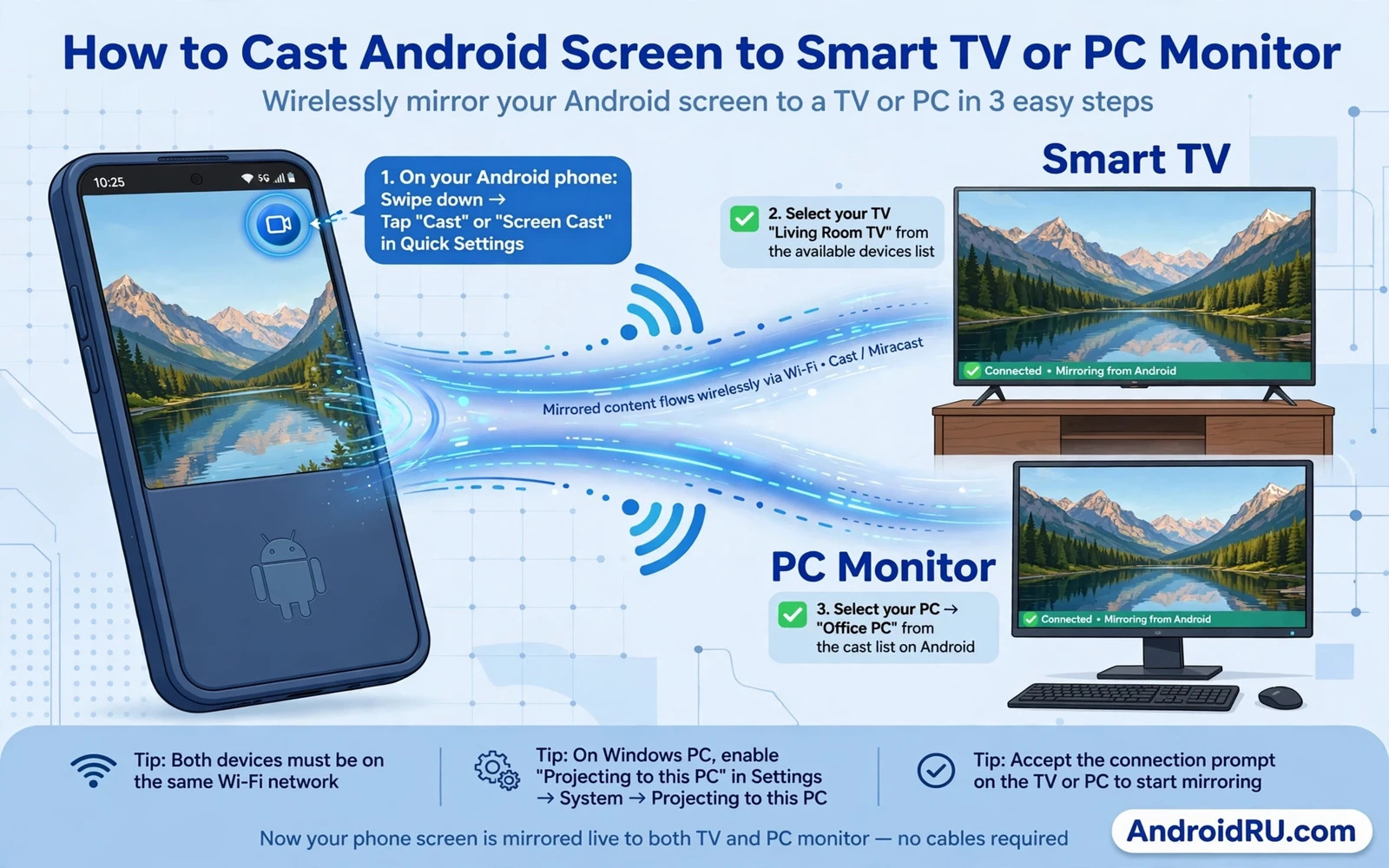
Ways To Cast An Android Screen
Casting sends your phone screen to a larger display so everyone in the room can see it. A smart TV can receive a cast directly when it supports the same casting feature. A PC monitor can receive a cast through a receiver app or a wireless display adapter. A wired adapter can also mirror the screen when wireless casting is unavailable. Each path shows the same phone screen but the setup steps differ.
Choose the path that matches the display that you actually own. A smart TV path is simplest when the TV already supports casting. A PC monitor path needs a receiver before the phone can find it. This guide covers both paths and the fixes for the most common failures. Sharing a connection from the phone is a related skill and you can review using an Android phone as a Wi-Fi hotspot for a laptop when the laptop also needs internet during a cast session.
Cast To A Smart TV
Connect the phone and the TV to the same Wi-Fi network. This shared network rule matters most because casting discovery often fails across different networks. Open the TV casting or screen mirroring input when the TV asks for it. On the phone open quick settings and tap the cast or screen cast tile. Choose the TV from the device list and confirm any prompt on the TV.
After the connection starts test a photo and a video and a simple swipe. A photo tests still image quality while a video tests motion and sound together. If video plays without sound check the TV volume and the phone media volume separately. Some TVs need the phone media output set to the TV before sound follows the picture.
- Connect phone and TV to the same Wi-Fi network before casting
- Open the TV casting input and then start cast from phone quick settings
- Choose the TV from the device list and confirm any prompt on the TV
- Test photo and video and sound after the first connection
- Stop casting from quick settings when the session ends
Cast To A PC Monitor
A PC monitor alone cannot receive a cast unless a PC or a receiver sits behind it. Install a wireless display receiver on the PC when the PC supports it. Open the receiver and make it discoverable. On the phone open quick settings and tap cast and choose the PC from the list. The PC screen then mirrors the phone screen inside the receiver window or in full screen.
A wireless display adapter offers another path for a monitor without a PC. Plug the adapter into the monitor and power it from USB when the adapter needs power. Switch the monitor to the adapter input and follow the adapter setup. The phone should then list the adapter as a cast target. This path suits meeting rooms and classrooms where no PC stays connected to the monitor.
Fix Casting That Fails Or Stutters
When the TV or PC does not appear in the cast list restart Wi-Fi on the phone and restart the receiver. Confirm again that both devices share the same network name. A phone on mobile data alone cannot discover a TV on home Wi-Fi. A guest network and a main network can also block discovery even when both feel like home Wi-Fi. Move both devices to the same network name and try again.
Stutter usually means weak Wi-Fi or heavy traffic on the same network. Move the phone closer to the router and pause large downloads on other devices during the cast. Lower the video quality inside the app when the app offers that choice. A wired adapter path can also remove Wi-Fi stutter when wireless quality stays poor. The same network discipline helps other wireless faults and you can review fixing a Wi-Fi connection that drops frequently on mobile for a broader wireless checklist.
Phone - Quick settings - Cast - Choose TV or PC
TV - Casting input - Confirm prompt on TV
PC - Wireless display receiver - Make discoverable - Cast from phone
Casting Tips For Presentations And Video
Turn on do not disturb before a presentation cast. Notifications on a mirrored screen can expose private messages to the whole room. Close apps that you do not need for the session. Charge the phone during a long cast because mirroring uses Wi-Fi and display power together. A charged phone avoids a sudden disconnect in the middle of a video or a talk.
For video nights choose the app cast option when it exists rather than full screen mirroring. App casting can send video directly to the TV while the phone stays free for other tasks. Full screen mirroring suits presentations and games and app demos where every tap must be visible. Knowing the difference helps you pick the smoother path for each session.
Frequently Asked Questions
Why does my TV not appear in the cast list. The phone and the TV are often on different networks. Move both to the same Wi-Fi network name and restart the TV casting input and scan again.
Can I cast to a monitor with no PC and no smart TV. Yes when you add a wireless display adapter. The adapter gives the monitor a cast target that the phone can discover.
Casting For Games And Presentations
Games cast with more delay than video because every touch must travel to the display and back as a picture. Fast action games may feel sluggish over a wireless cast even on a strong network. Turn based games and puzzle games cast far better than fast shooters. Lowering game graphics settings can reduce delay when the phone struggles to render and stream at the same time. A wired adapter can also cut delay when wireless lag stays noticeable.
Presentations benefit from a few preparation steps before casting starts. Open the presentation file and preload every slide image. Close messaging apps so notifications cannot appear on the shared screen. Set the phone to do not disturb and silence calls for the session length. Test the first and last slides on the big display before the audience arrives. Preparation prevents the small surprises that distract from the talk itself.
Sound routing deserves a test for every new display. Some TVs play cast audio at once while others need a manual audio output change on the phone. Test a short video clip with sound before a movie night or a meeting. Check both TV volume and phone media volume because either one at zero silences the whole session. A thirty second sound test saves an awkward silent start.
Multiple displays in one home can confuse casting discovery. A phone may list several TVs and speakers with similar names. Rename TVs in their own settings when names collide. A clear name such as living room TV removes guesswork from the device list. Renaming once prevents repeated wrong connections during every future cast session.
Privacy on a cast screen needs attention because mirroring shows everything. Notifications and messages and photos appear on the big display exactly as they appear on the phone. Hide sensitive notifications before casting and avoid opening private apps during a shared session. App casting that sends only video to the TV protects privacy better than full screen mirroring for movie nights.
Moving files to the display device can avoid casting entirely for some sessions. A video copied to a TV media app or to a laptop can play directly without wireless lag. Local transfer also saves phone battery during a long movie. You can plan such transfers with transferring files between Android and PC wirelessly and by USB when a direct copy suits the session better than a live cast.
Casting Etiquette In Shared Spaces
Ask before casting in a shared room because a sudden big screen can interrupt others. Keep volume modest at first and raise it only when everyone agrees. Stop casting promptly when the session ends so the TV returns to its normal input. A considerate cast session leaves the shared display ready for the next person without extra setup.
Charge the phone during long casts and keep the charger cable tidy. A phone that dies mid cast forces an awkward restart of the whole session. A charged phone and a prepared display make casting feel effortless rather than fragile.
Casting And Network Quality
Network quality shapes casting more than phone speed. A router under heavy load from many devices can starve a cast stream even when the phone itself is fast. Pause downloads and cloud backups on other home devices during an important cast. A quiet network gives the cast stream steady bandwidth and reduces stutter without any phone change.
Router placement also affects casting stability. A phone far from the router with walls between may cast poorly while the same phone near the router casts smoothly. Move closer to the router for a test cast when stutter appears. When the test cast improves then distance rather than the phone or the TV caused the fault. A closer seat or a better router position becomes the practical fix.
Dual band routers add a subtle trap because a phone on one band and a TV on another band may fail discovery. Check the network name on both devices carefully. Names that look similar may hide different bands. Moving both devices to the exact same network name removes this hidden mismatch and often fixes discovery at once.
Casting And Sound Quality
Sound quality over a cast depends on the TV speakers as much as on the phone. A small TV speaker may sound thin even when the cast stream is perfect. Connecting the TV to a soundbar or to external speakers can transform a movie night without changing any cast setting. Test sound through the TV speakers first and add external audio only when the built in sound truly disappoints.
Audio delay can appear when video and sound travel different paths. A Bluetooth speaker paired to the phone while video casts to the TV can drift out of sync. Keep audio on the TV itself during casting when sync matters. A single audio path through the display keeps lips and voices aligned far better than split paths across two wireless links.
A Final Casting Check
Finish casting setup with a complete session test before guests arrive. Cast a photo and then a video with sound and then a short presentation slide. Confirm that each type appears correctly on the big display. Test stopping and restarting the cast once so you know the exact steps when the real session ends. A complete test that covers photo and video and presentation proves the setup for almost any home or meeting use. Keep the phone charged during the test because a long test can drain battery before the real session even begins.

