

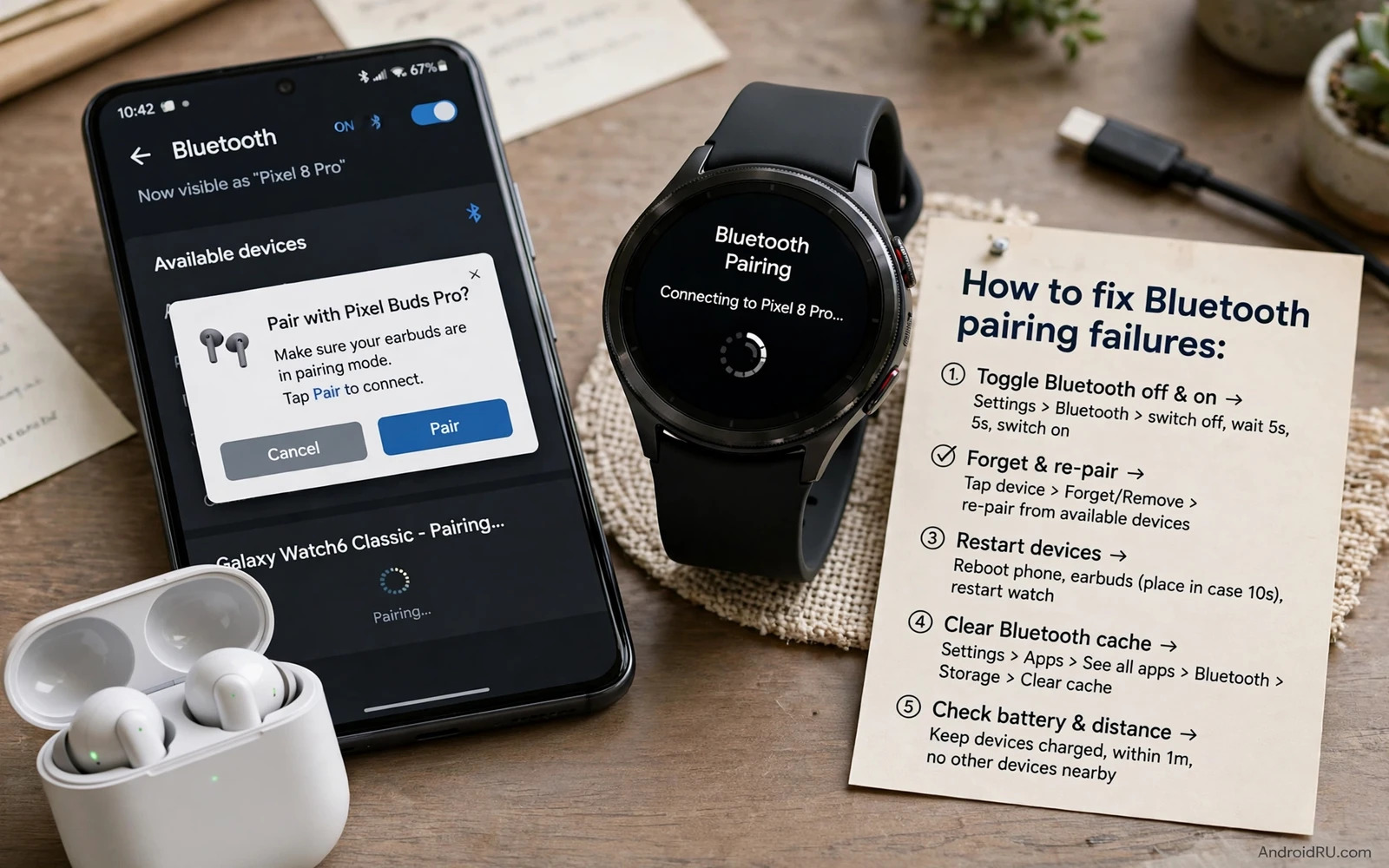
Why Bluetooth Pairing Fails On Android
Bluetooth pairing can fail even when both devices look ready. The accessory may still be linked to another phone. The phone may hold a stale pairing record from an earlier attempt. Low battery on the accessory can cut the handshake short. Wireless interference from nearby devices can break discovery at the worst moment. A failed pairing rarely means that either device is broken. It usually means that one small step in the handshake did not complete.
This guide follows a calm order that fixes the most common causes first. You will forget old pairings and restart both sides and check visibility and test with a second device when possible. Each step narrows the cause so you do not replace an accessory that only needed a reset. When wireless drops affect your phone more broadly then the checks in fixing a Wi-Fi connection that drops frequently on mobile can help you separate a Bluetooth problem from a wider wireless problem.
Prepare Both Devices Before You Pair Again
Charge the accessory until its battery is clearly above low. Put the accessory into pairing mode using its own button or case method and watch for its pairing light or sound. Keep the phone and the accessory close together with no large metal object between them. Turn off other nearby Bluetooth devices that might grab the accessory first. A quiet pairing environment gives the handshake the best chance to finish.
On the phone open Bluetooth settings and confirm that Bluetooth is on and that the phone is discoverable when the screen asks for it. Some accessories appear under available devices only while they stay in pairing mode. If the accessory times out of pairing mode then start pairing mode again before you scan. A fresh scan after a fresh pairing mode solves many cases that look like a hardware fault.
- Charge the accessory and put it into pairing mode again before every new attempt
- Forget old pairings for the accessory on the phone and on any other phone that used it
- Keep phone and accessory close together and away from strong wireless interference
- Restart the phone and the accessory after two failed attempts in a row
- Test the accessory with a second phone when possible to isolate the faulty side
Forget Old Pairings And Clear Stale Records
A stale pairing record is one of the most common hidden causes. The phone may try to reuse old keys while the accessory expects a fresh pairing. Open Bluetooth settings and forget the accessory on the phone. If the accessory pairs with a tablet or a laptop then forget it there as well during testing. A clean slate on both sides removes conflicts that a simple retry cannot fix.
After forgetting the accessory restart Bluetooth on the phone and restart the accessory itself. Put the accessory back into pairing mode and scan again. If pairing now succeeds then the old record was the problem. If pairing still fails then move to the next checks rather than repeating the same step many times. Repeating a failed step without a change rarely produces a different result.
Check Permissions And Audio Routing
Modern Android versions ask for nearby device permission before Bluetooth scanning works fully. Open app permissions for the app that controls the accessory and confirm that nearby devices permission is allowed. Without this permission the app may fail to find the accessory even though system Bluetooth looks fine. This check matters most for earbuds and watches and companion apps that manage pairing inside the app.
After a successful pairing check where audio actually plays. Open sound settings and confirm that the accessory is the active output. Some phones keep audio on the phone speaker after pairing. Switch the output manually once and the phone usually remembers the choice next time. The same careful routing check also matters when you share a connection from your phone and you can read using an Android phone as a Wi-Fi hotspot for a laptop to see how a phone manages shared connections step by step.
Reset The Accessory When Nothing Else Works
Most accessories include a factory reset method that clears all stored pairings. The method differs by model and it may use a long button press or a case button sequence. Find the method in the accessory manual and follow it exactly. A reset returns the accessory to a fresh state and it removes pairings that you cannot see in any menu. Pair again from scratch after the reset and test basic audio or control before you restore extra settings.
Warning. A factory reset on an accessory can remove custom settings and stored device lists. Note your preferred settings before you reset when the accessory app allows it. Never reset an accessory while it is updating firmware. An interrupted firmware update can damage the accessory far more than a pairing failure ever could.
Settings - Connected devices - Bluetooth - Forget accessory
Accessory - Enter pairing mode - Confirm pairing light or sound
Phone - Scan again - Pair - Confirm audio output device
When Pairing Still Fails
If the accessory pairs with a second phone but not with yours then the problem sits on your phone. Try network settings reset as a later step because it also clears saved Wi-Fi networks and Bluetooth pairings. Back up Wi-Fi passwords first when your phone offers a backup. If the accessory fails with every phone then the accessory itself is the likely fault and a warranty check is the next step.
Keep notes on what you tried and in what order. A short note helps support teams and helps you avoid repeating steps. Note the accessory model and the phone model and the exact error message when one appears. Clear notes turn a frustrating pairing failure into a solvable support case.
Frequently Asked Questions
Why does my accessory pair with one phone but not another. A stale pairing on the failing phone or a missing permission on that phone is the usual cause. Forget the accessory and check nearby device permission and try again with a fresh pairing mode.
Should I reset network settings at once. No. Try forgetting the accessory and restarting both devices first. Network reset is a later step because it clears saved Wi-Fi networks as well as Bluetooth pairings.
Understand Bluetooth Profiles And Codecs
Bluetooth accessories use profiles that define what they can do. An audio profile carries music while a call profile carries voice during calls. A watch profile carries notifications and health data. Pairing can succeed for one profile while failing for another when settings or permissions block part of the connection. Checking audio output and call audio separately helps you find which part actually fails. When music plays but calls stay on the phone speaker then the call profile needs attention rather than the whole pairing.
Codecs affect sound quality but they rarely cause a full pairing failure. A phone and an accessory negotiate a shared codec during connection. When negotiation fails the pair may fall back to a basic codec or may drop and retry. Updating the accessory firmware through its own app can improve negotiation when the maker fixed a known bug. Never update firmware during a low battery state because an interrupted update can damage the accessory far more than a failed pairing ever could.
Multipoint accessories add another layer of complexity because they can connect to two devices at once. A multipoint earbud may stay linked to a laptop and refuse a new phone pairing until the laptop link is cleared. Open the accessory app or use its button method to manage paired devices. Remove old device entries that you no longer use. A clean device list on the accessory side often solves pairing failures that phone side steps cannot fix.
Interference deserves a practical test rather than a guess. Move away from crowded wireless areas and try pairing in a quiet room. Turn off nearby Bluetooth devices temporarily during the test. A microwave oven and a busy wireless router and many active Bluetooth devices can all crowd the same wireless space. When pairing succeeds in a quiet room but fails in a crowded room then interference is the likely cause and a closer distance during pairing becomes the practical fix.
Battery health on the accessory also affects pairing stability. An accessory with a weak battery may start pairing and then shut down midway. Charge fully and test again before judging the accessory as faulty. Clean charging contacts gently with a dry cloth when charging looks unreliable. A stable charge gives the accessory enough power to complete the handshake and to stay connected during a long listening session.
Install failures and pairing failures sometimes share a root cause in stale app data. A companion app with corrupt data may fail to finish its own pairing flow even when system Bluetooth works. Clearing cache for the companion app can help while keeping your account signed in. The same measured cache logic also helps install faults and you can review fixing an app not installed error on Android for a related checklist that separates app data faults from system faults.
Pairing Checklist For New Accessories
Unbox the accessory and charge it fully before the first pairing attempt. Read the pairing method in the manual because button sequences differ widely between models. Forget any demo pairing that the store may have created during display. Put the accessory into pairing mode fresh and scan from the phone at once. Test music and calls and controls during the first session so any partial failure appears early while return options remain simple.
Keep the manual or a photo of the reset method for future use. A reset method that you cannot find later turns a simple fix into a long search. Store the accessory in its case when not in use so it does not pair accidentally with nearby devices. A tidy pairing habit protects battery and prevents surprise connections that block the device you actually want to use.
Bluetooth And Phone Calls
Call audio uses a different Bluetooth path from music audio. A headset that plays music perfectly may still fail during calls when the call profile is blocked or misrouted. Test a short call after music testing so both paths are proven. Check call audio output during the call through the on screen audio button. Switching output manually during one call often teaches the phone the correct choice for later calls.
Voice assistants add another Bluetooth layer because the assistant may capture the microphone through the headset while media plays through the phone speaker. Test assistant activation with the headset connected and note where the reply sound appears. When replies appear on the phone speaker while music uses the headset then the assistant routing needs a manual correction in sound settings. A single manual correction usually sticks for future assistant sessions.
Driving safety depends on reliable hands free audio. Test hands free calls while parked before relying on them on the road. Confirm that the car system or headset answers calls without touching the phone. A pairing that works for music but fails for calls is not ready for driving use. Fix call routing while parked where you can focus fully on settings rather than on traffic.

