

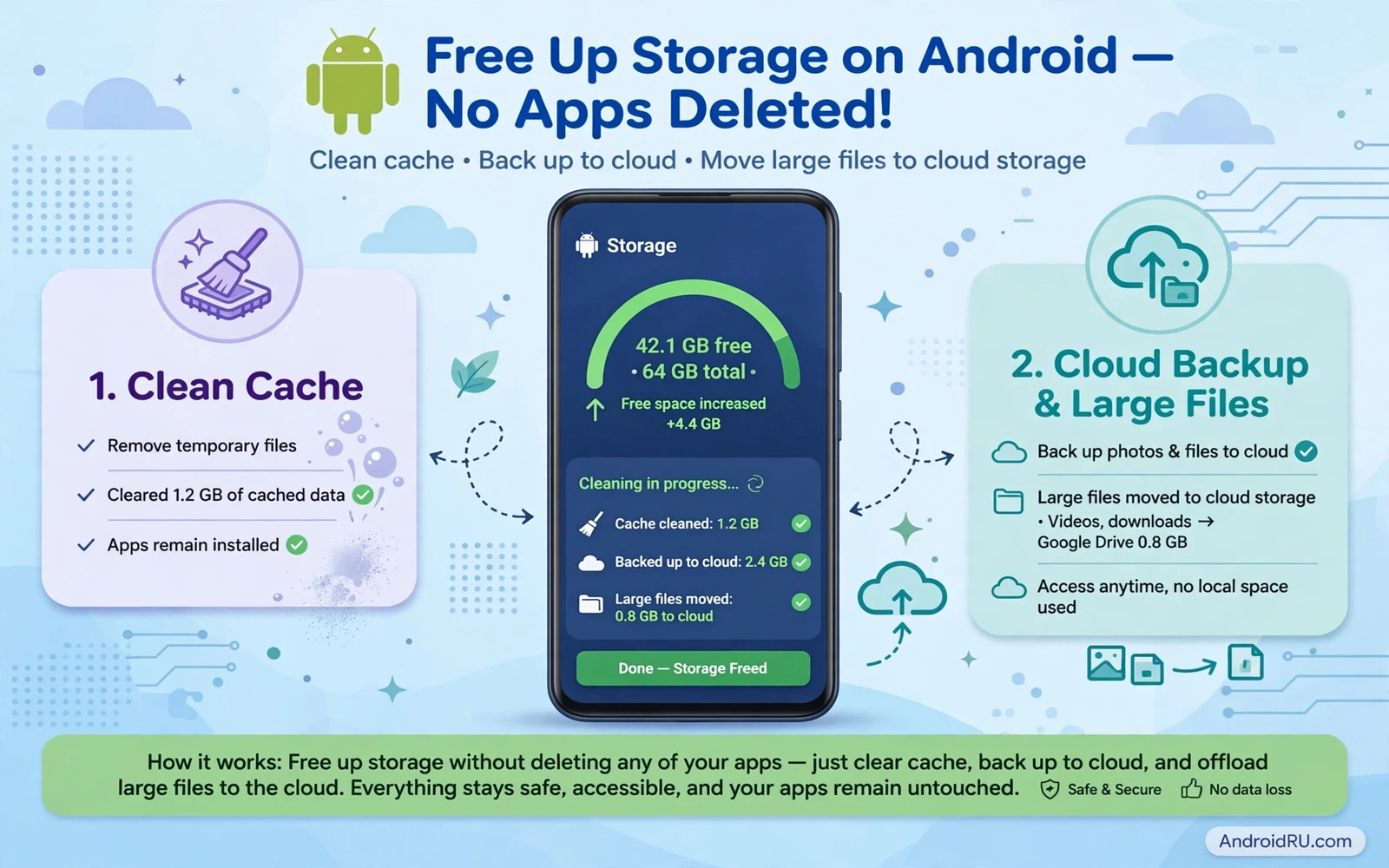
Why Android Storage Fills Up Even When You Add No New Apps
Storage on an Android phone can shrink slowly even when you install nothing new. Cached files grow as apps run. Temporary files pile up after updates. Downloaded files stay hidden in folders that you rarely open. Messaging apps keep media copies that you viewed only once. A phone that once felt roomy can start warning you about low space during an ordinary day. The good news is that much of this space can be recovered without removing a single app that you use and love.
This guide walks through safe cleanup steps in order from the easiest wins to deeper checks. You will learn how to clear cache data and review large files and move media to cloud storage and trim offline content that you no longer need. Each step keeps your apps installed and your accounts signed in. If you recently worked through cache cleanup on another device then the ideas in clearing system cache to speed up performance will feel familiar because the goal is the same and that is a cleaner system with room to breathe.
Start With A Storage Breakdown
Open the storage screen in Settings and wait for the breakdown to load fully. The screen groups usage by apps and images and videos and audio and documents and system files. Look first for the largest groups rather than the smallest ones. A single video folder or a single messaging app can hold more space than dozens of small apps combined. Write down the top three groups before you change anything so you can measure your progress later.
Tap into each large group and look for items that you can recognise at a glance. Screenshots that you already shared and duplicate downloads and old installers are common wins. Delete only items that you recognise and no longer need. When a file looks unfamiliar leave it alone until you know what app created it. Safe cleanup is slow and deliberate and it protects photos and documents that matter.
- Open Settings and then open the storage screen to see the full breakdown by group
- Sort large groups first and check images and videos and downloads before small apps
- Remove duplicate downloads and old screenshots that you already shared elsewhere
- Empty the trash or recycle bin inside gallery and file apps after deleting files
- Restart the phone after a large cleanup so cached counts refresh correctly
Clear App Cache Without Losing Your Data
Cache is temporary data that apps store to load faster. Clearing cache does not delete your account or your main app data. It only removes temporary files that the app can rebuild later. This makes cache a safe first target when space is tight. Start with browsers and social apps and video apps because those apps tend to build the largest caches over time.
Open app info for one app at a time and use the storage option inside that screen. Clear cache only and avoid the clear data button unless you fully understand the result. Clearing data can sign you out and remove saved settings. After clearing cache for a few large apps return to the storage screen and check how much space you recovered. The same careful approach also helps when a phone feels slow and that link is covered in steps that improve battery life on any Android smartphone where background activity and storage pressure are treated together.
Move Photos And Videos Without Deleting The Apps That Hold Them
Photos and videos often take more space than every app on the phone combined. You do not need to delete your gallery app or your messaging apps to fix this. Move original photos to cloud storage or to a computer and then remove local copies that are already backed up. Check the backup status inside your gallery app before you delete any local copy. A file that shows as backed up is safe to remove from the phone while a file that shows as waiting is not.
Messaging apps deserve a separate pass because they store photos and videos inside chats. Open the storage manager inside each messaging app and review media by chat. Remove large videos that you already saved elsewhere and keep only the chats that still matter. This step alone can free a large block of space on phones that receive many shared videos each week.
Settings - Storage - Review large files
Gallery - Backup status - Confirm backup before deleting local copies
Messaging app - Storage and data - Manage storage by chat
Trim Offline Content And Downloads
Offline music and offline maps and offline videos are useful until you forget that they exist. Each offline item reserves space even when you never open it again. Open each media app and review its offline library. Remove episodes and playlists and maps for trips that already ended. Keep only the offline content that you truly use when no network is available.
Downloads deserve the same review. Installers and documents and media files accumulate quietly in the downloads folder. Sort the folder by size and delete installers for apps that are already installed. Move documents that you still need into a named folder so they are easy to find later. A tidy downloads folder also makes future cleanup much faster because new clutter stands out at once.
Use Built In Cleanup Tools With Care
Many Android phones include a cleanup tool that suggests junk files and duplicate files and large files. These tools can help but they still need your judgement. Review every suggestion before you accept it. A tool may flag a file that you want to keep or a download that you still need. Treat the tool as an assistant that finds candidates and keep yourself as the final decision maker for every deletion.
Avoid cleaner apps that promise dramatic results or ask for broad permissions that they do not need. A built in tool or a manual review is safer than an unknown app that scans your whole phone. If a tool asks you to delete system files or to grant accessibility access for cleanup then stop and skip that tool. Safe storage recovery never needs risky permissions or aggressive deletion. The same caution applies when downloads stall and storage pressure grows and you can review how to fix a Play Store download that stays stuck before you delete files in a panic.
When Storage Stays Full After Cleanup
If space stays low after cache cleanup and media review then look for a single app that keeps growing. Some apps store large databases or offline data that cache clearing does not remove. Check storage per app over a few days and note which app grows fastest. Reinstalling that one app after a backup can reset its bloated data while keeping your account safe. Back up chats and settings first when the app offers an export option.
A factory reset is a last resort and it is not needed for most storage problems. Try every safe step first and keep a backup of photos and chats and documents before any drastic action. If the phone still reports low space after a careful cleanup then a hardware or system fault is possible and a service check is wiser than repeated deletion. Most phones recover well with the steps in this guide and stay roomy with a short monthly review.
Frequently Asked Questions
Does clearing cache delete my photos or chats. No. Cache clearing removes temporary files only and your photos and chats stay in place. Clearing data is different and it can remove settings and sign you out so use that button only when you understand the result.
How often should I review storage. A short review once a month is enough for most people. Heavy video users may need a review every two weeks. Regular short reviews prevent the sudden low space warning that appears at the worst moment.
Build A Monthly Storage Routine
A short monthly routine keeps storage problems from returning. Set a reminder on the first weekend of each month to open the storage screen and review the largest groups. Delete downloads that you no longer need and confirm that photo backup completed before removing local copies. Check offline libraries inside music apps and map apps and video apps for content that you finished using. A routine that takes only a few minutes each month prevents the sudden warning that appears when you try to install an update or record a long video.
Teach yourself to spot storage hogs by size rather than by app name. A small utility app rarely matters while a single chat with many shared videos can matter a great deal. Open storage by app and sort by size when your phone offers that view. Look for apps that grew sharply since your last review. A sharp jump often points to offline data or cached media that the app stored without a clear warning. Clearing that cache or trimming that offline library restores space without touching your account or your main files.
Backups make cleanup safe and they deserve a check before any large deletion. Open your gallery backup status and confirm that recent photos show as backed up. Open your chat backup setting inside each messaging app that matters and confirm the last backup date. Move important documents into a named folder or into cloud storage before you delete local copies. When backup is confirmed then deletion becomes a calm choice rather than a risky guess. When backup is missing then fix backup first and delay deletion until it completes.
System files deserve respect during cleanup. The system group on the storage screen includes files that the phone needs to run. Never delete files from system folders that you found through a file manager unless you fully understand them. Built in cleanup tools already handle safe system temporary files. Manual deletion inside system folders can break updates and can force a repair that costs far more time than the space it saved. Focus your effort on media and downloads and cache where the safe wins live.
Children and shared phones need a slightly different routine. Review downloads and gallery folders more often when several people use one phone. Agree on which folders are safe to clean and which folders must stay untouched. Move school files and family photos into backed up folders before any cleanup session. A shared phone stays usable when everyone knows the routine and when no one deletes files that belong to someone else.
Storage pressure also blocks installs and updates even when the failing task looks unrelated to storage. A phone that cannot install a small update may simply lack working room for the installer. Freeing cache and large media before retrying often clears the block at once. The same logic connects storage cleanup to install errors and you can follow fixing the insufficient storage available error code when a specific install keeps failing with a storage warning.
Common Storage Mistakes To Avoid
One common mistake is deleting photos before backup completes. The gallery may show a photo while its backup still waits in a queue. Deleting that photo removes the only copy. Another mistake is clearing data instead of cache for an app that holds important settings. Clearing data signs you out and removes saved preferences and can delete offline content that you wanted to keep. A third mistake is installing a cleaner app that demands broad access and then trusting its suggestions without review. Each mistake is easy to avoid when you slow down and check backup and button names before you confirm.
A final mistake is treating storage cleanup as a one time event. Apps keep caching and chats keep receiving media every day. Space that you freed this week can fill again next month without any new install. A short monthly review plus a quick check before travel or before a big update keeps the phone ready. The habit matters more than any single cleanup session because steady habits protect space and protect files at the same time.

