

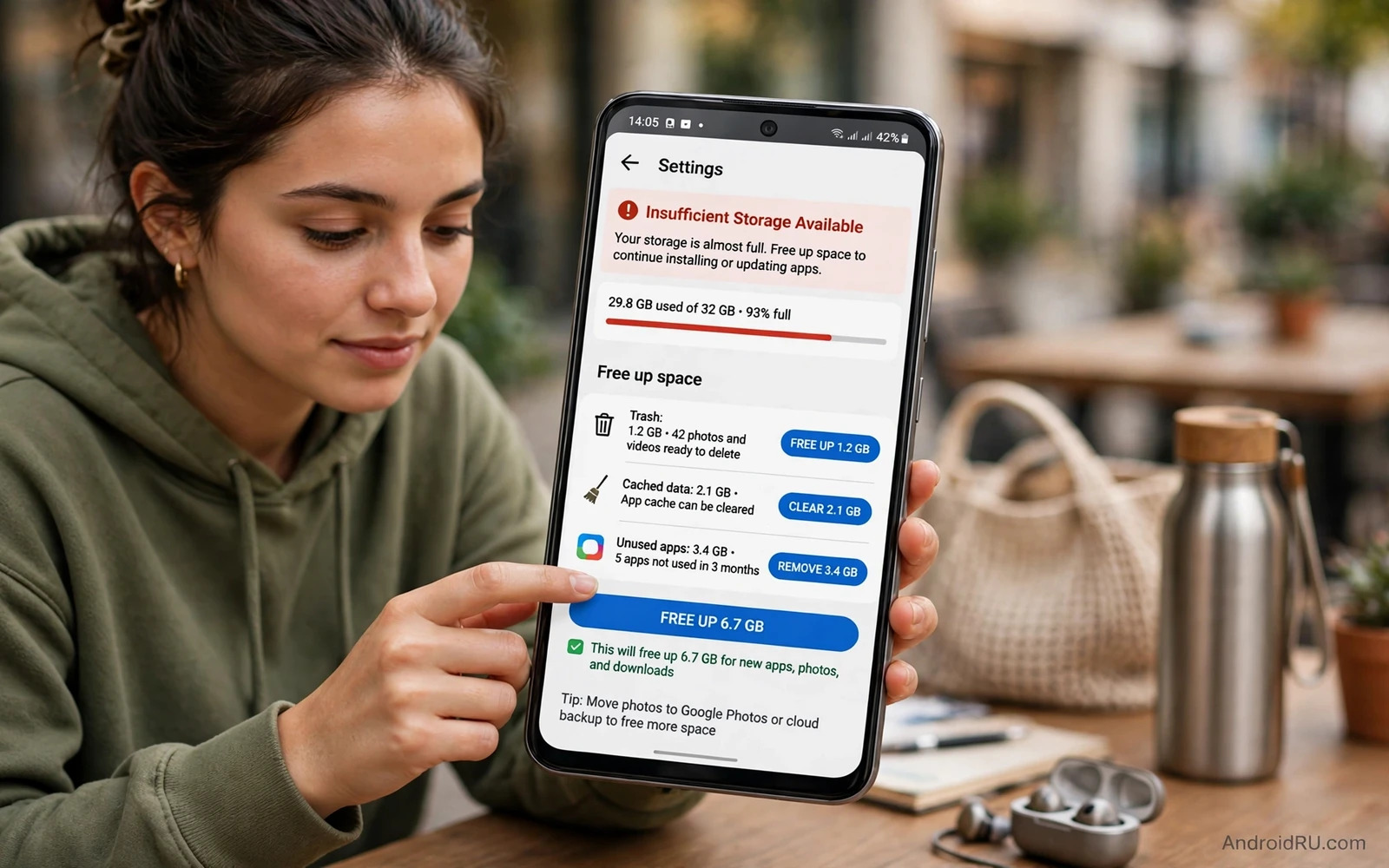
What Insufficient Storage Available Means
The insufficient storage message appears when the phone believes that free space is too low for the next task. An app install may fail. An update may stop midway. A photo may refuse to save. The message can appear even when the storage screen still shows some free space because the system reserves space for safe operation. The reserve protects the system from crashing when space runs out completely.
This error is closely related to general storage pressure. The safe cleanup steps for freeing space without deleting apps also apply here and you can follow freeing up storage space on Android without deleting apps as the main cleanup companion to this fix guide. Start with cache and large files before you consider removing apps or resetting anything.
Check Real Free Space First
Open storage settings and wait for the numbers to settle. Compare total space and used space and free space. Note how much space the failing task actually needs when the message names an app or an update. A large game update needs far more free space than a small utility update. The system may need extra working space beyond the final app size during installation.
Restart the phone and check storage again. A restart can release temporary files that inflated the used total. If free space jumps after a restart then temporary files were part of the problem. If free space stays low then move to targeted cleanup rather than repeating restarts. A single restart is a diagnostic step and not a cure for a full phone.
- Open storage settings and note real free space before any deletion
- Restart the phone and check whether temporary files inflated the used total
- Clear cache for large apps and review downloads and large media files
- Move backed up photos to cloud storage and remove local copies only after backup
- Retry the install or update after each cleanup stage to measure progress
Clear Cache Downloads And Large Media
Clear cache for the largest apps first because cache often holds the quickest wins. Review the downloads folder for installers and documents that you no longer need. Sort by size so the largest files appear first. Move documents that you still need into a named folder and delete installers for apps that are already installed.
Review photos and videos with the same size first logic. A few long videos can free more space than hundreds of small photos. Confirm backup status before deleting any local photo copy. A photo that is not yet backed up must stay on the phone until backup completes. Cache cleanup on a related device path is covered in clearing the system cache partition to speed up performance when system cache itself grows large.
Fix The Error For App Installs
When an install fails with this error clear cache for the store app as well as for the target app when it already exists on the phone. Restart the phone after cache clearing and try the install again. A single clean retry after real cleanup often succeeds where repeated retries on a full phone always fail. Avoid retrying many times without cleanup because each failed attempt can leave temporary files behind.
When an update fails check whether the update needs more space than the app itself. Some updates download a full package before replacing the old version. Free at least the package size plus working room before retrying. If the store keeps failing for one app then check that app page for a known issue and try again after a fresh cleanup rather than deleting other apps at random.
Settings - Storage - Check free space
Settings - Apps - Large app - Storage - Clear cache
Store - Clear cache - Restart - Retry install
When The Error Persists After Cleanup
A persistent error after real cleanup may point to a corrupt store cache or a system data problem. Clear store cache and restart and retry once more. If the error still appears for every install then a system update may fix the underlying fault. Install system updates only after a backup of photos and chats and documents.
Warning. Do not delete system files or unknown folders to chase free space. System folders may look large but removing them can break the phone. A factory reset is a last resort and it needs a full backup first. Most insufficient storage errors resolve with cache cleanup and media review and a clean retry. A service check is wiser than aggressive deletion when the error survives every safe step. The same careful order also helps other install faults and you can review fixing an app not installed error on Android before any drastic action.
Frequently Asked Questions
Why does the error appear when some free space remains. The system reserves working space for safe installation. An install may need more working space than the final app size so a small free balance is not enough.
Will clearing cache delete my app data. No. Cache clearing removes temporary files only. Your accounts and main app data stay in place unless you choose the separate clear data option.
Storage Error During System Updates
System updates need more free space than the update size alone suggests. The phone downloads a package and then unpacks it and then installs it while keeping the old system safe until the new system proves itself. Each stage needs working room. A phone with only a small free balance may download the update and then fail during unpacking. Freeing cache and large media before a system update gives every stage the room that it needs.
App updates fail for a similar reason when several apps update at once. A queue of updates can demand far more working space than any single app. Pause automatic updates and update apps one at a time when space is tight. A single successful update proves that the store works while a failed queue only adds confusion. Update the most important app first and leave the rest until space improves.
Photo capture can also trigger this error at the worst moment. A camera that cannot save a photo during an event reports a storage problem rather than a camera problem. Keeping a free space buffer before important events prevents that failure. A quick storage check before travel or before a celebration takes only a minute and protects irreplaceable moments.
Messaging apps can quietly consume the buffer that installs need. Shared videos inside chats accumulate without a clear warning. Reviewing chat storage monthly keeps the buffer healthy. Remove large shared videos that you already saved elsewhere and keep only chats that still matter. A tidy chat storage habit protects both installs and photo capture.
Cloud storage helps only when backup actually completes. A photo that waits in an upload queue still occupies local space. Open the gallery backup status and confirm that recent items show as backed up. Wait for the queue to drain on Wi-Fi before deleting local copies. Patience during backup prevents the painful deletion of an unbacked photo in pursuit of install space.
Download faults often accompany storage errors because a stalled download can leave temporary files behind. Clearing store cache and restarting before a clean retry removes those leftovers. A calm retry after real cleanup succeeds more often than repeated retries on a full phone. You can compare download behaviour with fixing a Play Store download that stays stuck when a download stalls alongside a storage warning.
Keeping A Free Space Buffer
Aim to keep a comfortable free space buffer rather than chasing zero free space. A buffer lets updates download and photos save without immediate warnings. Treat the buffer as a floor rather than a target to fill with new apps. When free space approaches that floor run the monthly cleanup routine at once. A buffer habit turns storage from a recurring crisis into a quiet background routine.
Review installed apps twice a year and remove apps that you no longer open. An unused app still occupies space and may still update in the background. Removing it frees space and reduces update traffic. Keep only apps that earn their place through regular use. A lean app set keeps the phone faster and keeps storage errors rare.
Storage Error And App Data Growth
App data grows quietly through databases and offline files that cache clearing does not remove. A messaging app database can grow for years as chats accumulate. A map app offline region can stay long after the trip ends. Reviewing app storage by size reveals which apps hold large data beyond cache. Reinstalling a single bloated app after a backup can reset its data while keeping the account safe.
Offline video downloads deserve a regular audit because they hide inside media apps rather than in the downloads folder. Open each media app offline library and remove finished series and old episodes. A single season of offline video can exceed the space of dozens of small apps. Regular offline audits keep the free space buffer healthy without deleting any app.
System data also grows through logs and update files that users cannot safely delete by hand. Built in storage tools handle safe system temporary files. Trust those tools for system groups and focus manual effort on media and downloads and app cache. Manual deletion inside system folders risks breaking updates for a small and uncertain space gain.
Storage Error Prevention For Families
Family phones fill faster because children download games and videos without tracking space. Set a simple rule that new large downloads wait for a storage check first. Review the largest apps together once a month and remove games that no one plays anymore. A shared rule prevents the sudden install error that appears when a child tries to update a favourite game before school.
School and work files deserve a protected folder that cleanup never touches without asking. Mark that folder clearly and back it up separately from photos and chats. A protected folder rule lets anyone clean downloads and cache confidently without fear of deleting homework or work documents. Clear boundaries make storage cleanup safe for every person who uses the phone.
A Final Storage Check
Finish storage troubleshooting with a repeat install test after every cleanup stage. Install or update the app that failed originally and confirm that it completes. A successful install proves that the cleanup worked while a repeated failure shows that more space is still needed. Repeat the cycle of cleanup and retry until the install succeeds or until a service check becomes the wiser step. A proven install ends the troubleshooting loop with evidence rather than with hope.

