

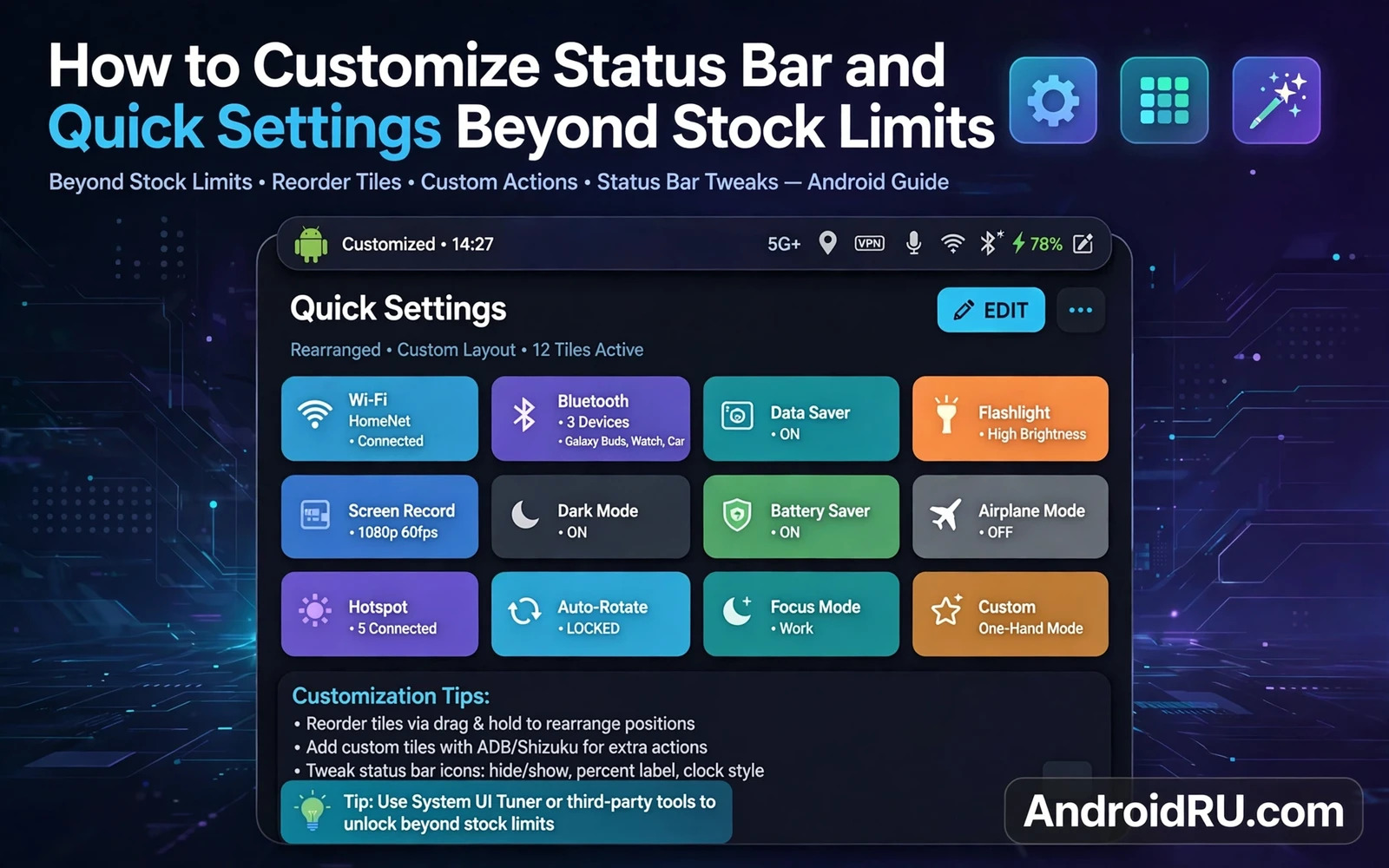
How to Customize Status Bar and Quick Settings Beyond Stock Limits
The status bar is the strip I look at more than any other part of my phone. Time, signal, battery, and notification icons live there, and the quick settings panel behind it holds the toggles I reach for dozens of times a day. Small changes in that space pay off constantly, which is why I spent a full week testing stock options, ADB commands, and third-party tools to find what actually improves daily use instead of just looking different in a screenshot.
Stock Android already offers more than most people use. Tile order, battery percentage, and a few icon toggles are buried in Settings on many phones. Beyond those limits, though, the real changes need other tools: a hidden tuner, an ADB command, a dedicated app, or a framework module. This guide covers all four routes in order of risk, so you can stop at the level that fits your comfort and your phone.
It also covers the part most guides skip: keeping the result readable. A status bar crowded with indicators is harder to read at a glance, and a quick settings page with twenty tiles is slower to scan than a focused set of eight. Clarity comes first here, decoration second.
What stock Android already lets you change in the status bar and quick settings
Start with the tile editor, because it is free, safe, and reversible in seconds. Pull the quick settings panel down fully, tap the edit icon, and drag tiles into the active area. Place the toggles you use most in the first row so a single pull-down reaches them. Remove tiles you never touch. A short active list is faster to scan than a long list of rarely used toggles, and the tiles you remove stay available in the picker if you need them later.
Next, explore your manufacturer settings before installing anything. Some phones offer a status bar icon manager in Display or Notifications settings. Battery percentage display is a common built-in option. Clock display options appear on some manufacturer builds, and notification icon limits appear on others. Built-in options are safer than add-ons because the manufacturer tested them for that exact device, so use them first and test the result for a few days before adding anything else.
Ordering quick settings tiles by real daily frequency
Order tiles by how often you use them, not alphabetically and not in the factory order. A tile used ten times daily belongs in the first row. A tile used monthly belongs on the second page or hidden entirely. Frequency-based ordering reduces how far you pull down for common tasks, and small savings repeated daily become large savings across a month. Write down your preferred order in a short note stored elsewhere, because a factory reset usually loses tile customisation and rebuilding from memory produces a different order that feels less familiar.
Hiding status bar icons you never need to monitor
Hiding an icon does not disable its function. It only cleans the visual presentation. Hide icons you never need to monitor, such as a persistent alarm icon or a Bluetooth indicator when nothing is connected, and keep the warnings you should see. A battery warning, a no-service indicator, and a VPN indicator earn their space. Test hidden icons for a few days before adding modules, because a few days reveal whether a hidden icon causes missed information. Real use beats a first impression from a screenshot.
Notification icons and the crowding problem at the top of the screen
Notification icons compete with system icons for the same narrow strip. Many notifications can crowd out system information entirely. Manage that at the source through notification settings: limit which apps show status bar icons, silence persistent notifications you never act on, and group chatty apps into fewer alerts. Spacing tweaks from a module cannot fix crowding caused by too many notification sources.
System UI Tuner and ADB settings commands for hidden status bar icons
When stock settings run out, the next step is the System UI Tuner and a handful of ADB commands. The tuner is a hidden settings screen that Google has kept, removed, and reintroduced in different forms across Android versions. On phones where it remains available, it can hide selected status bar icons such as alarm, Bluetooth, and casting indicators. On phones where it is gone, the same result comes from ADB commands that write to the secure settings table.
To use ADB, enable Developer options, turn on USB debugging, connect the phone to a computer, and confirm the debugging prompt on the phone. The commands below run from the computer terminal and take effect immediately on most devices. If you are new to ADB, the guide that explains how to change device screen resolution and DPI via ADB covers the same setup steps, including enabling debugging and checking that the device is recognised, and the same care applies here: type each command exactly and check the result before running the next one.
Hiding icons with the icon_blacklist secure setting
The icon_blacklist setting holds a comma-separated list of icons to hide. A practical command looks like this: adb shell settings put secure icon_blacklist "alarm,bluetooth,cast". Replace the list with the icons you want hidden. Common values include alarm, bluetooth, wifi, cell, volume, cast, hotspot, and zen, though exact names vary by Android version and manufacturer skin. To restore everything, clear the setting with adb shell settings delete secure icon_blacklist and restart SystemUI or reboot.
Reordering and choosing quick settings tiles with sysui_qs_tiles
The sysui_qs_tiles setting stores your active tile list in order. You can set it directly: adb shell settings put secure sysui_qs_tiles "wifi,cell,bt,dnd,flashlight,rotation,battery,airplane,cast". Tile names vary by device, so read the current value first with adb shell settings get secure sysui_qs_tiles and edit that list rather than guessing names from memory. Keep the first page short. Eight to ten tiles fit comfortably on most phones, and anything beyond that belongs on the second page.
Checking your work and undoing a bad ADB change
After each command, pull the panel down and look at the result. If an icon you wanted is gone or a tile is missing, read the current setting back with the matching settings get command and compare it with what you typed. ADB changes to secure settings survive a reboot but not a factory reset, and deleting the setting restores the default behaviour. That reversibility is the reason ADB is a sensible middle step: stronger than stock settings, far safer than flashing anything.
Iconify and Pixel Xpert for clock, battery, and icon changes with LSPosed
Framework modules reach parts of SystemUI that ADB cannot. Iconify changes the clock, the battery icon, the signal icons, and the quick settings panel style, including its shape, colours, and tile layout. Pixel Xpert, formerly known by another name in the community, covers a similar area with its own set of status bar, lock screen, and navigation options. Both run through LSPosed, so they need a rooted phone with the framework active, and both target SystemUI, which means a bad combination can restart the interface.
I tested Iconify first because its options are grouped clearly: status bar tweaks in one place, quick settings tweaks in another, and a preview that shows many changes before a reboot. I changed one group at a time, rebooted, and used the phone for a day before touching the next group. That pace caught a conflict early: a battery icon style from Iconify and a clock tweak from a second module fought over the same area, and only one effect won. One module per visual area is the rule that prevents that fight.
Clock position, format, and date in the status bar
Modules can move the clock from the centre to the left or right, add seconds, or add the date beside the time. A format with seconds updates constantly and draws the eye during reading and video watching. A format without seconds is calmer. A format with date information saves opening a calendar for a quick date check. Choose based on how often you check the date versus the time. Frequent date checkers benefit from date in the bar. Frequent time checkers do not need the extra clutter.
Battery icon styles: circle, bar, percentage, and text
A percentage number gives precise information. A bar gives approximate information at a glance. A circle gives a visual proportion that some people read faster than numbers. Travellers who need precise charge information should prefer percentage display. Casual users may prefer a clean bar. I settled on a circle with a small percentage beside it, because it reads quickly outdoors and still tells me the exact number when I need it. Test your choice in bright sunlight and in dark mode, because an icon that looks elegant in a preview can disappear against a bright wallpaper.
Signal, Wi-Fi, and network type icons that stay honest
Network type indicators show the connection generation and sometimes signal details. People in areas with variable coverage benefit from clear network indicators. People in stable coverage areas may find detailed indicators unnecessary, and the extra text just crowds the bar. Icon packs for the status bar can improve consistency with a theme, but thin or overly stylised icons reduce readability. Test icon changes against light and dark wallpapers and against common apps, because Android adapts icon colour based on background luminance and that adaptation is not perfect.
One module per visual area to avoid SystemUI conflicts
Enable one status bar module at a time. If two modules both change the clock, only one effect will win and the other may cause a crash. A single well-chosen module beats a stack of overlapping modules. When you add a second module, disable the overlapping options in the first one before you enable the same options in the second. The roundup of top Android modding utilities every tweaker needs is a useful check before you install a new tool, because it puts module managers, backup tools, and tuner apps side by side.
Super Status Bar and Power Shade for a custom status bar without root
Not everyone wants root access, and both Super Status Bar and Power Shade work without it. They draw their own status bar and notification panel over the system one, using an accessibility service and a notification listener. That approach has real limits: the replacement bar sits on top of the system bar rather than replacing it at the system level, and some manufacturer skins fight the overlay. The trade-off is that installation is an ordinary app install, and removal is an ordinary uninstall.
Super Status Bar focuses on the bar itself: custom icons, a brightness slider in the bar, gesture controls, and a ticker that shows notification text scrolling across the top. Power Shade focuses on the panel: a redesigned quick settings layout, custom tile colours, a brightness slider with finer control, and notification grouping that feels closer to a newer Android version than the stock panel on older phones. I tested Power Shade on a phone running an older Android version and the panel felt noticeably more modern, though the notification grouping took a day to get used to.
Setting up Super Status Bar without root access
Install the app, grant the notification listener permission, and grant the accessibility service permission when prompted. Both permissions are essential: the listener reads notifications, and the accessibility service draws the overlay and handles gestures. Start with the default layout, change the battery style and clock format only, and use the phone for a day. Add gestures and the ticker after that, one at a time, so a problem points at the last change rather than at five changes at once.
Power Shade panel layouts, colours, and brightness control
Power Shade lets you change tile shape, tile colours, panel background blur, and the brightness slider style. Pick a tile shape that matches your launcher icons for a coherent look, and keep tile colours restrained: one accent colour for active tiles and a neutral colour for inactive ones reads faster than a rainbow. The brightness slider deserves attention because it sits where your thumb already goes during a pull-down. A slider with clear end points and a large touch target is easier to adjust one-handed than a thin decorative one.
What no-root tools cannot change and why that matters
Overlay apps cannot change the system icons underneath them, cannot add true system tiles, and cannot survive every manufacturer battery optimisation without being exempted from it. If the overlay disappears after a reboot, check the battery optimisation setting for the app and set it to unrestricted. If gestures stop working, check that the accessibility service is still enabled, because system updates sometimes disable it. These limits are the price of avoiding root access, and for many people the price is fair.
Quick settings tiles: ordering, custom tiles, and workflow design
Tile design is workflow design. The first page should hold the toggles you use every day. The second page holds the rest. Custom tiles from third-party apps extend the panel beyond stock toggles: a tile can toggle a specific app feature, start a routine, or open a particular screen. Custom tiles are powerful but they add maintenance, because app updates can break them. Add a custom tile only for an action used frequently enough to justify that maintenance. Rare actions belong inside the app itself rather than in quick settings.
| Approach | Needs root | What it changes | Best for | Main drawback |
|---|---|---|---|---|
| Stock tile editor | No | Tile order and active set | Everyone, as a first step | Cannot change tile style or add system tiles |
| ADB secure settings | No | Hidden icons, tile list, tile order | People comfortable with a computer terminal | Tile names vary by device and version |
| Iconify and Pixel Xpert | Yes | Clock, battery, icons, tile shape and colour | Rooted users who want deep visual control | SystemUI conflicts and update breakage |
| Super Status Bar | No | Overlay bar, gestures, ticker | People who want a new bar without root | Overlay limits and battery optimisation fights |
| Power Shade | No | Panel layout, tile colours, brightness slider | Older phones that want a modern panel | Cannot add true system tiles |
| Custom tiles from apps | No | App-specific toggles and shortcuts | One-tap actions used many times daily | Breaks when the source app updates |
Tile long press behaviour is worth learning, because it often opens the full settings page for that function. A Wi-Fi tile long press that opens Wi-Fi settings saves navigation through the Settings app. A Bluetooth tile long press that opens the paired device list saves the same. Shortcut knowledge multiplies tile value beyond simple toggling, and it costs nothing to learn.
Custom tiles from third-party apps: when they earn their place
A custom tile earns its place when the action behind it happens several times a day and the tile saves at least two taps each time. Examples that qualify on my phone are a tile that toggles a VPN connection, a tile that starts a focus routine, and a tile that opens a specific note. A tile that opens a rarely used screen does not qualify. Review custom tiles monthly and remove the ones you stopped tapping. A dead tile is clutter that slows scanning of the tiles you still use.
Quick settings in landscape, on tablets, and on foldables
Quick settings in landscape orientation and on large screens behave differently from portrait phone use. Tile layout may change, reachability may suffer, and a layout tuned for a portrait phone can feel awkward on a landscape tablet. People who use tablets or foldables should test tile layout in both orientations and on both screens of a foldable. A layout that works everywhere beats a layout that only works in one orientation.
Animation speed and how the panel feels when it opens
How the panel feels depends on motion as well as layout. The guide that explains how to change system animation speeds for snappy response covers the animation scale settings that make the pull-down feel faster or calmer, and a slightly faster animator scale pairs well with a tidy tile layout. Change animation speed after the layout is settled, so you judge the motion on the finished panel rather than on a layout you are still rearranging.
Network speed, battery style, and clock format choices that stay readable
Network speed indicators deserve caution because they update frequently and can distract. A constantly changing number at the top of the screen draws the eye during reading and video watching. People who need speed monitoring for troubleshooting should enable the indicator temporarily. Permanent display suits only people who genuinely monitor network behaviour throughout the day. I enable it when diagnosing a slow connection and switch it off the same evening.
Readability depends on contrast against the wallpaper and against app content behind the bar. A light icon on a light wallpaper disappears. A dark icon on a dark app header disappears. Android adapts icon colour based on background luminance in many cases, but adaptation is not perfect, so test visibility against light and dark wallpapers and against your most-used apps. Icon size is fixed by the system in most cases, but spacing changes alter how quickly the bar can be scanned. Wider spacing improves separation between icons. Narrower spacing fits more icons but reduces separation. Prefer spacing that preserves quick scanning over spacing that maximises icon count.
A readability checklist before you call the setup finished
Check the bar outdoors in sunlight, indoors in a dark room, against a white app, and against a black app. Check it with the maximum number of notifications showing, because that is when crowding is worst. Check the clock, the battery, and the signal at a glance from arm’s length. If any of those checks fails, simplify: remove one indicator, widen the spacing, or switch to a bolder icon style. A status bar that reads clearly in sunlight and in the dark is worth more than a bar with five extra indicators nobody reads.
Keeping status bar changes stable after Android updates
System updates can break status bar modules because SystemUI code changes. Check module compatibility after every major update before re-enabling a module. A module that worked on the previous version may crash SystemUI on the new version, and a SystemUI crash affects the whole interface until the module is disabled. Back up the module configuration where the module offers export, because a configuration backup speeds recovery after an update. Without a backup you must recreate every icon choice manually, and manual recreation is tedious and often produces a different result from the previous setup.
Revert to the stock appearance temporarily when troubleshooting other problems. A clean stock bar removes one variable from diagnosis. If a problem persists with stock appearance, the status bar module is not the cause. If the problem disappears, the module deserves investigation. Isolation is the core troubleshooting skill for customisation, and it applies to ADB changes and overlay apps as well as to modules.
A safe update routine for rooted phones with SystemUI modules
Before an update, export every module configuration and write down which modules target SystemUI. After the update, keep those modules disabled, boot once, and confirm the stock interface is stable. Then enable one module, reboot, and test for a day before enabling the next. That routine is slow, and it is the reason my interface has survived three major Android updates without a single boot loop. For no-root tools the routine is simpler: after an update, check that the accessibility service and notification listener are still enabled, because updates sometimes switch them off.
Backing up tile order and module settings before a reset
Stock systems rarely offer backup of tile order, so keep your written order list current. Module apps that offer export should be exported to a file stored outside the phone, because a factory reset wipes local exports too. A short written record of tile order and module settings turns a reset from a rebuilding project into a fifteen-minute restoration.
Frequently asked questions about customizing the status bar and quick settings
What is the safest way to start customizing the status bar?
Start with stock settings: reorder tiles, show battery percentage, and hide icons you never monitor. Use that setup for a few days. If you still want more, try ADB commands for hidden icons, because they are reversible by deleting a setting. Only move to modules or overlay apps after the safer steps have shown you what you actually miss.
How do I hide status bar icons without root access?
Use the icon_blacklist secure setting through ADB, as shown above, or use the System UI Tuner where it remains available on your device. Both routes hide the icon without disabling the function behind it. To undo the change, delete the setting and restart SystemUI or reboot the phone.
Why does my custom status bar disappear after a reboot?
Overlay apps such as Super Status Bar and Power Shade depend on an accessibility service and a notification listener, and both can be switched off by a system update or by aggressive battery optimisation. Open Settings, confirm both permissions are still granted, set the app battery usage to unrestricted, and check that the app is allowed to start after boot. For modules, a disappearing change usually means the module is disabled or its SystemUI target was lost in an update.
Can I change the clock position and battery icon on a phone without root?
Partly. Some manufacturer skins offer clock position and battery percentage in stock settings, and overlay apps can draw their own clock and battery icon over the system bar. True changes to the system clock position and the system battery icon need a framework module, which needs root access. Overlay apps are a good compromise when root access is not an option.
Will customizing quick settings drain my battery?
Tile order and icon style changes have no measurable effect on battery life. Network speed indicators that update every second use a small amount of power and processor time, and overlay apps that draw a replacement bar use more, because they keep an extra service running. If battery life matters to you, keep the speed indicator off, limit overlay apps to one, and measure the result over two full days before deciding.
A status bar setup you can finish this weekend
Start with the stock tile editor today: put your five most-used toggles in the first row, remove the tiles you never tap, and turn on battery percentage. Tomorrow, try one ADB command to hide a single icon you never monitor, and live with the result for a day. If you want more after that, pick one tool from the table above, change one visual area, and test it in sunlight and in the dark before you change anything else.
That sequence builds a bar that serves your daily habits instead of a screenshot. A tidy first row of tiles and a readable clock and battery will save you time every day, and the setup behind it stays stable because each change was tested alone. Open the tile editor now, move one tile, and you have already started.

