

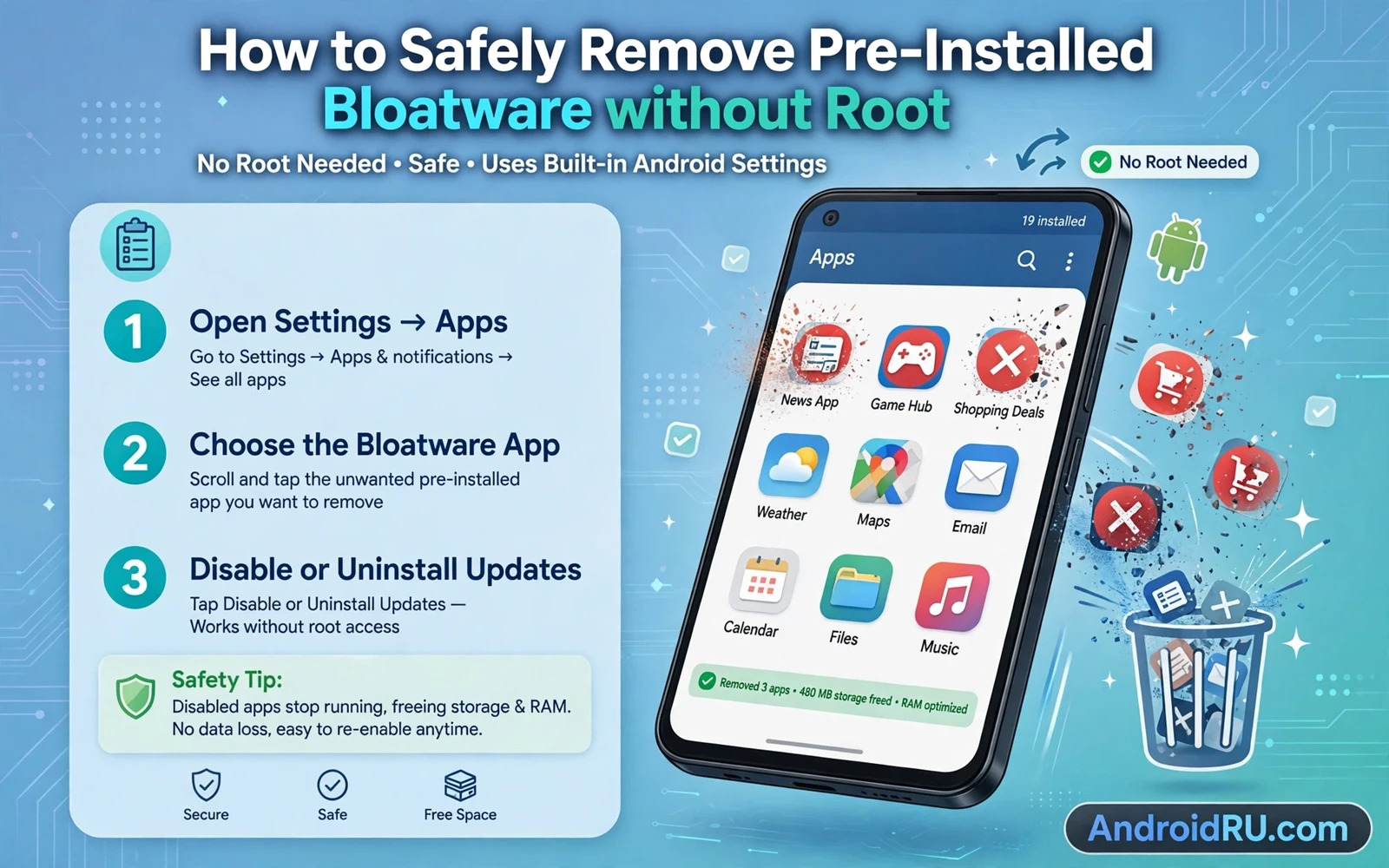
Pre-installed bloatware includes carrier apps and manufacturer apps and partner apps that arrive on a new phone before you install anything yourself. Some of those apps provide useful features and many simply consume storage and run background services and show notifications that you never asked for. Removing them without root means disabling them or uninstalling them for your user profile rather than deleting them from the system partition. That distinction keeps the phone stable because the system image stays intact and a factory reset can restore anything that you removed by mistake.
Safety comes first in any debloat routine because removing the wrong system component can break calling or messaging or the launcher or system updates. A safe routine starts with a backup and a written list of every app that you plan to change. It proceeds one app at a time with a test after each change. It never removes core telephony or system interface or settings components based on an unfamiliar package name. Patience during debloat saves far more time than a fast bulk removal that breaks the phone and forces a reset.
This guide covers the built in disable option and the ADB uninstall option for your user profile and the research step that separates safe targets from dangerous targets and the recovery path when an app that you removed turns out to be needed. No root access is required for any step here. No bootloader unlock is required either. That means your warranty position and your banking app compatibility remain far less affected than they would be after rooting.
Start With Disable Before You Uninstall Anything
Open Settings and then open Apps and then open See all apps and then open the app that you want to silence. The Disable button appears for many pre-installed apps and it stops the app from running and hides it from the launcher and prevents it from updating. Disabling is fully reversible from the same screen and it carries almost no risk because the app package remains on the device. Use Disable as your first step for every candidate and live with the disabled state for a few days before deciding whether stronger removal is needed.
Some apps show only Force stop rather than Disable because the manufacturer marked them as essential or because a device policy protects them. Do not fight that protection with risky workarounds on a first attempt. A protected app may support a core function that is not obvious from its name. Research its package name and its role before you consider any stronger method. If research shows that the app is genuinely safe to remove for your user profile then move to the ADB method with a backup already in place.
Research Every Package Name Before Removal
A package name such as a short vendor string tells you little about the function of the app behind it. Search the exact package name together with your phone model and read several independent explanations of its role before you touch it. Look for warnings from users with the same model who removed the same package and broke a feature. Treat a single forum post as a hint rather than as proof. Treat consistent warnings across several sources as a stop signal. Your phone model matters because the same package name can serve different roles on different devices.
Build three lists before you run any removal command. The safe list holds apps that you recognise and never use such as demo games and shopping partners and trial services. The caution list holds apps with unclear roles that need more research. The never touch list holds telephony and messaging and launcher and settings and system interface and update services and security services. Only the safe list earns removal commands. The caution list waits until research moves an entry to safe or to never touch. That discipline is what separates safe debloat from reckless debloat.
ADB Uninstall For Your User Profile Explained
ADB uninstall for your user profile removes an app for the current user without deleting it from the system partition and without requiring root. Connect the phone to a computer with USB debugging switched on and confirm the computer fingerprint on the phone screen. List installed packages and find the exact package name for your target. Run the uninstall command for user zero which is the main user profile on most phones. Verify after each command that the app disappeared from the launcher and that calling and messaging and the launcher still work normally.
Work one package at a time and test the phone after each removal rather than pasting a long script that removes dozens of apps at once. A bulk script hides which entry caused a breakage and forces you to restore everything to find the culprit. A single step routine lets you restore one app immediately when a problem appears. Keep a log of every command that you ran in order so that reversal follows the same order in reverse. That log becomes your recovery plan if a later update or a new feature reveals a hidden dependency.
Restore An App That You Removed By Mistake
Reinstalling an app that you removed for your user profile is possible through ADB with the install existing command for the same package name. That command restores the system app for your user without downloading anything from a store. A disabled app restores even more simply through the same Apps screen where you disabled it. Test the restored app and test the broken feature together because restoration alone does not prove that the feature works until you exercise it. Keep the restoration command in your log beside the removal command for fast recovery.
If ADB restoration fails or if the phone behaves strangely after several removals then a factory reset restores all system apps to their original state. A factory reset erases your personal data as well so it must never be a casual fix. That is why a full backup before debloat matters so much. The backup turns a factory reset from a disaster into a recovery path. Most careful debloat routines never need that path because one by one testing catches problems while they are still easy to reverse.
Battery Storage And Privacy Gains Worth Expecting
Debloat gains are real but they are modest on modern phones with generous storage and efficient background controls. You may reclaim a noticeable amount of user storage and you may see fewer background wakeups and fewer unwanted notifications. You are unlikely to double battery life by removing a handful of partner apps because the screen and the radio and your most used apps dominate power use. Set honest expectations before you start so that you do not chase ever riskier removals in search of a dramatic gain that debloat alone cannot deliver.
Privacy gains can be more meaningful than raw performance gains when the removed apps collected usage data or requested broad permissions. Removing a partner app that you never opened also removes its permission grants and its background activity from your daily routine. Review remaining app permissions after debloat and revoke location and contacts and storage access for apps that do not need those permissions for a feature that you use. Debloat plus permission review together give a cleaner phone than debloat alone.
Debloat pairs well with storage hygiene so follow clearing cache and junk files without breaking apps after removal and study debloating Android phones via Shizuku and ADB tools for a deeper method while auditing apps that access the camera and microphone helps you review permissions on the apps that remain.
- Back up the phone fully before disabling or uninstalling any pre-installed app
- Disable first and live with the disabled state for a few days before stronger removal
- Research every package name with your exact phone model before running a command
- Remove one app at a time and test calling and messaging and the launcher after each step
- Keep a log of every removal command so any mistake can be reversed in order
A Safe Debloat Schedule And Long Term Maintenance
A safe debloat schedule spreads removal across days rather than compressing it into one risky session. Disable a small group of apps on day one and use the phone normally for a day to confirm that nothing breaks. Move to ADB removal for confirmed safe apps on day two and test calling and messaging and the launcher after each removal. Reserve day three for permission review and for uninstalling trial apps that you no longer need. That slow schedule catches hidden dependencies while they are still easy to reverse.
Long term maintenance matters because system updates can restore disabled apps and can introduce new partner apps. Check the apps list after each major update and disable any restored app that you had previously removed. Review new apps that arrived with the update and research their purpose before deciding whether to keep them. A quarterly debloat check takes only a few minutes when you keep your original removal log. Without that log you will repeat research for apps that you already judged months earlier.
Share debloat knowledge carefully with other owners of the same phone model. A package that is safe to remove on one model may serve a core function on another model even when the package name looks identical. Always name the exact phone model and software version when discussing removal lists. Encourage others to disable first and to test before stronger removal rather than copying a bulk script blindly. Responsible sharing prevents a helpful list from becoming a source of broken phones.
Debloat And System Updates Over Time
System updates over time can change debloat outcomes because an update may restore a disabled app or introduce a new partner app or change a package role. Check the apps list after every major update and compare it with your removal log. Disable restored apps that you had removed deliberately and research new apps before deciding their fate. An update check takes minutes when the removal log exists and it prevents silent reaccumulation of bloatware across years of ownership.
Major Android version updates deserve a full debloat review rather than a quick glance because version changes can rename packages or merge functions. Research unfamiliar packages after a version update even when the name looks similar to a package that you removed before. A renamed package may serve a new function that deserves keeping. Patience after a version update protects core functions while still keeping the phone clean. Debloat is a long term habit tied to the update cycle rather than a one time project.
Safe debloat without root rewards a slow and documented routine. Disable first and research every package and remove one app at a time and keep a backup and a log. That routine clears unwanted apps and reduces background noise without breaking core functions and without the risks that rooting would introduce. Your phone stays stable and supported while feeling noticeably cleaner.

