

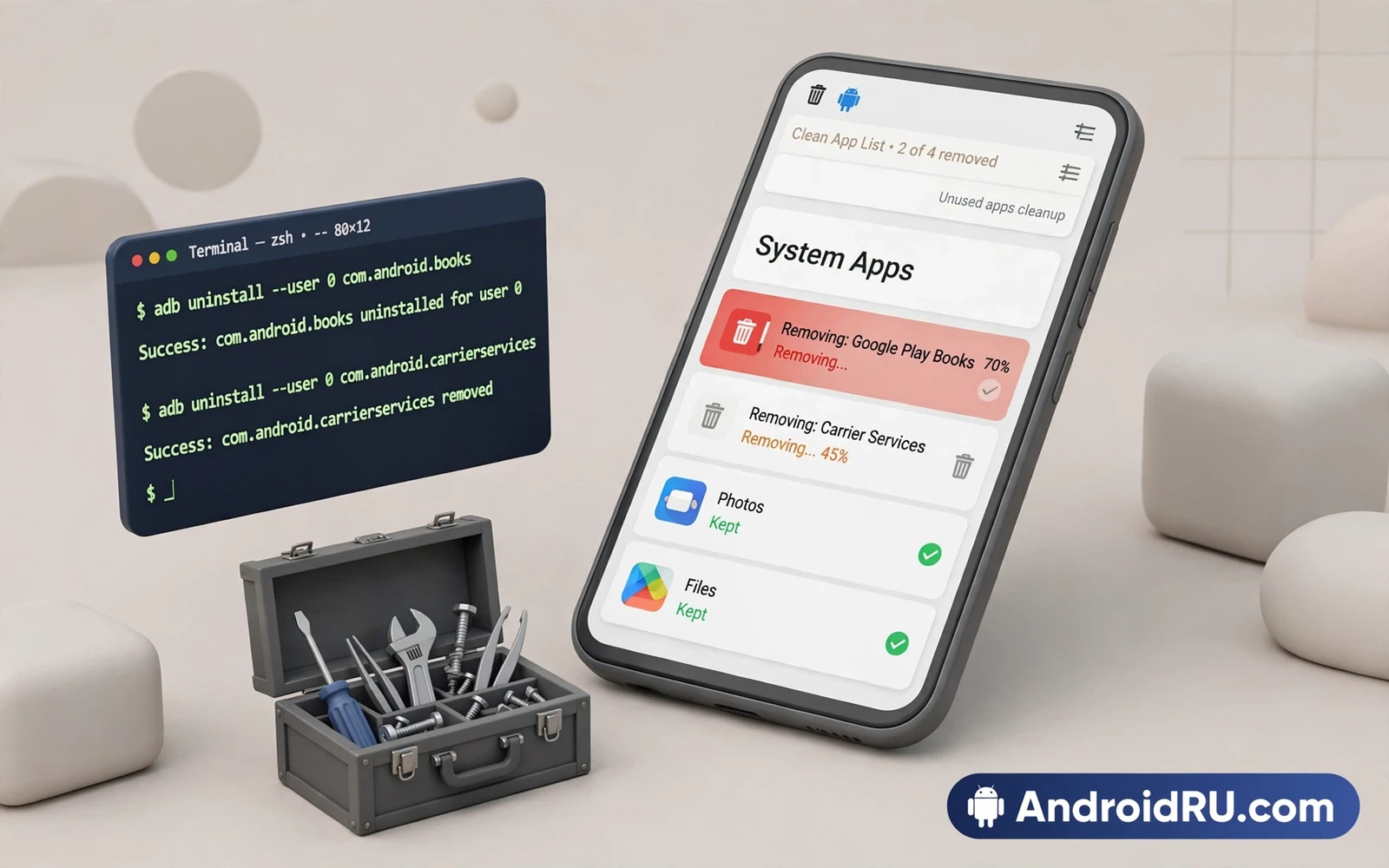
Debloating removes preinstalled apps that you never use and that run in the background and waste storage and battery. Shizuku and ADB tools let you remove many of those apps without full root access on many phones. Shizuku acts as a bridge that grants advanced permissions to trusted tools while ADB provides the underlying commands. This guide explains a safe debloat workflow and it shows which apps must stay and which apps can go. It focuses on removal that keeps the phone fully working.
Read the safety warning before you remove any system app. Removing the wrong app can break calls and messages and settings and updates. A bad debloat can cause a bootloop or a brick on some devices and it can void the device warranty when root tools are involved. Back up photos and videos and documents and accounts before you start and write down every package you remove. A debloat without a removal list is hard to undo.
How Shizuku Works Without Full Root
Shizuku runs a service with elevated permissions through ADB or through a wireless debugging pairing on newer systems. Approved tools can then use that service to run package commands that a normal app cannot run. That bridge does not grant full root access and it does not modify the system partition in the same way as root. It still grants real power so only trusted tools should receive Shizuku access. Review the Shizuku access list often and remove tools you no longer use.
Shizuku access resets after a reboot on many setups so you may need to restart the service after each restart. That reset is a safety feature because it limits how long an approved tool keeps elevated access. Keep the pairing steps ready for a quick restart and do not leave wireless debugging open when you do not need it. Close debugging access after a debloat session ends so no other app can reuse the bridge.
Listing Apps Before You Remove Anything
List all installed packages first and sort them into groups that you recognize and groups that you do not recognize. Recognized groups include maker apps and carrier apps and duplicate apps that copy a function you already use elsewhere. Unrecognized groups need research before removal because a strange package name can hide a core service for calls or for the launcher or for system updates. Search the exact package name and read what function it serves before you decide.
Create a removal list in a text file with one package name per line and a short note about why you chose it. That list is your restore plan because you can reinstall or re-enable each package from the list when a problem appears. Remove apps in small batches and test the phone after each batch. A small batch failure points to a few suspects while a large batch failure points to dozens of suspects. Patience in batches saves far more time than a fast mass removal.
ADB skills drive this whole workflow and the ADB command guide for power users covers the package list and uninstall commands used in debloating. That guide pairs with this tutorial because every debloat step is an ADB package command at heart. Keep both guides open during your first debloat session so you do not guess at a flag while removing system software.
adb shell pm list packages
adb shell pm uninstall -k --user 0 com.example.bloat
Apps That Must Stay On The Phone
Core services for telephony and messaging and system settings and the launcher must stay. System update services must stay when you want future updates. Security services and account services that bind your device to your accounts must stay unless you fully understand the consequence. Camera and gallery services may look removable but other apps may depend on them for picking photos. When in doubt keep the app and disable its notifications instead of removing it.
Duplicate apps deserve care too because a duplicate may be the only app that handles a specific file type or a specific carrier feature. Removing a duplicate mail app is usually safe when another mail app remains. Removing a duplicate gallery app can break photo picking in other apps when the remaining gallery lacks that picker function. Test photo picking and file sharing after each duplicate removal so a hidden dependency shows up early.
Removal Steps With Shizuku Tools
Start Shizuku and open a trusted debloat tool that supports Shizuku access. Grant Shizuku access only to that one tool and confirm the access prompt on the phone. Select apps from your researched removal list one batch at a time and remove them for the current user only. Current user removal keeps the system copy intact so a factory reset or a reinstall command can bring the app back. That safety property is why current user removal is preferred over permanent system deletion for most users.
After each batch reboot the phone and test calls and messages and Wi-Fi and camera and the launcher. Test app updates in the store app as well because a removed update service can block all updates silently. If any test fails then reinstall the last batch from your removal list and test again. That rollback step is the core safety habit of debloating and it must never be skipped for speed.
System property knowledge can help you understand why some apps return after an update and the build prop editing guide explains how system settings persist across reboots and updates. That guide helps you see why a debloated app can reappear after a system update. A reappearing app is not a failure of your method in many cases. It is normal behavior when an update restores the system app set.
After Debloat Care And Update Behavior
After a successful debloat keep the removal list and keep Shizuku access tidy. System updates may restore removed apps and you may need to repeat the removal after a major update. Repeat only the researched list and do not add new packages during an update cleanup without research. Check battery use and storage use a week later to confirm that the debloat actually helped. A debloat that removes little background load may not change battery life much and that honest result matters.
Shizuku Pairing And Wireless Debugging
Wireless debugging pairing uses a code and a port that the phone shows during setup. Enter both values exactly into Shizuku and confirm the pairing prompt on the phone. A pairing failure often comes from a mistyped port rather than a broken Shizuku install. Double check the port digits before you reinstall anything. A careful retype fixes more pairing failures than any reinstall.
Wireless debugging should stay off when Shizuku is not in use because an open debugging channel on a shared network is a security risk. Turn wireless debugging off after each debloat session and turn it on again only for the next session. That on and off habit limits the window during which another device on the same network could attempt a connection. Security habits matter even for tools that feel harmless.
Shizuku startup after reboot differs across Android versions and across maker skins. Some phones keep a startup shortcut while other phones require a fresh pairing after every reboot. Learn the reboot behavior for your exact phone before you plan a long debloat session. A session interrupted by a reboot that resets Shizuku can leave a batch half removed and hard to track.
Root Versus Shizuku Debloat
Root debloat can remove system files permanently while Shizuku debloat usually removes apps for the current user only. That difference makes Shizuku debloat safer for most users because a factory reset restores the removed apps. Root debloat suits advanced users who understand permanent removal and who keep full system backups. Most users gain little from permanent removal beyond what current user removal already provides in daily use.
Root knowledge helps you judge that trade off and the complete rooting guide explains root benefits and root risks in full. That guide helps you decide whether full root is worth its extra risk for your debloat goals. Many debloat goals need no root at all when Shizuku tools already cover the needed package commands.
After any debloat method keep the phone updated with care because updates can restore removed apps and can change package names. A package name that changed after an update may reappear under a new name and confuse a later debloat pass. Re-list packages after each major update and compare the new list with your saved removal list before you remove anything again.
Debloat Testing After Each Batch
Test messaging after each debloat batch because messaging depends on several hidden services. Send a test message and receive a test message and check that notifications arrive promptly. A messaging failure after a batch points to a service in that batch. Restore that batch at once and research each package in it before you try again with a smaller batch.
Test the store app after each batch because updates and installs depend on store services. Open the store and check for updates and install a small free app as a test. A store failure after a batch signals a removed update or account service. Restore and narrow the batch until the store works again.
Test the launcher after each batch because launcher services hide inside packages with unclear names. Swipe between home screens and open the app drawer and open settings from the launcher. A launcher crash after a batch means a launcher dependency left with that batch. Restore the batch and research launcher dependencies before you retry.
Test calls after each batch because telephony services are the most critical phone function. Make a short test call and check signal and speaker and microphone. A call failure outweighs any storage saved by debloating. Restore immediately when calls fail and never accept broken calls as a debloat trade off.
Debloat And Privacy Gains
Privacy gains from debloating come from removing apps that collect data in the background even when you never open them. A removed app cannot track usage or request location in the background. That gain is real but it is partial because system services and remaining apps can still collect data. Pair debloating with permission reviews for remaining apps to gain fuller privacy control.
Permission reviews after debloating should cover location and camera and microphone and contacts for every remaining app. An app that survived debloating may still hold permissions it does not need for its core function. Removing unneeded permissions is safer than removing the app itself when the app serves a real purpose. Privacy work combines both tools rather than relying on removal alone.
Debloating works best as a small careful cleanup rather than a race to remove the most packages. List first and research second and remove in small batches and test after each batch. With that order Shizuku and ADB tools can make a cluttered phone feel cleaner without breaking the services you rely on every day.

