

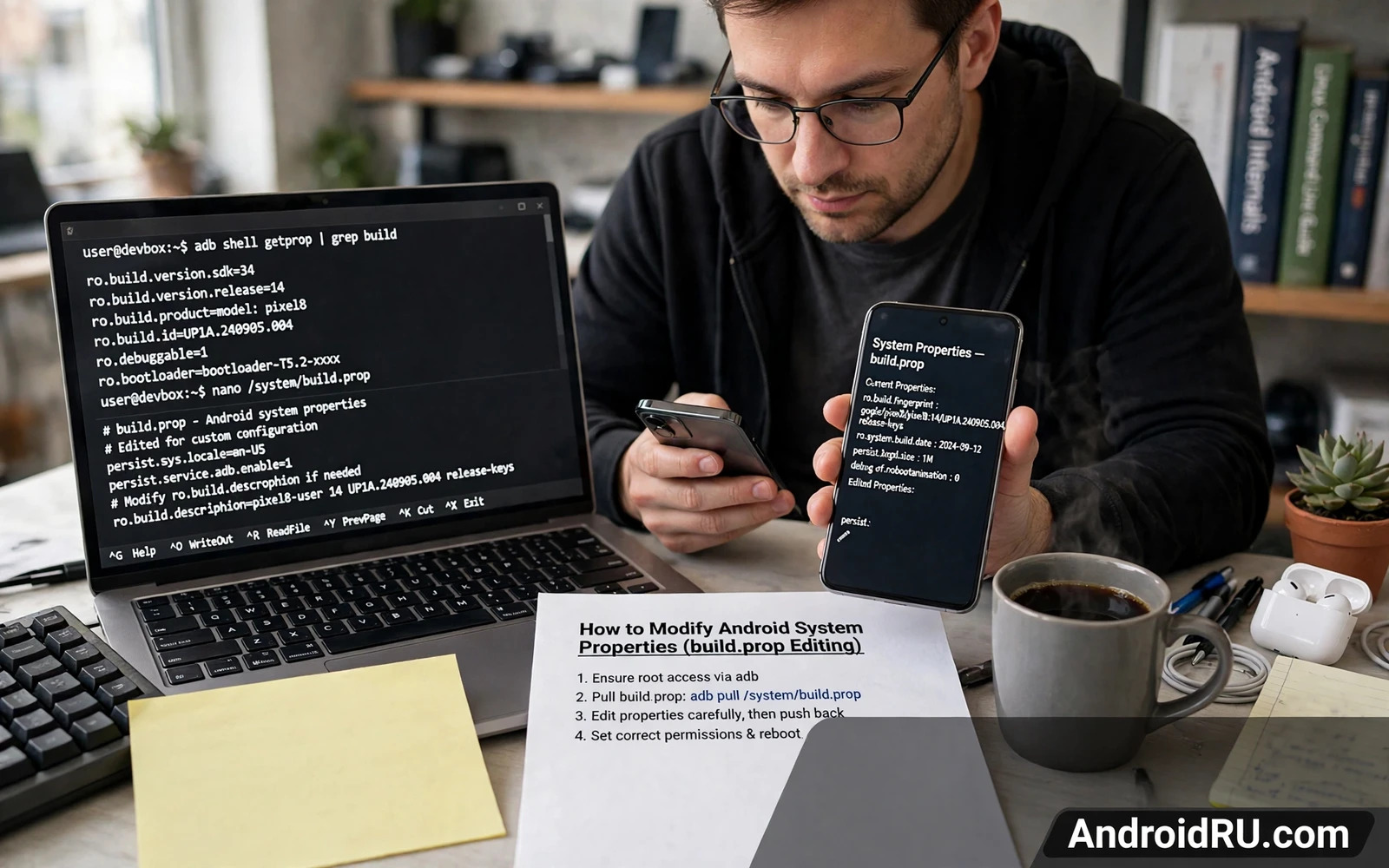
System properties control many hidden behaviors of an Android phone. The build prop file stores key value pairs that describe the device and tune the system and enable or disable features. Editing this file lets a power user change display density and audio behavior and network hints and many small system choices. This guide explains how the file works and how to edit it safely and how to recover when a change goes wrong. It assumes a rooted device or a device with a systemless method that can apply property changes at boot.
Read the safety warning before you edit any system property. A wrong property can cause a bootloop or a brick and it can void the device warranty. Editing system files can also delete data when a failed boot forces a factory reset. Back up the full system and back up photos and videos and documents and accounts before you start. Keep a known good copy of the original file so you can restore it from recovery when the phone fails to start.
How System Properties Work
A system property is a short name paired with a value and the system reads many properties during startup. Some properties describe hardware such as the model name and the screen density and the supported features. Other properties tune behavior such as animation speed and memory handling and audio routing. The system reads the property once at boot in many cases so a change often needs a reboot before it takes effect. That boot dependency is why a bad value can block startup entirely.
Properties live in several layers and the final value can come from more than one source. A vendor file and a system file and a boot time override can all set the same name with different values. The layer with the highest priority wins and that order differs across devices and ROM versions. That is why a guide written for one phone may fail on another phone even when the file name looks the same. Always check the current value on your own device before you trust a value from another model.
getprop ro.product.model
getprop ro.sf.lcd_density
getprop persist.sys.timezone
Reading Values Before You Change Anything
Reading comes before editing in every safe workflow. List the properties that relate to your goal and record their original values in a text file. Note the exact name and the exact value and the exact file where you found it. That note is your rollback plan and it matters more than the edit itself. Without the original value you cannot prove what changed and you cannot restore the phone to its earlier state with confidence.
Use a property reader on the phone or use ADB from a computer to read values without changing them. A read only check also reveals whether a property exists at all on your device. If a property does not exist then adding it may have no effect or it may create a conflict with a different setting. Do not add dozens of properties at once because a failure then has too many suspects. Change one property at a time and reboot and test before you change the next one.
ADB skills make this reading step faster and the ADB command guide for power users covers the shell commands that list properties and copy files safely. That guide pairs with this tutorial because every property edit starts with a shell read and ends with a shell check. Keep both guides open during your first edit so you do not guess at a command while the phone is in a fragile state.
Editing Safely With A Backup Copy
A safe edit starts with a backup copy of the original file stored outside the system partition. Copy the file to internal storage and copy it again to a computer so a boot failure cannot trap the only backup inside the phone. Edit a copy first and check every line for a typing error before you place the file back. A single wrong character in a property name creates a new property instead of changing the old one and that silent failure can confuse later testing.
Many modern devices use a systemless method that applies property changes at boot without writing to the system partition directly. That method is easier to undo because removing the module removes the change. It still carries risk because a bad override can block boot just like a direct edit. Test the change with a module that can be disabled from recovery when possible. Keep recovery access working before you start so you always have a path back.
cp /system/build.prop /sdcard/build.prop.bak
# edit one line at a time and reboot to test
Common Tweaks And Their Risks
Display density is a common tweak because it changes how much content fits on the screen. A density value that is too low can make text tiny and a value that is too high can break layouts in some apps. Audio properties can change volume steps and routing behavior but a wrong audio value can silence calls or media until the value is restored. Network properties can change hints for data behavior but they cannot fix a weak signal and they can break connectivity when set to a value the modem does not support.
Device identity properties deserve extra caution because apps and services read them to decide what features to offer. Changing a model name can break app compatibility and it can break safety checks and it can cause account problems in apps that bind to device identity. The device model spoofing guide explains those identity risks in detail and it shows why a spoof should never be treated as a harmless cosmetic change. Read that guide before you touch any identity property in this file.
Kernel and performance properties also overlap with this work and the system API hooking guide shows how deeper hooks interact with the same settings that properties describe. That guide helps you decide whether a property tweak is enough or whether a hook is the right tool instead. No tweak is worth a bricked daily phone and no single setting justifies skipping the backup step.
Recovery When A Change Breaks Boot
A boot failure after an edit usually means the last change must be undone from recovery. Boot into recovery and mount the storage and restore the backup copy over the edited file. If you used a systemless module then disable or remove that module from recovery instead of editing the system file. After restoring the file clear the cache partition when recovery offers that option and reboot normally. If the phone still fails to boot then restore the full backup you made before the edit.
Document the failure while it is fresh so you do not repeat it. Write down the property name and the value you tried and the symptom you saw after reboot. That note helps you and it helps others who read your report later. A careful failure note turns a scary bootloop into a lesson that protects the next attempt.
Property Layers And Override Order
Property layers explain why the same edit works on one ROM and fails on another ROM. A vendor layer can override a system layer and a boot override can override both layers on some builds. When your edit seems ignored first check whether a higher layer sets the same name to a different value. A read command that shows the final value helps you see which layer won. Do not keep adding the same property to more files in hope that repetition will win because a higher layer will still win.
Some properties are read only at runtime even when the file allows an edit. The system may reset those values at boot from a trusted source and your edit will vanish after a reboot. That behavior is not a bug in your edit method. It is a protection for values that affect device identity and security. Accept read only behavior for those values and look for a supported setting instead of forcing a value that the system refuses to keep.
Temporary property changes through the shell can test a value without a permanent file edit on some devices. A temporary change lasts until reboot and it lets you judge an effect before you commit it to a file. Use temporary tests for risky values because a reboot then restores safety automatically. A permanent file edit should only follow a temporary test that behaved well across a full day of normal use.
Property Audits Over Time
Audit your property changes after every system update because updates can replace property files and reset custom values. Compare the current values with your saved original list after each update and note which custom values survived and which values vanished. A vanished value is not a failure when the update changed the underlying feature. Reapply only the values that still make sense on the new build and retire values tied to removed features.
Keep a single master note for all property edits with the date and the reason and the original value and the new value for each entry. That note becomes the audit trail that future you will thank during troubleshooting. Share that note style with anyone who helps you because a helper who cannot see past edits will repeat your mistakes. A clear audit trail turns property tuning from guesswork into a repeatable practice.
Retire old tweaks regularly because a tweak that helped on an older build can hurt on a newer build. Performance tweaks from an older Android version may conflict with new memory handling. Audio tweaks from an older framework may conflict with new audio routing. Review the whole list twice a year and remove entries that no longer show a clear benefit in daily use.
Property Testing Checklist
A testing checklist keeps property work consistent across devices and across months. The checklist should list the backup step and the read step and the single change step and the reboot step and the test step. Tick each step in order and never skip the backup step for a change that looks trivial. Trivial changes cause real boot failures when a value interacts with a feature you forgot. A checklist turns memory into a reliable process.
Test a property change across a full day of normal use before you call it successful. A change that works in a five minute test can fail during overnight idle or during a long call or during a heavy app session. Daily use exposes interactions that short tests miss. Note any odd behavior during that day even when it seems unrelated because a property can affect systems far from its name.
Share property findings with exact device details so others can judge whether your finding applies to their phone. Include model code and build number and ROM name and the original value and the new value. A finding without device details helps no one because property behavior varies so much across devices. Precise sharing builds trust in a community that suffers from vague advice.
System property editing rewards slow and careful work. Read first and back up first and change one value at a time and test after each reboot. With that discipline you can tune a phone in useful ways without turning a small tweak into a full restore job.

