

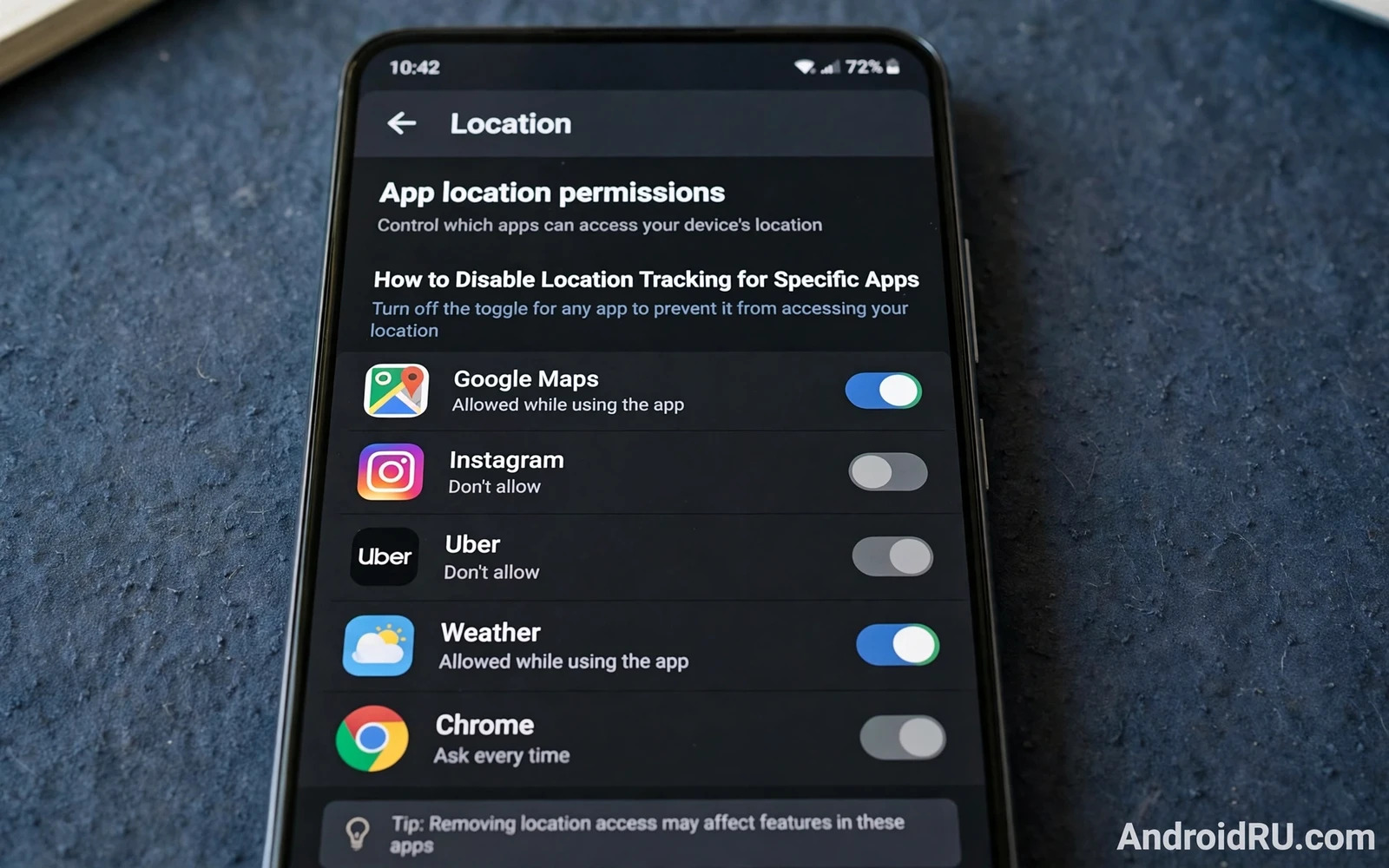
Location tracking lets apps know where you are and that knowledge can be useful or invasive depending on the app and the moment. A navigation app needs your position to guide you. A shopping app rarely needs your exact position to show products. A social app may want your location for features you never use. Disabling location tracking for specific apps lets you keep useful location features while stopping unnecessary collection. That selective approach is better than turning location off entirely because a global off switch breaks maps and rides and emergency features that genuinely help you.
Android location control works through permissions that you grant per app. Each app can hold no location access or approximate location access or precise location access. Approximate location gives a general area that is enough for weather and news and local search. Precise location gives an exact position that navigation and ride services need. Location access can also be limited to while using the app or allowed at all times. That time limit is crucial because background location is far more revealing than foreground location. An app that tracks you at all times builds a complete movement history even when you never open it.
Find Which Apps Hold Location Access
Open location permissions in privacy settings to see all apps grouped by their current location access. The list usually separates apps with all time access and apps with while in use access and apps with no access. Start with the all time group because those apps can track you continuously. Ask for each app whether continuous tracking serves a feature you actually use. A family safety app may justify all time access when you deliberately use it for that purpose. A game or a shopping app almost never justifies all time access. Revoke all time access first and then decide whether while in use access or no access fits better.
Next review the while in use group with the same critical eye. While in use access is safer than all time access but it still reveals position during every session. A weather app may work well with approximate location while in use. A photo app may not need location at all unless you want location tags on photos. A social app may offer location features that you can decline without losing messaging and browsing. Work through the list app by app rather than approving whole categories at once. Individual decisions protect privacy better than blanket approvals.
System location settings also deserve review because location can be used through Wi-Fi scanning and Bluetooth scanning even when GPS is off. Those scanning features help location accuracy but they also reveal nearby networks and devices. Turn off Wi-Fi scanning and Bluetooth scanning for location when you do not need faster location fixes. Keep location accuracy features enabled only when navigation performance truly requires them. A small accuracy loss is a fair trade for a large reduction in background signals that your phone emits about its surroundings.
Change Location Settings For One App At A Time
Tap an app name in the location list to open its individual permission screen. Choose do not allow when the app offers no feature that needs location. Choose allow only while using the app when a feature needs location during active use but not in the background. Choose approximate location when the feature needs a general area rather than an exact address. Choose precise location only for navigation and rides and delivery tracking during an active trip. Each choice takes seconds and each choice can be changed later when a feature stops working and you reconsider the trade.
Test the app after changing its location setting to confirm that important features still work. Open a map app after switching it to while in use access and confirm that navigation still guides you. Open a weather app after switching it to approximate location and confirm that forecasts still match your area. Open a shopping app after removing location entirely and confirm that browsing and checkout still work. Testing prevents frustration because a setting that breaks a valued feature will tempt you to restore broad access without thought. A tested setting is a setting you will keep.
When an app repeatedly asks for location after you restricted it then consider whether the app is worth keeping at all. Repeated prompts can be a sign of aggressive data collection rather than genuine need. An app that respects your choice will work with the access you granted or will explain clearly why it needs more. An app that nags for all time access after every launch is signalling its priorities. Removing such an app protects privacy and it also removes a source of daily annoyance. Plenty of alternatives exist for most app categories that respect location choices better.
Keep Useful Location Features Working
Maps and rides and emergency services should keep precise location while in use because their core purpose depends on exact position. Do not disable location for emergency features or for find device services that help recover a lost phone. Those services use location to protect you rather than to profile you. The goal of selective control is not to hide from helpful services. It is to stop unnecessary services from building a movement history that they do not need for their core function.
Photos and social posts need special care because location data can hide inside photo metadata even when app location permission is off. Check camera settings for location tagging and turn it off when you do not want photos to carry position data. Review social app settings for location sharing in posts and stories. A photo shared publicly with location metadata reveals where it was taken even when the caption says nothing about place. Metadata control complements permission control because it closes a second channel for location leakage.
Location history in account settings is a separate control from app permissions. An account may store a timeline of places visited even when individual apps have restricted access. Review location history settings in your main account and pause or delete history when you do not want a stored timeline. Deleting history removes past records but does not change app permissions going forward. Both controls matter and they should be reviewed together during a privacy audit. A complete location review covers app permissions and account history and photo metadata together.
A privacy dashboard review helps you verify that location changes actually took effect. Learning how Android Privacy Dashboard access logs show location use lets you check whether a restricted app still appears in location history. If a restricted app still appears then revisit its permission screen and check for a second location channel such as a linked account or a companion app. Verification turns a setting change into confirmed protection rather than assumed protection.
Review Location Access As A Regular Habit
New apps often request location during setup when enthusiasm is high and scrutiny is low. Review location permissions after installing any new app and set the narrowest access that still supports its core feature. Updates can also change location behaviour so review permissions again after a major update for apps that previously held broad access. A short monthly review of the location list keeps new grants from accumulating silently. That review takes only a few minutes when done regularly.
Travel changes location needs temporarily because navigation and translation and local search become more important away from home. Temporarily widen location access for travel apps during a trip and then narrow it again when you return. A travel widening that is never narrowed becomes a permanent leak. Set a reminder to review location settings after travel so that temporary access does not become permanent by forgetfulness. Good privacy habits adapt to context without abandoning control.
Sensitive places deserve extra thought because location history can reveal home and work and medical visits and places of worship. Apps that track location at all times can infer those sensitive places from repeated visits. Restricting background location for all but essential apps prevents that inference from forming in the first place. When an app genuinely needs background location then ask whether its privacy policy and its security practices justify that depth of trust. Trust should be earned by transparency and by a clear feature need rather than assumed from a familiar brand name.
Private areas on the phone add another dimension to location privacy. A document that contains an address or a travel plan deserves storage protection as well as location permission control. A useful companion habit is learning how Android Private Space keeps sensitive documents apart from everyday apps. Location control stops apps from learning where you are. Private Space stops casual apps from reaching documents that reveal where you live and where you travel. Together they protect both movement data and location documents.
End your location review by confirming that maps and rides still work and that no unnecessary app holds all time access. That confirmation is the balance point of this guide. You have not hidden from the world and you have not surrendered your movements to every app that asks. You have chosen per app and per moment and per precision level. That selective control is the most practical form of location privacy on Android because it preserves useful features while stopping the quiet collection that serves no purpose for you.
Watch For Location Use By Hidden Watchers
Location tracking is not always a permission you granted knowingly because a hidden watcher can also track location through powerful permissions granted to a deceptive app. If location history shows movement tracking that no visible app explains then a deeper inspection is warranted. A useful next step is learning how detecting hidden spyware on a phone works so that battery and data and permission evidence can be checked alongside location logs. Location control for known apps plus watcher detection for unknown apps covers both halves of the tracking problem. One half without the other leaves a gap that a determined tracker can exploit.
Emergency location features should stay enabled even during a strict privacy review because they exist to help rescuers find you when you cannot explain where you are. Find device services also deserve to keep location access because they help recover a lost phone and protect the data on it. A privacy routine that disables emergency and recovery location creates a safety risk that outweighs its privacy gain. Keep those protective services active and focus restrictions on shopping and social and entertainment apps that do not need to know where you are. That distinction keeps privacy practical rather than absolute.

