

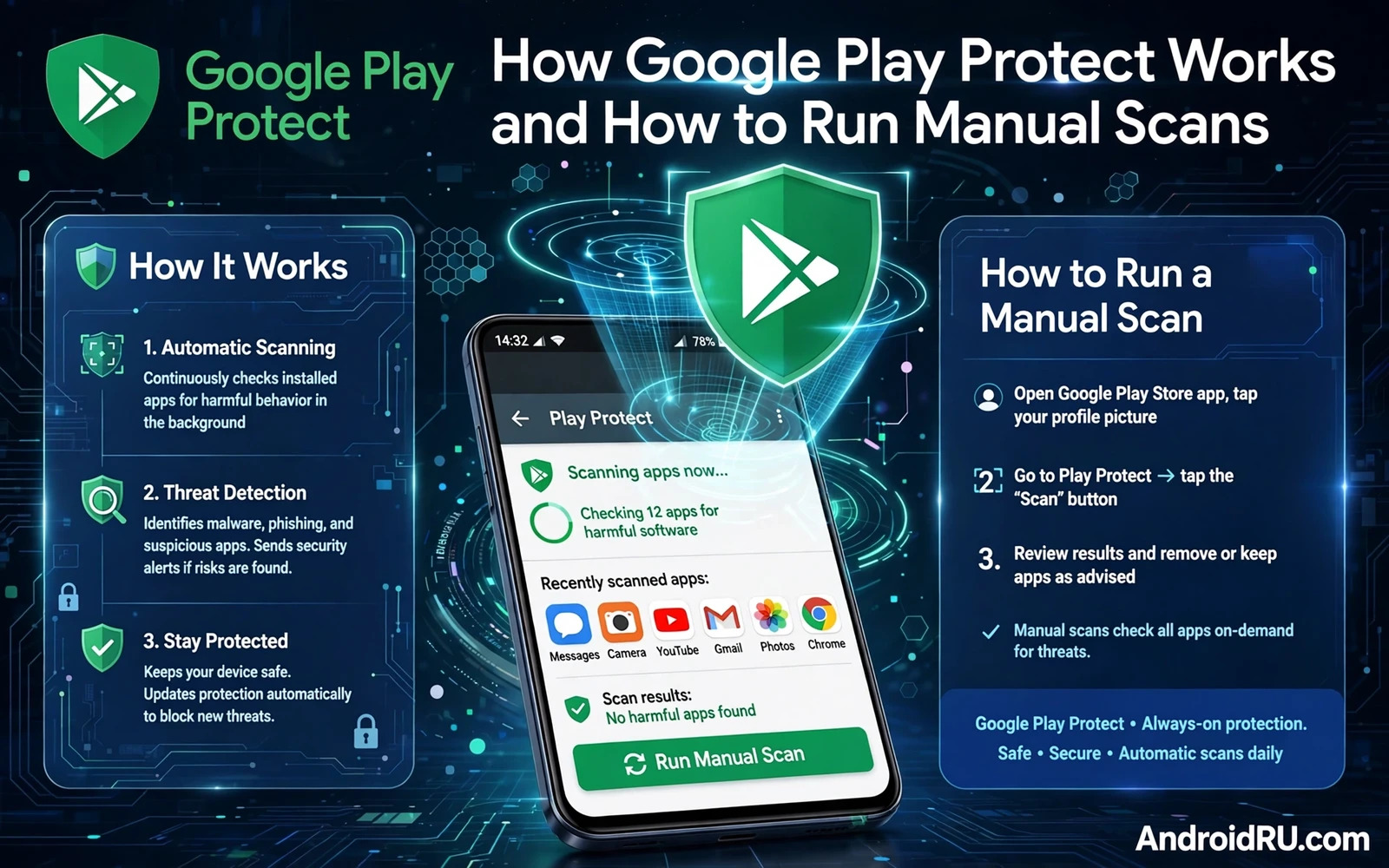
Google Play Protect is a built in safety system that checks apps on an Android phone for harmful behaviour. It scans apps when they are installed and it continues to check them periodically while they remain on the device. It also checks apps installed from outside the store when that checking is enabled. The goal is to catch known harmful code and suspicious behaviour before damage spreads. Play Protect does not replace careful install habits but it adds an automated layer that watches apps even when the user is not thinking about security.
Play Protect works by comparing app code and behaviour against a large database of known harmful patterns. When an app matches a known harmful pattern it can be flagged and disabled or removed. When an app behaves in a suspicious way that is not yet fully identified it may receive a warning that lets the user decide. The system also verifies apps before installation from the store so that many harmful apps never reach a phone at all. That combination of pre install checks and ongoing checks gives Play Protect two chances to catch a problem.
Understand What Play Protect Checks And What It Cannot See
Play Protect checks for code that steals data and code that shows deceptive ads and code that harms device function. It looks for apps that request permissions far beyond their stated purpose and for apps that hide their true behaviour behind a familiar name. It also checks for apps that try to gain system privileges they should not hold. Those checks are powerful against known threats because known threats leave recognisable traces. New threats that use novel code may evade detection until their pattern is added to the database.
Play Protect cannot see intent perfectly and it cannot judge every privacy trade off for you. An app that collects location for advertising may pass a safety scan even when you consider its data collection excessive. An app that is merely poorly designed may drain battery without being harmful in the security sense. Play Protect also cannot protect credentials that you hand over willingly through a phishing page. Understanding those limits prevents false confidence. A clean scan means no known harmful code was found. It does not mean an app deserves unlimited trust.
Device coverage also matters because Play Protect depends on system services and on an up to date database. A phone that has not updated its system services for a long time may carry an older protection database. Keep system services updated and keep the phone itself updated so that Play Protect benefits from the latest patterns. A phone that is offline for long periods may also miss periodic checks. Connect regularly and allow background checks to run so that protection stays current.
Run A Manual Scan Step By Step
Open the Play Store app and open its profile or menu area to find Play Protect. The Play Protect screen shows the last scan time and the overall status of apps on the device. Tap the scan option to start a manual check of installed apps. The scan usually completes quickly because it compares installed apps against known patterns rather than reading every file deeply. Wait for the scan to finish before closing the screen so that results are fully displayed. A manual scan is useful after installing a new app and after noticing strange behaviour and after returning from travel where new apps may have been added.
Read the result screen carefully rather than glancing at a green check mark and moving on. A clean result means that no installed app matched a known harmful pattern at scan time. A flagged result names the app and describes the concern in general terms. A warning result may ask you to review an app that behaves suspiciously without being confirmed harmful. Treat warnings seriously even when they lack dramatic language. A warning is an invitation to investigate permissions and behaviour before deciding whether the app should stay.
When a scan flags an app then open that app details and review its permissions and its install source. An app flagged as harmful should be uninstalled promptly after revoking any admin or accessibility rights it holds. Do not simply disable a harmful app and forget it because a disabled app can sometimes be re enabled by an update or by another app. Full removal is cleaner. After removal restart the phone and run a second manual scan to confirm that no helper app remains. A second scan gives confidence that cleanup was complete.
A manual scan habit pairs naturally with a broader malware response. When a scan result matches other symptoms such as battery drain or data spikes then deeper inspection is warranted. Learning how removing malware and viruses from an Android phone works helps you move from a scan result to a full cleanup routine. Play Protect identifies the suspect and a malware routine removes it safely and verifies that symptoms have gone. That pairing turns a single scan into a complete response.
Respond To Warnings Without Panic
Warnings can feel alarming but a calm response protects data better than a rushed response. First note the app name and the warning type and take a screenshot for your own record when that is safe to do. Then check whether you recognise the app and whether you installed it deliberately. An app you do not recognise deserves removal after revoking its powerful permissions. An app you recognise may deserve a closer look at its permissions and its recent behaviour before removal. A decision based on recognition plus permissions plus scan evidence is stronger than a decision based on fear alone.
False positives happen occasionally because legitimate apps can share code patterns with harmful apps. A false positive does not mean Play Protect is useless. It means that automated detection has limits and human judgement must complete the process. When you believe a flag is wrong then check the developer identity and the app source and recent reviews from other users through trusted channels. When doubt remains then favour removal for apps that are not essential. An essential app with a questionable flag deserves a fresh install from the official store and a fresh scan after reinstall.
Play Protect settings deserve a periodic review as well. Confirm that scanning is enabled for apps from all sources when you ever install outside the store. Confirm that automatic improvement options match your privacy preferences. Some options send app data to improve detection and that trade off should be a conscious choice rather than a default you never examined. Reviewing settings once every few months keeps protection aligned with your comfort level. Protection that you understand is protection you will maintain.
Sideloaded apps deserve special attention in Play Protect reviews because they bypass store checks before installation. A sideloaded app that passes a Play Protect scan is safer than one that fails but it is not automatically safe. A useful companion habit is understanding how sideloading APK files from unknown sources creates risk so that scan results for sideloaded apps are interpreted with extra caution. Store apps and sideloaded apps should not be judged by the same standard because their pre install scrutiny differed greatly.
Make Manual Scans Part Of A Routine
Run a manual scan after every batch of new installs and after any period of heavy app experimentation. Run a scan when battery or data behaviour changes unexpectedly. Run a scan after a family member borrows the phone and installs something unfamiliar. Those trigger based scans catch problems close to their cause. Add a monthly scan as a baseline even when nothing seems wrong because a quiet watcher may produce no obvious symptom for weeks. A monthly scan costs little time and it creates a regular checkpoint.
Teach other users of a shared device how to run a manual scan and how to read its result. A shared phone benefits when every user knows the scan location and the meaning of a flag. Show them that a clean result is reassuring but not absolute and that a flagged result requires removal rather than dismissal. Shared knowledge prevents a scan warning from being ignored by someone who does not recognise its importance. Security on a shared device is a shared responsibility.
Play Protect works best as one layer among several. Permission reviews and source checks and strong authentication and update habits all complement automated scanning. A phone that relies only on Play Protect may still fall to phishing or to a privacy invasive app that is not technically harmful. A phone that combines Play Protect with those other habits is far harder to compromise. Run manual scans regularly and act on their results calmly and keep the other layers strong. That routine gives automated protection a human partner and together they keep your Android phone safer day after day.
Combine Scans With Permission Reviews
A clean Play Protect scan should still be followed by a permission review when an app behaves strangely because a scan checks for known harmful code while a permission review checks for excessive access. Open the permission list for any app that drains battery or uploads heavily and ask whether its permissions match its stated purpose. An app that passes a scan but holds accessibility access and message access and location access at all times still deserves scrutiny. That scrutiny may lead to narrowing permissions even when removal is not justified. Scans and permission reviews answer different questions and both answers are needed for a complete judgement.
Spyware behaviour can also appear after a scan because a watcher may be installed after the last check or may use novel code that is not yet recognised. A useful companion check is learning how detecting hidden spyware on a phone works through battery and data and permission evidence. That behaviour check catches what a code scan may miss. Use both methods on a regular schedule and especially after any install from outside the store. Automated scanning plus human behaviour checks gives you defence in depth rather than reliance on a single tool.
Keep Play Protect enabled even when you install few new apps because periodic checks can catch behaviour changes in apps that were safe at install time. An app that updates itself through its own channel can gain new behaviour without a store review. A periodic scan is the safety net for that scenario. Combine that net with a monthly permission review and a habit of removing apps you no longer use. Fewer apps means fewer scan targets and fewer opportunities for a quiet watcher to hide.

