

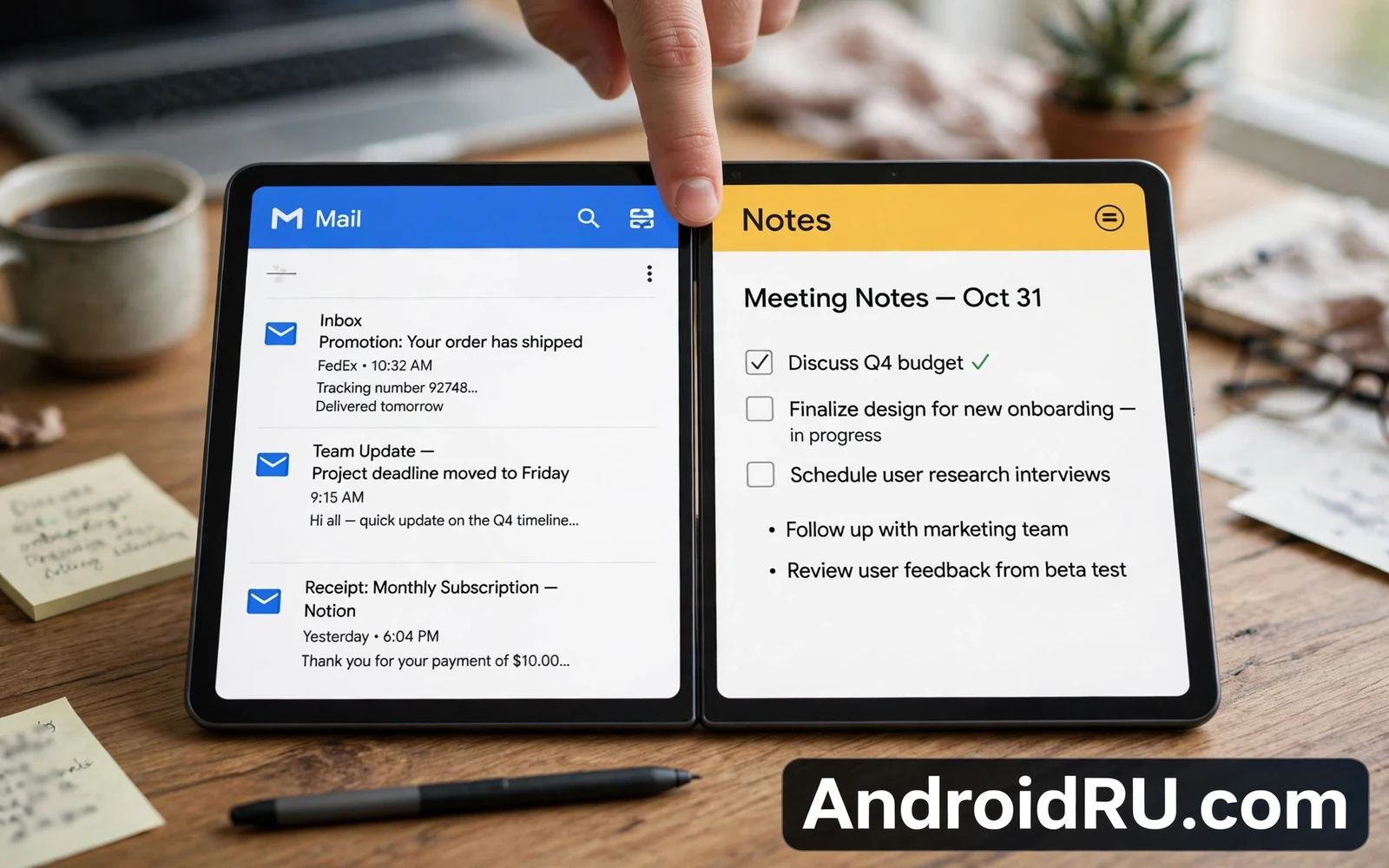
What Split Screen Does for Daily Work
Split screen puts two apps side by side on one display so you can work with both without switching back and forth. A mail app can sit next to a notes app while you draft a reply from a message. A browser can sit next to a document while you copy facts into a report. A video can sit next to a chat while you watch and talk at the same time. The gain is not only speed. The gain is focus because both sources stay visible while you work.
Split screen works best when the two apps serve one task. Pairing random apps adds clutter rather than help. Pair apps that share a task such as research and writing or chat and calendar or maps and messages. A clear task pair keeps the screen useful. A vague pair forces you to manage windows instead of doing the task itself.
Start Split Screen in Seconds
Open the first app and then open the recent apps view. Long press the app icon at the top of its card and choose Split screen when the phone offers it. The first app will move to one half of the screen and the app list will appear for the second half. Tap the second app and both apps will share the display. The exact menu words vary by maker but the pattern of long press then split choice is common across many phones.
Some phones also offer split screen from the app menu inside an app or from a sidebar that holds favourite apps. Dragging an app from a sidebar into a half screen is the fastest path on tablets and foldables. Learn the path for your phone once and practise it with a simple pair such as browser and notes. A fast start matters because a slow start discourages use even when the feature would help.
Desktop style work builds on the same pairing habit and Android Desktop Mode is it ready to replace your laptop tests whether windowed phone work can carry a full desk session on a monitor.
Control the Divider and Focus Like a Pro
Drag the divider to give more space to the app that needs it. A document that needs reading room deserves more width than a chat that needs only a narrow column. Double tap the divider on some phones to swap the two apps or to expand one app to full screen. Learn those gestures for your phone because they turn a static split into a flexible workspace.
Tap inside an app to give it focus for typing and scrolling. The other app stays visible but it will not receive keys until you tap it. Use that focus rule to avoid typing into the wrong app. When you need to copy text select it in one app and then tap the second app before you paste. A short pause to check focus prevents pasted text from landing in the wrong document.
Build App Pairs for Common Tasks
Build a mail and notes pair for reply work. Read the message on one side and draft notes or a reply on the other side. Build a browser and document pair for research work. Keep sources visible while you write so facts stay accurate. Build a maps and messages pair for travel plans. Check a route while you share arrival times with friends.
Save app pairs when your phone offers that feature. A saved pair opens both apps in one tap and removes the setup friction that kills daily use. Name the pair by task rather than by app when the phone allows custom names. A pair named Trip Plan is easier to find than a pair named Maps plus Messages when you are in a hurry.
Default apps decide which app opens in each half and how to change default apps in Android step by step helps you set the browser and mail apps that your pairs will use every day.
Split Screen on Tablets and Foldables
Tablets and foldables give split screen room to breathe. Two apps can each hold a readable width without constant scrolling. A tablet in landscape mode suits document pairs best. A foldable opened flat suits reading pairs best. Test both orientations for your task because a pair that feels cramped in portrait may feel perfect in landscape.
Some tablets support more than two windows through floating windows or a taskbar. A floating chat window over a document can serve as a third pane for quick replies. Use floating windows sparingly because each extra window adds management cost. Two main panes plus one small floating pane is a practical limit for most tasks.
Fix Apps That Refuse to Split
Some apps refuse split screen because the maker did not enable resizing for that app. Games and camera apps and some video apps are common refusals. Try a different app for the same task when one app refuses. A browser can often stand in for an app that refuses to resize because the web version of a service usually resizes well.
Restart the pair when an app shows a blank half or a frozen frame after a resize. Close the second app and reopen it in the split view. Clear the cache of the faulty app when the fault repeats. If the fault affects many apps then restart the phone and test a simple pair again. A system update can also fix resize faults so check for updates when a fault persists across apps.
Fresh settings can improve split behaviour too and essential system settings you should change on new Android phones covers display and gesture choices that affect how windows behave on a new device.
Advanced Habits for Power Users
Use split screen with a keyboard on a tablet for writing tasks. A physical keyboard frees screen space and it makes typing in one pane while reading the other pane feel natural. Use text selection shortcuts to move facts fast between panes. Use the share menu to send a link from one app to the other app without retyping an address.
Pair split screen with Do Not Disturb for deep work sessions. Silence non urgent alerts so the second pane does not become a distraction feed. Set a timer for the task and work in one pair until the timer ends. A focused pair with a timer beats a crowded screen with many open apps and no clear task.
Private apps can also sit in a separate area when a task needs separation and Android Private Space feature complete setup guide explains how a hidden profile keeps sensitive apps apart from daily multitasking.
Split Screen With Video and Calls
Video pairs need special care because video apps often pause when they lose focus. A video app in one half may keep playing while you type in the other half on some phones and may pause on others. Test video behaviour with your exact apps before a work session that depends on it. A picture in picture window can serve as an alternative when split video pauses. Picture in picture keeps video visible in a small floating window while you work in a full app.
Calls during split screen also need a test. An incoming call may take over the full screen and hide both split apps. After the call ends the split pair may restore or may collapse to one app. Knowing that behaviour in advance prevents lost work. Save drafts often during split sessions that involve calls. A saved draft survives a collapsed pair while unsaved typing may not.
Split Screen Shortcuts and Gestures
Gestures can start split screen faster than menus on many phones. A swipe from the edge or a drag from a sidebar may open the second app at once. Learn the gesture for your phone and practise it until it feels automatic. A gesture that you must look up each time saves no time at all. A gesture that you use daily becomes a reflex that makes split screen part of normal work rather than a special trick.
Keyboard shortcuts help even more on tablets with attached keyboards. A shortcut for split view and a shortcut for app switching can replace several taps. Check the keyboard settings on your tablet for a list of supported shortcuts. Test each shortcut with a real task pair rather than memorising a list. Shortcuts that fit your tasks earn daily use while shortcuts for tasks you never do can stay forgotten without harm.
When Not to Use Split Screen
Split screen hurts tasks that need full attention on one source. Reading a dense contract deserves a full screen without a chat pane competing for eyes. Editing a detailed photo deserves a full screen without a notes pane shrinking the canvas. Writing a long essay deserves a full screen keyboard without a second app stealing taps. Use split screen for paired tasks and use full screen for deep single tasks.
Split screen also hurts on small phones for text heavy pairs. Two narrow columns force constant scrolling and small text. A small phone suits a browser plus video pair better than a document plus notes pair. Match the pair to the screen size rather than forcing every pair onto every phone. A pair that shines on a tablet may frustrate on a small phone and that difference is normal rather than a fault.
Split Screen for Study and Research
Study tasks suit split screen because learning needs sources and notes side by side. A lecture video on one side and notes on the other side lets a student capture ideas without pausing constantly. A textbook page on one side and a flashcard app on the other side supports active recall. A translation app on one side and a reading app on the other side helps language learners. Each pair keeps the source visible while the student works which reduces the memory load of switching apps.
Research tasks benefit from the same pattern. A paper abstract on one side and a notes app on the other side helps a researcher capture quotes accurately. A data table on one side and a calculator on the other side speeds checking. A map on one side and a travel guide on the other side helps trip planning with facts in view. The rule stays the same across study and work. Pair a source with a workspace and keep both visible until the task ends.
- Pair apps that serve one clear task
- Learn the long press split path for your phone
- Drag the divider to favour the app that needs space
- Save task pairs for one tap launch when offered
- Use landscape on tablets for readable document pairs
- Restart a faulty pair before blaming the whole feature
Warning: Do not use split screen for sensitive tasks in public places without checking who can see both panes. Two visible apps expose twice as much private data on a shared screen. Lock the phone when you step away from a split session because both apps stay open and visible until you lock or close them.

