

Android Desktop Mode: Is It Ready to Replace Your Laptop?
My laptop died on a Tuesday, right in the middle of a work week, and the repair shop quoted me five days. I had a phone, a monitor, and a cheap USB-C hub on my desk, so I decided to run an experiment: could the phone in my pocket carry a full working day? By Friday I had an answer, and it was more interesting than a simple yes or no. Some parts of my day felt exactly like laptop work. Other parts reminded me, sometimes rudely, that I was still using a phone.
That week taught me that the real question is not whether desktop mode works. It works. The real question is what kind of work you do, which phone you own, and how honest you are about the apps you depend on. A writer who lives in documents and email will have a very different week from a video editor who lives in timelines and plug-ins. This article walks through both sides with real detail, so you can judge your own workflow instead of taking a marketing claim at face value.
You will get a clear picture of what desktop mode actually does on a big screen, how Samsung DeX, Motorola Ready For, and the native mode in Android 16 compare, what gear you need to set it up, and where it still falls short. There is a full comparison table against a laptop, a look at files, printing and peripherals, and a simple one-week test you can run yourself before you make any decision about selling a laptop.
What Android Desktop Mode Actually Does on a Big Screen
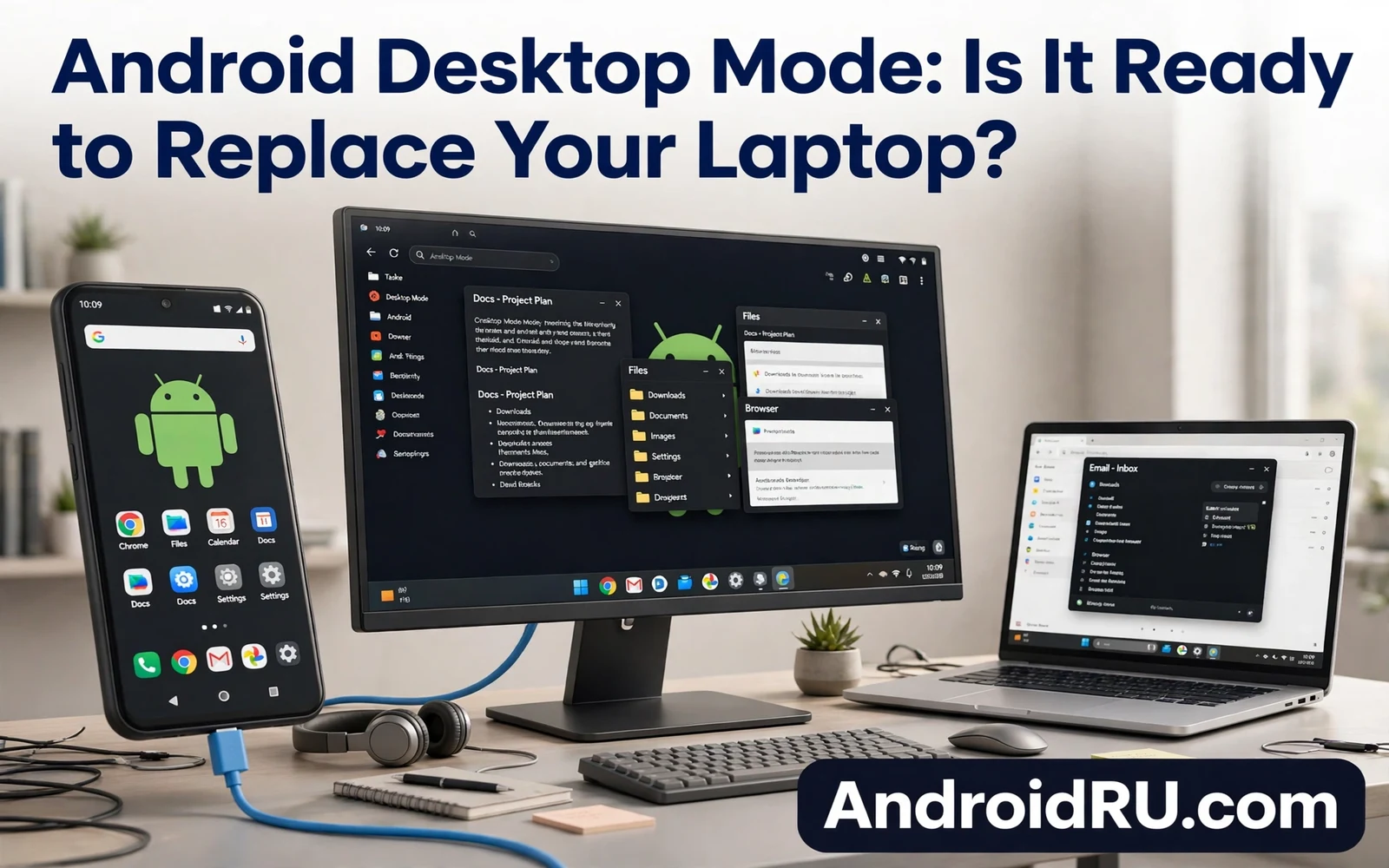
Desktop mode takes the apps and files already on your phone and presents them in a windowed workspace on an external display. Instead of mirroring the tall phone screen, the phone draws a taskbar along the bottom, a start-style menu with the full app list, and windows you can drag, resize, and stack. A mouse and keyboard turn the setup into something that looks and feels close to a computer, while the phone itself keeps running everything. The monitor is only a display. The phone is the machine.
The appeal is obvious once you see it running. Your files are already there. Your accounts are already signed in. Your messages keep arriving in the same place. There is no sync step, no second login, and no waiting for a cloud folder to catch up. For someone who travels light, that single-device idea is genuinely attractive: the same pocket device that takes calls on the train becomes the desk machine in a hotel room or a shared office.
That said, the experience is only as good as the apps inside the windows. A document app that supports freeform windows feels like a proper desktop tool. An app that only knows how to fill a phone screen will open in a fixed phone-shaped box, or restart when you drag its corner, and the illusion breaks at once. The system has matured a lot, but app support is still uneven, and that unevenness is the first thing to check before you trust the setup with real work.
Windows, Taskbar and App Menu: The Three Pieces That Matter
The taskbar is the piece you will touch most. It holds pinned apps, recent apps, and a button that opens the full app list, much like the bar at the bottom of a laptop screen. I pinned my browser, my mail app, my document app, and my file manager there on day one, and after that I rarely opened the full menu. A good taskbar makes the phone feel like a computer. A bad one, buried or slow to respond, makes every task take two extra taps.
Window controls are the second piece. On the better implementations you can drag a window by its title bar, snap it to the left or right half of the screen, and pull a corner to resize it. Snapping two windows side by side is the single most useful trick in this whole setup, because it turns a monitor into a real two-pane workspace: notes on one side, document on the other. Apps that refuse to resize break this flow, so test your three most-used apps in windowed form before you commit to a full day.
What Changes When the Phone Drives a Monitor
When the phone detects an external display, it switches the way it draws apps. Text gets larger and easier to read, menus spread out, and the phone screen itself can become a touchpad or a keyboard, depending on the phone. That second role is handy in a hotel room where you forgot a mouse. It is not a replacement for a real mouse during an eight-hour day, but it rescues a session when your kit is incomplete.
Battery behaviour changes too. Driving a monitor, a keyboard, and a mouse draws more power than normal phone use, which is why power delivery through the hub matters so much. A hub that passes 45 watts or more to the phone will keep the battery level steady during a long session. A hub with weak charging will let the battery drain slowly even while plugged in, and you will notice it by mid-afternoon. Check the wattage printed on the hub before you buy it, not after your first dead session.
Samsung DeX vs Motorola Ready For vs Android 16 Desktop Mode
There is no single desktop mode on Android. There are several, built by different makers on top of the same idea, and the differences between them decide how polished your day feels. Samsung DeX is the oldest and most complete. Motorola Ready For is the most flexible about wireless connections. The native mode arriving with Android 16 is the one that could finally bring the idea to every phone, not just flagships from two brands.
I have used DeX the most, and its age shows in the good ways: the taskbar is fast, windows behave, and Samsung’s own apps are built to resize cleanly. Ready For feels a little rougher in window handling but wins on the way it treats a TV as a big screen for media and games. The native Android 16 mode is the newcomer, and on the phones that have it, it feels like a solid first version of a platform feature rather than a finished product. It works, it is honest, and it still has rough edges.
Samsung DeX on Galaxy Phones
DeX runs on Galaxy S and Z flagships and some Galaxy tablets, and it starts when you connect the phone to a monitor over USB-C. It offers a full taskbar, a start menu, system tray icons, and window snapping that feels closest to a laptop of the three options here. Samsung’s browser, notes, and mail apps resize well, and Microsoft Office apps on Android behave sensibly inside DeX windows. If your work is documents, mail, and browsing, DeX is the safest pick today.
DeX also handles the phone screen gracefully while the desktop runs. You can keep using the phone as a phone, answering messages on its screen while the monitor shows your document. That separation is underrated. On some other setups the phone screen goes dark or becomes a touchpad only, which is fine at a desk but awkward when a call comes in and you want to glance at the caller.
Motorola Ready For on Moto Phones
Ready For takes a different approach. It offers a desktop layout over a wired connection, a wireless connection to a TV or PC, and a mode that turns the phone into a webcam or a game console on the big screen. The desktop layout itself is simpler than DeX, with fewer window tricks, but the wireless option is genuinely useful in a meeting room where no cable is handy. The trade-off is lag: wireless display adds a small delay that you feel while typing fast or dragging windows.
For office work I would still use the wired connection on Ready For. The wireless mode is better saved for showing photos, playing a video, or running a presentation where a fraction of a second of lag does not matter. Motorola’s own file and camera apps work well in the layout, and third-party apps are a mixed bag, much like on the other platforms.
Native Desktop Mode in Android 16
Android 16 brings a native desktop windowing mode to the platform itself, which matters because it is no longer tied to one maker. On supported phones, connecting an external display can open a desktop-style workspace with freeform windows, a taskbar, and the same app set you already use. Early builds handled writing, browsing, and calls well, and struggled with the same app-resize problems as every other implementation. The significance is not that it beats DeX today. It is that every maker can now build on the same foundation, which should raise the floor for all phones over the next two system generations.
If you are buying a phone this year and desktop use matters to you, ask the seller or check the spec sheet for external display support and desktop windowing, not just the processor. A fast chip with no desktop mode is still just a fast phone. A mid-range chip with a working desktop mode can be the better desk machine.
How to Connect Your Phone to a Monitor, Keyboard and Mouse
Setup takes about ten minutes the first time and about two minutes after that, once the kit is packed and tested. The parts are simple: a phone with external display support, a USB-C hub with video output and power delivery, a monitor or TV with an HDMI or DisplayPort input, and a keyboard and mouse. A hub with at least one USB-A port, one HDMI port, and a USB-C power input covers nearly every desk. I keep the hub, the cable, and a small power adapter in one pouch so the whole kit travels as a single unit.
Connect power first, then the monitor, then the keyboard and mouse through the hub. The phone should detect the external display and offer the desktop layout instead of plain mirroring. If it mirrors the phone screen, open display settings and look for a desktop option, a separate screen option, or a maker setting under connected devices. Some phones hide the switch in a place you would never guess, so search settings for “desktop” before you assume the phone cannot do it. Once the desktop appears, open your three most-used apps and drag each one into a window to confirm they resize.
What You Need: Hub, Cable, Keyboard and Mouse
The hub is the one purchase worth thinking about. A cheap hub without power delivery will charge the phone slowly or not at all, and a hub without a proper video output will only mirror the screen. Look for a hub that lists HDMI 4K at 30Hz or better, USB-C power delivery of 45 watts or more, and at least two USB-A ports. That combination costs more than the cheapest hub on the shelf, but it is the difference between a desk that works and a desk that frustrates you by lunch.
For the keyboard and mouse, wired sets through the hub are the calmest choice at a fixed desk: no pairing, no batteries, no dropouts. Bluetooth sets are better for travel because they pack smaller and work with a phone alone, but they add pairing steps and a second thing to charge. I use a compact Bluetooth keyboard and a small wireless mouse on the road, and a full-size wired set at home, and the ten seconds of pairing on the road is a fair price for the smaller bag.
Check Power Delivery Before You Buy a Hub
Read the hub’s power numbers, not just its port count. A hub that accepts 100 watts from the wall adapter but passes only 15 watts to the phone will lose charge during a heavy session. Your phone’s own charger wattage is a useful guide: if the phone ships with a 45-watt charger, the hub should pass at least that much. Test it once with a long video call and watch the battery percentage over an hour before you trust it on a work trip.
Mouse and Keyboard Pairing Checklist
Pair Bluetooth peripherals while the phone is still in your hand, before you connect the monitor, because pairing dialogs are easier to handle on the phone screen. Turn off battery optimisation for the keyboard app if your phone offers it, so the connection does not drop during a quiet hour. Keep a short USB cable in the kit as a backup: a wired keyboard through the hub will rescue a session when Bluetooth refuses to cooperate in a hotel with heavy wireless interference.
Wired USB-C vs Wireless Display for Daily Work
Wired USB-C is the right choice for daily work. The picture is sharp, the mouse pointer moves without lag, and the phone charges while you work. Wireless display, through Miracast or a maker’s casting feature, works for showing a presentation or a video, but the small delay it adds makes fast typing and precise dragging feel wrong within minutes. I tried a full wireless morning once and went back to the cable by the second coffee. For office work, the cable wins every time.
Window habits from the phone screen transfer well to the monitor, and how to use Android split screen mode like a pro teaches window pairing and focus habits that help when you move from a small screen to a large one. The split-screen muscle memory you build on the phone — two apps, one focused, one reference — is exactly the skill that makes a monitor session productive instead of cluttered.
Android Desktop Mode vs Laptop: The Full Comparison
A table makes the trade-offs easier to see than a paragraph of praise or complaints. The phone wins on portability, price of entry, and having everything in one place. The laptop wins on app depth, window polish, and the kind of heavy work that needs desktop software. Neither side wins everywhere, and the row that matters most depends entirely on your job.
| Area | Desktop Mode on a Phone | A Laptop |
|---|---|---|
| Portability | Phone plus a small hub fits in a jacket pocket; monitor and keyboard wait at the destination | Whole machine travels with you; heavier bag but nothing to assemble at the desk |
| Cost to start | Low if you already own the phone; a hub and peripherals cost far less than a second computer | Full price of a second machine, even a modest one |
| Apps and software depth | Mobile apps; some resize well, some refuse; desktop plug-ins and extensions often missing | Full desktop apps with plug-ins, extensions, and professional tools |
| Window management | Dragging, snapping, and taskbar work well for two or three windows; weaker with many windows | Mature window handling, virtual desktops, and multi-monitor support built in |
| Performance under load | Strong for writing, browsing, and calls; slows on large spreadsheets, long video timelines, and big photo files | Sustained performance with cooling and larger memory for heavy tasks |
| Files and printing | Files live on the phone or cloud; basic file tools; printing works through the same phone print service | Full file manager, batch tools, network drives, and scanner support |
| Calls and messages | Calls and texts arrive natively with no extra app; alerts can interrupt the large screen | Calls and texts need a link app or a web version; alerts are easier to silence per app |
| Battery and power | Needs a hub with strong power delivery; drains under load even while charging on weak hubs | Own battery sized for desk work; charges from its own adapter |
| Multi-monitor support | Limited or absent on most phones; usually one external display only | Two or more external monitors on most models |
| Best for | Light office work, travel desks, students, short sessions, second machine | Heavy professional work, long sessions, desktop-only tools, multi-screen work |
Read the table with your own week in mind. If your rows of daily work sit in the top half — writing, mail, browsing, calls — the phone column looks strong. If your work lives in the middle rows — plug-ins, large files, many windows — the laptop column pulls ahead fast. That is the honest shape of the comparison, and it is why the verdict later in this article is per use case rather than a single winner.
Where Desktop Mode Works Well: Writing, Email, Browsing and Calls
Light office work is the sweet spot, and it is a bigger share of many jobs than people admit. Reading reports, replying to mail, editing a document, joining a video call, and checking a dashboard can all fit in one session without reaching for a laptop. A document app in a large window feels close to its laptop version once the text is big enough and the keyboard is real. A browser with a dozen tabs works when the phone has enough memory and the sites do not demand desktop extensions. I wrote most of this article in a desktop session, and the only time I missed the laptop was when I needed a browser extension that the mobile browser simply does not offer.
Video calls work when the camera and microphone route cleanly. The phone camera is usually better than a laptop webcam, which is a quiet advantage of this setup. The catch is audio: test a real call through the exact hub and headset you will use, because a headset that works for phone calls can behave differently when the phone drives a monitor. A two-minute test call prevents an embarrassing audio failure during a work meeting.
Writing and Documents on a Large Window
Long writing sessions are where the setup earns its keep. A full-size keyboard, a large window, and no phone notifications covering the text make it easy to stay in flow for an hour or more. Cloud document apps sync as you type, so the file is already on every device when you stand up. The practical limit is formatting depth: basic styles, headings, and tables work fine, while complex tracked changes and mail merges belong on a laptop.
Video Calls and Messaging Without Switching Devices
Calls and messages keep arriving during a desktop session, and the phone handles them without a second device. An incoming call should pause media and show a clear answer option on the large screen. A message alert should appear in a way that does not cover the document you are editing. Some phones handle this well and some show phone-style alerts that feel out of place on a monitor. Test an incoming call during a document session before a deadline day, and set alert rules that allow only calls and work messages while other alerts wait.
Where Desktop Mode Falls Short: Heavy Editing, Plug-ins and Multi-Monitor
Heavy work exposes the gaps fast, and it is better to meet them in a test week than on a deadline. Large spreadsheets with many formulas can slow down. Photo editing with large files can hit memory limits. Video editing with long timelines strains the phone and can drain battery even while charging. Desktop-class apps with full plug-in support often have no true phone equal, and browser extensions that office workflows rely on may be missing or limited on the phone browser.
Window management also lags behind a laptop. Dragging and resizing works, but it lacks the polish of a mature desktop system. Some apps refuse to resize or restart when the window changes size. Some apps open only in a phone layout even on a large screen. Multi-monitor support is limited or absent on many phones. Those gaps matter less for one document at a time and matter more for complex work with many windows open at once.
Browser Extensions and Desktop Plug-ins
This is the gap that surprises people most, because it is invisible until you need it. A password manager extension, a grammar checker, a screen capture tool, or a company VPN plug-in may exist only as a desktop browser extension with no mobile version. The mobile browser can open the same sites, but the workflow built around those extensions does not transfer. Before you plan a desktop-mode week, list the three extensions you use every day and check whether each one has a mobile path. If two of the three have no mobile path, keep the laptop for that work.
Multi-Monitor Limits and App Resize Problems
Most phones drive a single external display, and that single screen has to hold everything. Laptop users who work across two monitors feel the squeeze at once. The resize problem adds to it: an app that opens in a fixed phone-shaped box wastes screen space and forces scrolling where a laptop app would simply widen. I keep a short list of apps that refuse to resize on my phone, and I plan around them by doing those tasks on the laptop and everything else on the phone.
Files, Printing and Peripherals in a Desktop Session
Files stay on the phone or on a connected drive when the hub supports storage, and that simplicity helps until a workflow needs a desktop file manager with deep search, batch rename, and network drive mapping. Phone file managers cover the basics, but they lack some power features that office users expect. Cloud drives bridge part of the gap because the same cloud app serves phone and laptop alike, and a file saved on the phone is already waiting on the laptop when you open it there.
Daily phone settings still shape the desk session more than most people expect, and essential system settings you should change on new Android phones covers display and connection choices that affect how a phone behaves when it drives a large screen. A display timeout that is too short, a data saver that blocks background sync, or a Bluetooth setting that drops peripherals can each ruin a session that the hardware would otherwise handle well.
Printing and scanning need checks too. A printer that works from the phone will often work from desktop mode because the same print service serves both. A scanner app that relies on the phone camera may behave oddly on a large screen. Test printing and file export before a deadline session with a real document. A short test reveals gaps that a demo video hides, and it costs five minutes.
Peripherals That Make or Break the Setup
A keyboard and a mouse decide whether the setup feels like a computer or like a phone on a big screen. A full-size keyboard with proper key travel makes long writing sessions comfortable, and a precise mouse makes window dragging and text selection far easier than touch alone. For a desk you use daily, a wired set through the hub is the calmer choice. For travel, a compact Bluetooth set packs smaller and is worth the pairing step.
The single most important purchase in the whole kit is a USB-C hub with power delivery that can actually keep the phone charged under load. Everything else — keyboard, mouse, cable — is easy to swap. A weak hub fails quietly, by draining the battery a little each hour, and you only notice when the phone warns you at 20 percent in the middle of a call.
Audio Gear Deserves Its Own Test
A headset that works for phone calls may behave differently when the phone drives a monitor. A USB headset through the hub may need a settings change to become the output device, and a monitor speaker may sound thin for video calls. Test a real call through the exact hub and headset the desk session will use, and check in the sound settings that the right microphone is selected before the meeting starts.
Default apps shape the desk workflow more than users expect, and how to change default apps in Android step by step shows how to set the browser, mail, and file apps that desktop mode will open by default. When you tap a link in a document, the browser that opens should be the one with your bookmarks and extensions, not the factory default you never use.
Who Should Try Desktop Mode and Who Should Wait
Try it when your work is mostly writing, mail, browsing, and calls. Try it when you travel light and a monitor waits at your destination. Try it when you want one device for personal and work use with clear separation through profiles or a private area. A low-cost hub and a keyboard can turn a hotel TV or an office monitor into a work desk in minutes, and light office work is exactly where the phone earns its place as a desk machine.
Wait when your work needs heavy editing, desktop plug-ins, multi-monitor layouts, or long compile jobs. Wait when your employer demands a managed laptop with strict controls. Wait when your daily tools exist only as desktop apps with no phone version. In those cases a phone can serve as a second screen or a backup machine, but it cannot yet carry the full load, and pretending otherwise will cost you a deadline.
Build a Portable Desktop Kit for Travel
A portable kit turns any monitor into a work desk without carrying a laptop. The kit needs a compact hub with video output, power delivery, and USB ports, a folding keyboard that types well for hours, and a small mouse that tracks well on varied surfaces. Pack a short video cable and a power adapter that matches the hub’s power need, and test the full kit at home before travel so a missing cable does not ruin the first hotel session.
Packing order matters for speed. Keep the hub and cables in one pouch and the keyboard and mouse in another, so setup takes minutes rather than a hunt through a bag. Label cables when several look alike, and carry a backup cable for the video link, because a single cable fault can end a desk session. A kit that sets up in five minutes earns daily use, while a kit that takes twenty minutes stays in the bag and the laptop returns instead.
- Use a wired hub for stable video and power during long sessions.
- Test document, mail, and browser work first, before you trust the setup.
- Check printing and file export before deadlines, not during them.
- Expect limits with heavy editing, plug-ins, and multi-monitor work.
- Run a full work week test before you sell a laptop.
- Keep a laptop backup for tasks that need desktop apps.
Frequently Asked Questions About Android Desktop Mode
Can desktop mode really replace a laptop for office work?
For light office work, yes, it can replace a laptop for many people: writing, email, browsing, spreadsheets of modest size, and video calls all work well on a phone driving a monitor. For heavy professional work, no, not yet. Large files, desktop plug-ins, multi-monitor layouts, and desktop-only tools still need a laptop. The honest answer depends on your daily tasks, which is why the one-week test at the end of this article matters more than any general claim.
Do I need a Samsung phone to use desktop mode?
No. Samsung DeX is the most polished option, but Motorola Ready For covers Moto phones, and Android 16 adds a native desktop windowing mode that other makers can build on. Before buying a phone for desk use, check the spec sheet for external display support and desktop windowing. A phone without that support cannot gain it later through an app, so the check belongs before purchase, not after.
Will desktop mode drain my phone battery even while charging?
It can, if the hub passes too little power. Driving a monitor and peripherals draws more power than normal phone use, and a hub with weak power delivery will let the battery fall slowly during a long session. Use a hub that passes at least as much power as your phone’s own charger, and test it with an hour-long video call while watching the battery percentage. If the level holds steady, the hub is good enough for daily work.
Can I use two monitors with desktop mode?
On most phones today, no. The large majority of phones drive a single external display, and multi-monitor support is limited or absent. Some makers offer workarounds through their own PC software, but a true two-monitor phone desk is still rare. If two monitors are part of your daily workflow, keep the laptop as your main machine and use the phone as a capable backup or travel desk.
The Verdict: Run a One-Week Test Before You Decide
Desktop mode is ready as a laptop replacement for light office work and for short desk sessions. It is not ready as a full replacement for heavy professional work. The gap is not only hardware power. The gap is app maturity, window polish, peripheral support, and multi-screen handling. Each new system generation closes part of that gap, but the closure is gradual rather than sudden, and your own workflow decides the verdict more than any marketing claim.
The best way to judge it is a real work week test. Use the phone as your desk machine for five work days and note every moment when you reach for a laptop. If the list is short and the workarounds are small, then the phone can replace the laptop for your role. If the list grows each day, keep the laptop as the main machine and keep the phone as a capable backup. That one-week test is the only review that counts, because it tests your apps, your files, and your habits instead of someone else’s demo.
Platform direction also matters for a long-term choice, and the future of Android predictions for the next five years outlines trends in large screens and cross-device work that will shape whether desktop mode grows into a true laptop rival. Start today: pack the hub, connect the monitor, and give the phone one honest working day. By the end of that day you will know whether your laptop stays on the desk or starts gathering dust.

