

Your phone is more powerful than a desktop from ten years ago. It still feels limited. One app fills the screen. Switching apps loses context. Files hide in separate silos. A desktop would let you tile windows and drag files between them. A set of clever apps brings much of that power to a phone.
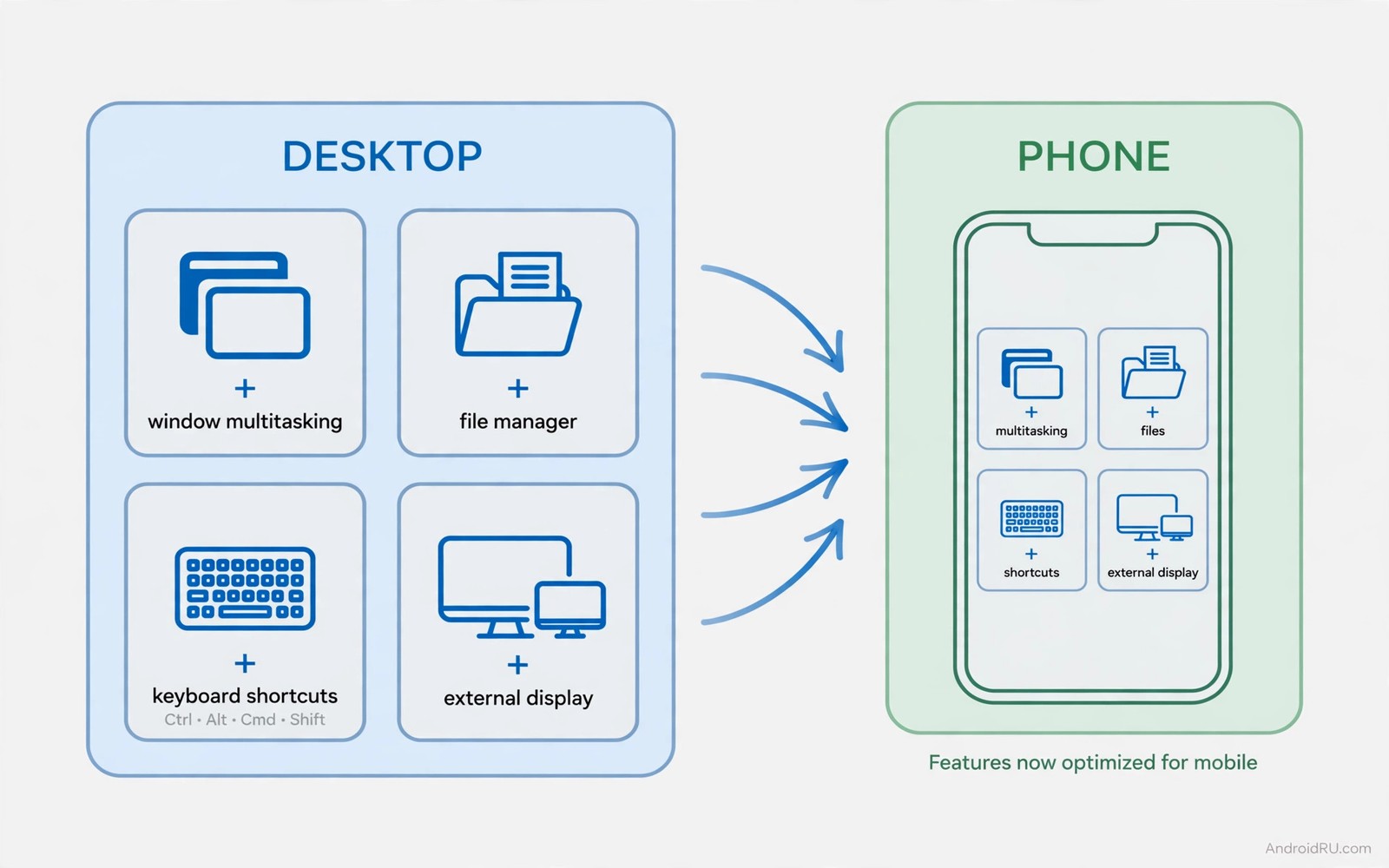
Desktop features on mobile fall into clear groups. Window multitasking lets two apps share the screen. File tools bring a real file manager with tabs. External display support turns a phone into a desktop when plugged in. Keyboard shortcuts speed up common actions. Clipboard managers remember many copied items. Each group solves a specific desktop gap.
No single app brings the full desktop. A combination does. This guide presents seven app types that together feel like a desktop. You will learn what each type does best. You will learn hardware that multiplies their value. You will learn the limits that remain even with the best setup.
Start with your biggest desktop frustration. A writer misses multiple windows. A researcher misses a clipboard history. A file worker misses drag and drop. Pick the frustration first. Install the app type that fixes it. A targeted fix beats a bundle of tools you never open.
Window multitasking and floating apps
Split screen is built into Android on most phones. Two apps share the screen vertically or horizontally. Split screen works well for reading and noting. It works less well for three apps at once. Floating apps fill that gap. A floating window sits over the main app. A calculator floating over a spreadsheet helps accounting. A notes window floating over a browser helps research.
Floating windows need practice. Resize a window by dragging a corner. Move it by dragging the title bar. Minimise it to a small bubble when not needed. A bubble keeps the app one tap away. Too many bubbles recreate clutter. Keep at most two floating apps at once. Two is useful. Five is chaos.
Desktop mode is the strongest form of multitasking. Plug the phone into a monitor and the interface changes. Windows become resizable and free. A taskbar appears. Multiple apps tile like a desktop. Desktop mode needs a phone that supports it and a USB-C hub. Not every phone offers it. Check your model before buying a hub.
External display support also needs a good hub. A hub with HDMI and USB ports and charging passthrough works best. Charging passthrough keeps the phone powered during desktop use. Without it the battery drains fast under desktop load. A hub with only HDMI limits you to a mouse on screen. Ports for a real mouse and keyboard matter.
File tools and clipboard power
A pro file manager brings tabs and dual panes. Tabs let you jump between folders fast. Dual panes let you copy between folders by dragging. A built-in archive tool opens ZIP files without a separate app. A network browser reaches a home server. These features turn file work from a chore into a flow.
Search inside a file manager should be fast and deep. It should find files by name and by type. It should search inside folders recursively. A slow search wastes the time a file manager should save. Test search with a large folder before committing. A manager that stalls on a thousand files will stall on ten thousand.
Clipboard managers remember a history of copied items. Copy a link and then a quote and then a number. Recall any of them later from history. A desktop clipboard works this way. A phone clipboard by default holds only the last item. History prevents recopying the same text many times. It also prevents losing a copied password or address.
Pin favourite clipboard items for reuse. An address you paste weekly deserves a pin. A signature block deserves a pin. Pins survive history clearing. They turn a clipboard into a snippet library. A snippet library speeds up forms and messages a lot. Readers who manage many files should also try file manager apps that make Google Files look amateur because file power is the foundation of desktop feel.
Keyboard shortcuts and automation
A Bluetooth keyboard transforms a phone for writing. Physical keys beat a screen keyboard for long text. Shortcuts multiply that gain. Copy and paste shortcuts work in most apps. App switching shortcuts work in desktop mode. Learn five shortcuts you use daily. Five well chosen shortcuts beat fifty you forget.
Automation apps bring desktop macros to mobile. A macro can change settings at a time. It can open a set of apps for work. It can silence notifications during focus. Desktop users rely on such routines. Mobile users can too with the right app. Start with one routine for work start. Expand only after it proves reliable.
Text expansion is a quiet superpower. Type a short code and expand it into a full phrase. An email signature expands from three letters. A common reply expands from a short code. Expansion saves typing on a small keyboard. It also reduces typos in repeated text. Set up ten expansions for phrases you type weekly.
Mouse support completes the desktop feel. A Bluetooth mouse gives precise clicks. Right click menus work in many desktop mode apps. Scroll wheels work for long documents. A mouse on a phone screen feels odd at first. A mouse in desktop mode feels natural at once. The mode decides the value.
A desktop-like setup you can copy
Install a pro file manager and a clipboard manager first. Add a floating notes app next. Connect a Bluetooth keyboard and mouse when you work long sessions. Plug into a monitor through a hub when your phone supports desktop mode. Each layer adds desktop feel. No layer alone completes it.
Set up a work routine with automation. Morning routine opens mail and calendar and notes. Evening routine closes work apps and silences work alerts. A routine that runs itself saves setup time daily. It also marks a clear boundary between work and rest. Boundaries matter when work lives in your pocket.
adb shell settings get global policy_control
adb shell dumpsys display | grep -i density
ls /sdcard/Documents/ | head -20
The snippet above is an original example written for this guide. It shows how an advanced user can check display policy and list documents from a computer. It is not a required step for normal desktop setup.
Test the setup with a real task. Write a short report using two apps side by side. Copy quotes through the clipboard history. Save the report through the file manager. A task that flows end to end proves the setup. A task that stalls at one step shows where to adjust.
A phone desktop kit for travel work
A travel desktop kit fits in a small pouch. A folding keyboard and a compact mouse form the core. A USB-C hub with HDMI completes it. A short HDMI cable connects to a hotel television. A hotel television becomes a monitor in minutes. Test the television HDMI port before an important session. Some hotel televisions lock their inputs.
Power planning matters for a travel kit. A hub with charging passthrough keeps the phone alive. A power bank backs up the hub when outlets are scarce. A single charger that powers phone and hub reduces cable clutter. Pack one spare cable for each connection type. A missing cable in a hotel shop costs time and money.
Practice the full kit at home first. Connect phone and hub and monitor and keyboard. Open a document and edit it for ten minutes. A home practice run reveals missing drivers or settings. A hotel room is a poor place to debug a new setup. A practised kit feels like a real workstation anywhere.
Test desktop mode with a real deadline task before relying on it. Pick a small work task with a clear finish line. Complete it entirely through the phone desktop setup. Note every moment of friction. Friction points show where the setup needs a better app or accessory. A deadline test reveals truth faster than casual browsing. Casual use flatters any setup. Deadline use tests it honestly. Adjust one friction point at a time after the test.
Common mistakes
The first mistake is installing every desktop app at once. A crowded phone with ten new tools overwhelms. Install one type per week. Master it before adding the next. A slow build creates a lasting setup. A fast build creates confusion.
The second mistake is buying a hub before checking phone support. Desktop mode needs specific hardware support. A hub cannot add a missing feature. Check the phone specs and test with a borrowed hub first. A purchase after a test avoids waste.
The third mistake is expecting a phone to replace a desktop fully. Heavy video editing and complex spreadsheets still suit a real computer. A phone desktop suits writing and research and light editing. Knowing the boundary prevents frustration. Use each device for its strengths.
The fourth mistake is ignoring ergonomics. A phone screen at lap height strains the neck. A monitor at eye level helps. A real keyboard helps hands. A good chair helps the back. Desktop feel needs desktop posture too. A cramped setup hurts even with perfect apps.
FAQ
Do I need a new phone for desktop mode?
Possibly because desktop mode needs hardware and software support. Many recent flagship phones support it. Many budget phones do not. Check your exact model before buying accessories. Floating apps and file tools work on far more phones than full desktop mode.
Can a phone desktop handle office work?
Yes for writing and spreadsheets and presentations of moderate size. Large complex files still run better on a real computer. A phone desktop suits travel work and quick edits best. A full workday suits a laptop better for most people.
Is a Bluetooth keyboard worth carrying?
Yes for anyone who writes more than a few hundred words daily on a phone. A folding keyboard fits a small bag. It transforms writing speed and comfort. Casual users who type little can skip it. Heavy writers will feel the gain at once.
Conclusion
Desktop features on mobile come in layers. Split screen and floating apps add multitasking. Pro file tools and clipboard history add file power. Desktop mode and hubs add a real workstation. Keyboards and automation add speed. Together they make a phone feel far larger than its screen.
Your concrete next step is to pick your biggest desktop frustration and install the one app type that fixes it this week. Test it with a real task like a short report or a file move. If the task flows better then add the next layer next week. If it does not help then try a different app type before buying hardware. Readers who want a full workstation should also explore apps that transform a tablet into a laptop workstation and the ultimate automation app that will do work for you because a tablet and automation extend every desktop trick here.

