

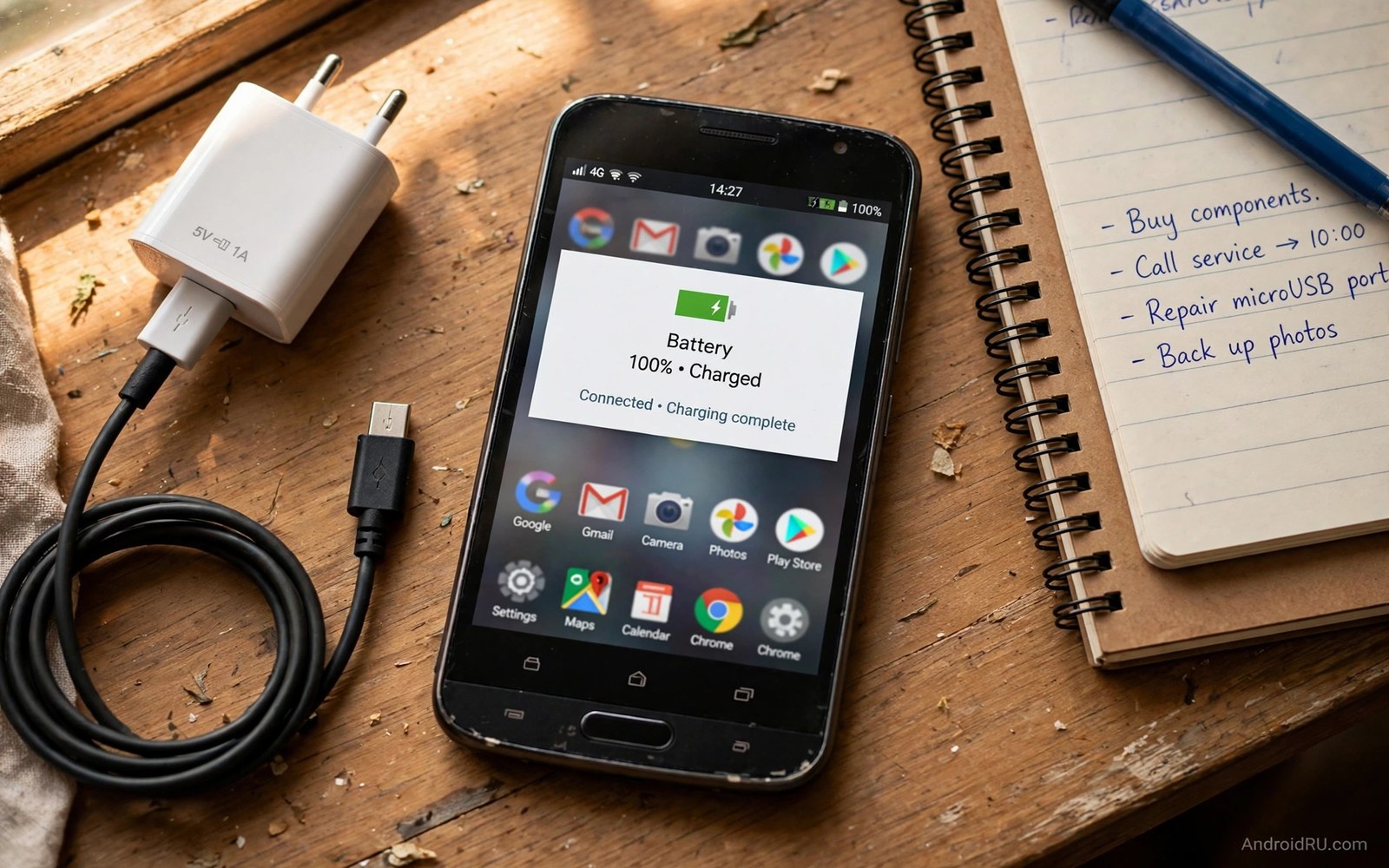
An old Android phone does not have to die by midday. The battery inside it is smaller than a new model. The processor is less efficient. The software may no longer get updates. Yet the phone can still serve well for calls and messages and light browsing. The trick is to stop asking it to do work it no longer does well. A few focused hacks can stretch a tired battery through a full day.
Older phones suffer from a mix of causes. The battery itself holds less charge than it did when new. Apps grew heavier over the years while the hardware stayed the same. Background sync runs more often than it did on older software. The screen may still be bright and power hungry. Each factor alone costs a little power. Together they can cut a day short by hours. Fixing the biggest factors first gives the fastest gain.
This article gives seven hacks that work on older devices without root access. Each hack is practical and safe. Each one targets a real drain source on aging hardware. You will learn how to tame the screen and the radio. You will learn how to trim background work and heavy apps. You will also learn which upgrades are worth money and which ones are a waste. Start with the hacks that fit your daily routine and add the rest over a week.
Hack One: Tame The Screen First
The screen is usually the largest drain on any phone. On an older phone the screen may be less efficient than a modern panel. Brightness is the main lever you control. Turn on adaptive brightness so the phone dims indoors. Then set a manual cap that feels comfortable rather than dazzling. A slightly dimmer screen saves power all day. Your eyes adjust within minutes and the gain lasts for hours.
Shorten the screen timeout to thirty seconds. A phone left on a table with the screen lit wastes power for no reason. Thirty seconds is short enough to save power and long enough to read a message. Use the power button to sleep the screen at once when you finish a task. That single habit can save more power than many settings tweaks. It also stops accidental touches in a pocket.
Dark wallpaper helps on some older screens but not on all of them. Screens that light each pixel on its own save power with dark pixels. Screens with a backlight save little from dark wallpaper. Check your phone type before you chase this tweak. Either way a simple static wallpaper beats a live wallpaper. Live wallpaper animates all day and costs processor power. A plain image is free and it looks clean.
Hack Two: Cut Background Sync To What Matters
Old phones struggle when many apps sync at once. Each sync wakes the processor and the radio. Email and social apps may check for new items every few minutes. That pattern keeps the phone busy even when you are not using it. Open Settings and tap Accounts or Passwords and accounts. Review which accounts sync and turn off sync for accounts you rarely use. Keep sync for the one email account that matters most.
Inside each app look for a sync interval setting. Change frequent checks to hourly checks where the app allows it. A news app does not need new items every ten minutes. A social app can wait an hour without harm. Manual refresh works well for apps you open only once a day. Open the app and pull to refresh when you want fresh items. That habit puts you in control of the radio instead of letting apps wake the phone on their own schedule.
Data Saver adds a second layer of control. Turn it on in Network settings. Data Saver limits background traffic on mobile data. Apps then wait until you open them or until Wi-Fi is available. This helps most when you spend the day on mobile data. On Wi-Fi the gain is smaller but still real. Pair Data Saver with the background app battery setting to limit both data wakeups and processor wakeups. The two controls cover different drain paths.
Hack Three: Replace Heavy Apps With Lighter Versions
Modern versions of popular apps assume a fast new processor. An old phone runs them slowly and burns more power to do it. Many popular services offer a lite version built for slower hardware. Lite apps use less memory and less processor power. They also sync less often by default. Search for a lite version of your heaviest apps and test it for a week. The interface may be simpler but the core tasks still work.
For apps with no lite version try the browser version instead. A mobile website often uses less power than a full app running in the background. Bookmark the site on your home screen for quick access. Sign in once and the site remembers you. You lose push alerts from the app but you gain hours of battery. Alerts can wait for the times you actually open the site. This trade suits news and shopping and social browsing very well.
Uninstall apps you have not opened in a month. Each installed app can register background tasks even when you never open it. A smaller app list means fewer tasks competing for an old processor. Go through the app drawer once and be honest about what you use. Keep the tools you need daily. Remove the rest without guilt. You can reinstall any app later if you truly miss it. A lean phone runs cooler and lasts longer.
Hack Four: Fix The Radio And Location Drain
An old phone with a weak signal burns power fast. The radio works harder to hold a faint tower link. If your area has poor coverage then set a stable network mode rather than the fastest mode. A stable mode stops the phone from hunting between network types. That hunting is costly on older radios. The setting sits in Network and internet under SIM options. Test the stable mode for two days and compare the bedtime battery level.
Location services also drain older hardware. Many apps ask for precise location even when they do not need it. Open Settings and tap Location. Then open App location permissions. Change apps that do not need live location to allow only while using the app. Change apps that never need location to deny access. A weather app may need rough location once a day. A game rarely needs location at all. These changes cut GPS wakeups that old phones handle poorly.
Turn off Bluetooth and Wi-Fi scanning when you leave home if you do not need them. Scanning for nearby devices keeps the radio busy. Older phones scan less efficiently than new ones. A quick toggle in Quick Settings stops the scan. Turn Bluetooth back on only when you connect earbuds or a car. Turn Wi-Fi back on when you reach a trusted network. These toggles take seconds and they add up across a day.
Hack Five: Manage Storage And Heat On Aging Hardware
A phone with almost full storage runs slower and hotter. The system struggles to find space for caches and updates. Heat then drains the battery faster. Keep at least a tenth of storage free on an old phone. Delete large videos you already backed up. Clear caches for apps that balloon over time. Move photos to a computer or cloud storage when the gallery grows large. Free space lets the system breathe and the processor work less hard.
Heat is a special enemy of old batteries. An aged battery loses capacity faster when it stays hot. Avoid charging while gaming on an old phone. Avoid leaving the phone in a hot car or in direct sun. Charge on a hard surface with air around the device. If the phone feels warm during normal use then close heavy apps and let it cool. A cool old phone lasts longer than a hot old phone every time.
After a system update an old phone may need a settings review. Updates can reset battery options and turn on new features that old hardware handles poorly. Check battery settings after each update. Turn off new animations or background features you do not need. For a post update routine that fits this habit see battery settings to tweak after an Android OS upgrade and run it once after every update. A short review prevents a silent new drain.
Hack Six: Use Power Saving Modes Wisely
Built-in battery saver mode limits background work and lowers performance a little. On an old phone that limit often feels fine for calls and messages. Turn on battery saver when the battery drops below 40 percent. The phone will stretch the remaining charge for hours. Some phones let you schedule battery saver automatically. Set that schedule once and forget it. The phone then protects itself without daily effort from you.
Extreme power saving mode goes further on some models. It limits apps to a small set and dims the screen heavily. Use it when you must make the phone last until you reach a charger. It is not meant for daily use. It is a rescue tool for long days. Keep it in mind for travel days and long events. Knowing the rescue option exists removes the fear of a dead phone.
Adaptive battery learns which apps you use and limits the rest. On an old phone this learning takes a few weeks to settle. Give it time and avoid clearing its data often. Clearing learned patterns forces the phone to relearn from scratch. That relearn period costs power. Let the system learn your routine and it will quietly limit apps you ignore. For a full daily plan that ties these modes together see the daily battery optimization checklist and adapt its steps to your older device.
Hack Seven: Know When A New Battery Beats New Settings
Settings can only stretch a battery that still holds a decent charge. A battery that drops from 40 percent to zero in minutes is likely worn out. A battery that swells or makes the back panel lift needs replacement at once. Check battery health in settings if your phone shows it. Some older models hide that reading. In that case watch the pattern over a week. A steady fast drop under light use points at wear rather than settings.
A professional battery replacement can give an old phone a second life. The cost is far lower than a new phone. Ask a repair shop for a quality part and a warranty. Avoid the cheapest part on offer because a poor cell ages fast and may be unsafe. A good replacement restores the capacity the phone had when new. Settings hacks then protect that fresh capacity for longer.
Old phone battery routine
1. Screen brightness adaptive and timeout 30 seconds
2. Sync only for accounts you use daily
3. Replace heavy apps with lite or web versions
4. Stable network mode in weak coverage areas
5. Location only while using the app
6. Keep at least a tenth of storage free
7. Battery saver on below 40 percent
The routine above was written for this article as a compact summary of the seven hacks. It uses only built-in menus and free choices. Print it or keep it as a note on the phone itself. Run through it once a month to catch new drains. A monthly review keeps an old phone honest about what it can still do well.
Common mistakes
Many owners install a battery booster app that promises miracles. Such apps often run constantly themselves and drain more than they save. The built-in battery tools already do the job better. Skip booster apps and use system settings instead. A cleaner app list beats a booster every time.
Another mistake is keeping every account syncing at once. Old phones cannot handle that load gracefully. Choose the accounts that matter and pause the rest. You will miss little and gain hours. Sync is a tool not a duty.
Some users chase maximum brightness for a nicer look. Brightness costs power on every minute of screen time. A moderate level looks fine indoors and saves a large share of power. Save full brightness for bright outdoor moments only.
A final mistake is replacing the phone before trying a new battery. A fresh battery plus these hacks can add a year of useful life. That year saves money and avoids waste. Judge the phone after the battery fix not before it.
FAQ
Can settings really help a five year old phone?
Settings help a lot when the battery still holds a reasonable charge. They cut waste from screen and sync and radio work. They cannot restore lost capacity. If the battery is badly worn then a replacement plus settings gives the best result.
Do lite apps really save battery?
Lite apps save battery because they use less processor power and less background work. The gain is largest on slow hardware. Test a lite version for a week and compare the bedtime battery level. Most users see a clear gain on older phones.
Is it safe to keep using a very old phone daily?
An old phone is safe while the battery stays healthy and the software still gets security updates. Stop using a phone with a swelling battery at once. Also consider the risk of unpatched software for banking tasks. Use an old phone for light tasks and keep sensitive tasks on a supported device.
Conclusion
Older Android devices need a lighter touch than new flagships. The screen and sync and radio drains matter more on aging hardware. Lite apps and stable network modes and careful location settings each add a little life. Together they can turn a midday death into a full day of use. A new battery can add even more when wear is the true cause.
Your concrete next step is to do three things today. Shorten screen timeout to thirty seconds. Turn off sync for accounts you rarely use. Uninstall three apps you have not opened in a month. Recheck the bedtime battery level after three days and keep the changes that help most.

