

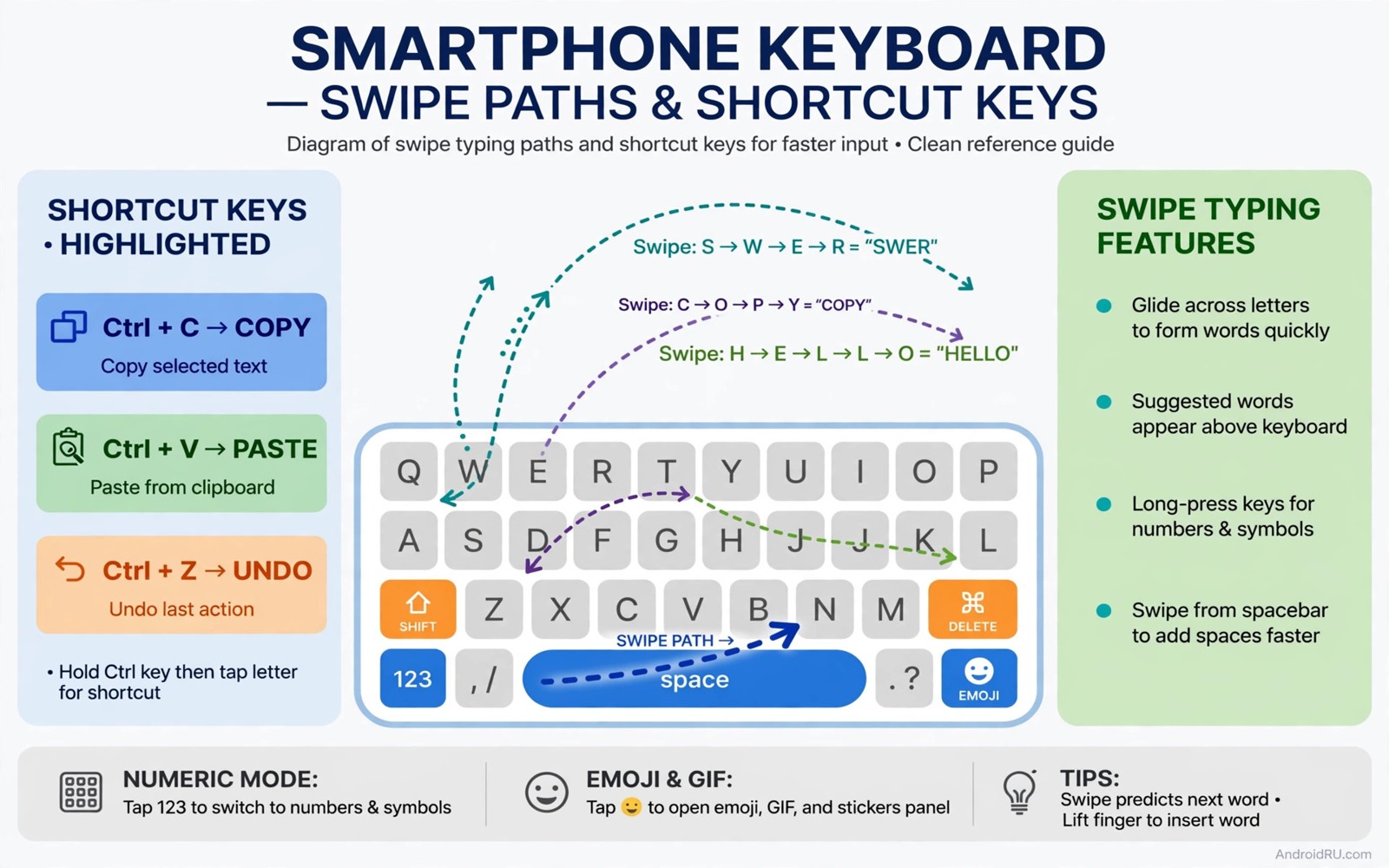
Typing on a phone should feel fast and effortless. For many people it feels slow and error prone. Thumbs miss keys and autocorrect changes good words into strange ones. The keyboard itself is rarely the problem. Hidden keyboard features can transform the experience in minutes. Most owners never open keyboard settings at all.
This guide covers five tricks that work on standard Android keyboards. Glide typing lets you slide across letters instead of tapping each one. Clipboard history reuses frequent phrases in one tap. Personal dictionary teaches the keyboard your names and terms. One handed mode shrinks the keyboard for easy reach. Voice typing handles long messages when your hands are busy.
Start with one trick and practice it for a day. Adding five tricks at once causes confusion. Glide typing alone can change your speed dramatically. Clipboard history alone can save minutes daily. Together these tools make phone typing feel closer to a real keyboard. Your thumbs will thank you within a week.
Glide typing and smart corrections
Glide typing works by sliding a finger across the letters of a word. Lift the finger at the end of the word to insert it. The keyboard predicts the word from the path you traced. Short common words become almost instant. Longer words need a slower and more accurate trace. Practice with simple sentences first.
Autocorrect should help rather than fight you. Open keyboard settings and check auto correction strength. A moderate setting fixes clear typos without changing rare words. Aggressive correction frustrates writers with names and slang. Turn off aggressive correction if it changes your words wrongly. Add problem words to your personal dictionary instead.
Next word suggestions speed up common phrases. The suggestion bar predicts the next likely word. Tap a suggestion instead of typing the full word. Suggestions learn from your writing style over time. They improve faster when you accept good suggestions. They improve slower when you ignore the bar completely.
Clipboard history and text shortcuts
Clipboard history stores recent copied text for quick reuse. Open the keyboard and tap the clipboard icon. Pin your address and email signature for permanent access. Paste a pinned item with one tap in any app. This trick saves the most time for repeated forms. It also reduces errors in long numbers and addresses.
Personal dictionary stores words the keyboard should recognise. Add names of people and places you write often. Add technical terms and brand names from your work. Add slang that autocorrect keeps changing. The keyboard will stop fighting those words. It will also suggest them faster in future typing.
Text shortcuts expand a short code into a full phrase. Type a code like an address shortcut to insert a full address. Check your keyboard settings for personal dictionary shortcuts. Create shortcuts for phrases you type weekly. Keep codes short and memorable. Avoid codes that clash with real words you type.
Fast input pairs well with fast app movement. Learning about a gesture that changes how you multitask on mobile helps you move between apps without losing typed text. Drafts stay safer when switching is smooth. Combine gestures with clipboard for a strong workflow.
One handed mode and keyboard size
One handed mode shrinks and shifts the keyboard to one side. It helps on large phones and small hands. Turn it on from keyboard settings or the resize menu. Move the keyboard left or right to suit your dominant thumb. Restore full size with one tap when you need both thumbs. This mode makes one handed typing far less tiring.
Keyboard height affects speed more than most people realise. A taller keyboard gives larger keys and fewer misses. A shorter keyboard shows more of the page above it. Try a medium height first for balance. Raise height if you miss keys often. Lower height if you need to see more content while typing.
Key borders and themes can improve accuracy as well. Clear borders help eyes find keys faster. High contrast themes help in bright sunlight. Haptic feedback confirms each key press without looking. Set vibration to a light level to avoid distraction. Strong vibration tires thumbs during long typing sessions.
Voice typing for long messages
Voice typing turns speech into text at impressive speed. Tap the microphone icon on the keyboard. Speak in natural sentences with clear pauses. Say punctuation words like period and comma when needed. The keyboard inserts punctuation from those words. Edit the result before sending for best accuracy.
Voice typing works best in a quiet room. Background noise causes errors that take time to fix. Speak at a normal pace rather than rushing. Break long messages into short chunks. Check names and numbers carefully after dictation. Voice input saves time only when editing stays light.
Offline voice typing needs a language pack download. Download your main language pack in keyboard settings. Offline mode works without internet on supported phones. It also protects privacy for sensitive dictation. Test offline mode before relying on it during travel. Some languages support offline mode better than others.
Gboard > Settings > Glide typing > Enable glide typing
Gboard > Clipboard > Turn on clipboard history
Gboard > Dictionary > Personal dictionary > Add word
Gboard > Voice typing > Download offline language pack
This snippet shows a standard Android keyboard settings path pattern for faster typing. It lists glide typing before clipboard and dictionary tools. Use it as a checklist while you enable each trick. Menu names can differ slightly by keyboard app. The core ideas stay the same across Android keyboards.
Practice glide typing with a short paragraph each morning. Time yourself on the same paragraph for three days. Note errors as well as speed. True speed includes correction time. A method that needs heavy editing is not truly faster. Keep the tricks that lower total time including fixes.
Typing comfort also depends on screen setup. Learning about settings you must turn off for maximum privacy helps you check keyboard data settings. Some keyboards send typing data for improvement. Review those options and choose settings you trust. Speed should not cost unwanted data sharing.
Build typing speed with daily drills
Typing speed improves with short daily practice. Spend five minutes each morning on a drill paragraph. Type the same paragraph with glide typing. Note time and errors for that paragraph. Repeat the drill for a week and watch errors fall. Speed without accuracy is not true speed. A drill that tracks both measures gives honest progress.
Practice common phrases from your daily life. Type your address and email signature repeatedly. Type greetings and closing phrases you use often. Those phrases become automatic with practice. Automatic phrases free mental effort for message content. They also reduce typos in important details.
Learn keyboard shortcuts for punctuation and symbols. Long press keys to reveal symbol variants. Swipe from shift to a letter for a capital without toggling. Use the number row for quick digits where offered. Symbol fluency speeds up forms and addresses. It also reduces switching between keyboard views.
Adjust keyboard settings after a week of drills. Raise keyboard height if misses remain frequent. Lower autocorrect strength if it changes your drill words. Add drill words that still cause errors to the dictionary. Small adjustments after real practice beat guessing at setup. Your drill data guides those adjustments well.
Voice typing drills help for long message days. Dictate a paragraph and edit it fully. Note dictation errors by type. Names and numbers cause most errors. Practice speaking names slowly and clearly. Voice accuracy improves with consistent speaking pace. A calm pace beats a rushed pace for dictation.
Back tap shortcuts can launch the keyboard faster in some apps. Learning about secret tap gestures from the back of your phone reveals tap options on supported phones. A tap to open notes plus keyboard speeds capture. Combine tap shortcuts with clipboard for a fast capture flow. Speed comes from the whole workflow rather than typing alone.
- Drill one paragraph daily for five minutes.
- Practice addresses and signatures until automatic.
- Learn long press symbols and shift swipe capitals.
- Adjust height and autocorrect after a week of data.
- Dictate and edit a paragraph to improve voice accuracy.
Common mistakes
- Turning on aggressive autocorrect that changes names and slang.
- Leaving clipboard history on for passwords and secret codes.
- Using glide typing for rare words that need precise tapping.
- Setting keyboard height too small and missing keys constantly.
- Dictating long messages in noisy places and fixing many errors.
- Adding five keyboard tricks at once and learning none well.
FAQ
Is glide typing faster than tapping?
Glide typing is faster for most common words. Tapping stays better for rare names and codes. Combine both methods by word type. Use glide for sentences and tap for unusual terms.
How do I stop autocorrect changing my words?
Add the word to your personal dictionary first. Lower auto correction strength if changes continue. Turn off correction for specific languages when needed. A taught keyboard fights you far less.
Does clipboard history store passwords safely?
Clipboard history can store anything you copy. Avoid copying passwords into a persistent clipboard. Clear clipboard items after sensitive pastes. Use a password manager autofill instead of copy paste.
Quick check before you finish
Type a short paragraph using glide typing only. Time yourself and count errors carefully. Type the same paragraph by tapping and compare results. Glide should win for common words. Tapping should win for names and codes. Use each method where it wins and ignore claims that one method suits every word. A mixed method gives the fastest total time including corrections.
Conclusion
Keyboard speed comes from tools you already own. Glide typing handles common words fast. Clipboard history reuses frequent phrases. Personal dictionary stops autocorrect fights. One handed mode eases large phones. Voice typing handles long messages with ease. Practice one trick at a time for real gains.
Your concrete next step is to enable glide typing and clipboard history today. Type a short message using glide only. Then paste a pinned address from clipboard into a form. Repeat both tricks tomorrow and note how much faster they feel.

