

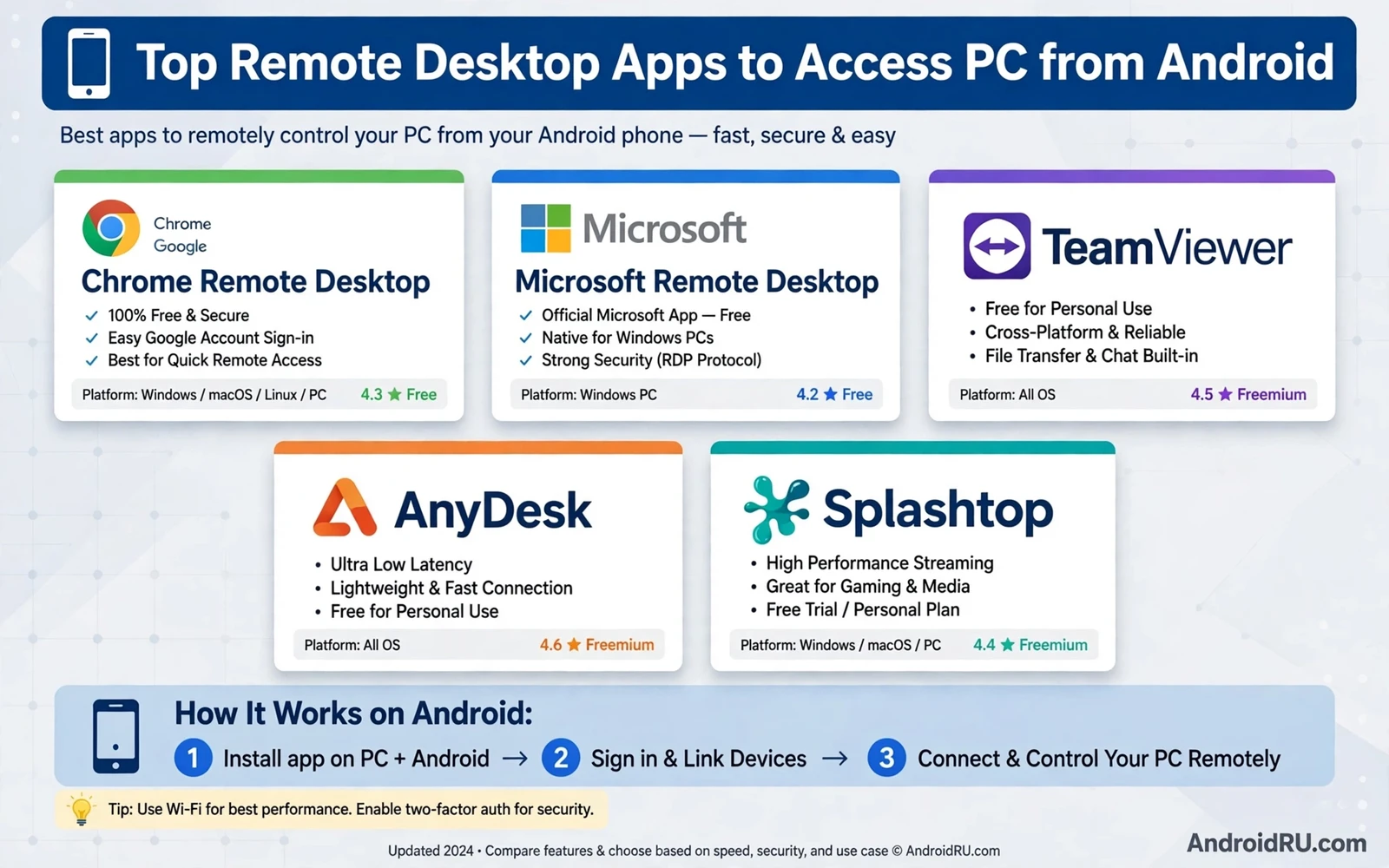
Remote desktop turns a phone into a window to a PC. You can open a file left on a home computer. You can fix a setting for a family member. You can check a download while you travel. You can run a desktop app from a cafe. That freedom makes a phone far more useful for work.
A remote app shows the PC screen on the phone. It sends your taps and gestures back to the PC. It can send keyboard input from the phone. It can transfer files in both directions. Good remote apps keep latency low. Low latency makes mouse movement feel natural. High latency makes every click feel delayed.
Security is the first concern for remote access. A remote PC is a powerful target. Strong passwords and two factor checks protect it. Encrypted connections protect data in transit. A remote tool that skips encryption is not worth the convenience. Check security features before you check extra features.
Choosing A Remote Tool For Your Needs
Occasional access needs a simple tool. A simple tool connects fast. It needs little setup. It works well for grabbing a file. It works well for a quick fix. It may lack advanced file tools. That trade is fine for rare use.
Daily work needs a stronger tool. A work tool should handle full screen apps. It should handle multiple monitors. It should handle file transfer smoothly. It should reconnect after a network drop. Daily use exposes weak tools fast. Invest setup time in a tool that you will use every day.
Support use needs a tool that a non expert can accept. A support tool should offer a simple code or link. It should show a clear consent screen on the PC. It should let the PC owner watch the session. It should let the owner end the session instantly. Consent controls protect both sides of a support call.
Cross platform support matters when devices differ. A tool that covers major desktop systems and Android gives you freedom. A tool tied to one desktop system can trap you later. Check platform coverage before you build a workflow around one tool. Check mobile app quality too. A great desktop tool with a poor phone app will frustrate you.
Setup That Keeps Access Safe
Start setup on the PC side. Install the host software from the official tool. Create a strong unique password for remote access. Enable two factor protection where offered. Set the PC to ask for approval for new connections where possible. A host with approval on gives you a safety net against surprise sessions.
Next set up the phone side. Install the matching viewer app. Sign in with the same account where the tool uses accounts. Test a connection on the same network first. A local test reveals setup errors without internet variables. Then test from mobile data. A remote test reveals firewall and network issues.
Wake on demand is a useful feature for a home PC. It lets a sleeping PC wake for a session. It needs correct network settings on the PC. It needs the PC to support wake signals. Test wake from a cold start before you rely on it during travel. A wake feature that fails leaves you locked out.
File transfer setup deserves a separate check. Some tools transfer files through the session window. Some tools use a dedicated transfer panel. Test a small file in both directions. Check where transferred files land on each device. A clear transfer folder prevents lost files. The broader file moving landscape can help you plan that folder. You can review it through how to transfer files between Android and PC wirelessly and with USB and then match your remote tool to that plan.
Controlling A PC From A Small Screen
Touch control needs practice. A tap acts as a click. A long press can act as a right click in many tools. A drag moves windows and selects text. A pinch zooms the remote screen. Learn the gesture map of your tool before a real task. A gesture cheat sheet inside the app helps during early sessions.
Zoom is your friend for small text. Zoom into a document before you edit. Zoom out to see the whole desktop. A tool with smooth zoom feels far better than a tool with jumpy zoom. A tool that remembers zoom per app can save repeated pinches. Test zoom on a dense spreadsheet. That test reveals control quality fast.
Keyboard input needs care on a phone. A virtual keyboard can cover half the remote screen. A tool that offers a compact keyboard helps. A tool that offers special keys like control and alt helps for shortcuts. A Bluetooth keyboard can transform remote work on a tablet. A phone keyboard works best for short edits rather than long writing.
Screen casting shares some ideas with remote control but serves a different goal. Casting shows your phone screen on a larger display. Remote desktop shows a PC screen on your phone. Both need a stable network. Both need clear permission handling. You can compare the display side through how to cast an Android screen to a smart TV or PC monitor when you plan a presentation setup.
Network And Performance Tips
Network quality decides remote feel more than phone power. A stable Wi-Fi connection beats a fast but unstable one. A strong mobile signal can work for light tasks. A weak signal will cause lag and disconnects. Test remote work on each network that you plan to use. Note which networks feel smooth.
Display settings on the PC affect speed. A lower remote resolution loads faster. A simpler desktop background loads faster. Turning off desktop animations helps. Those tweaks matter on slow networks. They matter less on fast local networks. Tune display settings to the network at hand.
Color quality is a similar trade. Full color looks best. Reduced color loads faster. Many tools let you choose quality per session. Choose full quality for design work. Choose reduced quality for text work on a slow link. A flexible tool lets you switch without reconnecting.
Session length affects battery on the phone. Remote sessions keep screen and network busy. A long session can drain a phone fast. Keep a charger nearby for long work. Lower phone brightness during a session. Close other heavy apps. Those steps extend a remote work session.
Automation And Remote Work Together
Routines can prepare a phone for remote work. A routine can silence personal apps when office Wi-Fi connects. It can open the remote viewer at work hours. It can restore personal settings after work. That preparation removes setup friction. Automation should handle setup only. It should not handle login secrets or session approval. Keep security steps manual and deliberate.
Recording a remote session can help for training. A recording shows each click in order. It can serve as a tutorial for a colleague. It needs the same privacy care as any screen recording. Hide sensitive data before capture. Review the clip before sharing. You can pair that idea with routine based preparation through automation apps for Android as Tasker alternatives while keeping the remote session itself under manual control.
Common Problems And Fixes
Connection failure often comes from the host side. Check that the host software runs. Check that the PC is awake. Check that the PC network allows the tool. Check that no firewall blocks it. A host that closed after a restart explains many failures. Set the host to start with the system where that fits your security plan.
Black screen issues often come from display settings. A PC with a locked screen may show black in some tools. A PC with a sleeping display may need a wake step. Unlock the PC once through a trusted path. Then reconnect. A black screen after unlock points to a display driver or tool setting issue.
Slow control often comes from network congestion. Move closer to the router. Switch to a less crowded network. Lower remote resolution. Close video streams on the same network. Each step cuts lag. If lag persists on all networks then test a different remote tool for comparison.
End every session cleanly. Log out or disconnect through the tool menu. Do not just close the phone app and assume the session ended. A clean disconnect releases the PC for local use. It also closes the remote channel properly. Clean endings are a small habit with real security value.
Remote desktop on Android is a practical bridge between phone and PC. Pick a tool with strong security. Test it locally first. Learn its gestures. Tune display quality to your network. Keep sessions clean and approved. With those habits your phone becomes a safe window to your computer wherever you are.
Remote Work Etiquette And Safety
Remote access to another person computer needs clear consent. Explain what you will do before you connect. Explain how long the session will last. Let the owner watch the screen. End the session when the task ends. Consent and transparency protect trust as well as security.
Never leave a remote session open unattended. An open session is an open door. Disconnect when you step away. Lock the PC when the session ends. A habit of clean disconnects prevents accidental access later. It also signals professionalism to clients and family.
Use separate accounts where possible. A work account for remote work keeps personal files separate. A support account with limited rights reduces risk during a help session. Limited rights still allow most fixes. Full rights should stay reserved for the PC owner.
Keep remote software updated on both sides. Updates fix security flaws. Updates fix connection bugs. An outdated host can block new viewer versions. A regular update check keeps both sides compatible. Schedule updates outside work hours where possible.
Plan for network failure during a remote session. Save work often on the PC side. Keep a local copy of key files where allowed. Note the steps completed so far. A network drop should pause work rather than lose work. A simple save habit makes drops minor.
Finally test remote access before a critical need arises. A test during calm conditions reveals setup gaps. A test during travel reveals network gaps. A test before a deadline is cheap insurance. Remote access should be proven before it becomes essential.
Remote Access For Family Support
Family support sessions benefit from patience and narration. Explain each step as you do it. Let the owner follow along on screen. Teach rather than just fixing. A taught owner can fix the same issue next time alone. Teaching turns a support call into a learning session.
Record steps taken during a support session in a simple note. Note settings changed. Note software installed. Note passwords reset where relevant. A note helps the next support call start from known state. It also helps the owner understand what changed on their PC.
Respect privacy during family support. Do not open personal folders unless the task requires it. Do not read messages unless the task requires it. Ask before opening any personal area. Respect builds trust for future help. Trust is the foundation of family tech support.
Set a time limit for support sessions. A focused hour beats a rambling afternoon. A time limit keeps both sides patient. A time limit also forces clear goals. Agree on the goal before connecting. End when the goal is met or when time runs out.

