

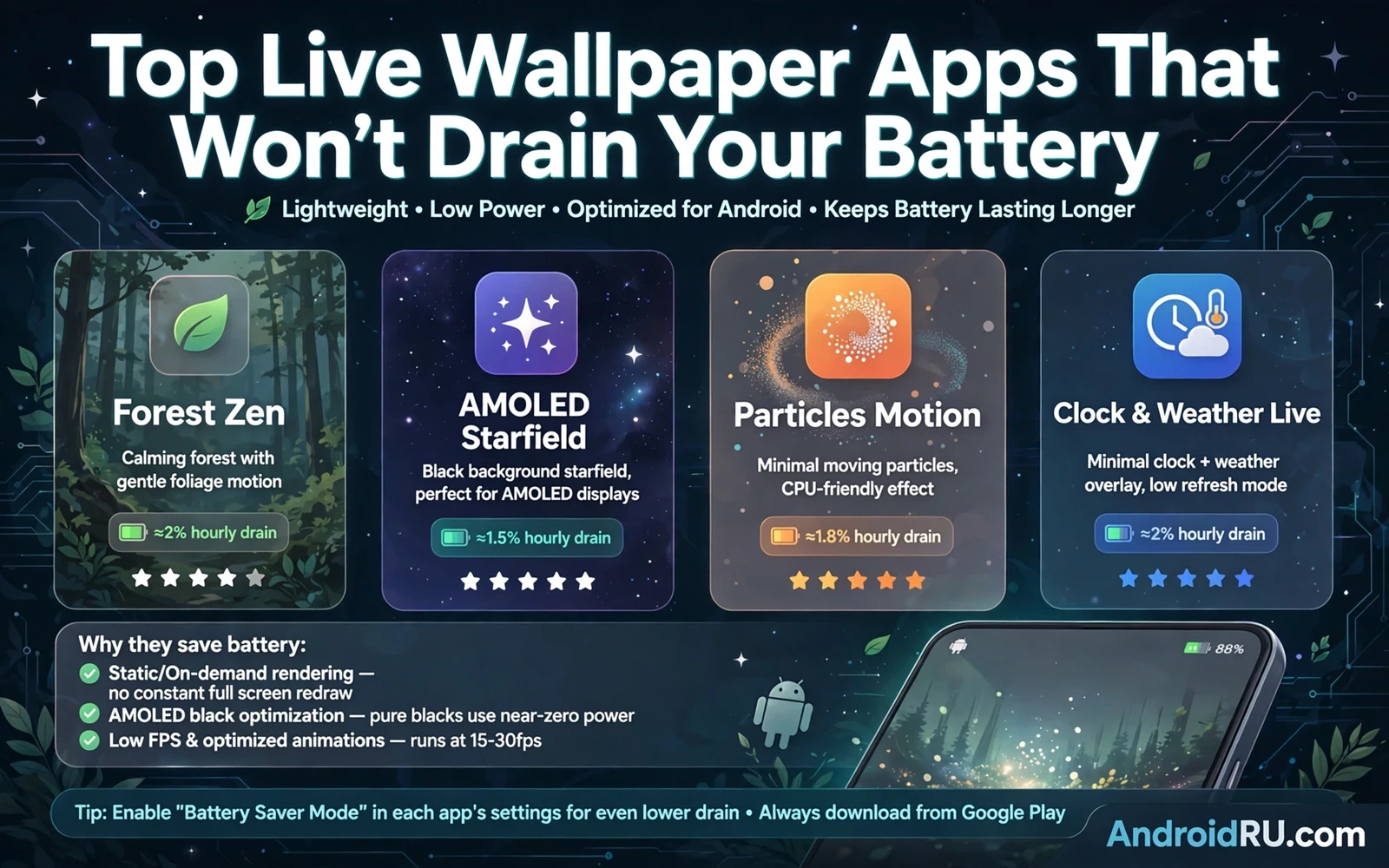
Live wallpaper adds motion to a phone. Clouds drift. Water ripples. Light shifts across a scene. That motion can make a phone feel alive. It can also raise a fair worry about battery life. A well made live wallpaper uses little power. A poorly made one can drain a battery fast. The difference lies in design and settings.
Battery use depends on how often the scene redraws. A scene that redraws every frame uses more power. A scene that redraws only when something changes uses less. A scene that pauses when the screen sleeps uses almost nothing. A scene that keeps animating under other apps wastes power. Good live wallpaper apps respect those limits.
Screen type also affects cost. A dark scene can save power on some screens. A bright scene can cost more. A simple scene with few moving parts costs less than a complex scene with particles everywhere. Motion that feels calm often costs less than motion that feels busy. Calm design and battery life often go together.
How Battery Friendly Wallpaper Works
Efficient wallpaper uses the graphics chip wisely. It draws only the parts that move. It skips frames when nothing changes. It lowers detail when the phone heats up. It stops when the home screen is hidden. Those tricks keep motion smooth without constant full redraws. A wallpaper that lacks those tricks will show up in battery stats fast.
Frame rate is a key control. A high frame rate looks silky. A lower frame rate still looks pleasant for slow scenes. Slow scenes like drifting clouds do not need a high frame rate. Fast scenes like falling rain may need more frames to look right. Pick a frame rate that fits the scene. Do not chase the highest setting for a slow scene.
Resolution matters too. A wallpaper rendered far above screen resolution wastes effort. A wallpaper matched to the screen looks sharp without extra cost. Some apps let you choose quality. Choose a balanced quality first. Raise quality only if you see blur or banding on your screen.
Interaction can raise cost as well. A wallpaper that reacts to every touch can stay busy. A wallpaper that reacts to a double tap only stays calm. A wallpaper that follows tilt sensors can draw power from sensors as well as graphics. Use touch effects sparingly. Enjoy them as a demo rather than as an always on feature.
Types Of Live Wallpaper To Try
Nature scenes are a classic battery friendly choice. Slow clouds and gentle water and soft light changes need few redraws. They look good behind icons. They stay calm during a busy day. A nature scene with a slow cycle can run for hours with little cost.
Abstract scenes can be efficient when shapes move slowly. Flowing gradients and soft blobs need little detail. They pair well with minimal icons. They avoid the busy detail that raises draw cost. An abstract scene can feel modern without feeling loud.
Clock and weather scenes add useful information to the background. A scene that updates only when time or weather changes is efficient. A scene that animates constantly for decoration is less so. Pick an informative scene that updates on a schedule rather than every second. Useful motion beats decorative motion for battery life.
Particle scenes look fun but cost more. Rain and snow and floating dust need many moving parts. Each particle adds draw work. A light particle count can still look good. A dense storm will cost more. Test particle scenes with battery stats open. Numbers will tell you the true cost.
Video based wallpaper can be the heaviest option. A looping video redraws every frame at full detail. It can look stunning. It can also drain power and heat the phone. Use video wallpaper for short showcases. Use a lighter scene for daily use. That split gives you beauty without a daily battery penalty.
Settings That Protect Battery Life
Start with the wallpaper settings inside the app. Lower frame rate for slow scenes. Lower particle count for busy scenes. Turn off tilt effects. Turn off touch effects that you rarely use. Set a pause when the screen locks. Each small cut adds up across a day.
System battery settings help too. Battery saver mode can limit background work. Adaptive battery can learn which apps matter most. A wallpaper app that you use only on the home screen should not need heavy background freedom. Keep its background permission modest. Let the system pause it when it is not visible.
Brightness plays a role as well. A bright live scene at full brightness costs more than the same scene at moderate brightness. Auto brightness can help outdoors. Manual brightness at a comfortable level can help indoors. A wallpaper cannot save power if the screen itself runs at maximum all day.
Broad battery habits support any wallpaper choice. Closing heavy games before a long day helps. Keeping the phone cool helps. Updating the system helps. A full guide to those habits can refresh your whole approach. You can review them in how to improve battery life on any Android smartphone and then apply the wallpaper tips on top of a healthy baseline.
Matching Wallpaper With Icons And Launchers
A live scene needs icon readability. A busy scene can hide icons. A calm scene lets icons stand out. Test readability with your real icon set. Test at low brightness. Test outdoors. A scene that looks great alone can fail behind a full grid of icons.
Launcher settings can help. A launcher that dims the wallpaper slightly can rescue a bright scene. A launcher that adds a subtle shadow behind labels can rescue a light scene. A launcher that lets you hide labels can suit a minimal scene. Small launcher tweaks often matter more than a new wallpaper.
Icon packs complete the picture. A coherent icon style keeps a moving background from feeling chaotic. A calm icon pack pairs well with a moving scene. A bold icon pack needs a calmer scene. The pairing logic mirrors static theming. You can explore that pairing through custom launchers for Android customization enthusiasts where grid and icon and wallpaper choices are treated as one design.
Widgets need care on a live background. A clock widget should stay readable as the scene shifts. A weather widget should not blend into a similar colored scene. Choose widget styles with a solid background or a clear outline when the scene moves a lot. A readable widget beats a transparent widget on a busy scene.
Testing Battery Impact Honestly
Test a new wallpaper for a full day. Note battery level in the morning. Note battery level in the evening. Compare with a similar day on a static wallpaper. One day is not perfect science. It still reveals a heavy wallpaper fast. A wallpaper that costs a large share of battery will show in system battery stats.
Check battery stats by app. Look for the wallpaper app share. A small share means the wallpaper is efficient. A large share means settings need tuning. A share that grows while the screen is off means the wallpaper is not pausing correctly. That behavior is a reason to switch apps.
Heat is another signal. A phone that feels warm on the home screen may run a heavy scene. A phone that stays cool likely runs an efficient scene. Heat during idle time is a warning sign. Cool idle time is a good sign for any live wallpaper.
Icon theming and wallpaper motion can evolve together. A fresh icon set can make an old live scene feel new again. A new scene can make a familiar icon set feel fresh. That cycle keeps personalization fun without a battery penalty. You can start a refresh with icon packs that revamp the Android home screen look and keep your efficient wallpaper settings unchanged.
Live wallpaper does not have to drain your battery. Pick a calm scene. Tune frame rate and particles. Let the wallpaper pause when hidden. Test with real battery stats. A good live wallpaper adds life to your phone while leaving power for the apps that matter most.
Daily Habits For Live Wallpaper
Rotate live scenes by mood rather than by novelty. A calm scene suits work days. A lively scene suits weekends. A dark scene suits night use. Rotation keeps motion enjoyable without chasing new apps constantly. A small rotation of proven scenes beats a large collection of untested ones.
Check battery stats weekly after adopting live wallpaper. A weekly check catches a slow drift in power use. An app update can change efficiency. A system update can change graphics behavior. A weekly glance at stats keeps surprises small.
Pair live wallpaper with a dark system theme at night. A dark theme plus a dark scene can feel restful. A bright scene at night can feel harsh even at low brightness. Night comfort matters for sleep as well as for battery. A scene schedule that shifts with time of day can help.
Keep live wallpaper off during heavy gaming sessions. A game already taxes graphics and battery. A live scene behind a game adds little visible value. A static wallpaper during gaming leaves resources for the game. Switch back to live wallpaper after the session ends.
Test new scenes on a weekend first. A weekend test reveals battery cost without risking a work day. A weekend test reveals readability issues in varied light. A weekend test lets you tune settings calmly. Adopt a scene for weekdays only after it passes a weekend test.
Remember that wallpaper is background art. It should support the apps above it rather than compete with them. A scene that draws attention away from icons fails its job. A scene that frames icons beautifully succeeds. Judge live wallpaper by how it makes the foreground feel.
Wallpaper And System Updates
System updates can change graphics behavior. A wallpaper that ran efficiently before an update may behave differently after it. Test battery stats after each major update. Retune frame rate or particle settings if needed. A quick post update check prevents a slow battery surprise.
New phones handle live wallpaper differently. A new graphics chip may run a scene with ease. An older phone may struggle with the same scene. Match scene complexity to phone age and power. A scene matched to hardware feels smooth. A scene mismatched to hardware feels janky and costly.
Dark scenes suit night use and some screen types. Light scenes suit day use and bright rooms. A scene that shifts with time can serve both needs. A manual scene switch at night also works. Choose the approach that you will actually maintain. An automatic shift that you trust beats a manual shift that you forget.
Share scene recommendations with friends carefully. A scene that runs well on your phone may run poorly on theirs. Mention phone model and settings when you recommend a scene. Context helps friends judge whether a scene fits their device. A recommendation without context can mislead.

