

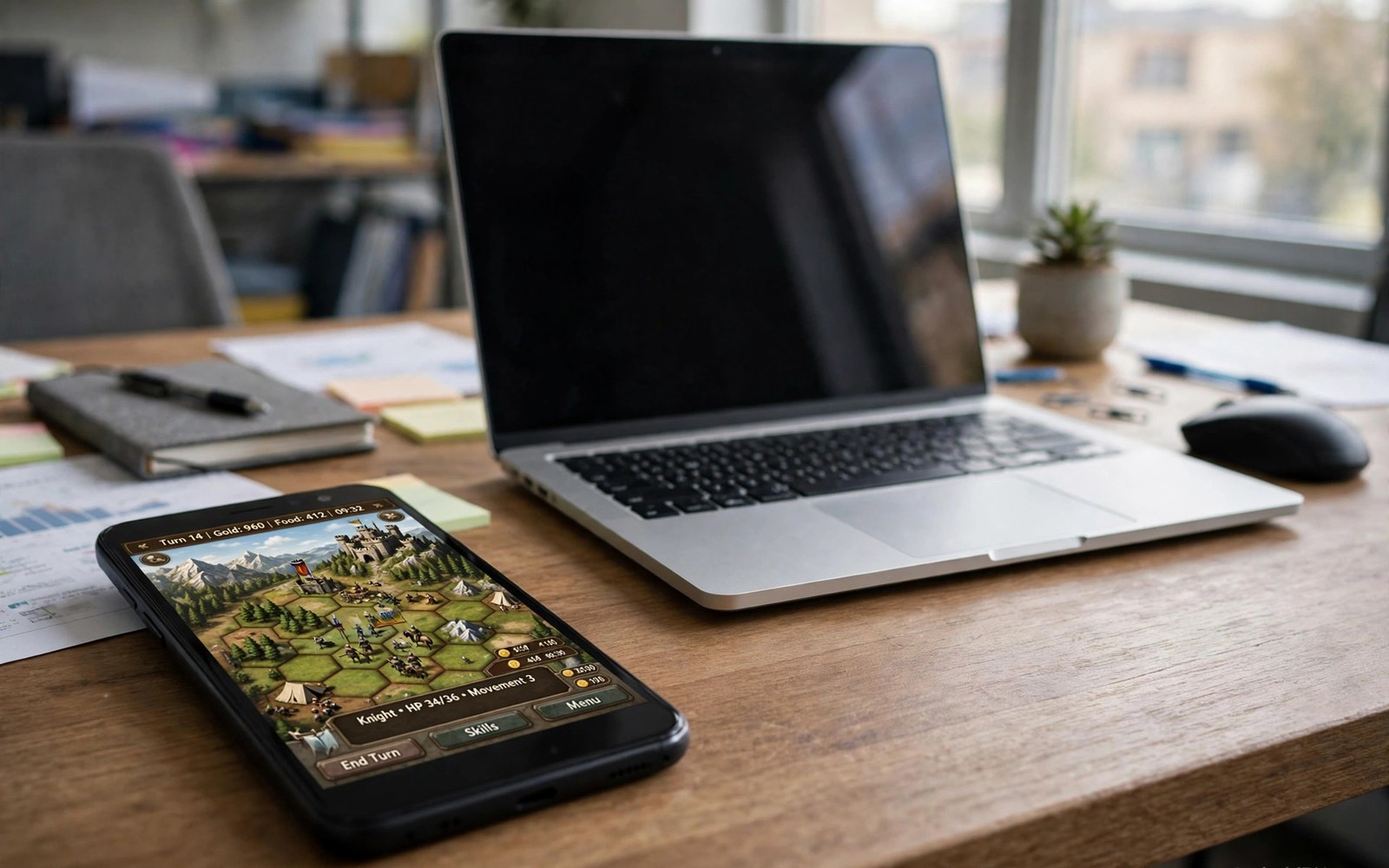
This guide covers classic PC game emulators in plain steps. Classic PC games hold a special place in gaming history. They include deep strategy titles and clever adventures. Top emulators for classic PC games compatible with Android bring those titles to phones. The setup differs from console emulation. PC games expect a keyboard and a mouse.
A phone can copy old PC hardware through emulation or compatibility layers. DOS games are the easiest starting point. Early Windows games need more work and more patience. Both paths reward players who love old PC classics. Start with DOS games for the smoothest first win.
Controls are the main challenge for PC games on a phone. A touch screen cannot copy a keyboard easily. A Bluetooth keyboard and mouse change the experience completely. A console style setup feels simpler by comparison. PC play needs input planning from the start.
DOS games on Android
DOS games run through an emulator that copies old PC hardware. The emulator creates a virtual DOS machine on the phone. Games install into that virtual machine like on an old computer. Performance needs are modest for most DOS titles. A mid range phone handles the majority well.
Setup involves creating a virtual drive folder for game files. The emulator maps that folder as a DOS drive. Install the game inside the virtual machine once. Launching later becomes a short command or a saved profile. Save a launch profile for each game you play often.
Early Windows games
Early Windows games need a compatibility layer rather than pure DOS emulation. The layer translates Windows calls for Android. Compatibility varies a lot between titles. Simple 2D games work best. Complex 3D games often fail or run slowly.
Test one simple Windows game before you build a library. A working simple game proves the layer functions on your phone. Complex games can wait until the workflow feels familiar. Patience matters more here than for console systems. Each Windows title is its own small project.
Keyboard and mouse on a phone
A Bluetooth keyboard and mouse give the truest PC feel. They restore shortcuts and precise pointing. A phone stand holds the screen at a readable angle. The setup resembles a tiny laptop for retro play. It works well at a desk or on a table.
On-screen keyboards suit slow turn based games. They struggle with fast real time action. Virtual mouse control also feels slow for action games. Match the input method to the game speed. Slow games forgive touch input. Fast games demand real hardware.
Files and installation habits
Keep one folder per PC game on the phone. PC games often need many small files together. A single folder per game prevents file mixups. Name folders by game title for easy browsing. Clean folders also make backups simpler and safer.
Back up game folders before you change emulator settings. A settings change can affect a whole virtual machine. A backup turns a broken setup into a quick restore. Copy the folder to a computer for long term safety. Your old PC library deserves that care.
Performance expectations
DOS games generally run at full speed on modern phones. Early Windows games vary widely in speed. A game that stutters may need a lower resolution or fewer effects. Test settings in a busy game scene. Quiet menus hide performance problems in PC games too.
Sound settings affect PC game feel a lot. Old sound hardware emulation can crackle under load. Lower the graphics load if audio crackles appear. A lighter load usually restores clean sound. Balance graphics and audio like in console emulation.
Point and click adventures on phones
Point and click adventures suit phone touch screens beautifully. Tapping an object feels natural on a touch display. These games need little speed and no complex controls. A phone becomes an ideal adventure machine for this genre. Story and puzzles carry the experience entirely. Touch input matches the original mouse input closely. Adventure games prove that touch can be perfect input. Genre decides input suitability more than device power.
Save often in adventure games with branching choices. A save before each major decision protects against regret. Branching stories reward exploring different choice paths. Save slots let you revisit key decisions without replaying. Keep a slot per major story branch for freedom. Branch saves turn a linear playthrough into an exploration. Adventure games gain replay value through save freedom. Use saves to explore the story fully.
Text size matters for adventure games on small screens. Small text strains eyes during long story sessions. Increase text scaling when the emulator or game allows it. A larger font improves reading comfort hugely. Comfortable reading keeps story immersion intact. Test text size in a dialogue heavy scene first. Dialogue scenes reveal readability problems fastest. Readable text is essential for story driven games.
Strategy games and touch controls
Turn based strategy games suit touch controls very well. Tapping units and menus feels direct on a screen. No fast reactions are needed for turn based play. A phone screen shows maps clearly at a glance. Pinch zoom helps inspect large battle maps. Touch strategy play feels modern despite old graphics. Old strategy design plus new touch input works nicely. The combination explains the lasting appeal of the genre.
Real time strategy games need faster input than touch allows. Selecting many units quickly frustrates on a small screen. A mouse and keyboard restore the speed these games need. Play real time strategy at a desk with real input. Touch remains fine for pausing and planning phases. Match input speed to game speed honestly. A mismatched input turns a fun game into a chore. Real hardware input rescues real time strategy on phones.
Strategy game saves deserve extra care due to long campaigns. A campaign can span dozens of hours across weeks. Back up strategy saves after every major mission. A lost campaign save hurts more than a lost arcade score. Two backup locations protect long campaigns best. Cloud plus local backup covers most failure modes. Campaign protection is worth the small backup effort. Long games earn long term save care.
Sound emulation for old PC games
Old PC games used sound cards with distinctive character. Sound emulation recreates those cards in software. Different sound options change music and effects noticeably. Test sound options in a game with memorable music. Memorable music reveals sound differences clearly. A good sound setting enhances nostalgia hugely. Poor sound settings can ruin an otherwise perfect game. Sound deserves tuning attention equal to graphics.
MIDI music in old PC games needs special handling. MIDI files need a soundfont to produce audible music. A soundfont is a collection of instrument samples. Different soundfonts change MIDI music character greatly. Try a well regarded soundfont for classic games. A good soundfont makes MIDI music sound rich. A poor soundfont makes the same music sound thin. Soundfont choice is a personal taste matter.
Sound latency affects PC games with timing elements. High latency delays sound effects behind actions. Rhythm and action games suffer most from latency. Lower latency settings improve responsiveness noticeably. Very low latency can cause audio crackle on weak phones. Balance latency against crackle through testing. A balanced setting sounds clean and responsive together. Test latency in an action scene for honest results.
Volume balance between music and effects matters for immersion. Loud music can hide important sound cues. Quiet effects can make actions feel weightless. Adjust music and effects volumes separately when possible. A balanced mix keeps cues audible over music. Test balance in a busy game scene with both present. Busy scenes reveal balance problems fastest. Good balance makes old games feel alive again.
Common mistakes
The biggest PC mistake is starting with a complex 3D Windows game. Complex titles fail in confusing ways for beginners. Start with a simple DOS game instead. Learn the virtual machine workflow on an easy win. Complex games become approachable after that foundation.
Another mistake is ignoring keyboard needs until after setup. A game that needs many shortcuts frustrates on touch alone. Plan input before you install a demanding title. A Bluetooth keyboard costs little and transforms PC play. Input planning is part of game selection here.
Do not mix game files in one shared folder. Shared folders cause file conflicts between games. Each game needs its own folder home. A clean folder plan prevents conflicts across the library. Separation is cheap and confusion is expensive.
A practical example you can try
mkdir -p ~/DOSGames/Game1
ls ~/DOSGames/Game1
# one folder per PC game keeps files together
# back up the folder before changing emulator settings
This snippet is an original example written for this article. It shows the idea in a compact form that you can adapt to your own setup and change as you learn what works best on your phone.
Frequently asked questions
Are DOS games easier than Windows games on Android?
Yes in most cases. DOS emulation is mature and light. Windows compatibility varies by title and by layer. A simple arcade style game may still suit touch better. Start with DOS for the smoothest first experience.
DOS emulation is mature and light on modern phones. Windows compatibility varies by title and layer. A simple arcade style game may still suit touch better. Start with DOS for the smoothest first experience. Maturity makes DOS the friendly entry point.
Can I play PC games with touch only?
Slow turn based games work reasonably with touch. Fast action games need a keyboard and mouse. A tidy game folder does not fix input limits. Pair real input hardware for action titles and enjoy touch for slow games.
Slow turn based games work reasonably with touch alone. Fast action games need a keyboard and mouse. A tidy game folder does not fix input limits. Pair real input hardware for action titles. Enjoy touch for slow games without guilt.
Why does a PC game fail to install?
Installation failures often come from missing files or wrong folder paths. Check that all game files sit in one folder. Verify the virtual drive mapping points at that folder. A step by step setup helps isolate path errors. Fix paths before you change emulator options.
Installation failures often come from missing files or wrong paths. Check that all game files sit in one folder. Verify the virtual drive mapping points at that folder. A step by step setup helps isolate path errors. Fix paths before changing emulator options.
Conclusion
Your concrete next step is to install one simple DOS game today. Create its own folder and a launch profile. Test it with a Bluetooth keyboard if you own one. Play for twenty minutes and note any control problems. That working DOS game is your gateway to classic PC play.
Pick one DOS adventure game as your classic PC starting point. Play it with touch controls for an hour this week. Note which moments need a mouse for comfort. That note guides whether to buy input hardware next. A tested need beats an assumed need for purchases.

