

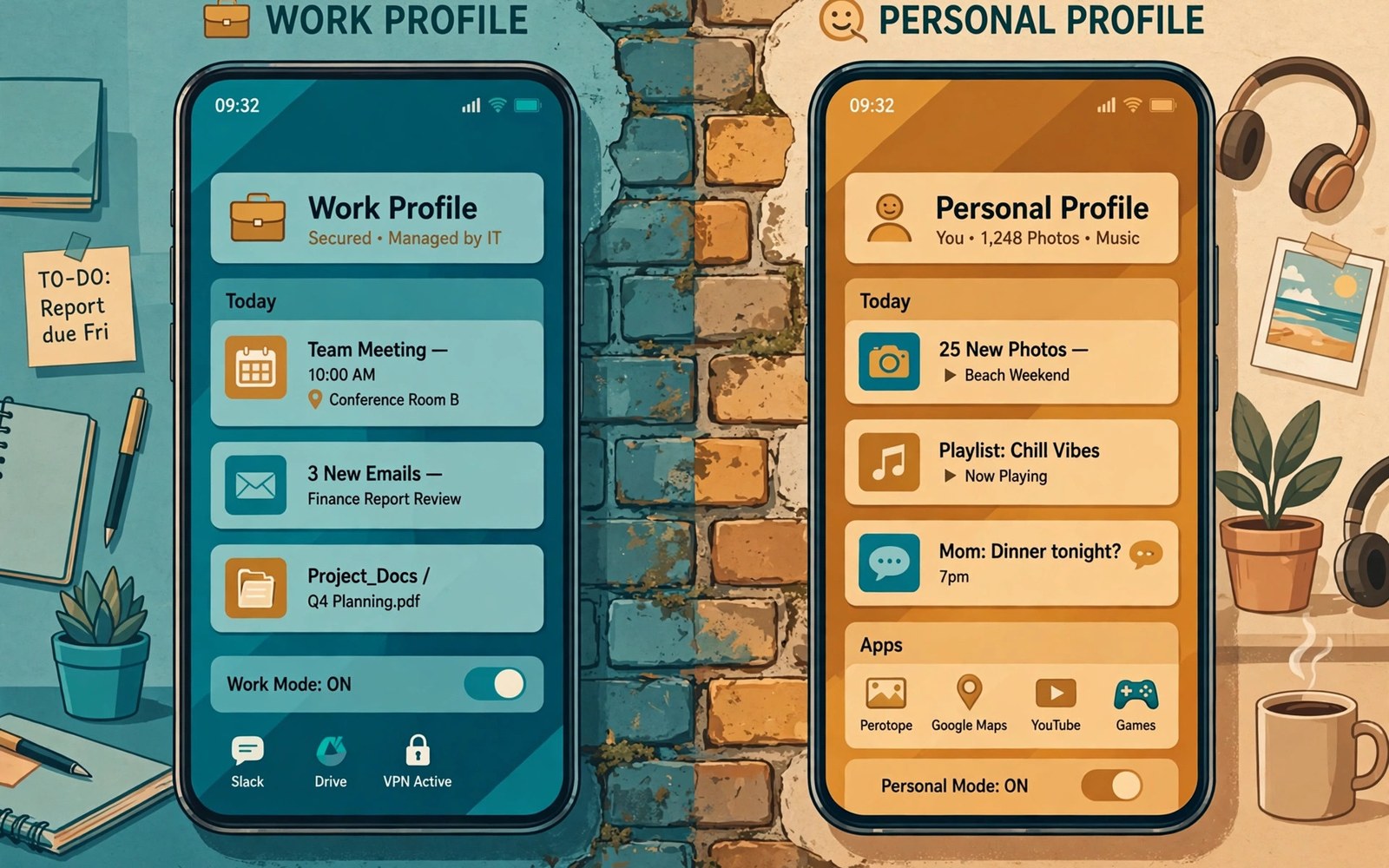
Mixing work and personal apps on one phone creates quiet leaks. A personal social app can read work contacts. A work chat app can see personal photos. One permission grant can bridge both worlds. Isolated profiles stop that bridge from forming.
A work profile acts like a second phone inside your phone. It holds its own apps and data. It uses its own permission grants. Personal apps cannot reach inside it. Work apps cannot reach outside it. That separation protects both sides at once.
How a Work Profile Separates Data
The system creates a separate storage area for work apps. Work files stay inside that area. Work contacts stay inside that area. Personal apps see only the personal area. The boundary holds even for apps from the same developer.
Each profile keeps its own permission decisions. Granting camera access in personal space grants nothing at work. Revoking contacts at work leaves personal contacts untouched. That independence is the core benefit. You judge each side on its own needs.
Setting Up a Profile the Safe Way
Use the built-in work profile setup when your phone offers it. Some phones offer it under accounts or work settings. Others need a device policy app to create it. Follow the official setup flow for your brand. Avoid unofficial tools that promise the same result.
Install only work apps inside the work profile. Install only personal apps outside it. Resist duplicating social apps on both sides. Duplication recreates the bridge you wanted to remove. Keep the boundary clean from day one.
Managing Permissions Across Profiles
Review work profile permissions separately from personal ones. Work apps may need contacts for colleagues. They rarely need personal photos or location history. Personal apps may need photos for sharing. They rarely need work documents or calendars.
Pause the work profile outside work hours when possible. Pausing stops work apps from running in the background. It also silences work notifications. That pause protects rest time as well as data. Resume the profile when the workday starts again.
Create a work profile
Settings > Accounts > Work > Set up work profile
Install work apps inside it only
Profiles for Sensitive Personal Projects
Profiles help beyond office work. A health project deserves its own space. A finance project deserves its own space. A creative project with private drafts deserves one too. Any sensitive effort benefits from isolation.
Create a second profile for that project when your phone allows it. Some phones support multiple user profiles. Others support secure folders for the same purpose. Use whichever tool your device offers. The principle stays the same across tools.
Mistakes That Break Isolation
Sharing files across profiles breaks the boundary by hand. Copying a work document to personal storage defeats the design. Sharing a photo from personal space into work chat does the same. Move files only when truly necessary. Prefer viewing inside the owning profile.
Using the same account on both sides can also leak data. Shared cloud sync can merge contacts and calendars. Keep accounts separate across profiles. Use a work account for work apps only. Use a personal account for personal apps only.
Profile Isolation Rules
Work Profiles Versus Full Device Management
Work profiles differ from full device management in scope. A work profile controls only the work side of the phone. Full management can control the entire device remotely. Employers may wipe a work profile without touching personal data. Full management wipe can erase the whole phone. Employees should understand which model their employer uses. Ask IT before enrolling a personal phone in any program. A work profile is usually the safer choice for personal devices. Full management suits company owned phones better. That distinction protects personal photos and messages from remote wipe.
Enrolment screens often bury this distinction in fine print. Read enrolment prompts before tapping accept. Look for wipe scope language in the prompt. Ask IT to confirm wipe scope in writing when unclear. Written confirmation protects you if policies change later. Do not enrol a personal phone under full management casually. The convenience rarely outweighs the wipe risk. A work profile delivers most work benefits with less risk. Choose the narrower enrolment whenever it is offered.
Separate Browsers and Accounts Per Profile
Browsers deserve separation across profiles too. A work browser should hold work bookmarks and logins. A personal browser should hold personal bookmarks and logins. Mixing them in one browser blends histories. A personal search could appear in work history. A work document could appear in personal suggestions. Install the browser separately inside each profile when possible. Use separate accounts inside each browser copy. That double separation keeps histories clean. It also prevents accidental sharing of links across contexts.
App stores also behave per profile on many phones. Work profile apps come from a managed catalogue. Personal apps come from the public store. That split prevents work apps from seeing personal installs. It prevents personal apps from seeing work installs. Review each store list separately during audits. A work app you stopped using still holds work data. Remove it from the work profile promptly. A personal app you stopped using still holds personal data. Remove it from the personal side promptly. Separate audits keep both sides honest.
Notifications Across Profile Boundaries
Notifications can leak across profiles when configured loosely. A work message preview may appear on a personal lock screen. A personal photo preview may appear during a work meeting. Configure notification previews per profile with care. Hide sensitive content on lock screens for both profiles. Pause work notifications outside work hours entirely. That pause protects rest and prevents accidental exposure. It also reduces distraction during personal time. Notification settings deserve the same attention as permissions. A preview is a data leak in miniature form.
Notification badges can also reveal activity levels. A badge count shows unread work messages at a glance. A personal badge shows social activity during work. Disable badges for sensitive apps when discretion matters. Badges feel harmless but broadcast counts to onlookers. A meeting room onlooker can read badge counts easily. Lock screen discipline plus badge discipline covers most leaks. Small display choices protect large amounts of context. Treat every visible count as public information.
Ending a Work Profile Cleanly
Leaving a job should end the work profile cleanly. Ask IT to remove the profile through official channels. Confirm removal on the device after IT acts. Check that work apps and work files disappeared. Check that personal apps and files remain untouched. A clean removal protects both you and the former employer. It prevents old work apps from lingering with access. It also prevents accidental work data retention on your phone. Document the removal date for your records. That record helps if questions arise later.
Personal projects need a clean ending too. A finished project profile should be archived or deleted. Export project files you still need before deletion. Delete the profile after confirming the export. Lingering project profiles collect dust and risk. They may hold outdated permissions for old apps. Deleting them closes those permissions permanently. A tidy device reflects a finished project well. Endings deserve the same care as setups.
Profiles and App Cloning Risks
App cloning duplicates an app across profiles for convenience. A cloned social app runs in both personal and work spaces. Cloning recreates the bridge that profiles were built to remove. Messages may sync across clones through a shared account. Contacts may merge through shared cloud data. Avoid cloning apps across profiles whenever possible. Use distinct apps for distinct contexts instead. A work chat app should differ from a personal chat app. Distinct tools enforce separation naturally. Cloning feels convenient but defeats the core purpose of isolation.
Some phones offer cloning as a built-in feature. Marketing presents cloning as a productivity boost. Productivity gains rarely outweigh data mixing risks. Dual accounts inside one app pose similar risks. A dual account app can leak data between accounts internally. Prefer separate apps over dual accounts for sensitive contexts. Separation at the app level is stronger than separation at the account level. App level separation uses system boundaries. Account level separation relies on developer discipline. System boundaries fail less often than developer promises.
Profile Backups and Data Portability
Profile backups need separate handling from device backups. A work profile backup may go to employer systems. A personal backup should stay in personal cloud storage. Mixing backup destinations blends contexts again. Check backup settings per profile during setup. Confirm work backups use work destinations only. Confirm personal backups use personal destinations only. Restore testing should also stay per profile. A work restore should not overwrite personal data. Per profile backups preserve isolation through device changes. Backup design is part of profile design.
Leaving a profile behind during device upgrades needs care. A new phone should receive profiles deliberately rather than automatically. Restore personal profiles first and verify their contents. Restore work profiles through official enrolment only. Skipping work enrolment on a personal upgrade is acceptable. Work data can wait for proper enrolment. Rushed restores often merge contexts accidentally. Deliberate restores keep boundaries intact across upgrades. Patience during upgrades protects years of separation effort.
- Install work apps only inside the work profile.
- Keep personal apps out of the work profile entirely.
- Review permissions separately for each profile.
- Pause the work profile outside work hours.
- Use separate accounts for work and personal sides.
Profiles pair with the Permission Manager overview and scoped storage limits on file browsing. Review both profiles during a monthly audit of installed app permissions.
The steps above follow the approach described in the official developer documentation for modern Android privacy controls. That documentation explains each permission group in plain terms. It also describes how the system limits background access. Use it as a general reference when a menu name differs on your phone.

