

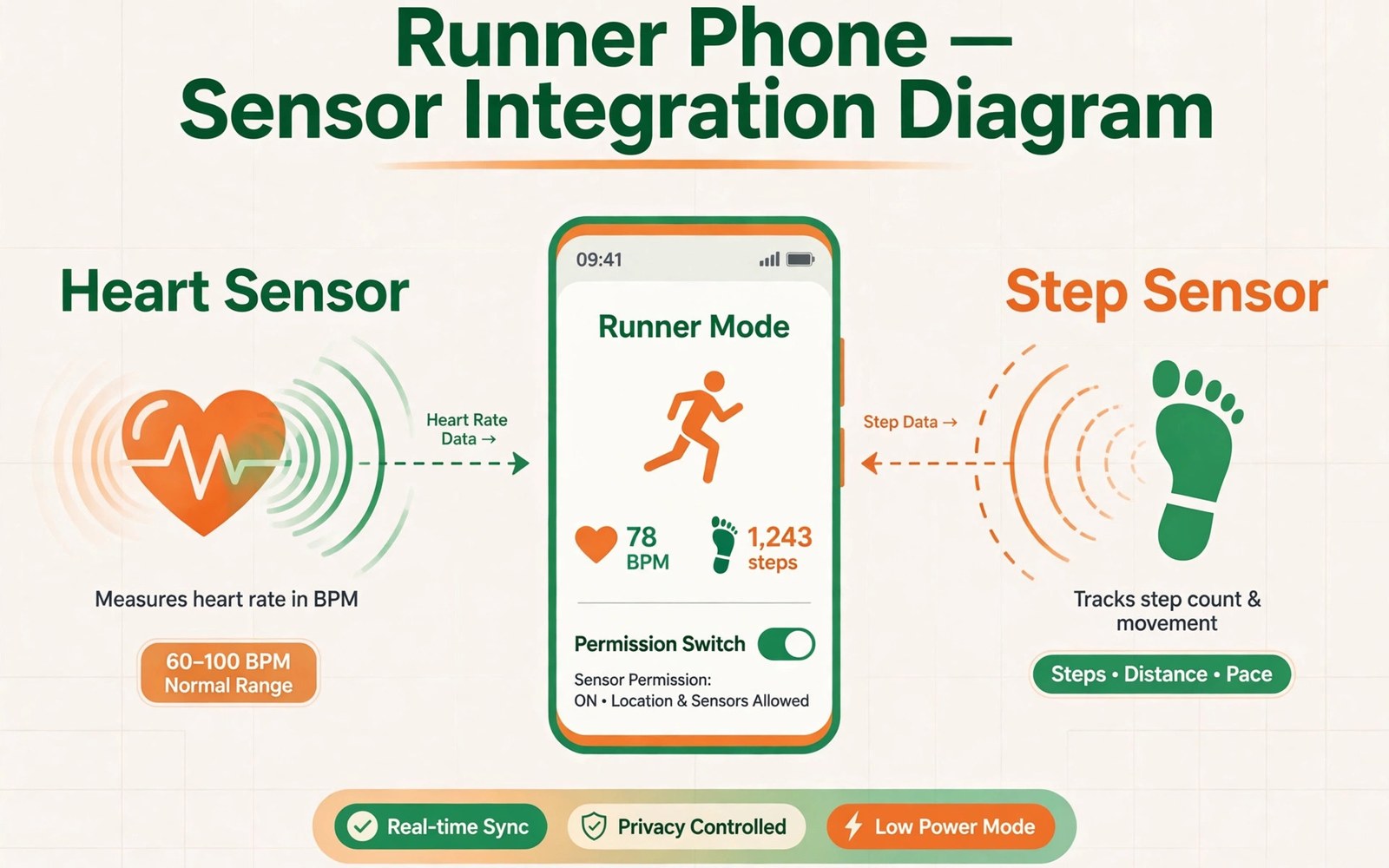
Fitness apps read some of the most personal data on your phone. They read heart rate and step counts. They read sleep patterns and motion signals. That data reveals health conditions over time. It deserves stricter control than a game score.
Sensor permissions cover body sensors and activity recognition. Body sensors include heart rate monitors. Activity recognition covers walking and running and cycling. Many fitness apps request both by default. You can narrow each one to fit the workout you actually do.
What Body Sensor Access Reveals
Heart rate data reveals exertion and stress. Resting heart rate trends reveal fitness changes. Irregular patterns can hint at health issues. Sleep data reveals bedtime and wake time. Motion data reveals daily routines and travel modes.
Combined sensor data builds a health profile. Insurers and advertisers value that profile highly. A leak could affect prices or offers later. Sensor denial for unused apps removes that risk. Narrow grants for active apps limit it.
Separating Workout Needs from Extras
A running app needs activity recognition during a run. It may need heart rate when you wear a monitor. It does not need sensors all day long. It does not need sensors while you sleep unless you track sleep. Match each grant to a feature you use.
A step counter needs activity recognition only. It does not need heart rate access. A sleep tracker needs motion at night only. A calorie app may need no sensors at all. Manual entry can replace many sensor reads. Choose manual entry when sensors feel excessive.
How to Restrict Sensors Per App
Open the app info screen and tap Permissions. Find body sensors and activity recognition entries. Set each one to allow only while using the app. That level blocks background collection. It keeps workout tracking alive on screen.
Deny sensors entirely for apps you no longer train with. Old fitness apps keep grants until you act. Uninstall trials after the trial week ends. Check sensor access after each app update. Updates can add new sensor requests quietly.
Restrict fitness sensors
Settings > Apps > Fitness app > Permissions
Set Body sensors and Physical activity to:
Allow only while using the app
Wearables Add Another Layer
A smartwatch collects sensor data on its own. Its companion app syncs that data to your phone. Review the watch app permissions with equal care. Check the watch privacy settings too. Watch and phone settings do not always match.
Limit cloud sync for health data when possible. Keep workout history on the device if the app allows it. Export data by hand before deleting an account. Deleting the app alone may leave cloud copies behind. Read the account deletion screen before you confirm.
Building a Sensor-Minimal Fitness Setup
Pick one fitness app as your main tracker. Give it the sensors it truly needs. Deny sensors for every other health app. That single tracker model simplifies audits. It also limits how many copies of your health data exist.
Review sensor grants on the first day of each month. Remove grants for workouts you stopped doing. A winter ski app needs no summer access. A marathon app needs no access after race day. Seasonal cleanup keeps the sensor list honest.
Sensor Rules for Fitness Apps
Activity Recognition Beyond Workouts
Activity recognition detects walking and running and cycling. It also detects stillness and vehicle travel. Apps can use those signals outside workouts. A shopping app could infer store visits from stillness patterns. A social app could infer travel from vehicle signals. Those inferences need no location permission at all. Motion patterns alone reveal daily routines. Denying activity recognition blocks that inference channel. Grant it only to fitness apps you actively use. Other apps should live without motion data.
Vehicle detection deserves special attention in this picture. A phone can tell when you drive versus walk. That signal reveals commute times and routes. It reveals weekend trips and holiday travel. Combined with time stamps it sketches a weekly routine. A fitness app may need vehicle detection to filter drives from runs. A non-fitness app never needs that distinction. Deny activity recognition for apps without workout features. The denial costs those apps nothing they truly need. It saves you a detailed motion record.
Heart Rate Data and Health Inference
Heart rate data reveals more than fitness level. Resting trends can hint at stress and illness. Recovery speed can hint at cardiovascular health. Sleep heart patterns can hint at sleep disorders. Those hints carry insurance and employment risks. A leaked heart dataset could affect future decisions about you. Treat heart data as medical grade information. Grant it only to a trusted fitness tracker. Deny it for social and gaming apps entirely. A game never needs your heartbeat to function.
Heart data also reveals emotional moments over time. A spike during a message may reveal stress. A spike during a call may reveal conflict. Those emotional signals are deeply personal. Apps should not collect them without a clear health purpose. Review heart grants after trying new wellness apps. Wellness marketing often hides broad sensor requests. A meditation app may request heart access for calm scores. Decide whether that score earns continuous heart data. Manual check-ins can replace continuous monitoring for many users.
Sleep Tracking and Sensor Collection
Sleep tracking uses motion and sound and heart signals together. It records bedtime and wake time accurately. It records restlessness through the night. It may record snoring through the microphone. That combination reveals health and household patterns. A partner snoring pattern may appear in your data. A child waking pattern may appear too. Sleep data therefore affects more than the sleeper. Review sleep app permissions with household impact in mind. Disable microphone sleep tracking when motion alone suffices. Motion sleep tracking is less invasive than audio tracking.
Sleep apps often sync data to cloud servers by default. Cloud sleep records persist far beyond the phone. They may feed advertising profiles about routines. Check cloud sync settings inside sleep apps. Prefer on-device sleep history when available. Export sleep data manually before deleting an account. Deleting the app alone may leave cloud copies behind. Read deletion screens carefully for cloud retention terms. Sleep history deserves the same deletion care as medical records.
Choosing a Minimal Sensor Fitness Stack
A minimal fitness stack uses one tracker and few sensors. Pick a tracker with a clear privacy policy. Grant it activity recognition while using the app. Grant it heart rate only when wearing a monitor. Deny it location when workouts happen on known routes. Manual route entry can replace GPS for regular runs. That minimal stack still records useful training data. It avoids continuous background collection. It also simplifies monthly audits to one app. Simplicity is a privacy feature in its own right.
Wearable choice affects the sensor stack too. Some watches collect data aggressively by default. Others offer on-device processing with limited sync. Research wearable privacy before purchase. Check whether health data leaves the watch encrypted. Check whether the companion app uploads by default. A private watch plus a narrow phone app beats a chatty pair. Hardware privacy deserves the same research as app privacy. The watch on your wrist collects more than the phone in your pocket.
Sensor Access and Accessibility Tools
Accessibility tools may need sensor access for genuine assistance. A fall detection app needs motion sensors constantly. A hearing app needs microphone access for amplification. Those tools serve users with real needs. Grant them sensor access generously after verifying their reputation. Check that accessibility apps come from trusted developers. Review their privacy policies for sensor data handling. A legitimate accessibility tool explains sensor use clearly. A fake accessibility tool may abuse sensor grants for tracking. Distinguish them by developer reputation and clear purpose. Accessibility needs deserve support without blind trust.
Motion based accessibility features also collect routine data. Fall detection logs movement patterns all day. Step based alerts log activity levels continuously. That data could reveal health decline over time. Users should understand that accessibility logging is continuous by design. Choose accessibility tools with on-device processing when possible. On-device processing keeps motion data off servers. Cloud processing adds exposure for convenience features. Weigh that trade carefully for each accessibility need. Safety features may justify cloud processing in some cases. Convenience features rarely justify it.
Sensor Permissions and Gaming
Games sometimes request motion sensors for control features. A racing game may steer by tilting the phone. A fitness game may count steps as gameplay. Those features need motion access during play only. Grant motion access while using the game. Deny background motion access for games entirely. A game has no need for motion data when closed. Background motion collection from games is pure tracking. Check game permissions after installing motion controlled games. Narrow grants keep gameplay fun without all-day motion logs. Play with sensors on screen and off elsewhere.
Virtual reality and augmented reality games need more sensors. They may request camera and motion together. They may request spatial mapping of your room. Room mapping reveals home layout in detail. Grant room mapping only to trusted AR games. Delete room maps after finishing AR sessions when possible. Room data is among the most sensitive sensor outputs. A mapped living room reveals furniture and family spaces. Treat AR sensor grants as high risk decisions. Enjoy AR features with narrow session grants and prompt deletion.
- Grant activity recognition only while using the app.
- Grant heart rate only when you wear a monitor.
- Deny sensors for fitness apps you stopped using.
- Limit health cloud sync when on-device storage exists.
- Review sensor grants on the first day of each month.
Sensor control pairs with the Permission Manager overview and background location limits for trackers. Keep it current with a monthly audit of installed app permissions.
The steps above follow the approach described in the official developer documentation for modern Android privacy controls. That documentation explains each permission group in plain terms. It also describes how the system limits background access. Use it as a general reference when a menu name differs on your phone.

