

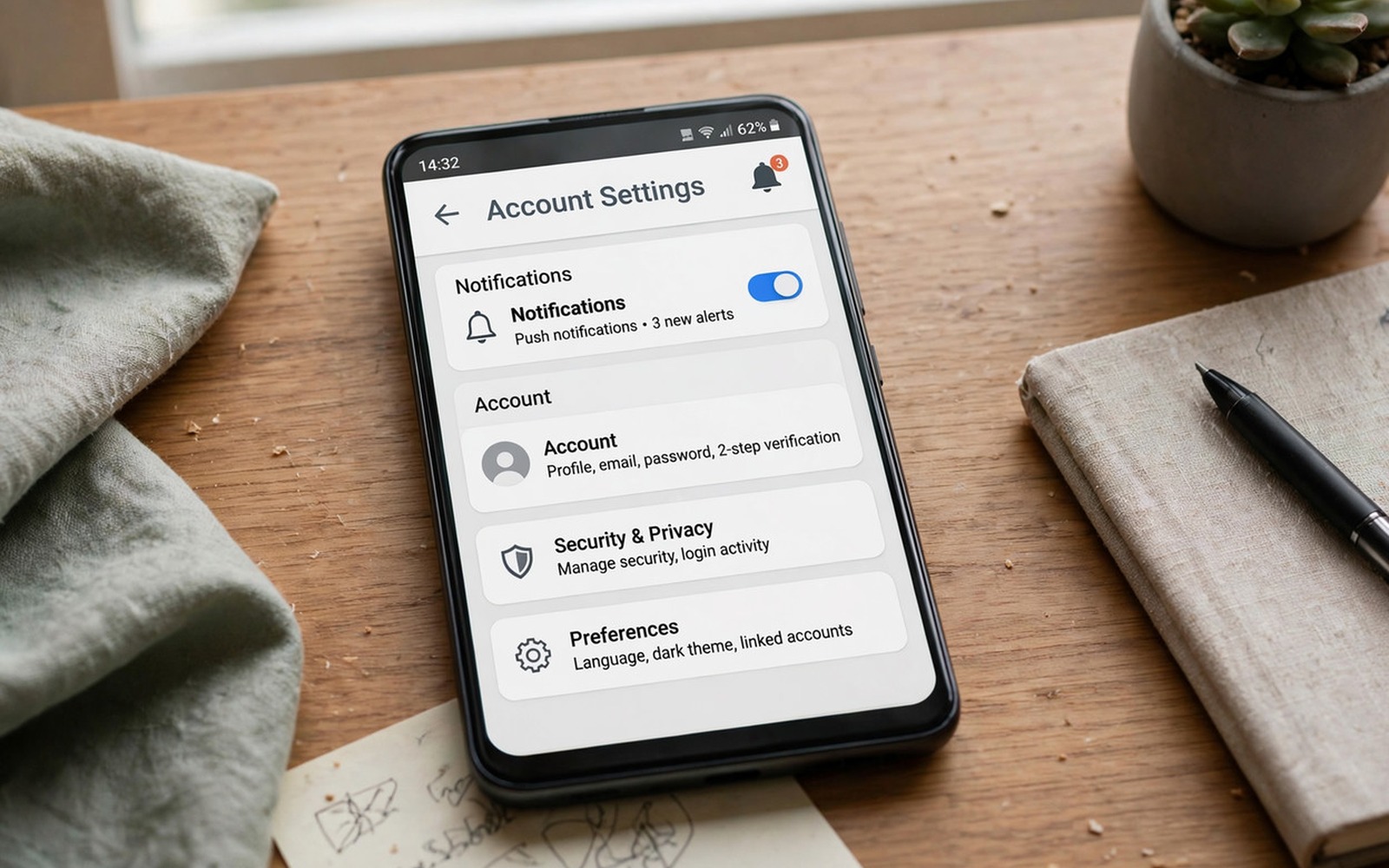
A notification keeps telling you that action is required for your Google account. You tap it and it asks you to sign in again and then it returns an hour later. That loop is distracting because it never tells you exactly what action it wants.
The notification usually appears when a token expires or when a security check needs confirmation. Sync can also fail for one service while other services keep working. The phone then repeats the warning because the failed service never completes its check. Account trouble rarely stops at notifications, since contacts that stop syncing after a software upgrade often share the same broken account state.
This guide helps you find the exact service that fails and fix it without deleting your account at the first step. Work through sign-in checks and sync checks in order. Note which service shows an error so you do not repeat steps blindly.
Open the notification the right way
Tap the notification itself rather than dismissing it by swiping. Tapping opens the account screen that triggered the warning. Dismissing only hides the warning until the next sync attempt.
Read the full message on the account screen and look for a specific service name. A message about backup or contacts points to a different fix from a message about sign-in security. That detail saves time.
Check the date and time on the phone. A wrong date can break secure sign-in because tokens depend on correct time. Set date and time to automatic and restart the phone if the date was wrong.
Reconfirm sign-in without deleting the account
Open Settings and then open Accounts and then open Google. Tap your account and look for a sync error next to a service. Tap Sync now for that service alone and watch whether it succeeds.
If sync fails then sign out of that service only if your phone allows it. Re-entering your password refreshes the token for that service. Use the password you know works and complete any two step check that appears.
Check your Google security settings on another device if a sign-in check keeps failing. A security alert may need approval from a trusted device. Approving it there can clear the phone notification at once.
Fix sync errors service by service
Turn off sync for one service at a time and test whether the notification stops. Start with backup and contacts because those services often fail after storage changes. Turning off a failing sync stops the loop while you fix the underlying cause.
Clear the cache of Google Play Services in Settings and then open Apps. Cache clearing can fix a stuck sync process without deleting your account. Restart the phone after clearing the cache.
Check storage space for backup sync. A full Google storage account can block backup sync and trigger repeated warnings. Free space or change backup settings to stop the loop. If delayed messages also trouble you then the steps for fixing delayed notifications on Android can help you check notification restrictions that hide the real alert.
Remove and re-add only as a last step
Back up contacts and photos before you remove a Google account from the phone. Removing the account can remove local copies of synced data. A backup protects you if the re-add fails.
Remove the account in Settings and then restart the phone and add it again. Add the account on Wi-Fi and complete all security checks before you restore sync for every service. Add services one by one so a failing service does not block the rest.
Contact support if the notification returns immediately after a clean re-add. That pattern points to an account security hold that only the account provider can lift. Take screenshots of the exact message for support.
adb shell dumpsys account
adb shell settings get global auto_time
adb shell pm clear com.google.android.gms
The commands above were prepared for this guide and they use only standard tools that ship with Android developer tools. They show account service state for advanced users and the clear command is a last resort that resets Play Services data.
While you work through these steps it helps to compare symptoms with other fixes in the same area. For example the steps for delayed notification problems show how a related fault behaves differently and the steps for microphone problems on calls help you rule out a second fault that shares early symptoms.
Common mistakes
One common mistake is swiping the notification away forever and ignoring a real security check. The warning returns because the underlying sync still fails. Tap it and read it. Another mistake is removing the account before backing up contacts.
Another mistake is entering an old password repeatedly and locking the account. Use password recovery on a trusted device if you are unsure. Repeated wrong attempts can trigger a longer security hold.
A third mistake is clearing all Google data at once without noting which service failed. That step can break working services too. Clear cache for one service at a time and test after each step.
A week-long account test that proves the fix
Check account sync status each morning for a week and note which service shows an error. A service that fails every morning points to a token or storage problem for that service. A service that fails only on some mornings points to a network or server issue that may resolve itself.
Turn off sync for the failing service for three days and watch whether the notification stops. A notification that stops when sync stops confirms that service as the trigger. A notification that continues with sync off points to a sign-in check rather than a sync error.
Sign in on another device on day five and check whether a security prompt appears there. A prompt on another device shows an account security check that the phone cannot complete alone. Approving that prompt can clear the phone loop at once.
Long-term habits that protect account sync
Keep date and time on automatic so token checks never fail for a wrong clock. A manual date change for travel or testing can break sign-in silently. Automatic time prevents that hidden cause.
Review storage for backup sync once a month. A full cloud storage account blocks backup and triggers repeated warnings. Freeing space early prevents a loop that looks like a sign-in fault.
Do not dismiss account notifications without reading them. A dismissed warning returns because the underlying sync still fails. Reading the message once saves repeated interruptions later.
What to do when the notification returns after re-adding
Check Google account security alerts on a computer and resolve any pending alert there. A pending security alert can block phone sync even after a clean re-add. Resolving it on a trusted computer often clears the phone loop immediately.
Test sync with only one service enabled after re-adding the account. Enabling services one by one reveals a service that triggers the warning. A service that triggers the warning every time needs its own fix rather than another full re-add.
Check whether a work profile or a second user profile causes the warning. A work account can trigger its own action required message that looks like a personal account warning. Separating profiles helps you find the right account to fix.
Keep screenshots of the exact warning text for support. Support can identify the service from the exact wording faster than from a description. A screenshot also proves the warning persists after your fixes.
Testing account sync with a second device and a second network
Sign in to the same account on a tablet or a second phone and check whether the same warning appears there. A warning on two devices points to an account issue rather than a phone issue. A warning on one device only points to that device sync or token.
Test sync on Wi-Fi and on mobile data on separate days. A network-specific sync failure can look like an account fault. A Wi-Fi success with a mobile data failure points to a network or carrier setting. A failure on both networks points to the account itself.
Test sync after changing your account password on a trusted computer and signing in fresh on the phone. A fresh password test refreshes all tokens at once. A warning that disappears after a fresh sign-in points to a stale token. A warning that persists points to a service-specific problem.
Test sync with backup disabled for a few days to isolate backup as a trigger. A backup failure can generate repeated warnings even when other services work. A warning that stops without backup confirms backup as the trigger. A warning that continues points to another service.
Test sync after freeing cloud storage space if your account is near its limit. A full storage account can block backup and contacts sync. Freeing space and testing again is a simple diagnostic step. A warning that clears after freeing space proves storage was the cause.
Keep a note of which service shows a sync error each day. A service that fails consistently is a better target than a vague account warning. That note helps support identify the failing service quickly.
Frequently asked questions
Why does the notification return after I sign in?
Sign-in can succeed for the main account while one service still fails its own sync check. The phone repeats the warning for that service. Check sync errors service by service to find it.
Is the notification a scam or malware?
A genuine notification opens system account settings when you tap it. A fake notification opens a browser page asking for payment or personal details. Never enter payment details from a notification and check the app that sent it in notification settings.
Will removing my account delete my photos?
Removing an account from the phone does not delete cloud photos but it can remove local synced copies. Back up photos first if you plan to remove the account. Re-adding the account restores cloud access.
Conclusion
An endless Action Required notification usually points to one failing sync service rather than a broken account. Tap the notification and read the service name and check date and time first. Refresh that service token and clear Play Services cache before you remove anything. Back up before a full re-add and add services one by one. Start today by opening Accounts and noting which service shows a sync error.

