

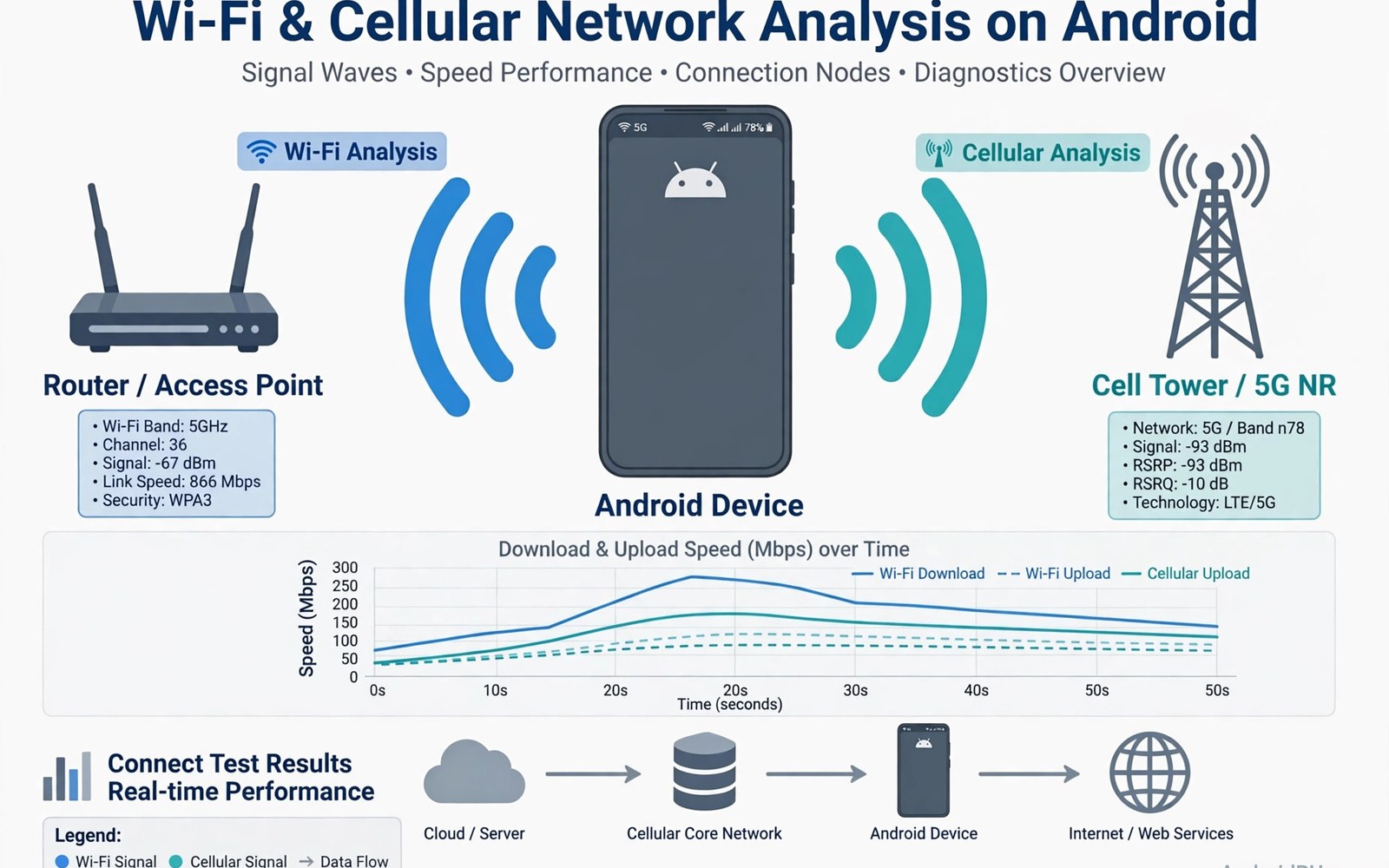
Network analyzer apps show why your connection feels slow. They measure speed and signal and latency in numbers you can act on. This guide explains how to diagnose Wi-Fi and cellular problems with these tools and how to fix what you find. This article covers network analyzer apps in plain language for everyday Android users.
Start with a simple rule. Test near the router first and then test where the problem happens. The gap between those two tests points to the cause. If you want to find a less crowded Wi-Fi channel then scan channels after you confirm the signal itself is weak and not just the internet link.
Speed tests versus signal tests
A speed test measures download and upload through the internet. It answers one question. How fast is my link right now. A signal test measures the strength of the radio link to the router or tower. It answers a different question. How strong is my local connection.
Slow speed with strong signal points to the internet plan or the server or congestion. Slow speed with weak signal points to distance or walls or interference. Running both tests stops you from blaming the wrong part. Always run both before you change any setting.
Reading Wi-Fi signal numbers correctly
Wi-Fi signal is shown in dBm and closer to zero means stronger. A value near minus fifty is excellent. A value near minus seventy is weak and may drop video calls. Values below minus eighty often fail to hold a stable link at all.
Signal changes as you move through rooms. Walls and metal and water tanks all weaken it. Walk slowly and watch the number change room by room. That walk maps the weak spots in your home better than any guess. Note the worst room and focus your fix there.
Cellular diagnosis on the move
Cellular signal also uses dBm and it varies with towers and terrain. An analyzer shows the tower band and the signal type. A phone on an old band may show full bars yet deliver slow data. Bars measure voice coverage more than data speed so trust the numbers and not the bars.
Test cellular speed in several spots. A spot near a window often beats a spot deep inside a building. If speed is slow everywhere then the plan or the tower load may be the cause. If speed is slow in one building only then the building blocks the signal and Wi-Fi calling may help.
Latency and jitter for calls and games
Latency is the delay before data starts moving. Low latency matters for calls and games more than raw speed. A link with high speed but high latency still feels laggy in a game. Jitter is the variation in latency. High jitter makes voices cut in and out on calls.
Test latency with a ping test to a nearby server. A ping under thirty milliseconds is great for gaming. A ping above one hundred feels sluggish. If jitter is high then try a different Wi-Fi band or move closer to the router. Wired backhaul for the router also cuts jitter for the whole home.
Practical fixes after diagnosis
Move the router to a central spot and raise it above furniture. Switch to the five gigahertz band for speed at short range. Use the two point four gigahertz band for range through walls. Split the bands with separate names if your router allows it so the phone picks the right one.
Update router firmware and restart the router once a week if problems repeat. Replace a very old router since old radios cap speed no matter how good the phone is. For cellular dead zones ask your carrier about Wi-Fi calling. That single feature fixes indoor call problems on many phones.
Mapping dead zones room by room
A dead zone map guides every fix you try. Walk each room with an analyzer open and note the signal value. Mark values on a simple sketch of your home. The map shows patterns like a weak far bedroom or a dead kitchen corner. Without a map you guess and you may fix the wrong room.
Repeat the walk at a different time of day. Evening congestion changes results even when signal stays constant. A room that is fine at noon but slow at night suffers congestion and not weak signal. That distinction decides whether you move hardware or change channels.
Router placement science for homes
Router height matters more than most people think. A router on the floor loses signal to furniture. A router on a shelf sends signal over obstacles. Central placement cuts the maximum distance to any room. Avoid placing the router inside a cabinet since the cabinet blocks signal in every direction.
Keep the router away from metal objects and thick water containers. Metal reflects signal. Water absorbs it. A router next to a fish tank or a metal shelf underperforms badly. Small moves of one meter can lift signal in a far room by a useful margin. Test after each move.
Mesh versus extender decisions
Extenders repeat signal but they halve speed on the same band. They suit one weak room with light use. Mesh systems use dedicated backhaul and keep speed across nodes. They suit whole home coverage with many devices. Price differs sharply between the two options.
Place mesh nodes within strong signal of each other. A node in a dead zone cannot fix that zone since it receives weak signal itself. Nodes need good signal to share. Test node placement with an analyzer before you finalize positions. A well placed pair beats three poorly placed nodes.
Cellular versus Wi-Fi handoff problems
Phones switch between Wi-Fi and cellular at signal edges. A weak Wi-Fi signal can hold the phone too long and cause slow data. The phone clings to Wi-Fi even when cellular would be faster. That clinging feels like a network failure but it is a handoff delay.
Test handoff by walking from the router to the street while streaming. Note where stalls happen. Some phones offer a setting to prefer cellular when Wi-Fi is weak. Enable it if your phone supports it. Otherwise forget and rejoin the network to reset the handoff state.
Keeping a network health log
A simple log turns intermittent problems into visible patterns. Note date and time and room and speed for each bad episode. After two weeks patterns emerge. Night only problems point to congestion. Room only problems point to signal. Everywhere problems point to the plan or router.
Share the log with your internet provider when you report faults. Providers act faster on dated evidence than on vague complaints. A log also stops you from chasing a one off glitch as if it were a daily fault. Evidence calms troubleshooting and speeds real fixes.
Signal strength versus signal quality
Signal strength measures power received. Signal quality measures how clean that signal is. A strong but noisy signal delivers poor speed. A moderate but clean signal delivers steady speed. Analyzers that show both metrics explain more than strength alone. Look for quality indicators like signal to noise ratio when your analyzer offers them.
Interference lowers quality without lowering strength. Neighbor networks on the same channel add noise. Microwaves and Bluetooth add noise on the two point four band. Quality metrics expose interference that strength hides. When strength looks fine but speed lags then quality is the next suspect to check.
Testing with multiple devices for fairness
One phone test can mislead when the phone itself is the problem. Test the same network with a second device before you blame the router. If both devices crawl then the network is at fault. If only one crawls then that phone needs attention. Its Wi-Fi settings or its case or its antenna may be the cause.
Use the same test server for both devices. Different servers add variance that mimics device differences. Run tests back to back within minutes. Network load changes over time and a gap of an hour invalidates comparison. Controlled multi device testing settles blame fairly.
Public Wi-Fi diagnosis and safety
Public Wi-Fi diagnosis follows the same steps as home diagnosis. Test speed and signal and latency in that spot. Public networks add captive portals and shared bandwidth that home networks lack. A slow public network often reflects many users rather than a fault. Move to a quieter corner or switch to cellular when public speed collapses.
Never run sensitive tasks on public Wi-Fi without protection. Diagnosis itself is safe since it only measures the link. Banking or work logins on open networks need a VPN. Keep diagnosis and sensitive use separate in your mind. Measure freely and transact carefully on any network you do not control.
Keeping historical network records
Historical records turn one off complaints into trends. Log speed tests weekly from the same spot. A slow decline over months signals a degrading router or a growing neighbor load. A sudden drop signals a new fault or a settings change. Trends guide action better than any single test result.
Store logs simply in a note with date and speed and room. Review monthly for patterns. Share the log with your provider when faults persist. Providers escalate documented trends faster than vague reports. A modest log habit pays off at the first serious outage.
adb shell cmd wifi statusThe command above follows the standard syntax for the Android developer bridge and prints current Wi-Fi connection details so you can confirm band and signal data during diagnosis.
Common mistakes
The biggest mistake is testing once at one spot and declaring the network bad. Networks change with time and load and position. Test at three spots and at two times of day. That pattern reveals whether the problem is location or congestion or a failing router.
Another mistake is trusting bars instead of numbers. Bars are a rough icon with no standard scale. Two phones can show different bars on the same signal. Read dBm values from an analyzer app and compare those numbers instead of icons.
People also blame the phone when the router is at fault. Test a second device on the same network before you reset your phone. If both devices are slow then the network is the problem. A remote check from a PC can also help you test while you move around the house with the phone in hand.
Frequently asked questions
Why is Wi-Fi fast near the router but slow in my room?
Distance and walls weaken the signal. The phone drops to a slower rate to hold the link. Move the router centrally or add an access point near the weak room. A Wi-Fi channel scan can also rule out interference.
Do analyzer apps need root?
No. Signal and speed tests work without root on modern Android. Some deep packet features need root but basic diagnosis does not. Skip any analyzer that demands root for a simple speed test.
What speed do I need for video calls?
About five megabits per second down and up handles HD video calls well. Stability matters more than peak speed. Low jitter and low packet loss keep calls smooth even at modest speeds.
Conclusion
Network analyzer apps turn vague slowness into clear numbers. Test signal and speed and latency in the right spots. Then fix the weakest part first instead of guessing.
Your next step is concrete. Run a speed test near your router and another in your worst room today. Compare the two numbers. Then use real-time overlays during a game or call to see whether the fix actually holds under load.

