

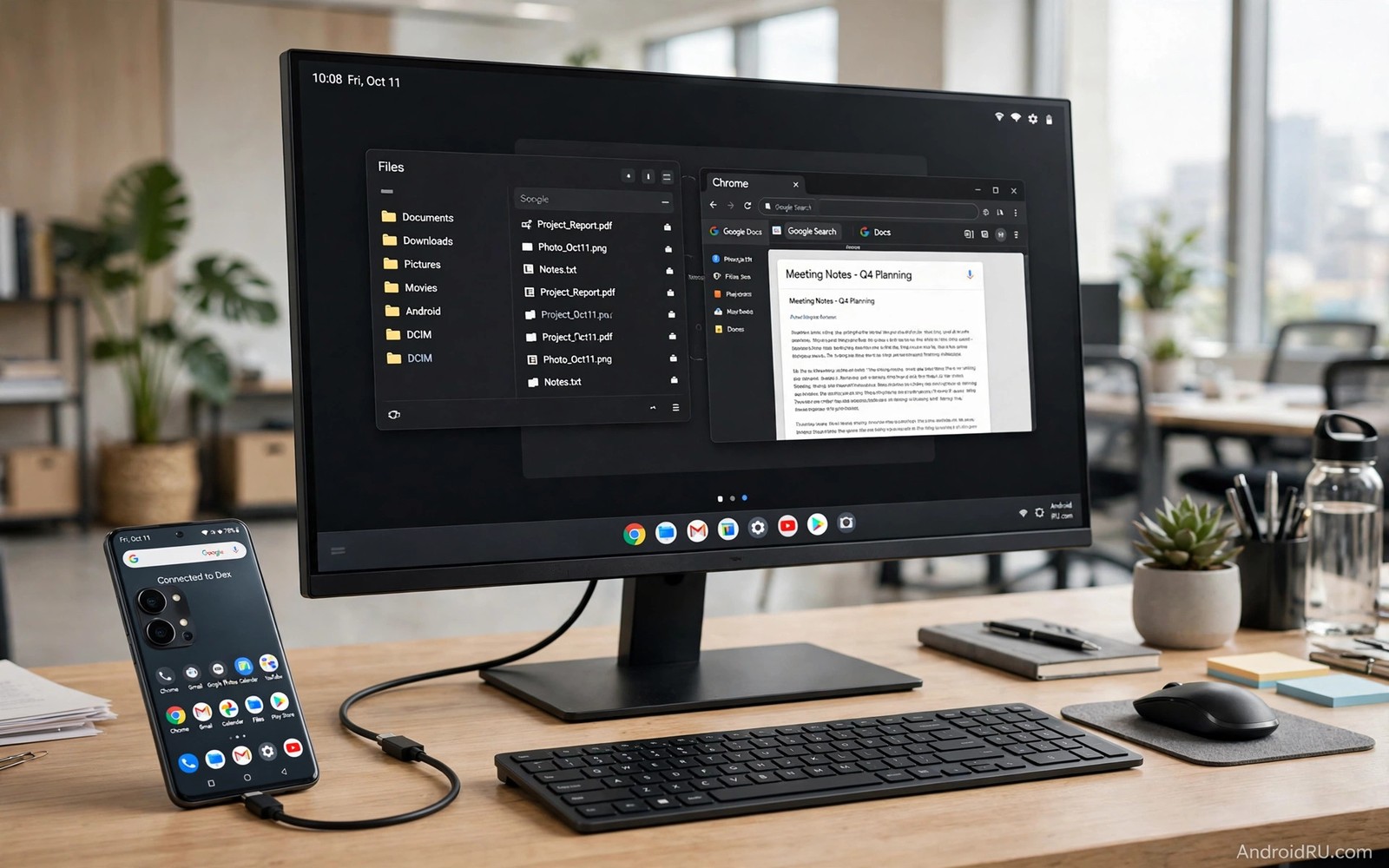
A phone in your pocket now holds more power than many laptops from a decade ago. Desktop mode tries to turn that power into a full workspace. Connect a monitor and a keyboard and a mouse and the phone shows windows and a taskbar and a desktop layout. The idea is simple. One device can serve as a pocket computer and a desk computer.
The promise is attractive for travel and for small desks and for tight budgets. You carry one device and one charger. You avoid syncing files between a phone and a laptop. You also avoid buying a second machine for light work. The question is whether the current experience is smooth enough for a full workday rather than a short demo.
The honest answer depends on your work. Writing and browsing and video calls now work well in desktop mode. Heavy editing and complex spreadsheets and specialised professional tools still favour a laptop. This guide tests each common task in plain terms. It also shows the setup that makes desktop mode feel reliable instead of fragile.
What Desktop Mode Actually Does
Desktop mode changes how Android presents apps on a large screen. Apps open in resizable windows instead of full screen phone layouts. A taskbar shows open apps and pinned apps. A start style menu helps you launch tools without returning to a phone home screen. The phone screen can stay free for notes or calls while the monitor shows work.
Input also changes. A mouse gives precise selection and right click menus. A keyboard gives shortcuts for copy and paste and window switching. Touch still works on the phone screen. The combination feels familiar to anyone who has used a desktop system. It does not feel identical. Some apps still show a stretched phone layout inside a window.
Connectivity matters more than raw power. A wired USB C connection usually gives a stable video signal and charging at the same time. A wireless connection is easier to set up but it can lag during video calls. A good hub with power delivery and video output and USB ports makes the whole setup feel like a real desk rather than a trick.
Where Desktop Mode Already Wins
Writing is the clearest win. A document editor in a large window with a real keyboard feels natural. You can keep research in one window and writing in another. You can drag text and images between windows without a phone workaround. For essays and emails and reports this setup is genuinely productive.
Browsing also works well. Tabs and bookmarks and extensions behave in a desktop style layout on many browsers. You can watch a tutorial in one window while you follow steps in another. Video calls work with a webcam and a microphone through the hub. The phone handles the call while the monitor shows faces at a readable size.
Light media work is another win. Trimming a short clip and editing a photo for social use are feasible. File management is easier on a large screen. You can move files between folders with a mouse and preview documents without opening each one. For a student or a casual creator this level of work may be enough for most days. The same device logic appears in why smartphone battery technology is about to improve because a phone that powers a desk session must also survive the rest of the day on battery.
Where a Laptop Still Leads
Heavy multitasking exposes the limits. A laptop can run many demanding apps at once with large memory and active cooling. A phone can throttle under sustained load. Video editing with many layers and large exports will slow down. Complex spreadsheets with heavy formulas will feel less responsive. A laptop also offers a larger trackpad and a built in keyboard that never needs a hub.
Software compatibility is a second gap. Some professional tools have no full Android version. Some web tools expect a desktop browser with full extensions. Some work systems require a specific desktop client for security. In those cases desktop mode can open the web version but it may miss a key feature. Check your must have tools before you sell a laptop.
Storage and ports are a third gap. A laptop often has more storage and more ports and easier repair. A phone relies on a hub for most connections. If the hub fails then the desk setup fails. A laptop with a built in screen keeps working even when an external monitor is unavailable. That resilience matters for travel and for deadline work.
Setting Up a Reliable Desk Session
Start with power. Use a hub that charges the phone while it drives the monitor. A phone that drains during a work session will throttle and may stop video output. Set the phone to stay cool and keep it on a flat surface with airflow. Avoid a case that traps heat during a long session.
Next set up windows for your task. Open only the apps you need for that session. Pin the document app and the browser and the call app to the taskbar. Close background games and heavy social feeds that compete for memory. This discipline makes a phone desk feel faster than a cluttered laptop.
Test audio and video before a call. Choose the monitor speaker or a headset in the sound settings. Test the camera that the call app will use. A phone camera through a hub can behave differently from a laptop webcam. A short test call prevents an awkward start to a real meeting.
Step 1: Connect hub with power and monitor
Step 2: Open document app and browser
Step 3: Pin both apps to the taskbar
Step 4: Test sound and camera before a call
Step 5: Save work to cloud storage every hour
The checklist above is an original example written for this guide. It is not copied from a vendor document and it does not require a special app or a paid tool. Use it as a first session routine until your own setup becomes habit.
Common mistakes
One mistake is to judge desktop mode with a cheap cable and no power delivery. A weak cable can drop video or fail to charge. The experience feels broken even though the phone is capable. A proper hub changes the verdict completely.
Another mistake is to open every app at once. Phone memory is strong but it is not infinite. Too many heavy apps cause reloads and lost scroll positions. Work in focused sets and close apps when a task ends. Your phone will feel faster and your battery will last longer.
A third mistake is to expect every app to behave like a desktop app. Some apps were designed for a small touch screen. They may show large buttons or a narrow layout in a window. Judge the apps you need rather than the idea of desktop mode in general. A single weak app should not decide the whole setup.
A final mistake is to skip backups. A phone desk still depends on one device. If that device is lost or damaged then work can be lost too. Sync documents to cloud storage and keep a local copy of key files. That habit protects both phone desks and laptops.
Frequently Asked Questions
Can desktop mode replace a laptop for a student?
Often yes for writing and research and video classes. A student who needs specialised lab software or heavy video editing may still need a laptop. Check course software requirements before deciding.
Does desktop mode drain the battery fast?
It can drain fast without charging through the hub. With power delivery the phone charges while it works. Heat is the main risk during long sessions. Keep airflow good and avoid gaming during a desk session.
Do I need a special monitor for desktop mode?
No. Most modern monitors with USB C or HDMI through a hub will work. Check that the hub supports video output and charging at the same time. A standard office monitor is usually enough.
A Week Long Desktop Mode Test Plan
Test desktop mode for one full week rather than one afternoon. On day one set up the hub and the monitor and test audio and video. On day two do only writing and browsing in desktop mode. On day three add video calls and file management. Note every task that felt slow or awkward in a short log.
On day four try a demanding task such as editing a presentation or a spreadsheet. On day five work away from the desk with only the phone. Compare the two experiences honestly. A desktop mode that only works at a perfect desk is less useful than a mode that adapts to real days.
At the end of the week review your log. Count the tasks that desktop mode handled well and the tasks that needed a laptop. If the laptop list contains only one rare task then desktop mode may be enough for travel. If the list contains a daily task then keep a laptop for that work and use desktop mode as a second option.
Desktop Mode Accessories Worth Buying
A good hub is the most important accessory for desktop mode. Look for a hub that supports video output and charging and USB ports at the same time. A hub that only supports video will drain the phone during a long session. A hub that only supports charging will not drive a monitor. Read the hub specifications carefully before you buy. A hub from a reputable maker is worth more than a cheap hub with vague claims.
A keyboard and mouse matter almost as much as the hub. A full size keyboard with a comfortable layout will serve you for hours. A mouse with a precise sensor will make selection and dragging easier. Wireless accessories reduce cable clutter on a desk. Wired accessories avoid battery worries during a long session. Choose the combination that matches your desk and your work style.
A monitor stand and a phone stand complete the setup. A monitor at eye level reduces neck strain during a long session. A phone stand keeps the phone visible for calls and notifications. A tidy desk with good cable management makes desktop mode feel like a real workspace. Small ergonomic details determine whether you will use desktop mode daily or only for a demo.
Conclusion
Desktop mode is ready to replace a laptop for light and medium work. Writing and browsing and calls and file work now feel natural on a large screen. Heavy professional work and complex software still favour a laptop for sustained use. The best choice is not about hype. It is about matching the tool to the tasks you do every week.
Your concrete next step is to run a real work test this week. Set up a hub and a monitor and work only in desktop mode for one full morning. Note every task that felt slow or awkward. If the list is short then you can rely on desktop mode for travel and light days. If the list includes a must have tool then keep a laptop for that work. For context on long term device planning read about why manufacturers are extending software support to seven years and hidden code references discovered in latest beta builds to see how quickly this mode may improve.

