

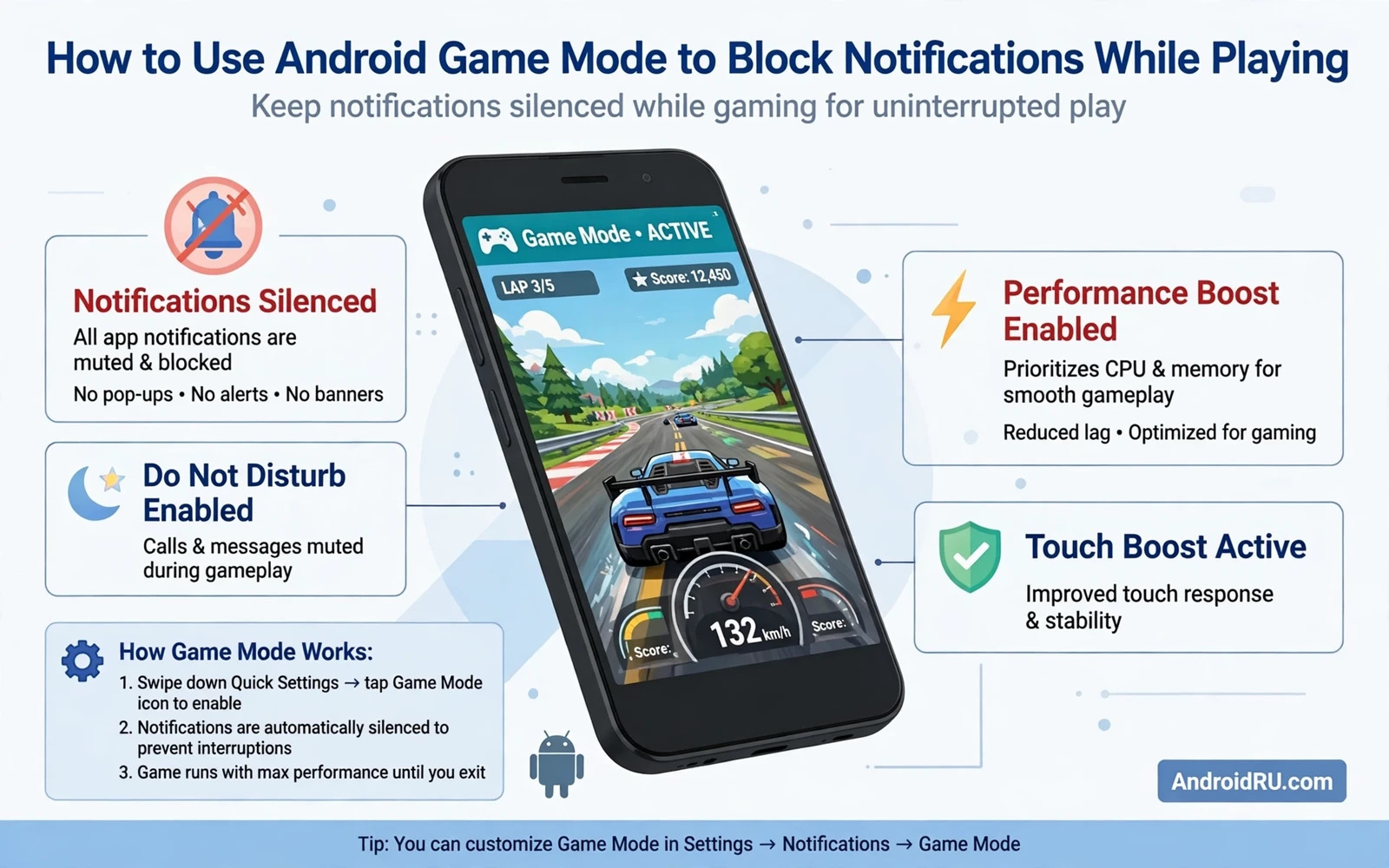
What Game Mode Actually Does
Game Mode is a system feature that tells your phone you are playing and that interruptions should wait. It can silence alerts and calls or hold them quietly until you finish a session. It can also keep the screen bright and stop the phone from dimming during a long match. Some phones add performance tweaks that favour the game over background apps. The exact name and location of the feature varies by phone maker but the goal stays the same.
Blocking notifications is not about ignoring the world forever. It is about choosing when messages reach you. A ranked match lasts only a short time and a single banner can break focus at a critical moment. A story mission can lose its mood when a chat alert pops up during a quiet scene. Game Mode gives you a clean window for play and then lets held messages through when you return to normal use.
Players who love competitive play can pair this habit with the scene in Best Multiplayer Esports Games for Android Competition where focus during team matches matters most. A missed callout because of a banner is avoidable. A lost round because a notification covered the screen is avoidable too. Game Mode removes both risks with one switch.
Finding The Setting On Your Phone
Start in the main Settings app and search for game terms. Try words such as game and gaming and focus and interruptions. Many phones place the feature under a gaming hub or under a digital wellbeing section. Some phones show a floating game toolbar when a game opens. That toolbar often holds the same blocking options in a quicker form. If search finds nothing then your phone maker may use a different name for the same idea.
Open a game after you find the setting and look for a small icon or a sidebar that appears during play. Tap that icon to open game tools without leaving the match. Look for options about notifications and calls and brightness and performance. Turn on notification blocking first and test it with a message from another device. A test message proves the setting works before a real match depends on it.
Some phones let you create a list of games that should always trigger Game Mode. Add your main games to that list so you do not need to remember the switch each time. Remove games you play casually if you want messages during those sessions. A short list that matches your real habits works better than a long list that blocks messages during every quick puzzle break.
Choosing What To Block And What To Allow
Total silence suits ranked play and story immersion. It blocks banners and sounds and vibrations from most apps. Calls can still break through if you allow repeat callers or starred contacts. That exception keeps emergency contact possible while still blocking casual chats. Choose exceptions carefully because each exception is a possible interruption during a tense moment.
Partial blocking suits casual play and social gaming. It can silence social apps while allowing calls and messages from close contacts. It can also allow a voice chat app that your squad uses while blocking everything else. That balance keeps team communication open while still removing other noise. Test partial blocking during a casual match before you trust it in a ranked match.
Alarm and timer behaviour deserves a check as well. Some blocking modes silence alarms by mistake if the setting is too broad. A reminder for an important appointment should still reach you. Check alarm settings after you enable Game Mode and adjust the exception list until alarms behave as you expect. A gaming feature should protect focus without hiding truly important alerts.
Calls Messages And Voice Chat
Calls during a match can pause a game or cover the screen depending on the phone and the game. Game Mode can hold calls quietly or show a small banner instead of a full screen interruption. A small banner lets you ignore the call without losing control of your character. A held call lets you return it after the match with a clear mind. Choose the style that fits your match type and your daily responsibilities.
Voice chat with teammates needs special care because blocking everything can also block squad communication. Allow your voice app explicitly if your squad talks through a separate app. Keep game voice chat inside the game itself when possible because the game already knows you are playing. Test voice chat in a casual match to confirm teammates can hear you and you can hear them while other notifications stay silent.
Players who use a controller should also check controller setup in How to Set Up PS5 DualSense Controller on Your Android Phone so hardware and software work together. A controller session feels best when the screen stays clean and the hands stay free. Game Mode and a good controller together create a focused setup that feels closer to console play.
Performance Battery And Heat
Game Mode can also help performance by limiting background activity during play. Background sync and updates can steal processing power and network attention. Limiting them during a match keeps frame pacing steadier. The effect is modest on powerful phones but it can be noticeable on mid range phones during long sessions. Performance help is a bonus rather than the main reason to use Game Mode.
Battery behaviour during Game Mode needs realistic expectations. Blocking notifications alone does not save a large amount of battery. Screen brightness and game intensity dominate battery use. Lowering brightness to a comfortable level helps more than any notification setting. Closing background video apps before a match also helps because video playback uses far more power than a silent chat app.
Heat can still build during long sessions even with notifications blocked. A phone stand improves airflow and keeps hands cooler. Short breaks between matches help the phone cool and help focus return. Game Mode protects attention. Breaks protect comfort. Both habits together make long gaming evenings sustainable.
Troubleshooting When Messages Still Appear
If a message still appears then check whether that app has an exception in the Game Mode list. Some messaging apps request priority status that overrides blocking. Remove that priority for gaming sessions or move the app to the blocked list. Check whether a second focus mode or a do not disturb schedule conflicts with Game Mode. Two modes with different rules can create confusing behaviour where one mode allows what the other blocks.
If calls still interrupt then check the call handling option inside Game Mode. Some phones offer separate toggles for calls and for notifications. Turning on notification blocking alone may leave calls untouched. Turn on both toggles for ranked play and test with a call from another phone. A quick test before a match prevents a costly interruption during a match.
Optimising the whole phone for play can help further and How to Optimize Android for Gaming: Max FPS and No Lag covers broader tweaks for smooth play. Game Mode handles interruptions. Optimisation handles frame pacing and heat. Together they cover the two most common complaints from mobile players. Apply changes one at a time so you can tell which change helped.
Daily Habits For Focused Play
Create a simple pre match routine. Charge the phone or plug it in for long sessions. Enable Game Mode and confirm the toolbar appears. Close video and download apps that compete for bandwidth. Tell close contacts that you will reply after the match if you expect an important message. That routine takes less than a minute and it prevents most avoidable interruptions.
After a session check held messages in one batch rather than reading each one during play. Batching messages keeps gaming time clean and keeps reply time efficient. It also helps you notice which apps interrupt most often so you can adjust their settings permanently. Over time your phone becomes quieter during play without becoming silent for the whole day.
Game Mode works best as a habit rather than a one time fix. Use it for every ranked match and for story sessions you want to enjoy fully. Skip it for quick casual games where messages matter more than focus. That flexible habit respects both play and daily life and it keeps gaming enjoyable rather than stressful.
Game Mode And Daily Phone Habits
Game Mode works best when it fits a broader phone routine. Set quiet hours for sleep and work so gaming focus is not the only quiet time in your day. Keep messaging apps organised so important contacts stand out when exceptions are allowed. A tidy notification system makes Game Mode exceptions easier to manage because fewer apps demand attention in the first place.
Parents and shared device users can use Game Mode to protect family play time as well. A child playing a story game benefits from blocked chats and popups just as a ranked player does. An adult sharing a tablet benefits from a clean screen during a relaxing session. Game Mode is a focus tool for any age and any game type when interruptions would spoil enjoyment.
Review Game Mode settings after a major system update because phone makers sometimes move gaming features or reset toggles. A quick check after an update prevents a surprise banner during an important match. Update your game list at the same time and remove games you no longer play. A maintained list keeps focus protection accurate and effortless.
A final check before ranked play takes only a minute and prevents most interruptions. Open Game Mode and confirm notification blocking is active. Confirm call handling matches your preference for the match ahead. Confirm voice chat remains allowed when your squad uses a separate app. That minute of preparation protects focus for the whole session and lets you play with confidence.
Game Mode is a small switch with a large effect on enjoyment. Use it consistently for matches that matter and enjoy cleaner focus and calmer play. Your teammates will notice steadier performance and your own sessions will feel more satisfying from start to finish.

