

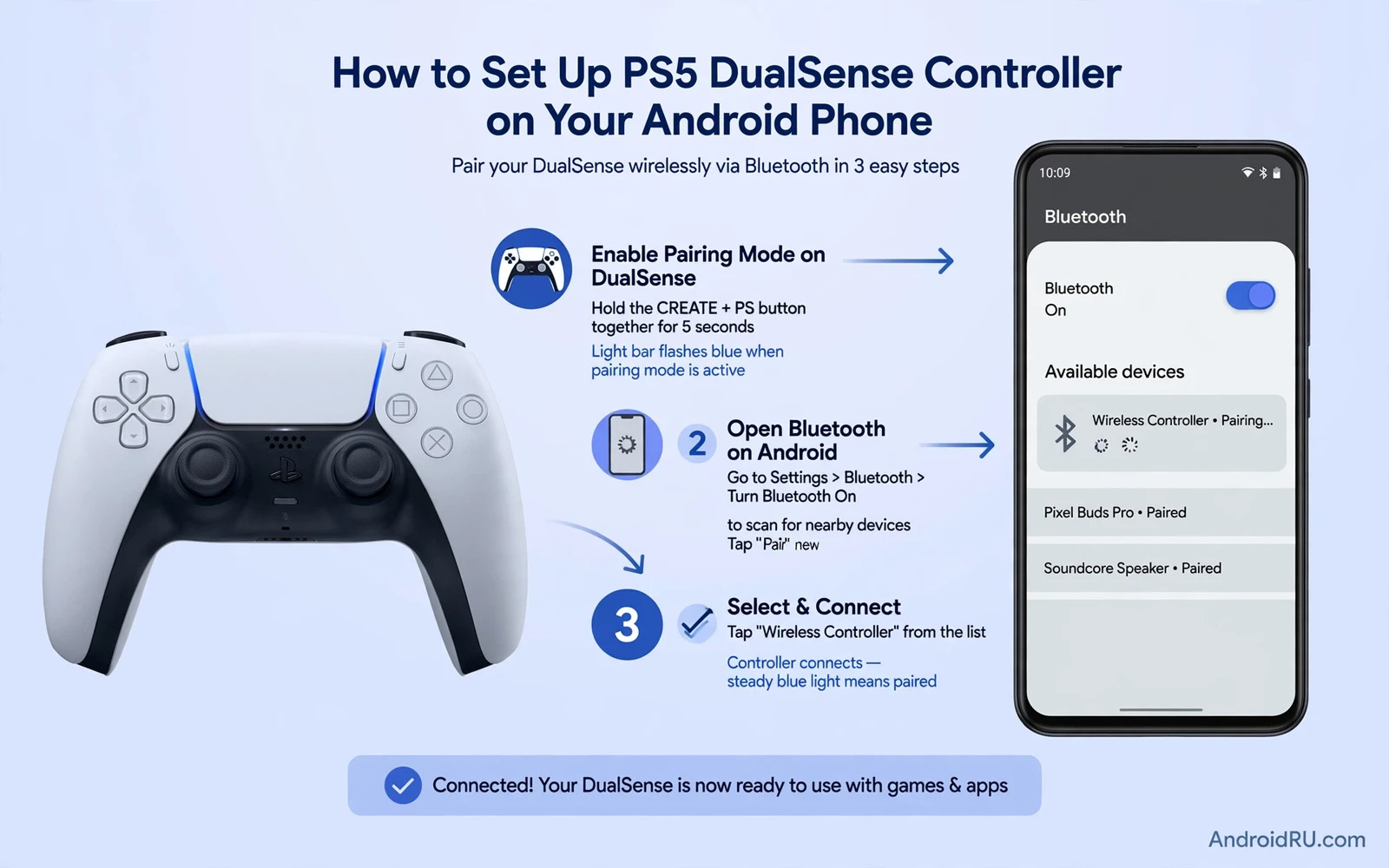
How to set up PS5 DualSense controller on your Android phone opens a more precise way to play. Physical sticks and buttons free the screen from touch overlays. Physical triggers give finer control in driving and shooting games. A controller also reduces finger fatigue during long sessions. Setup is usually simple. Pairing and mapping and testing still deserve care. This article walks through each step in plain language. It also covers common problems and safe habits.
Compatibility varies by game and by Android version. Many modern Android phones support Bluetooth controllers natively. Many games support controllers natively. Some games support controllers only partially. Some games ignore controllers entirely. Check controller support in the game description before you buy or borrow a controller. A game without controller support will not gain support from pairing alone. Pairing connects hardware. Game code decides whether that hardware works inside the game.
Charge the controller before setup. A low battery can drop pairing mid test. A low battery can also cause input lag that looks like a game problem. Use a USB cable that fits the controller port. Charge until the indicator shows a full state. Keep the cable nearby during the first test session. A wired test can rule out Bluetooth interference when problems appear. Wired versus wireless testing is a useful diagnostic habit.
Pairing Over Bluetooth Step By Step
Start on the phone. Open settings and open the Bluetooth section. Turn Bluetooth on if it is off. Keep the settings screen open during pairing. The phone must be ready to discover new devices. A phone that sleeps during pairing may miss the controller signal. Set screen timeout longer for the setup session if needed. Return timeout to normal after setup finishes.
Put the controller into pairing mode. Press and hold the pairing combination for the controller until the light bar blinks in pairing pattern. Keep the controller near the phone during discovery. Distance and walls can weaken the pairing signal. Wait for the controller name to appear in the phone device list. Tap the name to pair. Confirm any pairing prompt that appears. A successful pair shows the controller as connected.
Test basic input right after pairing. Open a game that supports controllers. Move the left stick and watch the character move. Press face buttons and watch actions trigger. Press triggers and watch aim or acceleration respond. Test the touchpad only if the game uses it. Many mobile games ignore the touchpad entirely. A touchpad that does nothing in one game may work in another game. Judge support per game and not across all games.
If pairing fails then restart Bluetooth on the phone. Restarting Bluetooth clears a stuck discovery state. Try pairing again from a short distance. Remove old controller entries that conflict with the new pair. A phone that remembers many controllers can confuse discovery. Forget unused controller entries before a fresh pair attempt. A clean device list reduces pairing errors.
Settings
Bluetooth
Turn Bluetooth on
Put controller in pairing mode
Tap controller name in device list
Test in a controller supported game
The steps above summarize the pairing flow in plain form. They do not replace the on screen prompts on your phone. Follow prompts exactly when they differ by Android version. Menu names can vary by phone maker. Search settings by keyword when a menu looks different. Keyword search finds Bluetooth faster than manual browsing on many phones.
Button Mapping And Layout Testing
Default mapping suits many games. Default mapping may feel wrong in others. Some games let you remap buttons inside settings. Some games lock mapping to a fixed layout. Check mapping options before you judge a game harshly. A remap can turn an awkward layout into a comfortable one. Change one button at a time during remapping. Changing many buttons at once creates confusion about what feels wrong.
Stick sensitivity shapes aim and driving feel. High sensitivity turns fast but overshoots small targets. Low sensitivity aims precisely but turns slowly. Start at the middle sensitivity setting. Play a training mode for several minutes. Adjust sensitivity in small steps. A small step feels minor at first and major after an hour. Record the setting that feels best for each game. Settings that suit a shooter may not suit a racing game.
Dead zones affect stick drift and precision. A dead zone ignores tiny stick movements near center. A large dead zone prevents drift but delays small movements. A small dead zone responds fast but may register drift. Increase dead zone slightly if a character moves without input. Decrease dead zone if small movements feel delayed. Test dead zone changes in a calm area before a competitive match. Calm testing reveals drift without combat pressure.
Trigger behavior matters in driving and shooting games. Some games treat triggers as digital buttons. Some games treat triggers as analog inputs. Analog triggers allow gentle acceleration and braking. Digital triggers give only full or no input. Check trigger behavior in a driving game first. Gentle acceleration control reveals analog support fast. A trigger that feels binary in every game may be limited by game code.
Wired Play And Latency
Wired play can reduce latency and remove battery worry. A USB connection carries input directly to the phone. A wired connection also avoids Bluetooth interference from nearby devices. Check whether your phone supports controller input over USB. Check whether the cable supports data and not only charging. A charge only cable will power the controller but carry no input. A data cable carries both power and input.
Adapters help when ports differ. A USB hub or adapter can connect a controller to a phone with a different port. Choose an adapter that supports data transfer. Test the adapter with a short cable first. Long cables can add clutter without adding benefit. Keep the wired setup tidy to avoid pulling the phone during play. A pulled phone can end a match and damage a port.
Bluetooth latency varies by environment. Crowded Wi-Fi and many Bluetooth devices can increase delay. A quiet room usually gives lower latency than a crowded event hall. Test latency in a training mode. Compare wired and wireless feel in the same game. A difference that you cannot feel in training will rarely matter in casual play. Competitive players should test more carefully because small delays matter at high skill levels.
Battery management matters for wireless sessions. A controller battery lasts many hours under normal play. Vibration drains battery faster. Reduce vibration strength if battery runs low during a session. Turn the controller off after play to save charge. A controller left on overnight wastes a full charge. Store the controller in a dry place away from heat. Heat harms battery health over time.
Games That Benefit Most From A Controller
Action games benefit most from physical controls. Shooting games gain finer aim with sticks. Platform games gain precise jumps with buttons. Driving games gain analog steering and braking. Fighting games gain consistent combos with a directional pad. These genres suffer most from crowded touch screens. A controller restores screen space for the game world. The world itself becomes easier to read.
Story and puzzle games benefit less but still gain comfort. A controller lets you play from a relaxed position. A controller reduces screen smudges during long dialogue scenes. Turn based games work well with either input type. Choose the input that feels comfortable for the genre. Comfort across a long session matters more than theoretical precision in slow games.
Competitive players should check input rules before ranked play. Some games separate controller and touch queues. Some games mix queues and allow any input. Mixed queues can favor controller players in shooting games. Separated queues protect touch players from input imbalance. Ranked rules and team role advice in best multiplayer esports games for Android competition help players who enter team competition with a new controller. Rules knowledge prevents an unfair first ranked experience.
Racing players gain a specific benefit from analog triggers. Gentle braking through a corner beats binary braking in realistic driving games. Arcade racing games may not need analog precision. Test both styles to learn which handling model your favorite game uses. Players who love speed can compare handling models in best Android racing games for speed enthusiasts after they finish controller setup. Handling knowledge and controller setup together improve lap times.
Troubleshooting Common Problems
Input lag is the most common complaint. First test with a wired connection if possible. Wired testing separates Bluetooth problems from game problems. Next close background apps that use Bluetooth or Wi-Fi heavily. Next move closer to the phone and away from interference sources. Next restart both phone and controller. A restart clears temporary connection states. If lag persists in one game only then the game code may be the cause.
Drift causes a character to move without input. Drift can come from stick wear or from a low dead zone. Increase dead zone slightly in game settings. Clean around the stick base gently without forcing the stick. Test drift in a calm menu or training area. Persistent drift across many games points to hardware wear. Persistent drift in one game only points to game settings. Do not open the controller for repair unless you accept warranty and damage risks.
Buttons that do nothing usually signal missing game support. Test the same button in a different supported game. A button that works elsewhere proves hardware health. A button that fails everywhere may need re-pairing. Forget the controller on the phone and pair again. Re-pairing rebuilds the connection profile. If re-pairing fails then test the controller on another device when possible. Cross device testing separates phone problems from controller problems.
Pairing drops during play can come from battery or interference. Check battery level first. Move away from crowded Bluetooth environments. Disable Bluetooth on nearby unused devices during a test. Update phone system software when an update addresses Bluetooth stability. System updates can fix pairing bugs. Players who want a cleaner device state before competitive sessions can apply the same frame rate and connection steps in how to optimize Android for gaming. A clean device state helps both frame rate and connection stability.
Safety Comfort And Care
Comfort protects hands during long sessions. Hold the controller with relaxed grip and straight wrists. Take a break every hour to stretch fingers and wrists. Pain is a signal to stop and rest. A controller that forces a cramped grip may need a different hand position. Try a grip accessory only from a trusted maker. Poor accessories can strain hands more than no accessory.
Children using a controller need time limits and content checks. A controller can make games more immersive and sessions longer. Set play time rules before a long session starts. Check game age ratings and chat settings. Disable voice chat with strangers for younger players when possible. Supervise competitive play until you trust the community tools. Safety settings matter as much as button settings.
Care extends controller life. Avoid drops onto hard floors. Avoid exposure to liquids and dust. Store the controller away from direct sunlight. Clean surfaces with a dry cloth. Avoid harsh chemicals on sticks and buttons. A well kept controller lasts across many phones. A neglected controller develops drift and button faults sooner.
Checklist For A Smooth Setup
- Charge the controller fully before pairing
- Pair over Bluetooth from a short distance
- Test sticks and buttons in a supported game
- Adjust sensitivity and dead zone in small steps
- Test wired play when latency feels high
- Check ranked input rules before competitive play
- Turn the controller off after each session
- Re-pair cleanly when buttons stop responding
PS5 DualSense controller Android setup rewards a calm step by step approach. Pair carefully and test in a supported game. Adjust mapping and sensitivity in small steps. Diagnose lag and drift with wired tests and clean re-pairing. With a comfortable layout and a stable connection your Android phone becomes a capable gaming handheld for action and racing and team play.

