

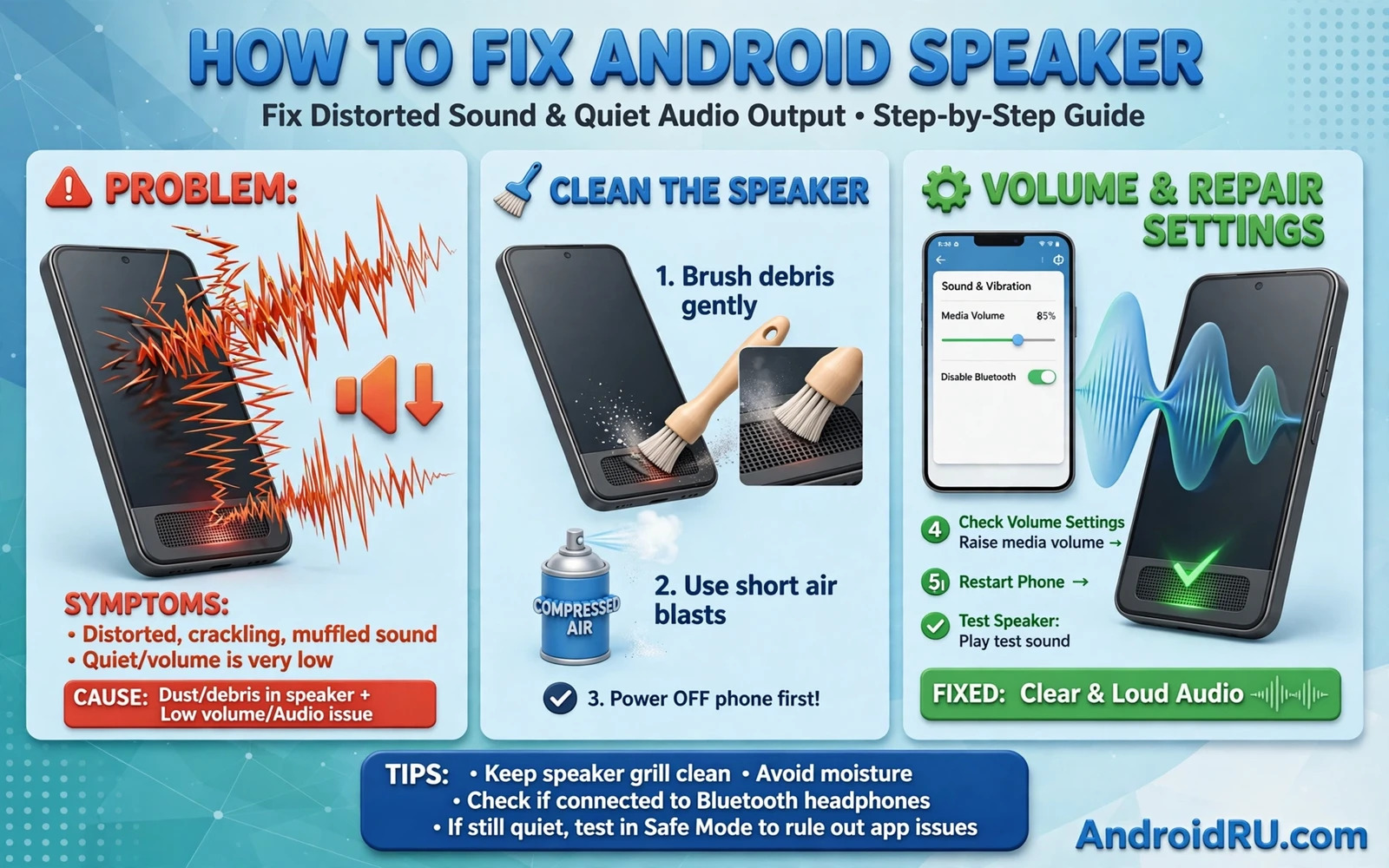
Why A Speaker Sounds Distorted Or Quiet
A speaker that crackles or sounds quiet can ruin music and calls and videos even when the phone looks perfect. Distortion often comes from a blocked speaker grille or a damaged speaker cone or an audio effect that pushes volume too hard. Quiet output often comes from a volume limit or a dirty grille or a setting that routes sound to the wrong output. A single app fault points to that app while distortion in every app points to the speaker or system audio. A calm test separates a simple blockage from a hardware fault.
Start by playing the same audio in two different apps and at a medium volume. Note whether distortion appears in music and in calls and in video alike. Note whether quiet output affects the bottom speaker and the earpiece alike. Note whether sound improves when you remove the case. Those notes guide the next step and they prevent random setting changes. A clear test pattern saves time and money.
Clean The Speaker Grille Safely
Pocket lint and dust collect in the tiny speaker holes at the bottom edge of the phone. That layer muffles sound and it can make a healthy speaker sound quiet and dull. Power off the phone and inspect the grille with a bright light. Use a soft dry brush to sweep dust away from the holes and use a short puff of air from a safe distance. Never push a sharp pin deep into a speaker hole because it can puncture the speaker mesh and damage the driver inside.
Remove the case and test audio again because a case with a poor cutout can cover part of the speaker grille. A case that blocks even a few holes will reduce volume noticeably. Test with the case off and with the case on to compare. If the case is the cause then replace it with a case that has a precise cutout for the speaker. A good case protects the phone without silencing its sound.
Check Volume Limits And Sound Settings
Open Settings and tap Sound and vibration and check the media volume slider. A media volume that sits low will make every app sound quiet even when the ring volume is high. Raise media volume step by step and test with a familiar song. Check for a volume limit or hearing protection setting that caps maximum output. Turn off a limit for one test if you understand the hearing risk and need full volume for a short check.
Check sound enhancement settings such as equaliser presets and Dolby effects if your phone offers them. A strong bass boost can push a small speaker into distortion at high volume. Turn off extra effects for one test and see whether distortion disappears. A flat sound profile often sounds cleaner on a small phone speaker than a boosted profile. Keep effects off if they cause crackling at normal listening levels.
Test Earpiece And Loudspeaker Separately
Play audio through the loudspeaker and then make a test call to check the earpiece separately. A fault that affects only the loudspeaker points to that speaker module. A fault that affects both outputs points to system audio or a setting. Test with wired earphones and with a Bluetooth speaker if you have them. Clear audio through earphones proves that the audio system works and the fault sits in the phone speaker path.
Accessory audio faults can mimic a speaker fault and the pairing steps in How to Fix Bluetooth Pairing Failures on Android Accessories help you rule out a headset or speaker connection. Disconnect all Bluetooth devices and test the phone speaker alone. A phone that sounds clear alone but distorted through a headset has an accessory fault. Reconnect one accessory at a time and test after each one.
Check App And Media Sources
A distorted track may be a poor quality file rather than a speaker fault. Play a high quality track from a trusted source and compare it with the track that sounded bad. A low bitrate file can crackle on any speaker and it can mislead the diagnosis. Test audio in the stock music app and in a video app to rule out a single app audio engine. A fault that follows one file points to the file while a fault in every app points to the phone.
Check whether a single app applies its own volume normalisation or equaliser that distorts sound. Open that app settings and turn off its audio effects for one test. Update the app if a recent update introduced audio trouble. A single app update can break audio for that app alone while the system speaker stays healthy. A clean app test keeps the diagnosis honest.
Restart And Safe Mode Tests
Restart the phone and play audio before you open any other app. A restart clears a stuck audio service and releases an audio effect that was distorting sound. If audio sounds clear after a restart then watch which app you open next because that app may apply a faulty effect. Close background audio apps one by one and test after each close. A methodical close reveals the app that distorts sound.
When a single app keeps misbehaving after a restart the cache steps in How to Fix Camera App Crashing constantly on Android show the same safe pattern for clearing temporary files. Clear cache for the audio app that distorts sound and test again. Safe mode can also help because it blocks third-party audio effects from loading. A clear sound in safe mode points to a third-party app effect as the cause.
Safe audio test
Case off > Grille clean > Media volume up > Effects off > Earphones compare
Water And Physical Damage Checks
Water in the speaker grille can muffle sound badly after rain or a splash. Let the phone dry fully in open air and do not charge it while it is wet. Some phones offer a speaker cleaning tone that pushes water out with sound waves. Use that feature only if your phone model offers it officially. Do not use a hair dryer on high heat because heat can damage the speaker and the battery.
A hard drop can loosen a speaker connection or dent the speaker grille. Inspect the grille for dents and check whether sound changes when you press gently near the speaker area. Do not press hard and do not open the phone yourself. A loose connection needs professional repair and a dented grille may need a replacement part. Back up data before any repair visit.
Update Software And Reset Audio Settings
Check for a system update because an audio driver fix can arrive inside a normal update. Install the update and restart the phone before you test audio again. Reset app preferences if audio routing feels wrong after an update because a reset restores default permissions without deleting personal data. Open Settings and search for reset app preferences and confirm the reset. Test audio after the reset and re-grant permissions only as apps ask for them.
Avoid a factory reset for a speaker fault until hardware tests are complete. A reset cannot fix a blocked grille or a damaged speaker module. Use a reset only when many audio paths fail and when safe mode and cache steps have already failed. Back up fully before any reset. A reset is a system tool and not a speaker repair tool.
When Repair Is The Honest Answer
A speaker that stays distorted after cleaning and after safe mode and after an update likely has a damaged driver. A speaker that stays quiet after a grille clean and a volume check likely has a worn module or a loose connection. Take the phone to a trusted repair shop with a clear note of the tests that you already tried. Ask the shop to test the phone with you present and to play the same audio before and after repair. A clear before and after test proves that the fix worked.
Keep the repair receipt and note the part that was replaced. A documented repair helps if the fault returns within the repair warranty period. Do not accept a speaker replacement for a fault that a cleaning already fixed. A good repair shop will show you the test result and explain the part that failed. A calm repair decision beats repeated software resets.
A Clear Sound Routine For The Future
Keep the grille clean and keep effects modest and keep the case cutouts clear and the touch and display routine in How to Fix Touch Screen Unresponsiveness on Android Phones shows the same gentle maintenance habit for phone hardware. Brush the grille gently every few weeks and check the case fit after you change cases. Review audio settings after each major update because an update can reset an effect. A short routine keeps sound clear for the life of the phone.
Protect The Speaker For The Future
Keep the phone out of dusty pockets and away from sandy beaches without a protective pouch. Dust and sand can enter the speaker grille and muffle sound over time. A pouch costs little and it protects the speaker during outdoor use. A protected speaker stays clear for years.
Avoid playing audio at maximum volume for long periods because a small speaker can distort when pushed hard. A moderate volume sounds cleaner and it protects hearing as well as the speaker. Use a Bluetooth speaker for loud music in a room instead of pushing the phone speaker. A dedicated speaker gives better sound without stressing the phone.
Check the speaker after any drop even if the screen looks fine. A drop can loosen an internal connection without visible damage. Play a familiar song at medium volume and listen for new rattling or distortion. An early check catches a loose connection before it worsens.
Keep the phone dry and wipe it promptly after rain or a splash. Water in the grille muffles sound until it dries fully. Let the phone air dry in an open room and avoid charging while wet. A dry phone sounds clear again without any repair.
Test the speaker with a phone call after a music test because calls use a different audio path on some phones. A speaker that sounds clear for music but poor for calls may have a call audio setting fault. Check call volume separately from media volume in sound settings. A separate call test gives a complete picture of speaker health.
Treat distortion in one app as an app problem and distortion in every app as a speaker or system problem. That simple rule guides every step in this guide. Clean and test and compare with earphones before you consider repair. Your phone speaker should deliver clear sound at a comfortable volume without crackling or strain.

