

Why An Xbox Controller Improves Mobile Play
An Xbox Wireless Controller brings familiar sticks and triggers and buttons to Android games that were designed with gamepads in mind. Physical controls free your thumbs from covering the screen and give finer movement than virtual sticks. Racing games gain smoother steering. Shooters gain steadier aim. Platformers gain more precise jumps. That physical advantage is why many serious mobile players keep a controller in their bag alongside their phone.
Bluetooth pairing also keeps your setup portable. No cable ties you to a desk. No adapter clutters your pocket. A charged controller and a phone can become a capable gaming station on a train or in a park or on a sofa. That portability is the core appeal of mobile gaming with a real gamepad. A few minutes of careful pairing unlock hours of comfortable play across many titles.
Prepare Controller And Phone Before Pairing
Start with a charged controller and a phone with Bluetooth enabled and enough battery for a session. Update your phone system when an update is available because newer Bluetooth stacks often fix pairing quirks. Close games before pairing so a game does not grab partial input during setup. Keep the controller near the phone during pairing because distance and interference can cause a first attempt to fail even when both devices are healthy.
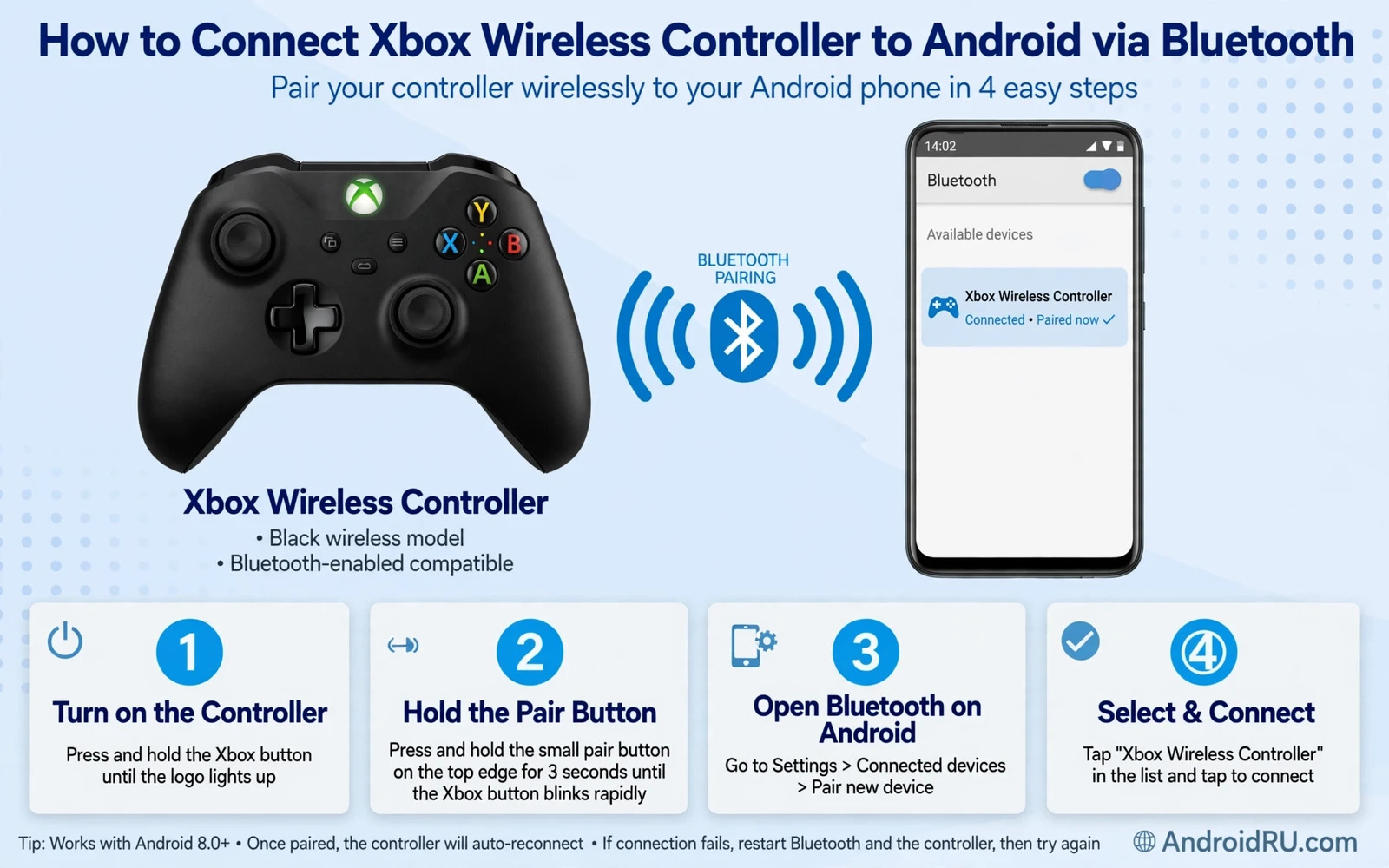
Learn the pairing button location on your controller model before you begin. Most Xbox Wireless Controllers use a small pairing button near the top edge. Pressing and holding that button puts the controller into discovery mode with a blinking light. That blinking light is your signal that the controller is ready to be found. If the light stays solid then the controller may already be paired to another device and needs to enter pairing mode again.
Players who own another popular gamepad can compare pairing habits in How to Set Up PS5 DualSense Controller on Your Android Phone because the same patience and proximity rules apply across brands. Good pairing habits transfer from one controller to the next.
Pairing Steps In Order
Put the controller into pairing mode by holding its pairing button until the light blinks rapidly. Open Bluetooth settings on your Android phone and wait for the controller name to appear in the available devices list. Tap the controller name and wait for the light to turn solid which signals a successful connection. Open a controller friendly game and test sticks and buttons in a menu before you enter a match. That menu test catches mapping problems without match pressure.
If the controller name does not appear then toggle Bluetooth off and on and repeat pairing mode. Move away from crowded wireless environments for the first pairing attempt when possible because many nearby devices can slow discovery. Restart the phone if repeated attempts fail because a fresh Bluetooth stack often clears a stuck discovery state. Patience during first pairing saves repeated frustration later because a clean first pair tends to reconnect smoothly in future sessions.
Reconnecting And Managing Paired Devices
After a successful first pair the controller should reconnect quickly when you power it on near the phone. Turn on the controller before you launch a game so the game detects input at start. If the controller connects to a console or PC instead then it may ignore your phone until you pair again. Manage that conflict by pairing the controller to only one primary gaming device at a time or by re-entering pairing mode when you switch platforms. That habit prevents the common mystery of a controller that works everywhere except your phone.
Remove old pairings when you stop using a controller regularly. A long list of stale Bluetooth devices can slow discovery and cause confusion. Keep your phone Bluetooth list tidy and rename devices clearly when the option exists. A tidy device list makes future pairing faster and troubleshooting clearer. Small housekeeping habits keep wireless gaming smooth over months of use.
Testing Controls Inside Games
Test controls across genres because a layout that works for racing may fail for shooters. In a shooter test aim and fire and reload and crouch in a training mode. In a racing game test steering sensitivity and braking in a practice lap. In a platformer test jump timing and dash precision in an early level. Each test reveals whether sensitivity or button layout needs adjustment before competitive play. Training modes exist for exactly this purpose so use them without embarrassment.
Some games offer native controller support with clear button prompts. Others need button mapping through system tools or in game settings. Learn which category your game falls into before you judge the controller. A game without native support may still play well with mapping but it needs extra setup. A game with native support should feel natural within minutes. Knowing the difference prevents blaming hardware for a software limitation.
Mapping enthusiasts can deepen their setup with the guide in How to Map Controller Buttons on Android Using Keymapper where custom layouts turn awkward ports into comfortable games. Mapping is an advanced skill worth learning once basic pairing feels easy.
Troubleshooting Pairing Failures
A controller that blinks but never appears in the device list often suffers from interference or a low battery. Charge the controller fully and move closer to the phone. A controller that appears but fails to connect may need a forgotten device reset. Remove the pairing from phone settings and pair fresh rather than retrying a broken entry repeatedly. A fresh pairing clears stale keys that block connection.
Input lag deserves separate checks. Test the controller in a simple game to see whether lag affects all titles or only one demanding game. Close background downloads and streaming apps that compete for wireless bandwidth. Keep the phone and controller in clear line of sight when possible because bodies and bags can weaken a Bluetooth signal. Most lag complaints trace to environment or battery rather than to a faulty controller.
Team players who pair a controller for squad matches can learn squad tactics in Best Tactical Shooter Games for Team Battles on Android once their gamepad is stable. A reliable controller lets tactics shine because you stop thinking about input and start thinking about the team.
Battery Mounts And Comfort For Long Sessions
Battery management keeps wireless play enjoyable. Charge the controller between sessions rather than during tense matches. Keep a spare set of batteries or a charging cable ready for long evenings. Low battery warnings during a match can distract you at the worst moment. A full charge before a session is a small ritual that prevents that distraction entirely.
Comfort matters for long sessions too. A phone clip or mount holds the screen at a good angle and frees your hands for the controller. Choose a mount that fits your phone case and balances weight evenly. Take breaks to stretch hands and eyes during long play. A comfortable setup encourages longer healthy sessions while an awkward setup encourages strain and short frustrated play.
When To Use A Controller And When To Skip It
Controllers shine in action and racing and shooter and platformer games where analogue movement matters. They matter less in turn based and puzzle and card games where taps are precise and relaxed. Use a controller when it improves comfort and control. Skip it when touch input already feels perfect. The goal is better play rather than using hardware for its own sake. A thoughtful player matches input method to genre rather than forcing one method everywhere.
Keep your controller firmware and phone system reasonably updated because updates can improve compatibility and fix input bugs. Test after an update in a casual mode before ranked play. A quick test protects your ranking from a surprise mapping change. With pairing mastered and genre matched an Xbox controller becomes a reliable companion for Android gaming wherever you play.
Using The Controller Across Apps
A paired Xbox controller can serve more than games. Media apps and emulators and cloud services may also accept gamepad input for navigation and play. Test each app separately because support varies widely. Some apps map sticks to scrolling while others ignore gamepad input entirely. Knowing which apps support your controller prevents frustration when you switch from a game to a video app. A controller that works across your library feels like a true mobile accessory rather than a single game tool.
Keep the controller ready for spontaneous sessions by storing it charged and within reach of your usual play spot. A controller buried in a drawer will not get used even when it would improve a game. A controller on a desk invites quick sessions during breaks. That availability habit matters more than any advanced setting because the best input method is the one you actually use. Make good hardware easy to reach and it will earn its place in your daily routine.
Controller Care And Long Term Reliability
Controller care starts with storage. Keep the controller in a dry place away from direct heat and heavy objects that press sticks. Sticks pressed for months can drift and buttons can stick. A simple case or shelf spot protects precision over years. Clean the controller occasionally with a dry cloth and avoid liquids near buttons and sticks. Small care habits preserve the precise feel that makes a good controller worth owning.
Battery care matters for wireless reliability. Rechargeable controllers last longest when charged before they run fully empty. Remove disposable batteries during long storage to prevent leakage damage. Keep firmware reasonably updated because updates can fix drift calibration and connection stability. Test after each update in a casual game before competitive play so a surprise change never costs a ranked match.
Know when a controller needs repair or replacement. Persistent drift or unresponsive buttons or failing Bluetooth after troubleshooting signal hardware wear rather than settings problems. A worn controller hurts performance and enjoyment no matter how good your skills grow. Replace worn hardware promptly because reliable input is the foundation of every game you play with it.

