

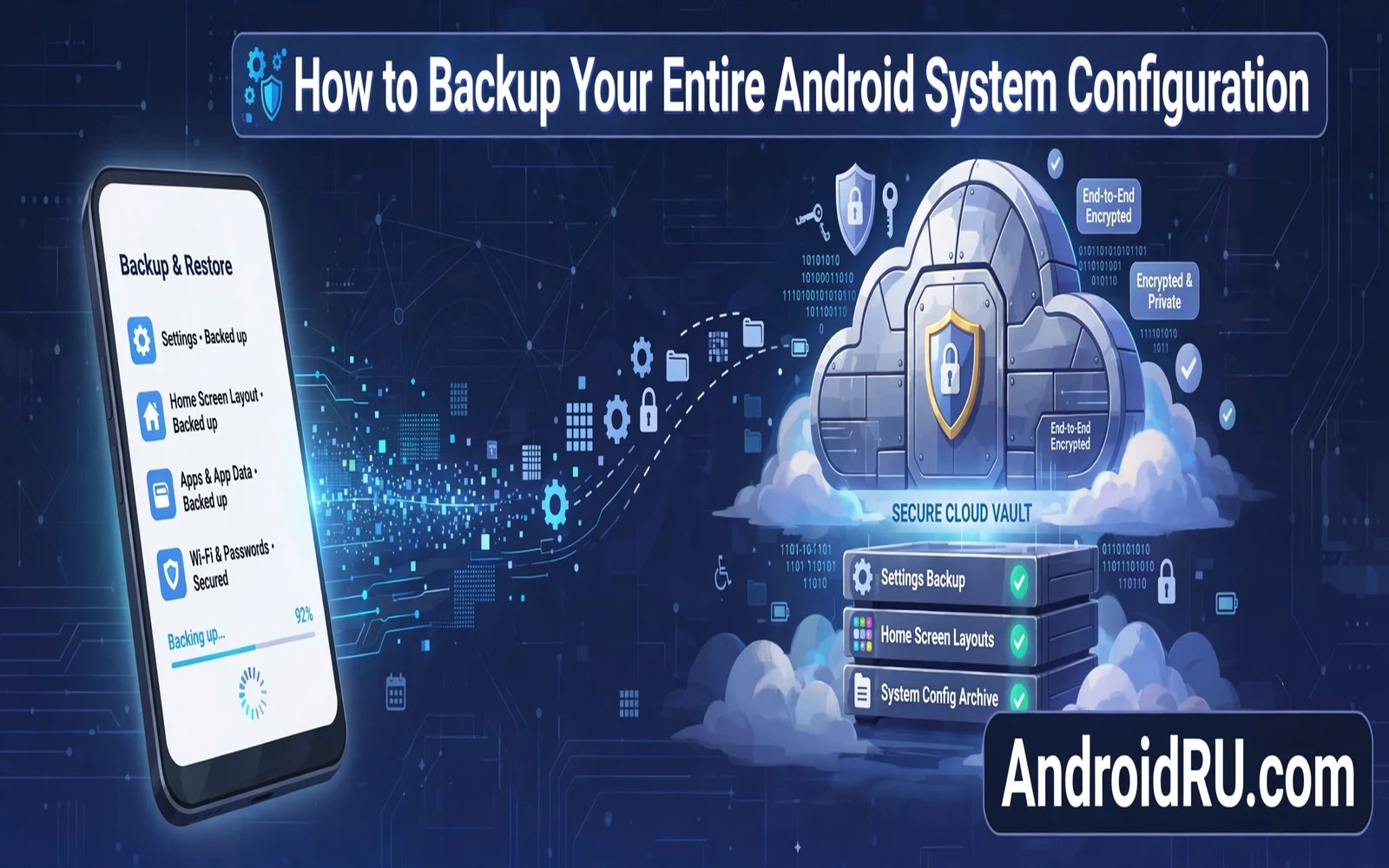
A system configuration backup saves settings and layouts and preferences that make a phone feel personal. It covers Wi-Fi networks and display settings and notification rules and accessibility choices. It covers home screen layouts and launcher settings where the launcher supports export. It does not always cover every app login or every local file. This guide explains how to backup your entire Android system configuration in a complete and realistic way. It separates what cloud backup covers from what owners must save by hand.
Owners usually discover backup gaps at the worst moment after a reset or after a phone loss. A new phone may restore apps yet miss widget layouts and notification rules. A reset may restore accounts yet miss custom ringtones and custom display settings. Those small losses add hours of rework after a stressful event. A planned backup pass before trouble strikes prevents most of that rework. The pass costs under an hour for most owners and it pays for itself at the first restore.
App archiving habits pair well with backup planning because both protect storage without losing useful data. Readers who want that storage angle can explore how Android app archiving saves storage without deleting data before starting a backup pass. Archiving frees space while keeping app data ready for reinstall. A backup pass then protects settings while archiving protects app state. Together they keep a phone lean and recoverable at the same time.
What System Backup Actually Saves
Google backup on Android typically saves system settings and Wi-Fi passwords and call history where the device supports it. It saves app data for apps that opt into backup. It saves SMS history on some devices and with some carriers. It does not save every file in device storage by default. Photos and videos need a separate photos backup choice. Documents and downloads need a separate files backup choice. Owners should verify each category rather than assuming one toggle covers everything.
Launcher layout backup deserves separate attention because system backup may skip it. Many launchers offer an export file that owners can store in cloud storage. That file restores grids and folders and gestures after a reinstall. Widget settings sometimes restore imperfectly even with a launcher backup. Owners should screenshot complex home screens as a visual reference before a reset. A screenshot gives a fast rebuild guide when an automatic restore misses a widget.
Cloud Backup Setup Step By Step
- Open settings and then open system backup settings
- Confirm that backup stays on for the main account
- Check that photos backup uses the wanted quality
- Export launcher layout to cloud storage by hand
- Save two factor recovery codes in a safe offline place
Account choice matters because backups attach to a specific account. Owners with more than one account should confirm which account holds the backup before a reset. A backup under a rarely used account may stay invisible on a new phone. Owners should sign into the backup account first during new phone setup. That order lets the restore prompt appear at the right moment. Owners who skip the prompt may need a second reset to trigger restore cleanly.
Rollback planning belongs beside backup planning because a failed update sometimes forces a return to an earlier build. The guide on how to roll back an Android update to a previous version explains restore points and data risks before any downgrade attempt. A fresh backup before an update gives owners a safe path back. A stale backup turns a rollback into a data loss event. Owners should refresh backups before major updates rather than after trouble appears.
Local Backups And Extra Copies
A local copy adds safety when cloud restore fails or when network access stays limited. Owners can copy photos and documents to a computer through a cable or through local wireless transfer. Owners can export contacts and calendars as files for offline storage. Owners can save authenticator recovery codes on paper in a locked place. Local copies should stay encrypted when they hold sensitive documents. An unencrypted local copy trades one risk for another risk.
Background app behavior can affect backup timing because the system may pause backup work to save battery. The explanation of how Android handles background apps and memory management shows why a backup may wait until charging and Wi-Fi return. Owners who need an urgent backup should plug in the phone and connect to Wi-Fi and trigger backup by hand. That manual trigger avoids waiting for the next automatic window. A manual check after the trigger confirms that backup time updated recently.
Testing A Restore Before Trouble Strikes
A backup that never gets tested is only a hope rather than a plan. Owners can test restore logic without risking the main phone in several ways. A spare phone or a tablet can serve as a restore target during setup. A new user profile on a tablet can reveal what settings restore cleanly. Owners should note every setting that fails to restore during such a test. That note becomes a manual checklist for the real restore day. A short test prevents a long surprise later.
Privacy settings deserve a manual checklist because they shape safety after restore. Notification access and location permissions and default app choices may need review after restore. Owners should recheck permission grants for sensitive apps after any restore. Owners should recheck lock screen notification visibility after any restore. A restore that silently grants broad access would weaken privacy without warning. A five minute permission review after restore closes that gap.
Backup Habits That Survive Phone Switches
The strongest backup habit is a regular calendar reminder rather than a one time effort. A monthly reminder can prompt a backup check and a launcher export and a photos check. A pre travel reminder can prompt a fresh backup before a trip. A pre update reminder can prompt a fresh backup before a system upgrade. Each reminder costs minutes and each one protects years of personal setup. Owners who automate reminders rarely face a stale backup surprise.
A complete configuration backup blends cloud settings and manual exports and visual references. Cloud backup handles system settings and supported app data with little effort. Manual exports handle launcher layouts and contacts and recovery codes. Screenshots handle complex home screens that automatic restore may miss. Together those layers rebuild a phone that feels familiar within hours rather than days. Owners who build those layers now will thank themselves at the next reset or the next phone switch.
Backup Before Major Life Changes
Major life changes create the highest backup stakes because phones hold travel and work and family records together. A phone switch before a move deserves a fresh backup pass. A system update before a big trip deserves a fresh backup pass. A device repair visit deserves a fresh backup pass before handing the phone over. Each event raises the chance of data loss through accident or reset. A backup pass before each event turns risk into a minor inconvenience.
Travel backups deserve special care because roaming and weak networks complicate restore abroad. Owners should complete backups on home Wi-Fi before departure. Owners should carry recovery codes separately from the phone during travel. A lost phone abroad without recovery codes can lock owners out of accounts for days. A paper copy in luggage separate from the phone solves that problem. Travel preparation should treat backup as essential as passport checks.
Work phone backups carry extra weight because work data loss can affect colleagues and clients. Owners should confirm whether work backup policies cover personal settings or only work apps. A gap between work policy and personal need leaves settings unprotected. Owners should fill that gap with personal launcher exports and manual checklists. Work IT guidance should never replace personal backup responsibility. Both layers together protect work continuity.
Restore Checklists After A Reset
A restore checklist prevents the slow discovery of missing settings over weeks. Owners should list notification rules and display settings and accessibility choices before a reset. That list becomes a verification sheet after restore. Owners can tick each setting as they confirm it on the restored phone. A checklist turns restore from guesswork into a systematic pass. Owners who skip checklists often discover missing settings at inconvenient moments.
App login restoration deserves its own checklist section because password managers simplify yet do not solve everything. Owners should confirm password manager restore first during new phone setup. That order unlocks other app logins quickly. Apps with hardware bound logins may need fresh verification steps. Owners should allow extra time for banking and authenticator apps. Rushing those steps creates lockout risk that patience avoids.
Photo and document verification closes a restore pass because media losses hurt most emotionally. Owners should open photo libraries and check recent albums after restore. Owners should open document folders and check critical files after restore. A missing album discovered early can still be recovered from a secondary copy. A missing album discovered months later may be gone forever. Early verification protects memories and important records together.
Backup And Account Security
Backup security depends on account security because backups live under account protection. A weak account password exposes backups to anyone who guesses it. Owners should enable two factor authentication on backup accounts before relying on cloud backup. Two factor protection adds a strong second barrier against account takeover. Owners should also review account recovery options yearly. A backup account without recovery options can lock owners out permanently after a password loss.
Encryption choices add another backup security layer for sensitive files. Owners who store financial documents in cloud backup should check encryption settings. Some services encrypt files in transit and at rest by default. Others offer client side encryption for extra protection. Owners should understand which model their service uses before storing sensitive records. A short settings review prevents false confidence about backup privacy.

