

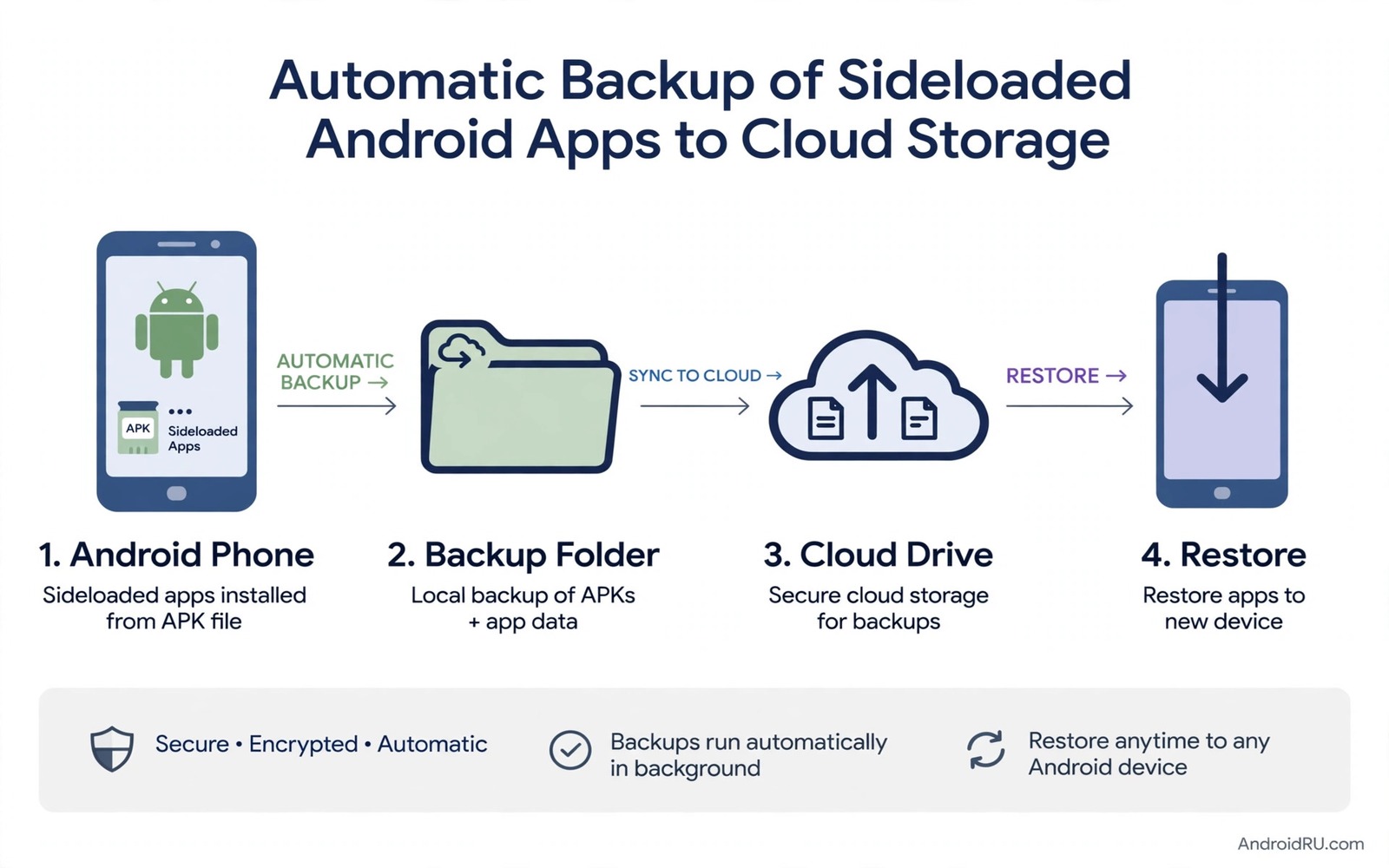
Sideloaded apps are easy to lose. A phone reset or a broken screen or a failed update can wipe them in minutes. The store will not restore apps that never came from the store. A manual backup folder helps but it fails when you forget to update it. An automatic backup solves that problem. It copies your installer files to cloud storage on a schedule. When disaster strikes you restore from that cloud folder instead of hunting for files again.
Automatic does not mean careless. A backup that copies everything without a plan can fill your cloud storage fast. It can also copy old versions and broken files alongside good ones. A good backup plan has a clear folder structure and a version rule and a restore test. It also respects privacy because installer files can reveal which apps you use. This guide builds that plan step by step. If you need a base routine for outside installs first read how to sideload apps safely so your backups start from trusted files.
What To Back Up And What To Skip
Back up installer files for sideloaded apps that you cannot easily get again. Back up the version that works on your phone today. Skip installer files for apps that are still in the store and easy to reinstall. Skip old versions unless you have a reason to keep them. A backup folder full of old versions wastes space and confuses a restore. Keep at most two versions per app. Keep the current version and the previous stable version.
App data is a separate question. Some apps let you export data and some sync to a cloud account. Back up data through the app export or sync feature when it exists. Do not assume that an installer backup also backs up your data. An installer file is the app program. Your notes and settings and files live elsewhere. A complete restore needs both the installer and the data backup.
Design A Folder Structure That Survives Time
Use one top folder for sideloaded backups. Inside it create one folder per app. Inside each app folder create one folder per version. Name folders with the app name and the version number. That structure makes a restore obvious even months later. You will not need to guess which file belongs to which app. A clear structure also makes it easy to delete old versions without deleting the wrong app.
Add a simple text note in each app folder with the source and the date and the checksum if you have one. That note is your future self talking to your present self. It answers the question of where the file came from and whether it is trustworthy. A backup without a source note is a mystery file. Mystery files should not be installed on a new phone without a fresh check.
Set Up Automatic Copying
Most cloud storage apps offer automatic folder sync. Point the sync to your sideloaded backup folder on your phone. Choose a sync direction that copies from phone to cloud. Avoid two way sync for backup folders unless you understand the risk. Two way sync can delete cloud files when you delete a phone file by accident. One way upload is safer for a backup purpose.
- Create one backup folder for sideloaded installers on your phone.
- Organise it by app name and then by version number.
- Turn on one way upload to your chosen cloud drive.
- Set the sync to run on wireless only to save mobile data.
- Keep at most two versions per app and delete older ones.
- Test a restore on a second profile or a spare device.
Check the first sync manually. Open the cloud drive on another device and confirm that the files arrived. Check file sizes against the phone copies. A sync that looks active but uploads nothing is worse than no sync at all. It gives false confidence. A manual check on day one prevents that trap.
Schedule And Storage Limits
Run the backup sync weekly at minimum. Run it after every new sideload if you install apps often. A weekly schedule is enough for most users. A daily schedule is better if you test many apps. Set a storage alert in your cloud app if it offers one. An alert warns you before the backup folder fills your quota and blocks other files.
When storage runs low do not delete randomly. Delete old versions first and then delete installers for apps you no longer use. Keep installers for apps that are hard to find. Delete installers for apps that are easy to reinstall from a trusted store. That priority keeps your backup useful within a limited quota.
Test A Restore Before You Need It
A backup you never tested is a hope and not a plan. Test a restore once after setup. Pick one non critical app and restore it from the cloud folder. Install it and check that it opens and that its version matches your note. If the restore works then your plan is sound. If it fails then fix the folder structure or the sync setting now while you have time.
Test again after a major phone update or a cloud app update. Updates can change sync behaviour or folder paths. A quick restore test after an update catches those changes early. It takes ten minutes and it protects every other backup in the folder. Make restore tests a habit and not a one time event.
Check Backups With Simple Commands
The commands below list installed packages and show details for one app. They help you confirm which version is installed before you back it up. They do not upload anything by themselves. They are checks for your own device.
adb shell pm list packages -f
adb shell dumpsys package com.example.app
adb shell pm path com.example.app
adb shell cmd package list packages
The commands above are original examples written for this guide. They show safe checks you can run on your own device. They do not come from any outside publication.
Privacy And Security For Cloud Backups
Your backup folder reveals your app choices to anyone who can read your cloud drive. Use a cloud account with strong authentication and a unique password. Turn on two factor authentication if the service offers it. Do not share the backup folder link publicly. A public link turns a private backup into a public download.
Consider encrypting sensitive installer files if your cloud service does not encrypt them by default. Encryption adds a step to restore but it protects files if the cloud account is exposed. For most users strong account security is enough. For users with sensitive work apps encryption is worth the extra effort. Judge the level by the apps in your folder.
Review cloud sharing settings every few months. Sharing settings can change after an app update or after a team invite. A folder that was private can become shared by accident. A quick review catches that drift. It also reminds you which folders still need to exist and which can be archived.
Handle Large Backups Without Filling The Cloud
Installer files for games and media apps can be large. A few of them can fill a free cloud quota quickly. Check file sizes before you add a new app to the backup plan. A game installer of several hundred megabytes deserves a decision. Is the game hard to find again or is it easy to reinstall from a store. Only the hard to find files deserve cloud space. Easy files can live in a local folder on a computer instead of the cloud.
Compression can help for some file types but installer files are already compressed in most cases. Zipping them again rarely saves much space. A better saving comes from keeping only one version per large app. The previous version rule that works for small apps is wasteful for large games. Keep the current version only for large files and note the source for a future download. That note is lighter than a second copy and it still gives you a path back.
Split your backup across two cloud accounts only if you can manage both safely. Two accounts double your free space but they also double your security work. You must protect both accounts and remember which app lives where. For most users one well organised account beats two messy ones. Use a local hard drive as a second copy instead of a second cloud account. A local copy plus a cloud copy is a strong pair without extra account risk.
One more habit is to verify cloud files after a phone change. A new phone may sync a different folder or use a different cloud account by default. Open the cloud drive on the new phone and confirm that your backup folder is present and complete. Check a few file sizes against your notes. A backup that exists on the old phone but not on the new phone is not useful in an emergency. That check takes five minutes and it should happen on the day you set up a new device.
Common Mistakes
The most common mistake is backing up installer files without backing up app data. A restore then gives you a fresh app with no data. Always pair an installer backup with a data export or sync where possible. Another mistake is using two way sync for a backup folder. A phone deletion can then delete the cloud copy too.
- Backing up installers but forgetting app data and settings.
- Using two way sync that can delete cloud backups by accident.
- Keeping every old version until cloud storage fills up.
- Never testing a restore until a real disaster happens.
- Sharing a backup folder link publicly without thinking.
People also back up files from untrusted sources without a note. A year later they cannot tell a trusted file from a random file. Add a source note at backup time. That note costs seconds and it saves hours of doubt during a restore.
Frequently Asked Questions
Will a cloud backup restore my app data automatically?
Not usually. An installer backup restores the app program only. App data needs a separate export or sync. Check each app for an export option and use it alongside the installer backup.
How often should automatic backups run?
Weekly is a good minimum for most users. Run a backup after each new sideload if you install apps often. Test the restore after setup and after major updates.
Is it safe to store installer files in the cloud?
It is safe when the cloud account uses strong authentication and the folder is private. Do not share the folder publicly. Consider encryption for sensitive work apps.
Conclusion
Automatic backups turn sideloading from a fragile habit into a durable system. A clear folder structure and a version limit and a restore test make the difference between a folder of files and a real safety net. You do not need a complex tool to start. You need one folder and one sync rule and one test. Your concrete next step is to create your backup folder today and move your current sideloaded installers into app folders by version. For help keeping those installers organised read how to archive downloaded APKs and for extracting current apps explore how to extract installed app packages without root access.

