

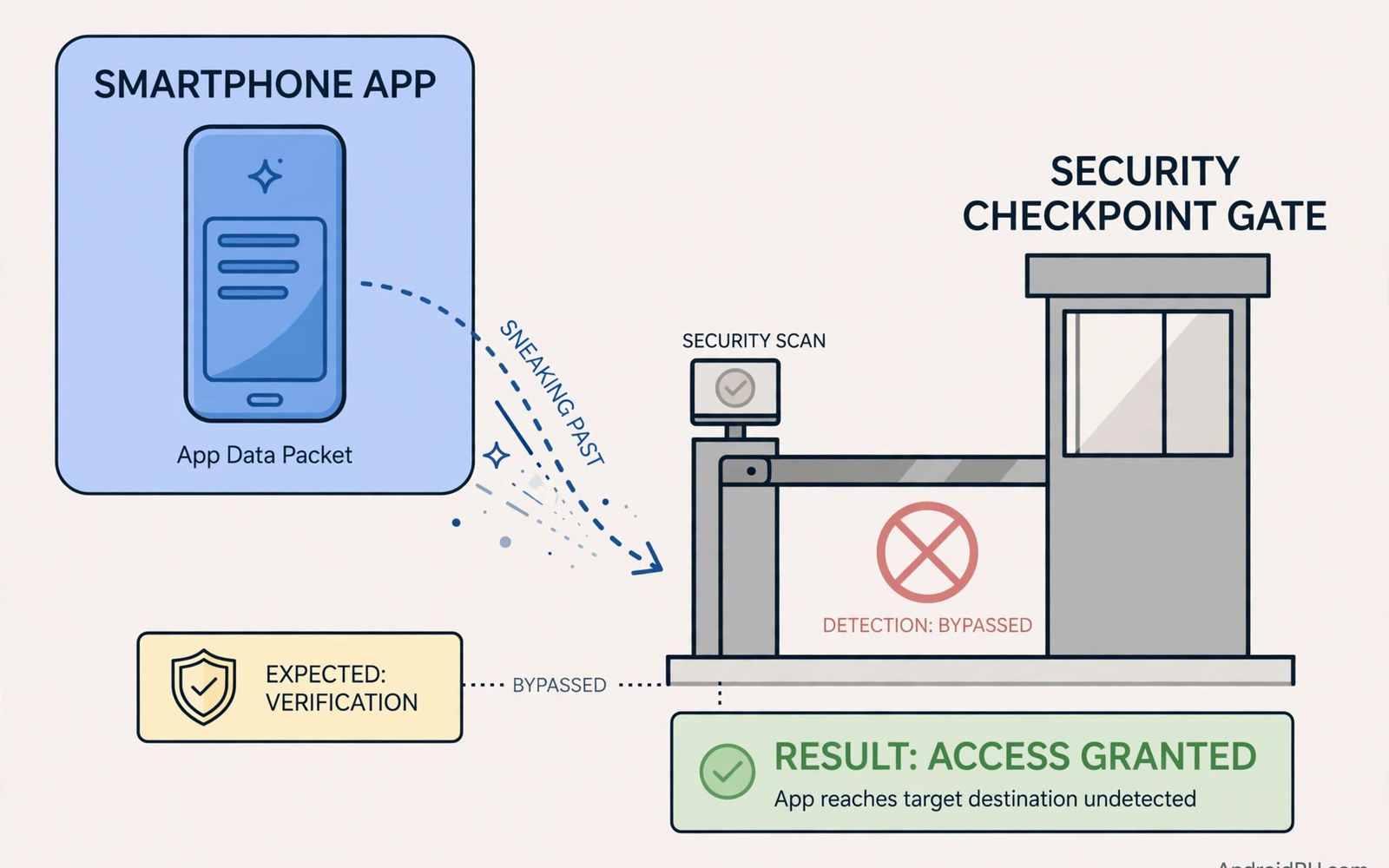
App stores scan millions of apps with automated tools and human review. Those controls catch most bad apps before users see them. Yet some malicious apps still slip through. They do not break the scanner with brute force. They trick it with timing and disguise and patience. They look clean during review and turn harmful only after install. Understanding those tricks helps you spot risky apps before you tap install. It also explains why a store badge alone is never enough proof.
Attackers study the review process like a test. They learn what the scanner checks and what it ignores. They build apps that pass each check on purpose. They hide harmful code in places the scanner rarely looks. They delay harmful actions until days after install. They use real features as cover for data theft. This is a cat and mouse game. Defenders improve scans and attackers adapt quickly. Users sit in the middle of that race. Your own checks add a layer that no automated scan can replace.
Delayed payloads and time bombs
A delayed payload is harmful code that waits before it acts. The app behaves normally during review and for days after install. It shows no ads and steals no data at first. After a set time it downloads a new module or activates a hidden function. The scanner saw only the clean version. The user sees only the clean version at first. By the time the payload activates the app already has permissions and trust. This trick defeats scans that judge an app only at one moment in time.
Some apps use a remote switch to control the payload. The app contacts a server after install and asks what to do next. The server can reply with clean content during review. It can reply with harmful content after the app reaches real users. The app code itself may contain no harmful strings at all. It only contains a generic downloader. Scanners struggle with that design because the harm lives on the server not in the app. Users can spot a clue in permissions. An app that needs no network access for its job should not request it. A simple tool with a remote switch deserves a second look.
Time based triggers also use device signals. An app may wait for a reboot or a charging event or a location change. It may wait until the user opens a banking app. These triggers look like normal app logic to a scanner. They look like normal behaviour to a casual user too. Battery and data checks after install can reveal them. Watch for an app that wakes often at night or uses data with no clear reason. That pattern can expose a delayed payload.
Cloaking and fake identities
Cloaking shows different content to reviewers and to real users. The app checks the device model and location and network. If it detects a review environment it shows a clean version. If it detects a real user phone it shows the harmful version. This trick exploits the gap between test devices and real devices. Review devices often use emulators or a small set of models. Real users own thousands of models. An app that behaves differently by device deserves suspicion. Users cannot test cloaking directly. They can watch for behaviour changes after install that do not match the store description.
Fake developer identities add another layer of disguise. Attackers copy the name and icon of a popular app. They use a similar developer name with a small spelling change. They buy fake reviews to push the app up in search. A busy user may tap the fake app by mistake. Check the developer name letter by letter. Check the install count and the review dates. A new app with thousands of glowing reviews in one week is a warning sign. Real apps build reviews slowly over months. For help checking a suspicious app before install see signs your Android phone is infected and compare the clues.
Abusing real features and permissions
Some malicious apps abuse features that are legal on their own. Accessibility service is a prime example. It helps users with disabilities control the phone. It can also read screen content and automate taps. A bad app can use it to steal passwords as you type them. It can also tap through security prompts for you. The store cannot ban accessibility use outright because real tools need it. Users must judge each request. A screen reader needs accessibility access. A flashlight app does not need it. That judgement is the real defence.
Overlay permission is another abused feature. It lets an app draw over other apps. A useful app uses it for chat bubbles. A bad app uses it to draw a fake login screen over a banking app. You type your password into the fake screen. The bad app captures it and passes you to the real app. The attack feels seamless. The victim sees no glitch. Check overlay permission for every app that requests it. Keep it only for apps that truly need a floating window. Turn it off for all others without hesitation.
- Question accessibility access from any app that is not an assistive tool.
- Turn off overlay permission for apps without a floating window need.
- Check install counts and review dates before trusting a new app.
- Compare the developer name letter by letter with the real brand.
- Watch for behaviour changes in the first week after install.
Code hiding tricks
Attackers hide harmful code with encryption and packing. The scanner sees encrypted blobs instead of readable code. The app decrypts the blob only at runtime on the phone. Static scans cannot read what they cannot decrypt. Dynamic scans may miss the decryption if it waits for a trigger. This technique is also used by legit apps to protect their code. That overlap makes a ban hard. Scanners must run the app and watch its behaviour. Behaviour monitoring helps but it needs time and triggers. A patient threat can outwait a short test run.
Some apps split harmful logic across many small pieces. No single piece looks harmful alone. Together they form a data theft chain. One piece reads contacts. Another piece reads messages. A third piece sends data. A scanner that judges each piece alone may miss the chain. A user who reviews permissions together can see the chain. An app that reads contacts and messages and location and files has broad reach. Ask why one app needs all of those at once. A narrow app with a clear job is safer than a broad app with vague promises.
Updates are another hiding place. An app can pass review as clean and then update to a harmful version. The update may come through the store or through a side channel. Store updates face review again but a side channel update may not. Turn off unknown install sources to block side channel updates. Keep automatic updates on for store apps so patches arrive fast. If an app changes behaviour after an update then review it again. A trusted app can turn risky after an ownership change or a bad update.
Fake reviews and ranking tricks
Fake reviews inflate trust fast. Attackers buy batches of five star reviews with generic praise. They may also post fake negative reviews on rival apps. A user who reads only the star rating will be misled. Read the text of reviews with care. Look for specific details about real use. Generic praise repeated many times is a warning sign. Look at the dates too. A flood of reviews in a few days after launch is unnatural. Real growth spreads over weeks and months.
Search ranking tricks also push bad apps into view. Attackers stuff keywords into the title and description. They copy the name of a popular app with a small change. They use an icon that looks almost identical to a trusted app. A quick tap in a hurry can install the wrong app. Slow down on the store page. Read the full developer name and the full app name. Check the install count and the update history. For a removal routine if a bad app slips through see removing spyware and adware step by step and act fast.
What users can check before install
Start with the permission list on the store page. Match each permission to the core job of the app. A photo app needs camera and storage access. It does not need message access or call access. A mismatch is a reason to pause. Look for a clear privacy policy link. A missing policy from an app that handles personal data is a warning. Check the update history for gaps and sudden changes. A long gap followed by a major change can signal new ownership.
Check the developer page for other apps. A real developer often has a small portfolio with a consistent style. A fake developer may have one clone app and nothing else. Search the web for the app name plus scam or malware terms only if you already suspect it. Do not rely on a single review site. Use the store page itself as your main evidence. If doubt remains then skip the app. A safer alternative almost always exists. For fake banking clones in particular see identifying fake banking apps before you enter any login.
Keep a personal install log
A short install log helps you trace a bad app weeks later when symptoms appear. Write the app name and the install date and the permissions you granted. Note the source of the install as well. A log with ten entries fits on one screen and takes seconds to maintain. When a symptom appears you can compare its start date with your log. The app installed just before the symptom is your prime suspect. Without a log you must guess across dozens of apps. With a log you test one suspect first. That simple habit turns a long hunt into a short check. Keep the log in a notes app that you trust and review it monthly.
Before install checklist:
Permissions match the core job? Yes or No
Developer name matches the real brand? Yes or No
Reviews spread over months? Yes or No
Privacy policy present? Yes or No
If any answer is No then skip the app
The steps above follow the approach described in the official developer documentation for Android security and app permissions. That guidance stresses least privilege and careful review of powerful permissions. It also stresses transparency about data use. Apply those tests to every install and not only to apps that look suspicious.
Store controls catch most threats but they cannot catch every trick. Delayed payloads and cloaking and fake reviews exploit the limits of any review system. Your checks close the remaining gap. Pause before install and read permissions and developer details. Watch behaviour in the first week after install. Remove fast when behaviour changes. That routine keeps you safe even when a bad app slips past the gate.

