

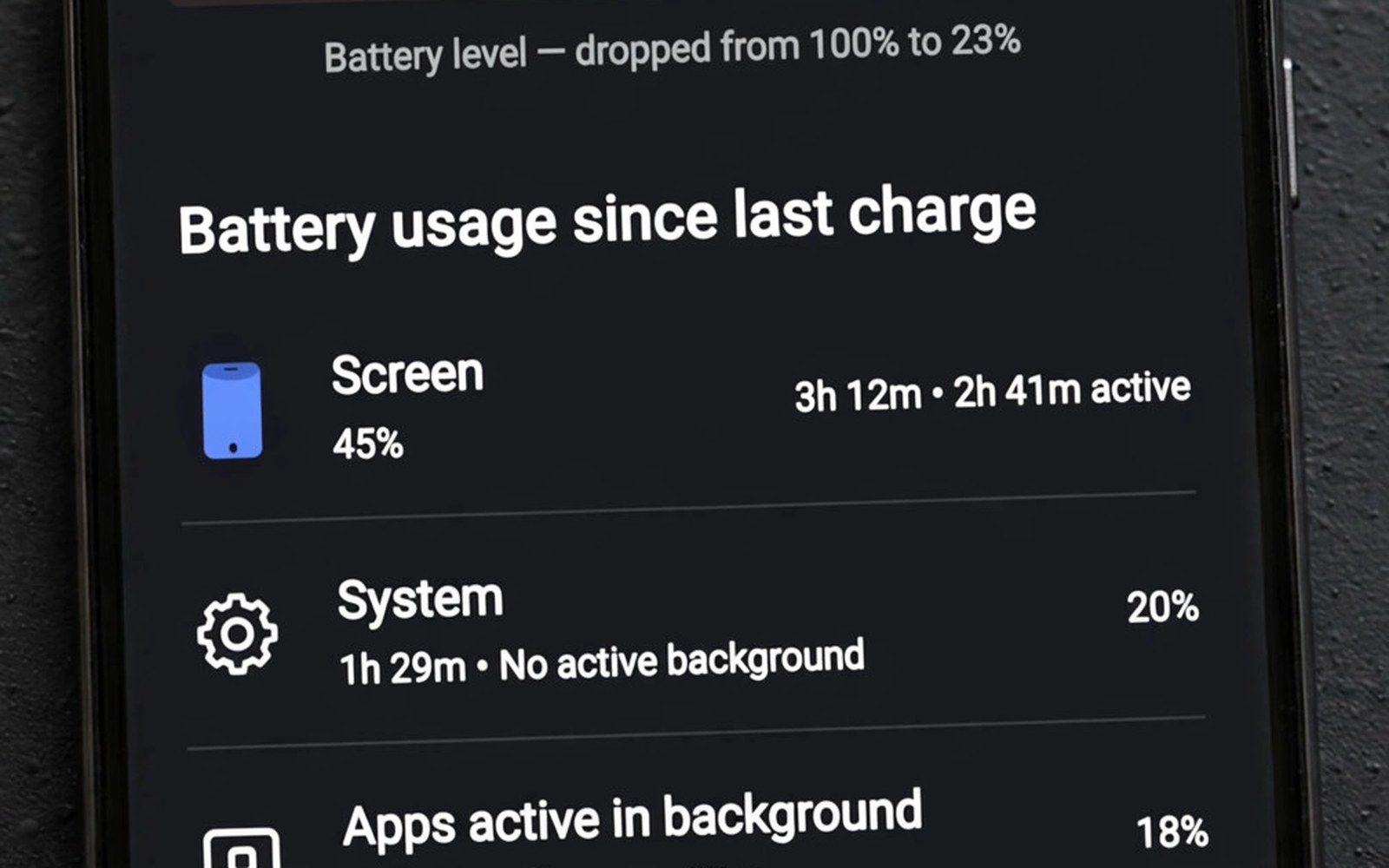
Battery drain analysis is a detective tool for spyware. Spyware works in the background. Background work costs power. The battery screen records that cost per app. A spyware app will often top the battery list. A legit app will top it only when you use it heavily. Comparing battery use with screen time reveals the difference. This guide shows how to analyse drain and find hidden spyware with that comparison.
Start by understanding normal battery use. Screen time uses the most power. Video and games use more than reading. Navigation uses GPS and screen together. Those uses drain fast and that is normal. Background sync uses less power but it adds up. A mail app syncs often and that is normal. A spyware app records and uploads often. That work drains more than sync. It also happens when you do not use the phone. That timing is the key clue. Drain while idle points to background work.
Open the battery screen and read rankings
Open battery settings and view usage since the last full charge. The list ranks apps by total power use. Read the top five first. Ask for each app whether you used it heavily today. A video app at the top after a long watch session is normal. A tool app at the top after a quiet day is not normal. Tap the top app for details. View its screen time and its background time. Those two numbers tell the story. High screen time explains high use. High background time with low screen time does not explain it.
Check the time period for the ranking. Some phones show usage since last charge. Others show usage for the past day. A ranking since last charge can span two days. A ranking for the past day is easier to match to activity. Note the period before you judge. A top app over two days may reflect yesterday heavy use. A top app in the past few hours reflects recent work. Match the period to your memory of use. That match prevents false accusations.
Look for apps with no screen time at all. An app with zero screen time but high battery use ran fully in the background. That pattern fits spyware well. It also fits a stuck sync task. Check the app job before you judge. A backup app may run with no screen time during a backup. A spyware app runs with no screen time every day. A one day background spike may be a backup. A daily background pattern is a spyware clue. Watch for a week to tell them apart.
Compare background time with screen time
Background time is the most useful spyware signal. Open app details and compare the two times. A healthy ratio for most apps favours screen time. A chat app may have moderate background time for sync. A spyware app inverts the ratio. It has hours of background time and minutes of screen time. That inversion deserves investigation. Note the exact numbers for suspects. Numbers beat impressions when you decide to remove an app.
Check background time at night specifically if your phone shows it. Spyware often works at night when the user sleeps. It uploads recorded data during quiet hours. A tool app with night background time is suspicious. A mail app with night sync time is normal. The difference lies in the app job. A tool has no night job. A mail app has a night sync job. Judge background time against the job not against an absolute number. Every app has a different normal level.
Use a simple test to confirm a suspect. Restrict its background activity in battery settings. Set it to restricted mode. Use the phone normally for a day. If battery life improves a lot then the suspect was a major drain. If battery life stays the same then another cause remains. Restore the app setting if a feature breaks. A restricted test is safe and reversible. It gives evidence without deletion. Use it before you delete a useful app on a guess.
Separate spyware drain from other causes
Old batteries drain fast for hardware reasons. A battery with low health loses charge quickly regardless of apps. Check battery health in settings if your phone shows it. A health below eighty percent explains fast drain. A swollen battery needs replacement at once. Do not blame apps for a hardware problem. Do not ignore a hardware problem by deleting good apps. Hardware and software both deserve a check.
Weak signal also drains power fast. A phone in a low signal area boosts its radio to stay connected. That boost drains battery even with no apps running. Check signal conditions on drain days. A day in a basement explains drain. A day at home with full signal does not explain it. Note signal in your drain log. That note prevents false spyware claims. For a tracking method that includes signal see tracking battery and data spikes and use its timeline.
System updates and app updates also drain power for a day. An update may reindex files or resync data. That work drains battery temporarily. A drain spike on update day is normal. A drain spike every day after an update is not normal. Wait two days after an update before you judge. Patience separates a temporary spike from a spyware pattern. A spyware pattern persists. An update spike fades.
Analyse data alongside battery
Battery drain plus data use together form a strong spyware signal. Spyware must upload what it records. That upload uses data. Check data use for battery suspects. A suspect that tops both lists is a prime candidate. A suspect that tops only battery may be a stuck task. A suspect that tops only data may be a sync task. Both lists together filter false suspects. Use both screens in every analysis.
Check background data specifically for suspects. Background data means network use while the app was not open. A spyware app uploads in the background. A legit app may also sync in the background. The job test applies again. A tool app with high background data has no sync job. A mail app with high background data has a sync job. Judge background data against the job. A mismatch on both battery and data is a strong case for removal.
- Rank apps by battery use and note screen versus background time.
- Restrict background activity for a suspect and test for a day.
- Check battery health and signal before blaming any app.
- Compare battery suspects with data use suspects together.
- Remove one suspect at a time and watch charts after removal.
Remove a spyware suspect safely
Remove the prime suspect in safe mode if normal removal fails. Safe mode blocks it from running while you delete it. Revoke its admin rights first if uninstall is blocked. Revoke its accessibility service in the same session. Check for partner apps after removal. A spyware app may use a partner to reinstall itself. Remove both in one safe mode session. Restart in normal mode and watch battery charts for two days.
After removal run a built in scan. A clean scan supports your analysis. Watch battery life for a week. A clear improvement confirms the diagnosis. No improvement means another suspect remains. Return to the battery ranking and test the next app. This iterative method finds the true drain source. It avoids bulk deletion of good apps. For a full removal order see removing spyware and adware step by step and follow it after analysis.
Change passwords after spyware removal if the app had broad access. A spyware app with message or contact access may have stolen data. Change email and banking passwords from a clean device. Enable two factor authentication where offered. Watch statements for strange activity. For camera and microphone spyware signs see signs your camera or microphone is monitored and audit sensors too.
Keep battery analysis as a monthly habit
Check battery rankings once a month even when the phone feels fine. A monthly check catches spyware early. It takes five minutes. Open battery settings and read the top five. Check background time for any new top app. Restrict background activity for tools that do not need it. That habit keeps drain low and spyware visible. A phone with a monthly audit is a hard target for hidden apps.
Keep a short drain log for the monthly check. Write the date and the top app and its background time. Compare logs month to month. A new top app in a new month deserves a look. A stable top list with familiar apps is a good sign. Logs turn a one time check into a trend. Trends reveal spyware that a single day hides. A trend of rising background time for one app is an early warning. Act on it before drain becomes severe.
Log drain trends over a month
A month long drain log reveals spyware that a single day hides. Write the top battery app and its background time each evening. After thirty days review the log as a whole. A spyware app will appear near the top on most days. A legit heavy app will appear only on days you used it heavily. That contrast is clear in a month log. A single day log cannot show it. Keep the log in a notes app with dates. Review it on the first day of each month. A monthly review takes ten minutes and it catches slow spyware early.
Compare month logs with each other as well. A new app that enters the top five in a new month deserves a check. A familiar app that climbs steadily over months deserves a check too. A steady climb may reflect a new background feature. It may also reflect a new tracking module. Check the app update history for a climb date. An update that matches the climb explains it. A climb with no update is suspicious. That timeline test separates feature changes from hidden tracking.
Battery spyware analysis:
Battery > Top 5 > Screen time vs Background time
Suspect = high background + low screen + tool job
Test: Restrict background > Watch 1 day
Act: Safe mode remove > Rescan > Watch charts 2 days
The steps above follow the approach described in the official developer documentation for Android security and app permissions. That guidance stresses background limits and user control over battery use. It also stresses least privilege for apps that run in the background. Use those controls monthly for best results.
Battery drain tells a story about hidden work. Read rankings with screen time and background time together. Separate hardware and signal causes from spyware causes. Compare battery with data for a stronger case. Remove suspects one by one and verify with charts. That analysis turns a draining phone into a clean phone with a named cause and a proven fix.

