

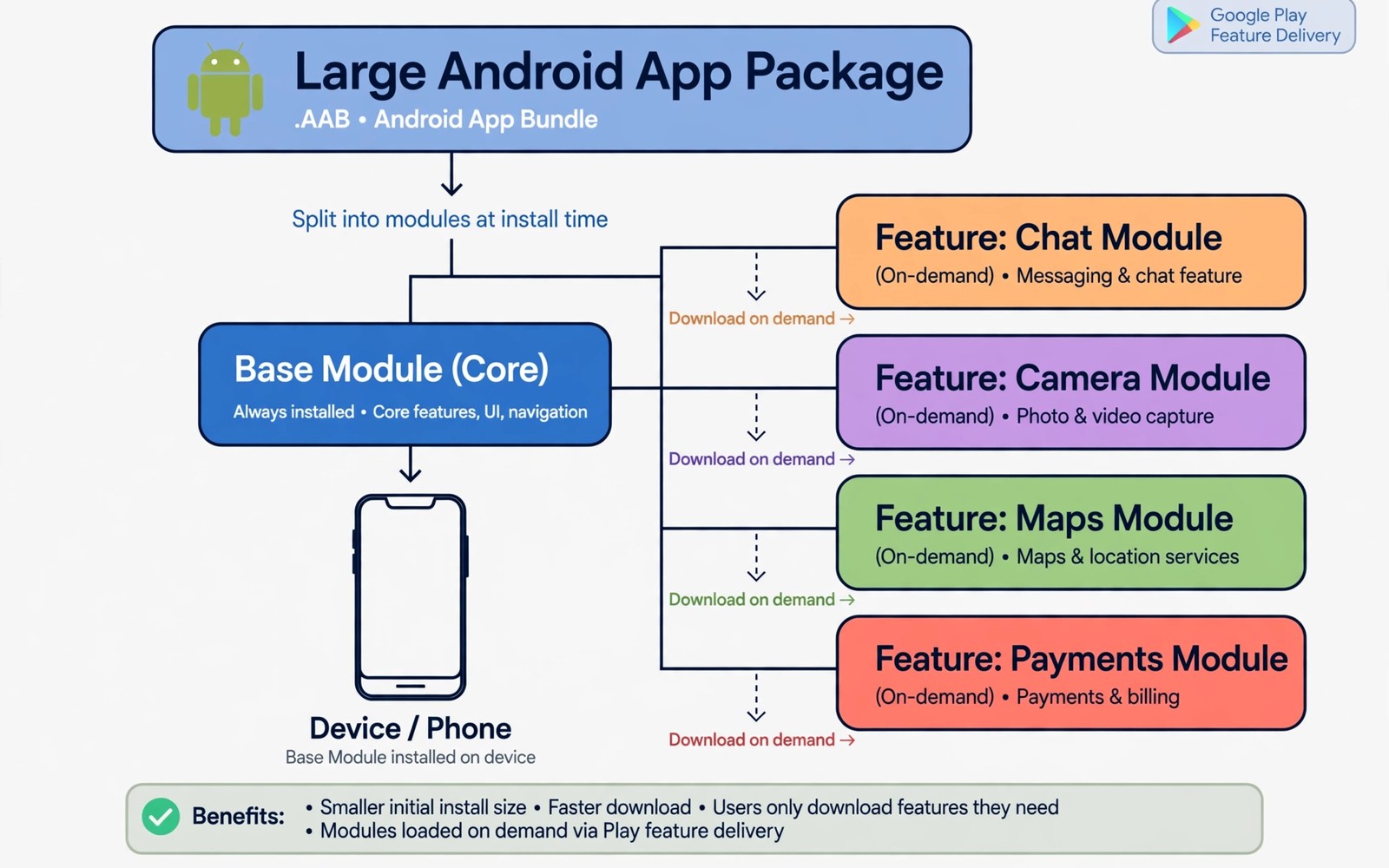
Modern Android apps often arrive as a set of modules rather than one giant file. The base module installs first and extra features download later when you need them. This split keeps the initial download small and it lets a device skip features it will never use. Understanding this flow helps when an install stalls or a feature refuses to open. The tips on managing sideloaded apps on tablets and foldables also matter here because module behaviour can differ on larger screens.
A split install is not a set of separate apps. The modules share one identity and one set of permissions and one data folder. The system treats them as parts of a single app even though files arrive at different times. That shared identity is why a missing module can block a feature while the rest of the app still works.
What the base module carries
The base module carries the code and resources needed to launch the app and show its main screens. It includes the core layout and the main navigation and the essential strings for the default language. Everything else can wait until the user asks for it. A small base module means faster installs and less wasted storage.
Languages and screen densities often ship as separate splits as well. A device downloads only the language it uses and only the image sizes it needs. This selective download explains why two phones may install different file sizes for the same app. The app still feels complete because the system hides the split from the user.
How on demand features download
When you tap a feature that lives in an optional module the system checks whether that module is present. If it is missing then the system requests it in the background and shows a loading state. If the network fails then the feature shows a clear error instead of crashing. A good app explains the wait rather than freezing the screen.
Some modules download only on Wi-Fi by default while others allow mobile data with user approval. That policy protects users from surprise data use but it can delay a feature on a mobile connection. Check your download settings when a feature stays stuck on loading. A simple setting change often unblocks it.
Why installs sometimes fail partway
A split install can fail when storage runs low during a module download. It can also fail when a module version does not match the base version. Mismatched modules are a common cause of crashes after a manual install from separate files. Installing all parts from one consistent set prevents most of these failures.
Manual installs need extra care because the system expects a complete and matching set. Mixing files from different releases may install yet break a feature later. The safety advice in the master playbook for safe sideloading and distribution stresses consistent sets for exactly this reason. When in doubt reinstall the full set from one source.
A split install flow in plain steps
The outline below shows the order of events during a typical split install. It helps you spot where a failure happens when a feature will not open.
Step 1: install base module and core resources
Step 2: install language and density splits for this device
Step 3: launch app from base module only
Step 4: user opens optional feature
Step 5: system downloads feature module if missing
Step 6: feature opens once module verification passes
The code above is an original example written for this guide. It shows one practical way to apply the idea in this article. You can adapt the wording and the values to fit your own phone and your own routine.
Test module downloads on a slow connection
Module downloads behave differently on a slow connection than on fast Wi-Fi. A feature may show a spinner for a long time and a user may tap repeatedly in frustration. Test optional features on a throttled connection to see how the app communicates the wait. A progress message and a cancel option improve patience far more than a silent spinner. Users accept waiting when they understand what is happening.
Data settings also shape module downloads on mobile networks. Some systems pause large modules until Wi-Fi returns while others ask for approval before using mobile data. Test both cases so you know what users will see in each situation. Document the behaviour for support questions because users often report a paused download as a broken feature.
Storage pressure adds another failure mode during module downloads on busy phones. A module may start downloading and then fail when free space runs out. Test with low storage to see whether the app reports the problem clearly. A clear storage warning beats a generic error every time. The backup habits in backing up app settings before downgrading APKs also protect settings when a reinstall becomes necessary. Clear errors plus safe backups reduce support pain.
Plan storage for modular apps
Modular apps can grow quietly as optional features download one by one. Check total app storage after a month of use rather than only at install time. You may find that features you tried once still occupy space long after you stopped using them. Some systems allow removal of unused modules while others keep them until the app is reinstalled. Knowing the behaviour helps you plan storage on a smaller device.
Avoid installing every optional feature just to see what it does. Each trial adds storage and update burden even when the feature proves useless. Try one feature at a time and remove or ignore the rest. A modular app rewards selective use because it only grows around the features you truly need.
Revisit module use after major app updates because an update may add new optional features or change download defaults. A short storage check after each major update catches growth early. Pair that check with a quick test of your core features so updates never surprise you twice. Storage planning is a small habit with a large payoff on phones with limited space.
Understand updates for modular apps
Updates for modular apps do not always arrive as one package, which can confuse users who expect a single download. The base module may update first while optional modules update later in the background. During that window, a feature may behave oddly until its module catches up. Waiting a short time after a base update often resolves strange behaviour without any action from the user.
Update size also varies with modules, because a device only downloads modules it already uses. A user who tried many features will download a larger update than a user who only uses core screens. This difference is normal and it does not mean one device received a broken update. Check which features you use when comparing update sizes with friends.
Rollback becomes more complex with modular apps, because rolling back the base alone may leave newer modules in place. That mix can cause crashes that look unrelated to the rollback. When a rollback is necessary, restore the full matching set rather than only the base file. A complete set keeps version relationships intact and avoids a second round of troubleshooting.
Developers can reduce update confusion by showing a simple update note inside the app. A note that says optional features will update in the background sets expectations clearly. Users who understand the process will wait patiently instead of reinstalling the app in frustration. Communication is part of good modular design, not an optional extra.
Explain split installs to users in plain words
Most users do not know what a module is, and they do not need a technical lecture to use a modular app well. Explain the idea as extra parts that arrive when needed, similar to downloading a new level in a game. A familiar comparison makes the concept clear without jargon. Users who understand the idea will wait for a download instead of reporting a bug.
Support messages should also use plain language when a module fails. Say that an extra part failed to download and suggest checking storage and network, rather than naming internal module codes. Plain wording reduces confusion and it helps users take the right first step. Technical codes belong in logs, not in user facing error screens.
App store listings can help by stating the initial download size and noting that extra features download later. Honest size information prevents surprise storage use after install. Users on small storage phones especially appreciate knowing that the first download is only the beginning. Transparency about size builds trust before the first launch.
Common mistakes
The most common mistake is installing only the base file and expecting every feature to work. Optional features need their modules and they will fail without them. Another mistake is mixing module files from different app versions. Version mismatch causes subtle crashes that look random.
- Do not install a single split file when the app needs several matching parts.
- Do not ignore low storage warnings during a module download.
- Do not force a feature open repeatedly while its module is still downloading.
- Do not blame the whole app when only one optional module failed to install.
A final mistake is clearing app data to fix a missing module. Data clearing does not restore a missing file and it may delete your settings. Reinstall the matching module set instead.
Frequently asked questions
Why is the same app smaller on one phone than another?
Devices download only the splits they need such as language and screen density. A phone that uses one language and one density gets a smaller set. The app still works fully because unused splits are never needed.
Can I use an app while an optional module downloads?
Yes for features that live in the base module. Only the feature tied to the missing module waits. The rest of the app should remain usable during the download.
What should I do when a feature never opens?
Check storage and network first and then reinstall the full matching set of files. A clean reinstall fixes most mismatch problems. Avoid mixing files from different releases.
Module management also improves when you keep a simple note of which optional features you use most. That note helps you decide which modules deserve storage and which can wait for a future need. A short usage note turns a technical split install into a personal storage plan. Review the note after major updates, because feature use changes over time.
Conclusion
Dynamic feature splits keep Android installs lean by delivering the base app first and optional features on demand. Knowing this flow helps you diagnose stalled features and avoid mismatched manual installs.
Your concrete next step is to check one app that uses optional features and note which features download on demand. Test one such feature on Wi-Fi and confirm it opens cleanly before you rely on it.

