

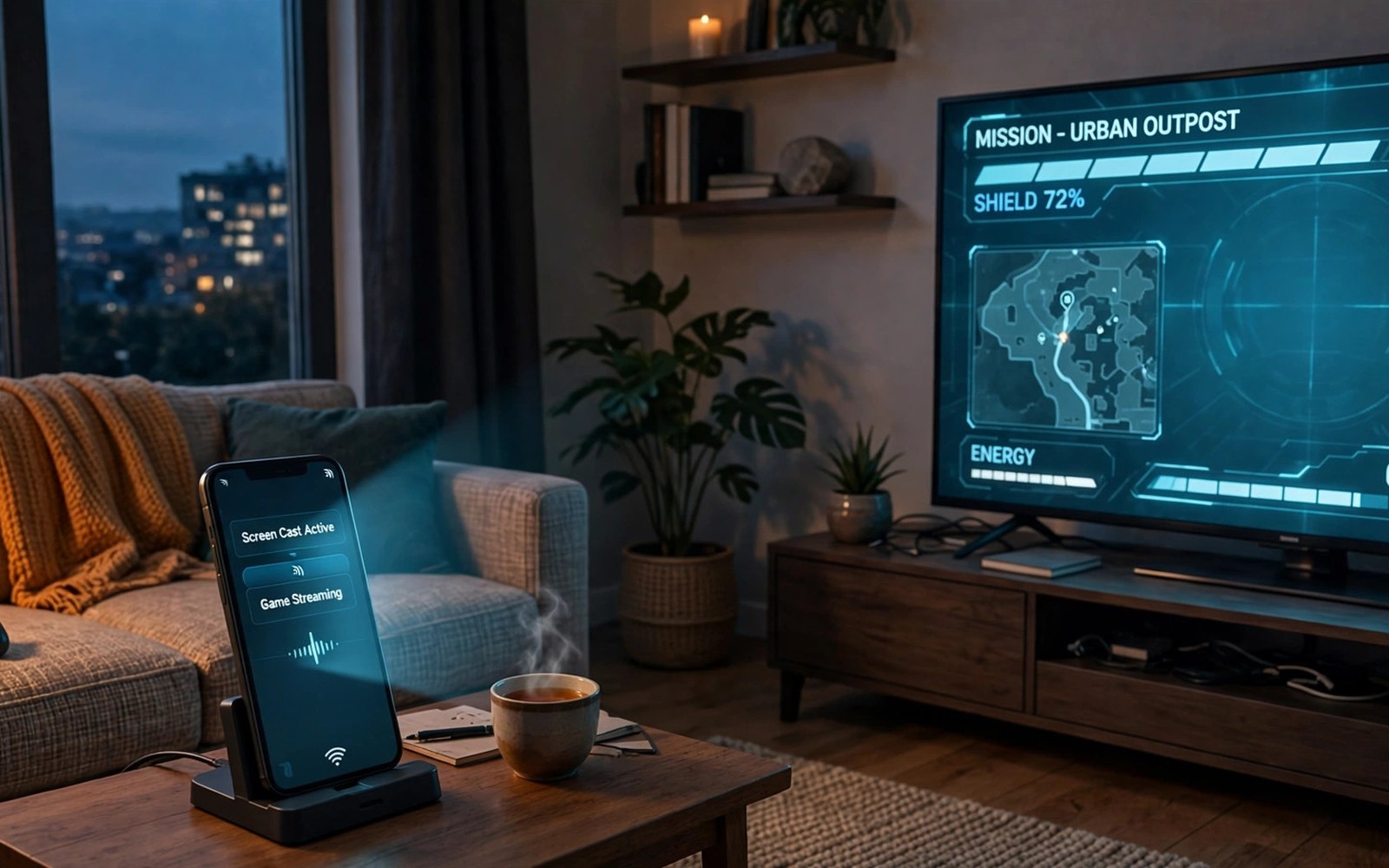
Desktop mode phone console TV setup turns a phone into a living room gaming box. Connect the phone to a TV over USB-C and pair a controller. Games appear on the big screen with windowed apps beside them. One phone then serves work and play across rooms.
Desktop mode on Android varies by phone maker and software version. Some phones offer full windowed desktops with taskbars. Others offer simple screen mirroring with limited window control. Know your phone mode before buying a dock. A dock cannot add desktop features that the phone software lacks.
This article covers docks and displays and controllers and game choice for TV play. You will learn how to build a comfortable couch setup. You will also learn limits that keep expectations realistic. A phone TV setup shines for casual and cloud games most of all.
How desktop mode works on Android phones
Desktop mode shows phone apps in resizable windows on an external display. A taskbar or dock bar helps switch between apps fast. Mouse and keyboard input work alongside controller input. That mix suits games plus chat plus video in one session. Not every app supports window resizing well so test your favourites early.
Some phones need a USB-C dock with video output support. Others work with a simple USB-C to HDMI cable. Check your phone specs for video output support before buying gear. A cable cannot enable video output on a phone that lacks it. Dock choice follows phone capability rather than leading it.
Docks cables and TV settings
Choose a dock with HDMI output and USB ports and charging passthrough. Charging passthrough keeps the phone powered during long TV sessions. USB ports accept controllers and keyboards and storage. A good dock stays cool and stable on a TV stand. Avoid docks with loose ports that disconnect with small bumps.
Set the TV to game mode to cut display latency for gaming. Game mode reduces image processing that delays frames. Set phone display output to match TV resolution when possible. Mismatched resolution can blur text and game details. Test a fast game after setup to judge latency before long sessions.
Controllers and input for couch play
Bluetooth controllers suit couch play best since cables limit movement. Pair the pad before starting desktop mode to avoid menu fumbling. Keep a mouse nearby for apps that need precise clicks. Switch input types smoothly rather than forcing one input for all tasks. Each input suits different apps in desktop mode.
Wired pads also work through dock USB ports for stable competitive play. A wired link cuts wireless delay for fast games. Compare link types in USB-C versus Bluetooth controllers before choosing couch input for ranked titles.
Games that suit big screen phone play
Cloud games suit TV phone setups well with strong home Wi-Fi. Local games with controller support also shine on a large screen. Touch only games feel awkward on TV without mapping. Choose titles built for pads or cloud streaming first. That filter keeps TV sessions fun rather than frustrating.
Party games suit TV play since friends watch the same screen. Racing and sports titles read well from couch distance. Text heavy strategy games may strain eyes from far away. Sit closer for detail heavy games or pick simpler titles for couch nights. Match game choice to viewing distance for best results.
Accessories that pair well with this setup
A wireless keyboard and mouse set completes desktop mode for mixed work and play. Controllers suit games while keyboards suit typing and browsing. Keep both input types paired for smooth switching. A small keyboard fits TV stands without clutter. That mixed input kit makes desktop mode useful beyond gaming sessions alone.
A good TV stand or wall mount improves desktop gaming viewing angles a lot. Phones on docks deserve screens positioned for couch comfort. Eye level screens reduce neck strain during long sessions. Check TV height before committing to a dock location. That placement work pays off across every desktop session that follows.
Portable monitors offer a smaller screen alternative to TV desktop setups. They travel well and connect over USB-C in many cases. Compare that path in portable gaming monitors before buying a dock. That comparison helps players choose between living room screens and travel screens for phone gaming.
A weekly routine that keeps everything working
Test desktop apps monthly for window resizing support after updates. Updates can break window behaviour for previously good apps. A monthly check reveals broken apps before important sessions. Keep a short list of desktop friendly apps for quick starts. That list saves fumbling when guests or work tasks need the TV setup fast.
Clean dock ports monthly to prevent loose video connections. Dust in HDMI and USB ports causes flicker and dropouts. A gentle air blast clears ports without damage. Check cable seating during the same routine. Clean ports keep desktop sessions stable across months of daily dock use.
Review handheld console options monthly if TV play time shrinks. Pocket grips may suit changing routines better than TV docks. The handheld picture is clear in phone handheld console setups for players weighing both styles. Monthly review matches display choice to current lifestyle rather than old living room habits alone.
How this plays out in real life
A family turns a phone into a living room console for weekend party games. Desktop mode shows party titles on the TV for everyone to watch. Bluetooth controllers let players sit comfortably on the couch. That shared screen setup beats crowding around a small phone. Family game nights gain a big screen without buying a dedicated console at all.
A student uses desktop mode for homework plus gaming on one device. Windowed apps show notes beside a game during breaks. That multitasking setup suits small dorm rooms perfectly. A dock with charging keeps the phone powered through long study days. One device serves work and play without desk clutter or extra hardware costs.
A traveller connects a phone to a hotel TV for evening gaming sessions. Hotel TVs become gaming screens with a pocket dock. That familiar setup eases travel boredom significantly. Cloud games stream over hotel Wi-Fi when connections allow. Travel gaming thrives when phones double as portable consoles for hotel rooms everywhere.
A casual gamer tests desktop mode with a borrowed cable before buying a dock. That free test proves video output support exists. The gamer then buys a dock confidently with charging passthrough. Borrowing first prevents wasted purchases for uncertain phone models. That cautious habit saves money across all accessory categories for careful buyers.
A retro fan uses desktop mode for emulated classics on a large screen. Big screen retro games feel closer to original console experiences. A Bluetooth pad completes the living room retro station. That nostalgic setup costs far less than original hardware collections. Modern phones revive classic games beautifully on living room televisions today.
A practical check you can run
You can check display output and connected displays with a short device check. Connect the dock and run the checks below on a computer linked to the phone. The output lists displays and display settings.
adb shell dumpsys display
adb shell settings get global hdmi_rotation
adb shell dumpsys input
The commands above are adapted from public platform documentation for Android developer tools. They are included here as a teaching example for checking device behaviour and not as copied product code.
Common mistakes
A common mistake is buying a dock before checking phone video output support. Some phones lack video output entirely over USB-C. A dock cannot fix that hardware limit. Check specs and test with a borrowed cable first. That check saves a useless dock purchase.
Another mistake is skipping TV game mode during setup. Standard TV modes add processing delay that feels like input lag. Enable game mode for the HDMI input used by the phone. Retest fast games after enabling it. The improvement often surprises first time TV players.
A third mistake is choosing touch only games for TV sessions. Touch games need mapping or awkward mouse control on TV. Pick pad friendly or cloud titles for couch play. Save touch games for handheld sessions where fingers reach the screen directly.
Frequently asked questions
Can any Android phone use desktop mode on a TV?
Many modern phones support video output or desktop mode but not all do. Budget phones often lack video output over USB-C. Check your phone specs for display output support. Test with a borrowed cable before buying a dock for TV play.
Do I need a dock or just a cable for TV gaming?
A simple cable works when you need only video output. A dock adds charging and USB ports for controllers and keyboards. Long sessions benefit from dock charging passthrough. Choose a dock for regular TV play and a cable for occasional use.
Is phone TV gaming fast enough for competitive play?
Casual and cloud games feel great on TV with game mode enabled. Competitive play may still suffer small display delays. Wired controllers and game mode cut delay the most. Test ranked games on TV before relying on the setup for serious matches.
Conclusion
Desktop mode turns a capable phone into a flexible TV gaming station. Check video support first and choose a dock with charging. Enable TV game mode and pair a comfortable controller. Pick pad friendly games for couch sessions.
Your next step is a capability check today. Confirm your phone supports video output and test it with a borrowed cable. If output works then shortlist a dock with charging passthrough. Build the couch setup around games you already love.
Plan your first desktop week around capability checks and game selection. Confirm video output on day one with a borrowed cable before buying gear. Test window resizing on day two for your favourite apps and games. Enable TV game mode on day three and compare latency before and after. Pair a Bluetooth controller on day four and test couch comfort thoroughly. Try a wired controller on day five for competitive latency comparison. Test cloud games on day six over home Wi-Fi for streaming quality. Decide on day seven whether desktop mode earns a permanent dock purchase. A checked week prevents dock regret and builds a TV setup around proven capabilities.
Keep desktop mode expectations realistic for the best long term satisfaction. Phone desktops suit casual games and multitasking better than heavy competitive titles. That honest framing prevents disappointment when demanding games strain phone hardware. Use desktop mode where it shines and handheld play elsewhere. Matching mode to strengths delivers the best overall phone gaming experience daily.

