

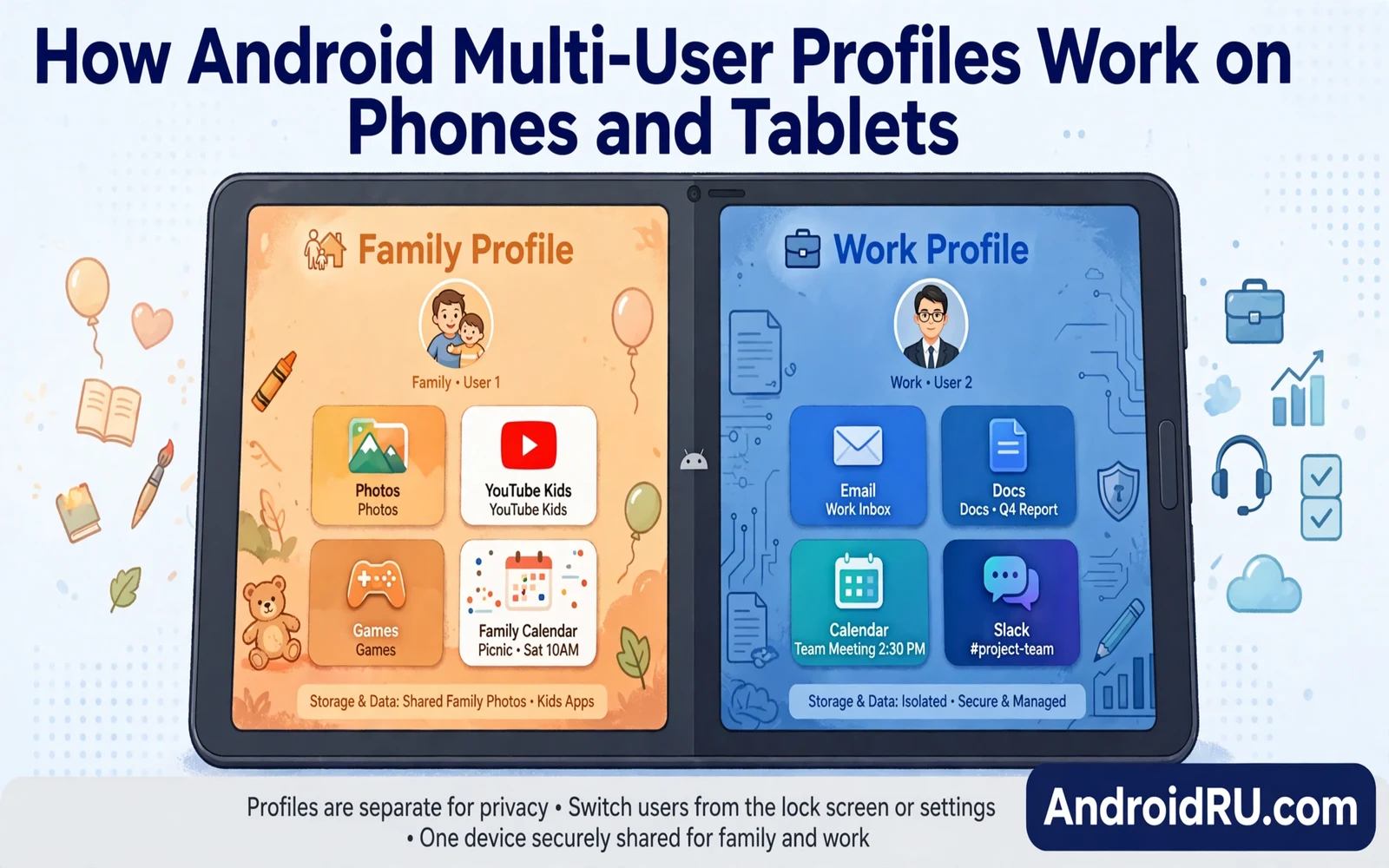
Multi-user profiles let several people share one Android phone or tablet with separate spaces. Each user gets separate apps and separate settings and separate files. One user cannot browse another user private files under normal profile rules. This guide explains how Android multi-user profiles work on phones and tablets. It covers owner profiles and secondary profiles and guest mode and managed profiles. Readers will learn when profiles help and when separate devices serve better.
Sharing a tablet without profiles forces everyone into one set of apps and one set of accounts. A child may open a work email app by accident. A guest may see personal photos in a shared gallery. A colleague may change a system setting that affects the owner. Profiles solve those problems by giving each person a bounded space. The owner keeps admin control while other users work inside their own space. That boundary makes sharing practical for families and for small teams.
Private Space offers a lighter isolation option for a single owner who wants a hidden area inside one profile. Readers who need that single owner solution can study the Android Private Space complete setup guide before creating full profiles. Private Space hides apps behind an extra lock within the main profile. Full profiles go further by giving each person a separate app set and separate settings. Owners should pick Private Space for personal secrets and full profiles for separate people.
Profile Types On Android
The owner profile holds full control over the device and over profile creation. Secondary user profiles act like separate personal spaces with their own apps and accounts. Guest mode offers a temporary space that can wipe itself after the guest finishes. Managed profiles serve work use under an organization policy on supported devices. Restricted profiles on tablets limit app access for children or for shared kiosk use. Each type trades convenience against isolation in a different way.
Secondary profiles install apps separately even when the owner already installed the same app. An app installed in one profile does not automatically appear in another profile. App data also stays separate across profiles so game progress and chat history do not leak between users. System settings such as Wi-Fi may share device level values while personal settings stay separate. Owners should expect some setup duplication when creating a new profile. That duplication is the price of real separation.
How To Create And Switch Profiles
- Open settings and then open system user settings
- Add a new user or a guest profile
- Set a name and a lock method for the profile
- Install needed apps inside the new profile
- Switch profiles from the quick settings user tile
Switching profiles usually happens through a user tile in quick settings or through the lock screen user picker. A switch closes the current profile session view and opens the chosen profile space. Background activity from the previous profile may pause or continue under system rules. Battery use can grow when several profiles run background tasks. Owners should switch back to the owner profile before handing the device to someone else. That habit prevents accidental access to owner apps.
Split screen multitasking inside a profile follows the same rules as single user use. Readers who want layout tips can review how to use Android split screen like a pro and apply those layouts inside any profile. A student profile can pair a notes app with a textbook app. A work profile can pair email with calendar. Profile separation does not limit multitasking inside a profile. It only limits sharing across profiles.
Phones Versus Tablets
Tablets support multi-user profiles more widely than phones because tablets often serve whole households. Many phones restrict secondary profiles or hide the feature behind maker settings. Some phones support guest mode while blocking full secondary profiles. Owners should check user settings on the exact device before promising profiles to family members. A tablet bought for family sharing deserves a profile check before purchase. A phone bought for personal use rarely needs full profiles.
Storage planning matters on shared tablets because each profile can install its own app copies. Two profiles with the same large game consume roughly twice the app storage. Photos and downloads also accumulate separately across profiles. Owners should monitor storage per profile and remove unused profiles promptly. A shared tablet with limited storage fills faster than a single user tablet. Regular storage review keeps shared devices usable.
Privacy Limits And Practical Tips
Profiles separate app data yet they do not hide device level facts completely. A secondary user may still see device model and system version and installed system apps. Device level network settings may affect all profiles. An owner who needs strong secrecy should consider a separate device rather than a profile. Profiles protect everyday privacy well. They do not provide the same isolation as separate hardware with separate accounts.
Per app language and notification habits also vary per profile because each profile holds its own settings. Readers who manage languages can study how to adjust app languages individually in Android inside each profile separately. A child profile may use one language while a parent profile uses another language. Notification rules also stay per profile so work alerts need not disturb family time. Owners should tune each profile once and then leave it stable.
When Profiles Beat Separate Devices
Profiles win when sharing stays occasional and when budget limits device count. A family tablet with a parent profile and a child profile serves homework and entertainment well. A small shop tablet with an owner profile and a staff profile serves sales and inventory well. Profiles lose when users need simultaneous access or when privacy demands hardware separation. Simultaneous use always needs separate devices because one screen serves one profile at a time. Owners should weigh sharing frequency against privacy needs honestly.
Multi-user profiles turn one Android device into several bounded personal spaces. Owner control stays central while secondary profiles gain real independence. Guest mode covers temporary sharing without lasting setup. Tablets benefit most because households share them naturally. Storage and privacy limits still apply and owners should respect them. Used wisely profiles make sharing safer and calmer for everyone who touches the device.
Profiles For Work And Personal Separation
Work and personal separation ranks among the strongest reasons to use profiles on a shared tablet. A work profile can hold work email and work documents apart from personal photos. A personal profile can hold social apps apart from work tools. That separation reduces accidental sharing of personal content in work contexts. It also reduces work intrusions during personal time. Owners who blend work and personal life on one device gain calm from that boundary.
Managed work profiles add organization policy on top of separation for company devices. An organization can enforce password rules and app rules inside the work profile. Personal profiles on the same device stay outside organization control in typical setups. That split protects employee privacy while securing work data. Employees should understand which profile the organization manages before storing personal data. Clear understanding prevents privacy surprises on company devices.
Freelancers can use profiles to separate client projects on one tablet. Each client profile can hold relevant documents and apps without mixing. That separation prevents sending a file from the wrong client context. Freelancers should still back up each profile separately because profile data does not merge automatically. Separate backups match separate profiles. That discipline keeps client work organized and safe.
Guest Mode For Short Term Sharing
Guest mode suits short term sharing better than full profiles because setup stays minimal. A guest can browse and use basic apps without creating a lasting profile. Owners can wipe guest data after the guest finishes. That wipe protects owner privacy and guest privacy together. Guest mode works well for visitors who need a tablet for an hour. Full profiles suit longer term sharing where setup effort pays off.
Parents can use guest mode for a child quick task without exposing full owner apps. A child who needs a tablet for homework can use guest mode with limited apps. Parents should still supervise guest sessions because guest mode does not replace parental controls. Guest mode limits data persistence rather than content access. Parents who need content limits should add dedicated parental tools. Guest mode plus parental tools together serve family sharing best.
Shops and clinics can use guest or restricted modes for customer facing tablets. A customer tablet should show only relevant apps for the visit. Guest mode prevents customers from reaching staff apps or data. Staff should reset guest sessions between customers. That reset habit keeps each customer experience clean. Shared public tablets demand reset discipline as a core routine.
Profiles And Device Resale
Profiles affect device resale because owners must remove all profiles before selling a phone or tablet. A forgotten secondary profile can retain personal data after a sale. Owners should delete secondary profiles explicitly before a factory reset. That deletion ensures profile data clears completely. Buyers also benefit from a clean device without leftover profiles. Sellers who follow profile deletion steps protect both parties in a resale transaction.
Refurbished device buyers should check for leftover profiles during initial setup. A device that still shows another user profile may need a full reset before use. Buyers should perform that reset before signing into personal accounts. That precaution prevents data mixing with a previous owner. Reputable refurbishers reset devices fully before sale. Buyers who verify reset status gain confidence in second hand devices.

