

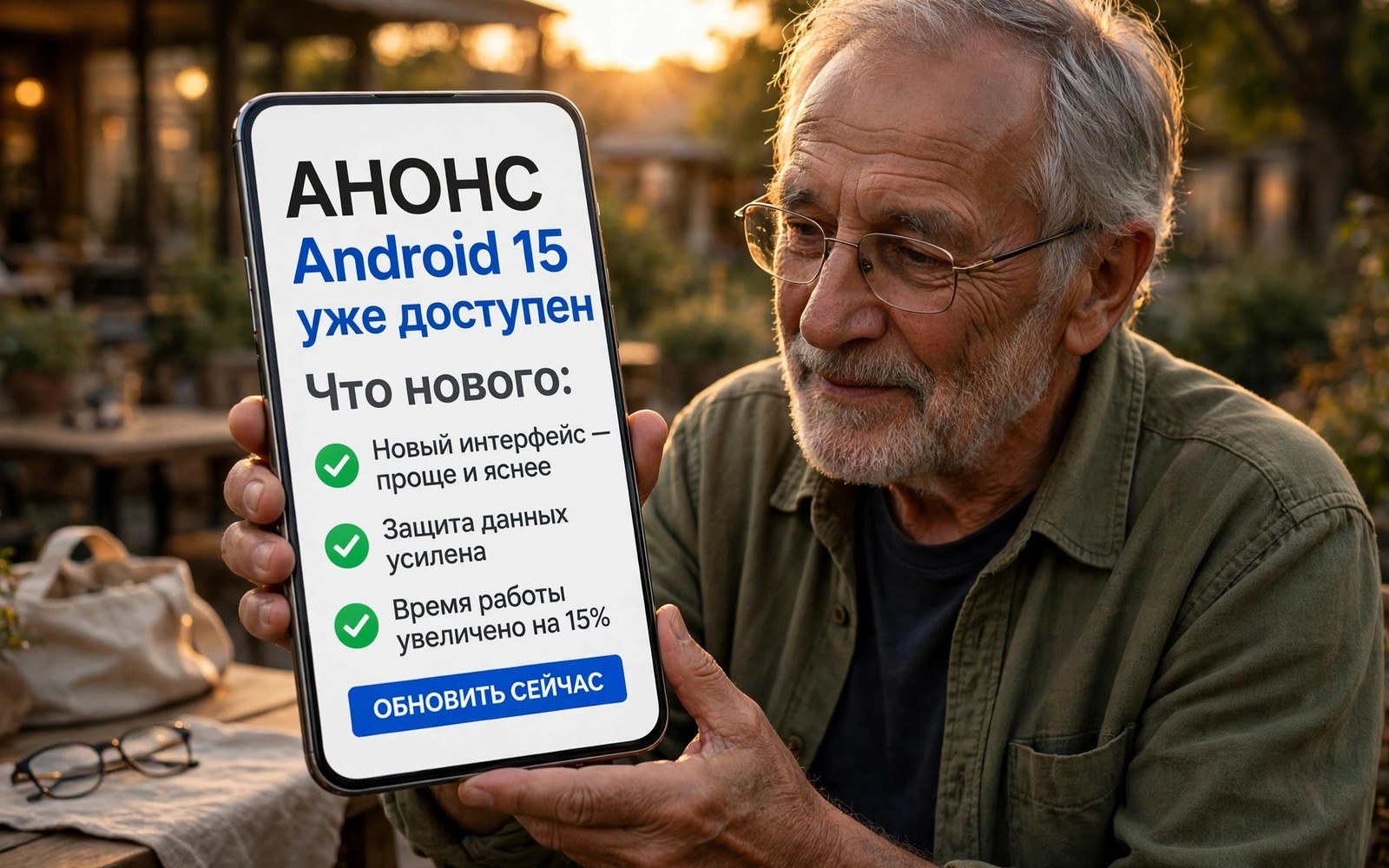
The best phone for a senior is not the most powerful phone in the store but the phone that answers a call clearly and shows a message large enough to read without glasses and strain.
Seniors face different daily challenges from power users. Small text and quiet earpieces and complex menus create real barriers. A senior friendly phone removes those barriers without removing useful features.
This guide compares display size and audio clarity and interface simplicity. It helps families choose a phone that an older user will actually enjoy using every day.
Big Displays and Readable Text
A large display helps only when text scaling works across apps. Some apps ignore system text size and keep tiny fonts. Test messaging and contacts and browser apps with large text enabled before you buy.
Brightness matters outdoors. A dim large screen still frustrates users in sunlight. Check maximum brightness and automatic brightness behaviour in bright conditions.
Contrast and font weight matter as much as size. Bold text and high contrast themes improve readability for many older eyes. A phone that offers those options system wide helps more than a phone with a large screen alone.
Sharp Audio and Hearing Support
Call audio clarity matters more than speaker loudness alone. A loud but distorted earpiece tires listeners quickly. Test calls in a noisy room when possible and listen for voice separation from background noise.
Hearing aid compatibility helps users who wear aids. Check compatibility ratings and test with the actual hearing aids when possible. Bluetooth hearing support varies by phone and by aid model.
Speakerphone quality matters for hands free calls. A clear speakerphone helps seniors who hold the phone away from the ear. Test speakerphone at normal distance rather than close to the microphone.
Easy UI and Simple Setup
Simple mode or easy mode can transform a complex phone. It enlarges icons and simplifies home screens and reduces accidental taps. Check whether simple mode survives updates or resets after major software changes.
Family setup help matters enormously. A phone that supports remote assistance or screen sharing lets family fix settings without a visit. Set up contacts and emergency numbers before handing the phone over.
Physical design also helps. A phone with a clear power button and a responsive fingerprint sensor reduces frustration. Avoid phones with overly sensitive edge gestures that trigger accidental actions.
Battery and Safety Features
Long battery life reduces charging anxiety. A phone that lasts two days gives seniors confidence on trips and during power cuts. Simple charging with a stand or a magnetic cable can help users with limited dexterity.
Emergency features deserve attention. SOS functions and fall detection and location sharing help families stay connected. Test SOS setup carefully and explain it clearly to the user.
Spam call protection helps seniors avoid scams. A phone with strong spam filtering and easy call blocking reduces risk. Teach the user never to share codes or passwords by phone.
adb shell settings put system font_scale 1.3
adb shell settings put secure accessibility_display_magnification_enabled 1
The commands above are an original illustration based on standard Android developer tools for increasing system font scale on a connected phone. They show how a helper can enlarge text during initial setup.
Setting Up the Phone for a Senior
Begin setup by enlarging text and icons before the senior ever holds the phone. Large text from the first moment prevents early frustration and builds confidence. Add only essential apps to the home screen and hide everything else in the app drawer. A clean home screen reduces accidental taps greatly.
Add key contacts with photos so the senior recognises callers instantly. Photos help users who struggle with names or small text. Place emergency contacts at the top of the list and teach the senior how to call them with one tap.
Set up a simple charging routine with a visible charging stand. A stand keeps the phone upright and visible while charging. It also avoids fumbling with small cables in dim light. Place the stand in a consistent spot so charging becomes a habit.
Teach one feature at a time rather than overwhelming the senior with everything on day one. Start with calls and messages. Add photos and video calls in later sessions when confidence grows. Patient gradual teaching beats a single long tutorial.
Staying Safe from Scams
Scam calls target seniors frequently and phone settings can reduce that risk. Enable spam filtering and silence unknown callers when appropriate. Teach the senior to let unknown numbers go to voicemail rather than answering immediately.
Explain that banks and officials never ask for passwords or codes by phone. That single rule prevents many common scams. Repeat the rule in different sessions because repetition builds memory better than a single warning.
Set up app installation controls to prevent accidental downloads. Require approval for new apps when possible. That control stops malicious apps from entering the phone through misleading ads.
Review the phone together every few weeks. Check messages and calls for suspicious contacts and clear any confusion early. Regular gentle reviews keep the senior safe without removing independence.
Choosing Between Large and Compact for Seniors
Large phones help reading but they can challenge seniors with small hands or arthritis because gripping a large heavy phone for long calls tires the hand quickly. A slightly smaller phone with large text settings may serve such a user better than the largest phone available. Test holding comfort during a long call rather than judging size from a specification sheet alone. Comfort during real use matters more than screen diagonal on paper.
Weight distribution also affects comfort greatly because a phone with a heavy camera module feels unbalanced in one hand. A balanced phone feels lighter than its actual weight suggests while a top heavy phone feels heavier during calls. Hold the phone in a natural call position for several minutes before deciding.
Button placement matters for seniors with limited dexterity because buttons placed too high or too flush become hard to find by touch. A phone with distinct tactile buttons helps users who operate the phone without looking closely. Test power and volume buttons with eyes closed to judge tactile clarity.
Family Support and Remote Help
Family support works best when the senior phone allows screen sharing or remote assistance through a trusted app. Remote help lets family fix settings and guide the senior through new features without travelling. Set up remote assistance during initial setup while the senior is present and comfortable. That preparation prevents panic when a setting changes unexpectedly later.
Shared photo albums help families stay connected through a senior phone without complex social apps. A shared album lets grandchildren share photos directly to a simple gallery view. That simple connection often motivates seniors to use the phone more than any feature list could.
Regular check in calls also help seniors learn gradually because each call can introduce one small new skill. A weekly call that teaches one feature builds confidence steadily over months. That patient approach beats intensive training sessions that overwhelm and discourage.
Teaching a Senior One Skill at a Time
Start with answering calls because reliable call answering builds confidence faster than any other skill. Practice answering with the senior present until the motion feels natural. That single skill makes the phone useful immediately and reduces anxiety about the device.
Teach messaging next with large text and voice dictation as alternatives to typing. Voice dictation helps seniors who struggle with small keyboards. Practice dictation in a quiet room first so accuracy impresses rather than frustrates.
Introduce photos after calls and messages because photo sharing motivates continued learning. Show the senior how to view photos sent by family. That rewarding experience encourages exploration of other features naturally.
Teach video calls last because video calls combine camera and audio and network skills together. Practice video calls with family members who can guide patiently. A successful first video call often becomes a favourite feature for seniors.
Review safety rules regularly in short friendly reminders rather than in long lectures. Short reminders about scam calls and password safety stick better than detailed warnings. Gentle repetition protects seniors without frightening them.
Common mistakes
The biggest mistake is buying the cheapest large phone without testing audio. A large screen cannot compensate for a quiet or muffled earpiece. Test calls first and display second.
Another mistake is handing over a phone with default settings. Spend an hour enlarging text and setting contacts and enabling spam protection before the first solo use. That hour prevents weeks of frustration. Families should also check the clean software comparison of which brand has the cleanest bloatware free operating system because simple software reduces confusion.
FAQ
Should seniors use a senior specific phone or a normal smartphone?
Many seniors do well with a normal smartphone set to large text and simple mode. Dedicated senior phones suit users who want only calls and messages with minimal complexity.
How large should the display be?
A display around six and a half inches suits most seniors when the phone remains comfortable to hold. Larger displays help reading but may feel heavy for small hands.
Is 5G important for seniors?
5G matters little for calls and messages and video calls. Coverage and call quality matter far more than peak data speed for most senior users.
Conclusion
Choose a senior phone by testing call clarity and large text across real apps and simple mode behaviour. Do not choose on screen size alone. Your concrete next step is to test a call and a message with large text enabled on any shortlisted phone before you buy. Families should also compare the clean software guide on which brand has the cleanest bloatware free operating system and the value ranking of smartphone brands ranked from worst to best value and the rugged guide on rugged smartphones built to survive extreme drops for durability.

