

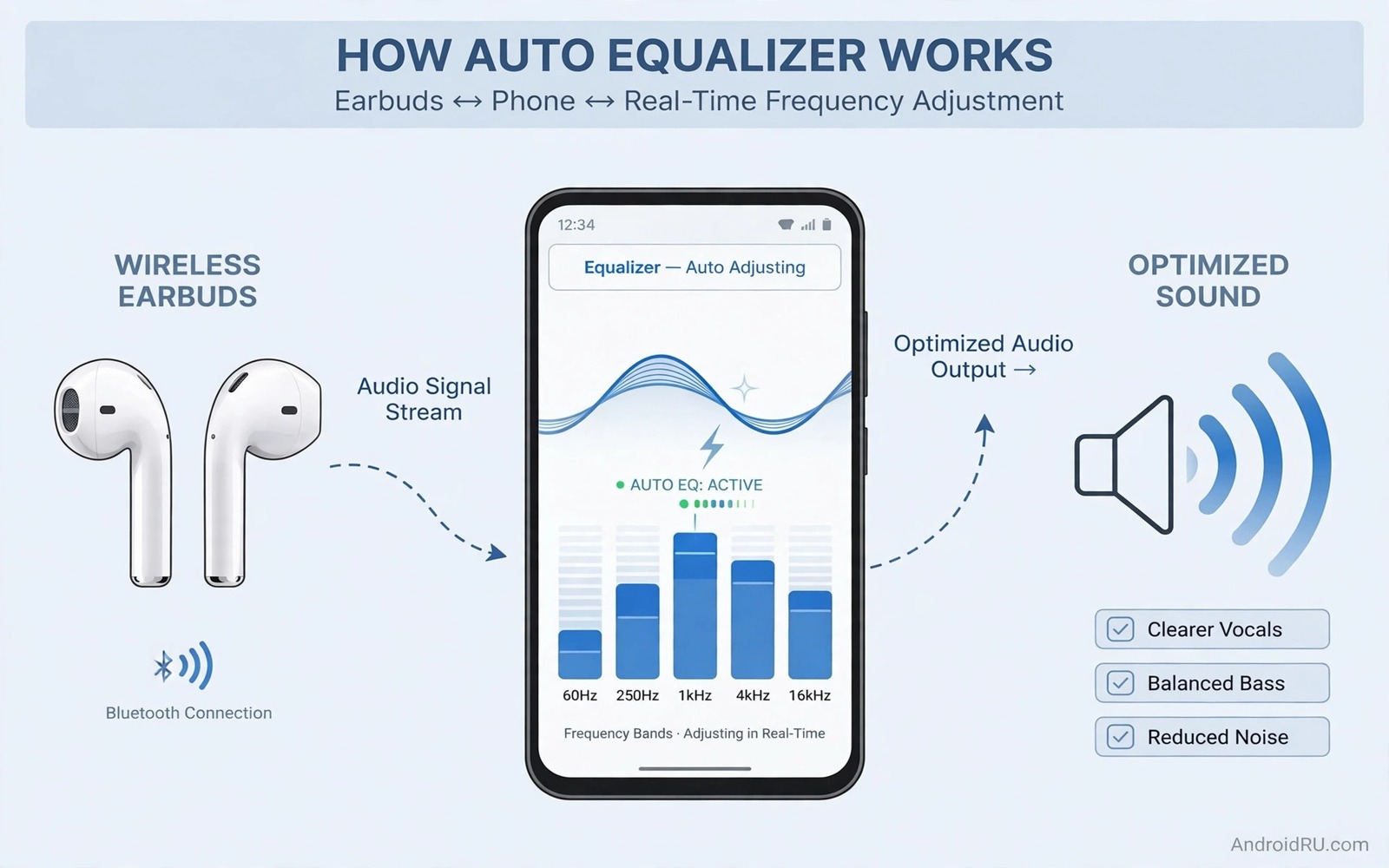
Every earbud model sounds different because each driver and housing shapes frequencies in its own way. One model may boost bass heavily while another may sound thin in the middle range. Wavelet addresses that variation with automatic equalizer profiles built from measurements. The app matches your earbud model to a measured profile and applies correction. That correction aims for a balanced target sound rather than a generic bass boost. This guide explains how that calibration works and how to set it up correctly.
The idea behind automatic calibration is measurement rather than guesswork. Researchers measure how a headphone model reproduces each frequency. They compare that measurement with a preferred target curve. The difference becomes a correction curve that boosts weak frequencies and cuts strong ones. Wavelet applies that correction as an equalizer preset for your model. The result should sound more neutral than the raw earbud tuning. Neutral does not mean boring because it reveals detail that exaggerated tuning hides.
Find Your Earbud Model In Wavelet
Open Wavelet and search for your exact earbud model name in the AutoEq section. Model names matter because similar models can have very different measurements. A Pro version and a standard version often measure differently. Check the model printed on the case or in Bluetooth settings. If your exact model is missing then do not use a close model as a substitute. A wrong profile can make sound worse by correcting frequencies that your model does not need corrected.
If your model appears with several measurement variants then read the variant notes carefully. Different measurement rigs produce slightly different profiles. Choose the variant that matches the most common measurement for your model if you are unsure. Test the chosen profile with familiar music before settling. A profile that looks correct on paper should also sound balanced to your ears. Trust listening tests over database completeness.
Enable AutoEq Correctly
Enable the AutoEq toggle after selecting your model and confirm that the equalizer is active. Some phones need an additional audio permission for Wavelet to process sound systemwide. Grant that permission when prompted and restart playback after granting it. Play a familiar track and listen for changes in bass and vocal clarity. The correction may sound subtle at first because it removes exaggeration rather than adding excitement. Give your ears time to adjust to a more neutral sound.
Disable other equalizers while testing Wavelet AutoEq. A music app equalizer plus Wavelet correction can stack and distort the intended curve. Use Wavelet alone during the test period. If you prefer a warmer sound then add a small graphic equalizer adjustment on top of AutoEq later. That layered approach keeps the measured correction as the base and adds personal taste on top. Note the extra adjustment so you can recreate it after updates.
Fine Tune After Auto Calibration
AutoEq aims for a neutral target but personal taste varies. Some listeners prefer slightly more bass for commuting. Others prefer slightly less high frequency sparkle for long sessions. Add gentle adjustments to the graphic equalizer after AutoEq is active. Keep adjustments small because large boosts defeat the purpose of measured correction. A two decibel bass lift is a taste adjustment while a ten decibel lift is a new tuning entirely. Small changes preserve the benefit of calibration.
Test your tuned profile across music and podcasts and videos. A profile that flatters music can make voices sound thin. A profile that clarifies voices can make music sound dull. Find a compromise that serves your main content type well. Save that compromise as a named preset if Wavelet offers preset saving. For a related tuning topic explore systemwide graphic sound equalizers and how global tuning interacts with AutoEq.
Understand Limits Of Auto Calibration
AutoEq cannot fix a poor ear tip seal. A loose seal loses bass regardless of equalizer correction. Check tip size and fit before judging a profile. AutoEq also cannot fix a damaged driver or a blocked nozzle. Clean earbuds and test fit first when a profile sounds wrong. A measured profile assumes a normal seal and a healthy driver. Those assumptions must hold for correction to work.
Personal hearing differences also limit any universal target. Age and hearing history change how frequencies are perceived. A neutral measured curve may still sound bright or dull to a specific listener. Use AutoEq as a starting point rather than a final verdict. Adjust gently to match your hearing and your taste. That personal step completes the calibration that measurement alone cannot finish.
Plan Profiles For Different Earbuds
Many users own several earbud models for different situations. Create a separate Wavelet profile for each model you use regularly. Switching profiles manually when you switch earbuds takes seconds. Forgetting to switch can make a good earbud sound wrong because it receives another model correction. Build a habit of checking the active profile when you change earbuds. That habit prevents confusing listening sessions.
Note which profile belongs to which earbud in a simple list. A list prevents mistakes when model names look similar. Update the list when you buy new earbuds. Delete profiles for earbuds you no longer own. A tidy profile list keeps daily use smooth and predictable.
Keep Profiles Stable After Updates
Wavelet updates can add new measurements and change existing profiles. A profile that sounded balanced may change after a database update. Test a familiar track after major Wavelet updates. Compare the new sound with your memory of the old sound. Reapply your personal adjustments if an update resets them. A short post update test keeps calibration reliable.
Android system updates can also affect how Wavelet processes audio. Check that Wavelet still has the permissions it needs after a system update. Re-enable systemwide processing if an update disabled it. Test playback across several apps after the update. That check prevents a silent failure where Wavelet appears active but does not process sound.
adb shell dumpsys audio
adb shell settings list system | grep -i wavelet
The snippet above shows a standard Android audio setting check and it was adapted for this Wavelet guide so you can verify the processing setting safely.
Test Profiles With Familiar Music
Always test a new AutoEq profile with music you know extremely well. Familiar music reveals changes in bass and vocal balance immediately. Unfamiliar music hides those changes because you have no reference for how it should sound. Choose three tracks that cover bass and vocals and high detail. Play each track fully before judging the profile. A full track test reveals problems that a short clip hides. That method gives a reliable judgement.
Test at normal listening volume rather than maximum volume. Maximum volume masks subtle tuning differences with loudness. Normal volume reveals whether the profile truly balances frequencies. If a profile only sounds good at maximum volume then it is not a good daily profile. A good profile sounds balanced at the volume you actually use every day.
Organise Profiles For Quick Switching
Switching profiles should take seconds rather than minutes. Keep a short list of profile names and their matching earbuds. Check the active profile before a listening session when you change earbuds. That check prevents a wrong profile from ruining a session. Delete old profiles for earbuds you sold or lost. A clean list reduces confusion and speeds switching.
Share profile notes with yourself in a simple document. Note the base AutoEq profile and any personal adjustments on top. That document lets you rebuild a setup after a phone change. It also helps you compare profiles when you buy new earbuds. A short written record is worth the minute it takes to create.
Combine AutoEq With Good Listening Habits
AutoEq cannot replace good listening habits such as moderate volume and regular breaks. A balanced profile at excessive volume still damages hearing over time. Use volume limits for long sessions and take breaks every hour. Those habits protect hearing more than any equalizer setting. A healthy listening routine makes AutoEq benefits last longer.
Clean earbuds regularly because wax changes frequency response over time. A wax blocked nozzle loses high frequencies regardless of correction. Clean nozzles gently and check tips for wear. Replace worn tips promptly. Those maintenance habits keep measured profiles accurate in daily use.
Common Mistakes
The biggest mistake is using a close model profile when your exact model is missing. A wrong correction can worsen sound significantly. Another mistake is stacking multiple equalizers without realising it. Use Wavelet alone during testing. A third mistake is judging AutoEq from a single track at high volume. Test across content types at normal volume for a fair judgement.
People also ignore ear tip fit and blame the profile for bass loss. Fit comes first and correction comes second. For a related topic explore speakerphone loudness and clarity and how physical placement limits equalizer gains.
Frequently Asked Questions
Does Wavelet work with all earbuds?
Wavelet works best with earbuds that have a measured profile in its database. Popular models usually have profiles while rare models may lack one. Check the database for your exact model before relying on AutoEq. If your model is missing then manual graphic tuning is a better path.
Will AutoEq make my earbuds sound flat?
AutoEq aims for neutral sound which can feel less exciting at first. Neutral sound reveals detail that exaggerated tuning hides. Give your ears several days to adjust before judging. Add a small personal bass lift if neutral still feels too flat after that period.
Can I use Wavelet with Bluetooth and wired earbuds?
Wavelet can process both Bluetooth and wired audio paths on supported phones. The active profile should match the currently connected earbud model. Switch profiles when you switch between Bluetooth and wired models. That switching keeps correction accurate for each device.
Before your next listening session search for your exact earbud model in Wavelet. For another audio topic explore LDAC versus aptX HD audio codecs and how codec choice interacts with equalizer correction.
Conclusion
Wavelet AutoEq turns headphone measurements into a practical correction for your earbuds. Find your exact model and enable correction alone and fine tune gently. Your concrete next step is a fifteen minute setup today. Open Wavelet and search for your earbud model and test a familiar track. If that track sounds more balanced without harshness then automatic calibration is working for you.

