

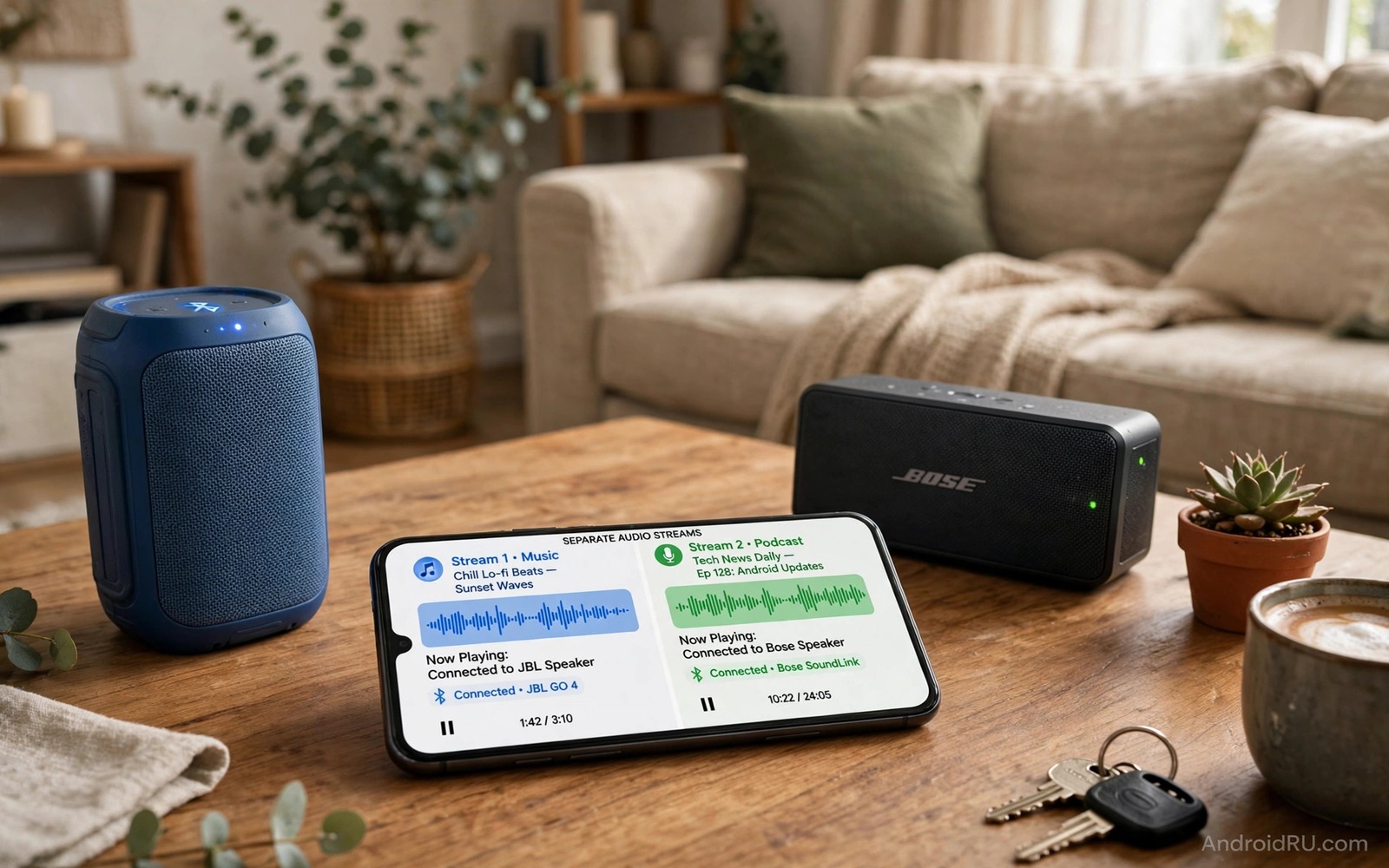
Imagine music playing through a living room speaker while a video call stays private in your earbuds. That separation feels like magic when it works because Android normally sends all sound to one output. Per app routing changes that rule by letting each app choose its own destination. The feature is not obvious on every phone because support varies by Android version and by manufacturer. Some phones offer a built in separate sound setting that makes routing simple. Other phones need a third party app that manages audio streams for you. This guide explains both paths and it helps you choose the method that fits your phone and your daily routine.
The benefit goes beyond a neat party trick for the home. A parent can play a bedtime story through a bedroom speaker while taking a work call on earbuds. A creator can monitor a recording through one output while previewing music through another output. A household can keep navigation voice in the car speaker while passengers listen to music on headphones. Each scenario depends on keeping two audio streams separate and stable. When routing fails the streams mix and both listeners lose clarity. Careful setup and a short test before important use prevent that messy mix.
Check Built In Separate Sound Settings
Open Settings and then open Sound and vibration on your phone and look for an entry named separate app sound or a similar phrase. Samsung phones popularised this feature and some other brands now offer a version of it. Tap the entry and choose the app you want to route separately. Choose the Bluetooth speaker that should receive that app sound. Leave other apps on the default output so they continue through your earbuds or phone speaker. Test the routed app first with music and then with a video to confirm the destination holds. A successful test shows music from the speaker while a notification still sounds through the earbuds.
Not every app appears in the separate sound list on every phone. System apps and some streaming apps may be missing because the manufacturer limits the feature. If your favourite app is missing then update the phone software and check the list again. A missing app does not mean routing is impossible because a third party routing app may support it. Note which apps work with the built in tool before you install anything extra. The built in tool is usually more stable than an external app because it uses system audio paths. Use it whenever your app appears in its list.
Use A Routing App When Built In Support Is Missing
Routing apps work by capturing audio streams and redirecting them to chosen outputs. Install a reputable routing app and grant only the permissions it truly needs for audio control. Open the app and create a rule for the app you want to separate. Select the target Bluetooth speaker from the device list inside the routing app. Start playback in the routed app and confirm that sound arrives at the intended speaker. Keep the routing app running in the background during the session because closing it can drop the rule. Some routing apps need battery optimisation disabled to stay alive reliably.
Test routing rules with short clips before a long session. Play a thirty second song through the routed app and listen at the speaker. Play a short voice note through the default app and listen at the earbuds. If both streams stay separate then the rule works. If streams mix then restart both apps and reapply the rule. A restart clears stuck audio focus states that can confuse routing. Avoid running two routing apps at once because they can fight over the same stream and produce silence.
Pair And Name Speakers Clearly
Clear speaker names prevent routing mistakes when several Bluetooth devices are nearby. Rename each speaker in Bluetooth settings with a location name such as living room or bedroom. That name appears in routing menus and it reduces the chance of sending music to the wrong room. Pair each speaker once and confirm that it reconnects automatically after a restart. A speaker that needs manual pairing every time will break routing rules at the worst moment. Remove old speakers that you no longer use so the device list stays short and clear.
Keep Bluetooth range in mind when you place speakers in different rooms. Walls and floors weaken the signal and a weak link can cause dropouts that look like routing failures. Place the phone centrally when two speakers sit in different rooms. Test playback in both rooms while walking between them. If one speaker drops out then move the phone closer to that speaker or move the speaker closer to the phone. For a related wireless quality topic explore LDAC versus aptX HD audio codecs and how codec choice affects Bluetooth stability.
Handle Calls And Notifications Separately
Calls need special care in a routed setup because call audio follows different rules from media audio. Many phones route call audio to the last used call device regardless of media routing rules. Test a real call after you set up media routing. Call a friend for one minute and confirm where call audio appears. If call audio lands on the wrong speaker then change the call device manually during the call. That manual choice often persists for future calls until you change it again. Note the behaviour for your phone because call routing varies widely.
Notifications can also leak into the wrong output if they share the media path. A loud notification through a living room speaker can interrupt a quiet evening. Set notification volume separately and consider silencing non urgent notifications during routed sessions. Use Do Not Disturb with calls allowed when you want music on a speaker without notification noise. That combination keeps the speaker for music while protecting the household from constant pings. Test notifications after setup because their path surprises many users.
Troubleshoot Mixed Or Silent Streams
Mixed streams usually mean a routing rule did not apply or an app restarted and lost its rule. Close the routed app fully and reopen it after applying a rule. Check that the routing app is still running in the background. Check that Bluetooth is still connected to both speakers. A single disconnected speaker can force all sound back to one output. Reconnect the missing speaker and reapply the rule. A methodical restart sequence solves most mixed stream problems without changing settings.
Silent streams usually mean volume is muted on one output path. Android keeps separate volumes for media and calls and notifications. Raise media volume while the routed app plays sound. Raise call volume during a test call if call audio is silent. Check the speaker volume itself because a speaker can be muted independently of the phone. That double volume system confuses many users but it also gives fine control once you understand it.
adb shell dumpsys audio
adb shell settings list system | grep -i audio
The snippet above shows a standard Android audio setting check and it was adapted for this routing guide so you can verify the output path safely.
Plan Routing For Different Times Of Day
Routing needs change through the day and a single rule rarely fits every situation. Morning news can go to a kitchen speaker while evening films use a living room speaker. Create separate rules for morning and evening use if your routing tool supports profiles. Switch profiles manually when your routine changes. A manual switch takes seconds and it prevents music from appearing in the wrong room. Test each profile with a short clip before relying on it. That habit keeps routing predictable across a busy day.
Guests add another layer to routing planning. A guest who connects a phone can disrupt rules that assume only your devices exist. Remove guest devices from your Bluetooth list after visits. A clean device list prevents accidental routing to a device that left the house. Check the list weekly if guests connect often. That maintenance keeps your routing setup reliable.
Keep Routing Stable After Updates
System updates can reset Bluetooth permissions and routing app permissions. A routing rule that worked yesterday can fail after an update changes background rules. Check routing app permissions after every major update. Confirm that battery optimisation remains disabled for the routing app. Test a routed clip after the update before an important session. That short test prevents surprises during a film night or a party.
Write down your working rules once they are stable. Note the app and the speaker and the profile for each rule. That note lets you rebuild routing quickly after a reset. It also shows which update altered routing behaviour. A stable routing setup deserves a short record because the settings live in several menus. Keep the note where you can find it quickly.
Common Mistakes
The biggest mistake is assuming that every app supports routing on every phone. Support varies and a missing app in the routing list is normal rather than a fault. Another mistake is running two routing tools at once and expecting them to cooperate. They usually conflict and produce silence. A third mistake is forgetting that call audio follows separate rules. Test calls separately from media playback to avoid surprises during an important conversation.
People also forget to rename speakers and then route sound to the wrong room repeatedly. Clear names prevent that embarrassment. For a related topic on keeping background sound stable explore audio auto pausing fixes and how focus rules interact with routing.
Frequently Asked Questions
Can I route two music apps to two different speakers?
Yes routing two music apps to two speakers is possible when your phone or routing app supports per app rules. Create one rule per app and choose a different speaker for each rule. Test both apps together because some phones limit simultaneous Bluetooth audio streams. A short joint test reveals any limit before a real session.
Why does routing stop after I restart my phone?
Routing rules often need reapplying after a restart because Bluetooth devices reconnect in a different order. Reopen the routing tool after restart and confirm each rule still points to the right speaker. Keep the routing app exempt from battery optimisation so it stays alive. That habit reduces restart surprises.
Do all Bluetooth speakers work for routing?
Most standard Bluetooth speakers work for routing because they present a normal audio sink to the phone. Speakers with proprietary apps can behave differently and may resist routing. Test a speaker with a short clip before relying on it for a routed session. A standard speaker is usually the safest choice.
Before your next routed session name your speakers clearly and test both outputs together. For another control topic explore systemwide graphic sound equalizers and how tone shaping works across outputs.
Conclusion
Per app audio routing turns one phone into a flexible sound hub for a household. Built in separate sound settings work best when your app appears in the list. A routing app fills the gap when built in support is missing. Your concrete next step is a ten minute test today. Pick one app and one speaker and create a single routing rule. If music plays through the speaker while other sounds stay on earbuds then routing is ready for daily use.

