

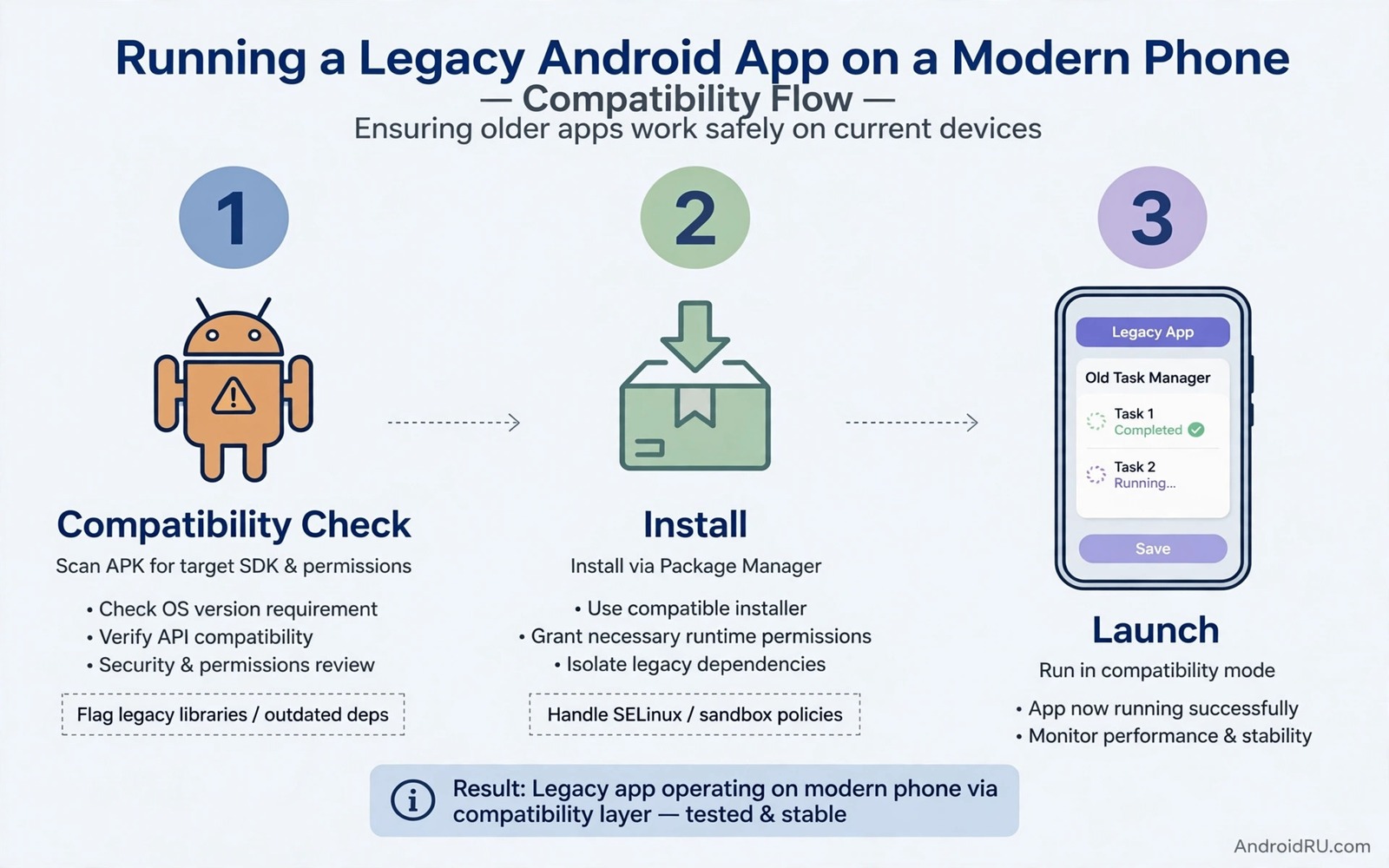
An old favourite app can stop installing on a new phone even though it worked for years. The installer reports a block and gives a vague reason. The app is not broken in the usual sense. It was built for an old Android target version. Modern Android blocks very old target versions by default to protect users from outdated security behaviour. That block is a safety feature. It is also frustrating when the old app has no modern replacement.
Understanding the block helps you choose a safe workaround. Android 14 and later refuse to install apps that target very old versions unless you use a specific install method. The block targets apps that expect old permission behaviour and old background rules. Those old behaviours can be risky on a modern phone. A workaround that bypasses the block should be used only for an app you trust and truly need. If you are new to manual installs then first learn how to sideload apps safely before you try a legacy install.
Why Modern Android Blocks Old Apps
Old apps were built when Android allowed broader background access and looser permission rules. A modern system cannot safely grant those old behaviours without breaking its own protections. Blocking the install prevents a silent security downgrade. It also pushes developers to update their apps to modern targets. That push benefits most users because updated apps follow current privacy rules.
The block is not a judgement on the old app quality. A well made old app can still be useful. It simply predates modern rules. The system cannot tell a good old app from a risky old app by target version alone. It blocks both by default and leaves the decision to a more technical install path. That path should be used with care and with a clear reason.
Check The App Before You Bypass Anything
Before any workaround verify the app and its source. Check the developer and the version and the file checksum if one is available. Check whether a modern alternative exists that covers the same job. Many old apps have a modern open replacement that works better on new phones. A bypass is worth it only when no replacement exists and the old app solves a real problem.
Test the old app on a secondary profile or a spare device if you can. That test reveals crashes and permission problems without risking your main data. An old app that crashes on launch is not worth a bypass. An old app that runs but drains battery may also be a poor choice. A bypass should follow a successful test and not precede it.
A Careful Legacy Install Routine
Use a computer install command with the bypass flag only for a trusted file. The command tells the system to allow an old target version for this install. It does not disable the block for all future installs. That narrow scope is important. A global disable would weaken protection for every later app. Use the narrow bypass and keep the global block intact.
- Verify the developer and the version and the file source.
- Check for a modern alternative before you bypass the block.
- Test the old app in a secondary profile if possible.
- Use a narrow bypass command for that single install only.
- Grant permissions one by one after the app opens.
- Keep the installer and note the bypass reason for later.
After install open the app and test its main feature without personal data. Watch for permission requests that feel excessive for an old app. An old app may ask for broad access because old Android allowed it. Grant only what the main feature needs. If the app refuses to work without broad access then reconsider whether it belongs on your main phone.
Handle Permissions For Old Apps With Care
Old apps may not understand modern permission prompts. They may ask for a permission at a strange time or fail when a permission is denied. Test each permission denial separately. If a core feature fails after a denial then that permission is truly needed. If the app works fine without it then leave it off. That test gives you a minimal permission set for an old app.
Old apps may also run background tasks in ways that modern Android restricts. A background task that worked on an old phone may be paused on a new phone. That pause can look like a bug. It is actually the modern system protecting battery life. Do not disable battery optimisation for an old app unless you understand the cost. A background heavy old app can drain a modern phone quickly.
Keep A Legacy App Stable Over Time
A legacy app will not get updates from its original developer in most cases. That means that security flaws in the old app will not be fixed. Limit the data you give to a legacy app. Do not use it for banking or sensitive work. Use it for a local task such as a game or a reader or a simple tool. That limit reduces the risk of an unpatched flaw.
Set a review date for each legacy app. Check every few months whether a modern alternative has appeared. Check whether the legacy app still works after a system update. A system update can break an old app without warning. A regular review catches that break early. It also gives you time to move your data to a modern tool before the old app stops opening.
Check A Legacy Install With Simple Commands
The commands below list installed packages and show details for one app. They help you confirm which version installed after a bypass. They do not bypass the block by themselves. They are checks for your own device.
adb shell pm list packages -f
adb shell dumpsys package com.example.app
adb shell pm path com.example.app
adb shell cmd package list packages
The commands above are original examples written for this guide. They show safe checks you can run on your own device. They do not come from any outside publication.
When To Let An Old App Go
Letting go is hard when an old app holds memories or a unique workflow. Yet some old apps should retire. An app that crashes often or drains battery or asks for excessive access is a poor candidate for a bypass. An app that handles sensitive data with old security behaviour is also a poor candidate. A bypass for those apps trades safety for nostalgia.
Look for a modern tool that covers eighty percent of the old app job. Eighty percent coverage with modern security beats one hundred percent coverage with old flaws. You can adapt your workflow to the modern tool in a week. That adaptation is less painful than a security incident later. Nostalgia is a reason to remember an app. It is not a reason to keep it on a modern phone.
Finally archive the old installer and your data export if the app allows it. An archive lets you revisit the app on an old spare device later. You do not need to keep it on your daily phone to preserve it. A spare old phone can run legacy apps safely offline. That separation gives you nostalgia without daily risk.
Run Legacy Apps On A Spare Device
A spare old phone is the safest home for a legacy app. An old phone that still runs the original Android version for the app will not need a bypass at all. It will run the app as designed. Keep that spare phone offline or on a limited network if the app does not need internet. An offline spare phone limits the risk from an unpatched old app. It also preserves the app experience exactly as you remember it.
Set up the spare phone with only the legacy apps you care about. Do not add banking or work accounts to it. Use it as a dedicated device for old games or old tools. That dedicated role makes the spare phone useful instead of clutter. It also keeps your daily phone modern and secure. Two phones with clear roles beat one phone with mixed old and new risks.
When the spare phone battery ages replace the battery if possible or keep the phone plugged in during use. An old battery can swell if it is neglected. Check the spare phone every few months for battery health and for app function. A spare device needs the same care as a daily device, just less often. That care keeps your legacy collection alive for years.
One final habit is to export data from a legacy app before every system update. A system update is the most likely moment for an old app to break. An export made the day before an update gives you a safe fallback. If the app breaks after the update you still have your data. If it survives you lost only a few minutes. That habit is cheap insurance for any app that no longer receives updates from its developer.
Common Mistakes
The most common mistake is bypassing the block for an app without verifying its source. A bypass for a fake old app is doubly risky. Another mistake is disabling the block globally instead of using a narrow bypass. A global disable weakens protection for all future installs. A third mistake is giving an old app broad permissions by default. Old apps should get minimal permissions.
- Bypassing the block without verifying the app source.
- Disabling the old target block globally instead of narrowly.
- Granting broad permissions to an old app by default.
- Using a legacy app for banking or sensitive work data.
- Keeping a legacy app without a review date or an alternative plan.
People also forget that a legacy app may break after a system update. They blame the update when the real cause is old code. Set a review date and test the app after each major system update. That habit keeps surprises small.
Frequently Asked Questions
Why does Android 14 block my old app install?
Modern Android blocks apps that target very old versions to prevent outdated security behaviour. The block protects your phone from old permission and background rules. A narrow bypass exists for trusted apps you truly need.
Is a bypass safe if I trust the app?
It is safer than a global disable but it still carries risk. An old app will not get security fixes. Limit its data and its permissions and review it regularly. Use it only for a local task.
Can I update a legacy app after a bypass install?
Usually not through the store if the developer no longer updates it. You would need another manual install for a newer old version. Keep the installer and a review date for that reason.
Conclusion
Legacy apps deserve a careful decision and not a rushed bypass. Verify the source and test the app and check for a modern alternative first. Use a narrow bypass only when the old app truly earns it. Limit its permissions and its data and set a review date. That discipline lets you enjoy an old favourite without weakening your modern phone. Your concrete next step is to pick one legacy app today and check whether a modern alternative already covers its main job. For downgrade help read how to downgrade any Android app and for a safe install base explore how to sideload apps safely before any bypass. As a related next step, explore auto backing up all sideloaded apps to cloud storage to extend what you set up here.

